


 FSX Panels & Gauges
Default Boeing 737-800 Added Views
This freeware package refines and expands the default camera angles for the B…
De Havilland DHC-2 Beaver camera set refreshes the default aircraft with 11 carefully placed viewpoints for stronger immersion, including eight exterior angles that highlight the high-wing silhouette and three interior perspectives that improve virtual cockpit alignment and cabin awareness. Tuned for Microsoft Flight Simulator X, the views integrate via aircraft.cfg for float or wheel variants.
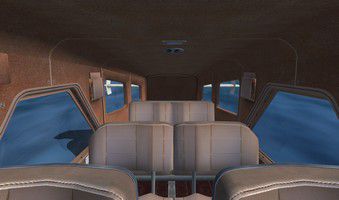
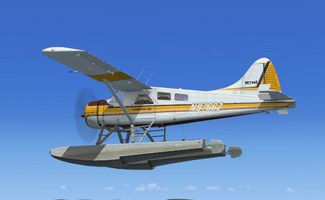
The De Havilland DHC-2 Beaver is well-known for its rugged airframe and outstanding STOL (Short Takeoff and Landing) performance. It has served in challenging bush environments for decades and is often praised for reliability. This freeware package, created by Marc Renaud, reconfigures the default Microsoft Flight Simulator X version of the DHC-2 Beaver by supplying newly refined perspectives and additional camera angles. It provides convincing, expanded immersion for virtual aviators who fly the Beaver on water, land, or even remote airstrips.
The update provides eight distinct external viewpoints. These custom definitions are embedded in the aircraft.cfg to showcase the Beaver’s iconic high-wing design and float or wheel configurations (depending on your selected variant). Each camera angle offers a purposeful perspective, capturing details like struts, flaps, and the characteristic radial engine cowl.

Default DeHavilland DHC-2 Beaver Views.
In addition to the external camera options, three new cabin-focused angles have been defined by Marc Renaud. These include vantage points for pilot seat alignment, cockpit instrumentation clarity, and a broader cabin layout overview. They aid in managing all controls efficiently, whether on amphibious or wheeled operations.
Alongside these camera modifications, you get a small reference document detailing the updated aircraft.cfg lines and where they can be inserted. The result is a more vivid and authentic environment while operating the DHC-2 Beaver in Microsoft Flight Simulator X.
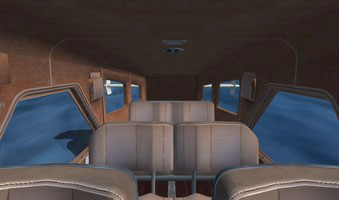
Default DeHavilland DHC-2 Beaver Views.
When in the sim, press SHIFT + O to activate mouse-based panning. You can momentarily anchor the view on any element by holding down the SPACE BAR. To exit mouse-look mode and snap back to the original view, press CTRL + SPACE BAR. If a specific camera angle is not to your liking, refer to the included instructions on modifying or removing that perspective from aircraft.cfg.
This add-on is provided without warranty. Marc Renaud assumes no responsibility for any potential issues that might arise in applying the custom camera definitions. Always proceed with caution and make backups to protect your simulator installation. Because it is freeware, you may enjoy it without any additional cost while exploring the Beaver’s finer details.
Free for all simmers · 90.34 KB · Scanned clean
Download speed: Free tier is capped at 0.5 Mbps. PRO members download at full line speed.
SimObjects\Airplanes\, Addon Scenery\, Effects\, or Gauges\.readme.txt or README file. It tells you exactly where files go, what dependencies are needed, and any quirks specific to this add-on.The archive default_de_havilland_dhc-2_beaver.zip has 9 files and directories contained within it.
This list displays the first 500 files in the package. If the package has more, you will need to download it to view them.
| Filename/Directory | File Date | File Size |
|---|---|---|
| Default De Havilland DHC-2 Beaver.gif | 03.26.11 | 6.43 kB |
| Default De Havilland DHC-2 Beaver 2.jpg | 03.26.11 | 14.21 kB |
| Default De Havilland DHC-2 Beaver.jpg | 03.26.11 | 11.78 kB |
| Available.pdf | 03.26.11 | 47.92 kB |
| Camera definitions.txt | 03.27.11 | 7.22 kB |
| Read me.txt | 03.27.11 | 3.43 kB |
| Default De Havilland DHC-2 Beaver 2.gif | 03.26.11 | 9.24 kB |
| flyawaysimulation.txt | 10.29.13 | 959 B |
| Go to Fly Away Simulation.url | 01.22.16 | 52 B |
More FSX & P3D add-ons hand-picked based on this download.
FSX Panels & Gauges
This freeware package refines and expands the default camera angles for the B…
 FSX Panels & Gauges
This freeware package refines and expands the camera viewpoints for the defau…
 FSX Panels & Gauges
Enhance your visual experience of the classic amphibious flying boat in Micro…
 FSX Panels & Gauges
This freeware package refines and expands the visual perspectives available f…
 FSX Panels & Gauges
Broaden your perspective in Microsoft Flight Simulator X by adding these rewo…
 FSX Panels & Gauges
This enhanced freeware package updates and refines the external perspectives …
 FSX Panels & Gauges
Elevate your flight deck immersion by integrating refined camera perspectives…
 FSX Panels & Gauges
This freeware package enriches the default Cessna Grand Caravan 208B layout i…
Be the first to leave a comment on this download.
Be the first to share your thoughts on this download.