

 FSX Civil Aircraft
Boeing 737-200 Package V1.1
Includes several liveries such as Southwest Airlines (Canyon Blue) and United…
Safair (OpFor: SAAC) Boeing 737-200 livery brings crisp airline markings and authentic color placement to classic twinjet operations in Microsoft Flight Simulator X. DXT5 textures with optional MIP levels and a tailored lightmap improve clarity and night lighting, and it requires the FSX AI Bureau Boeing 737-200 base model.
 Rate
Rate
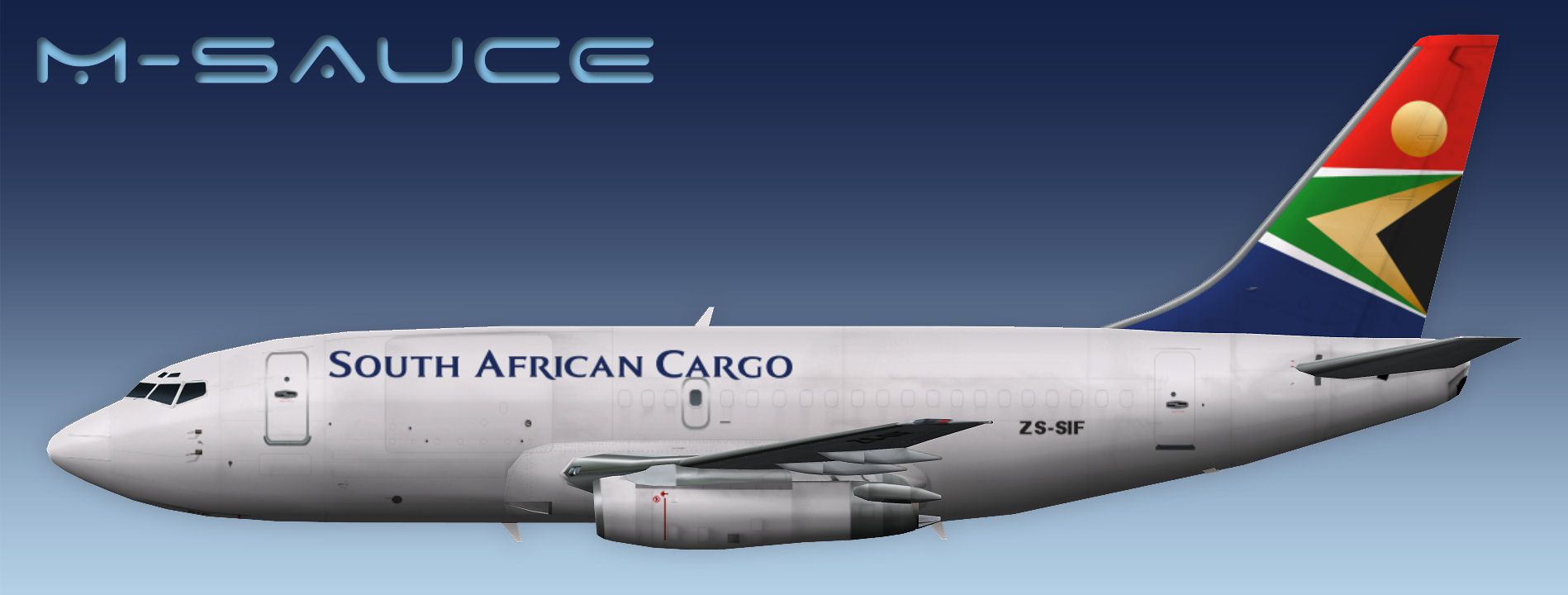
This freeware repaint showcases a Safair (OpFor: SAAC) Boeing 737-200 intended for Microsoft Flight Simulator X. Developed by FSX AI Bureau and painted by Mariano Bonaccorso, it offers detailed markings, DXT5 textures (with optional MIP levels), and a specialized lightmap. Enthusiasts can expect the essential elements for an authentic visual representation of this aircraft within the simulator.
The 737-200 is a member of the classic Boeing twinjet family, initially introduced in the late 1960s. Its short-to-medium range performance made it popular among airlines seeking efficient turnaround times. Safair, originally based in South Africa, has operated numerous cargo and passenger variants, including specialized contract operations under different call signs. The compressed fuselage design of the -200 series, combined with gravel kit options in some configurations, made it particularly versatile in remote and less-developed regions.
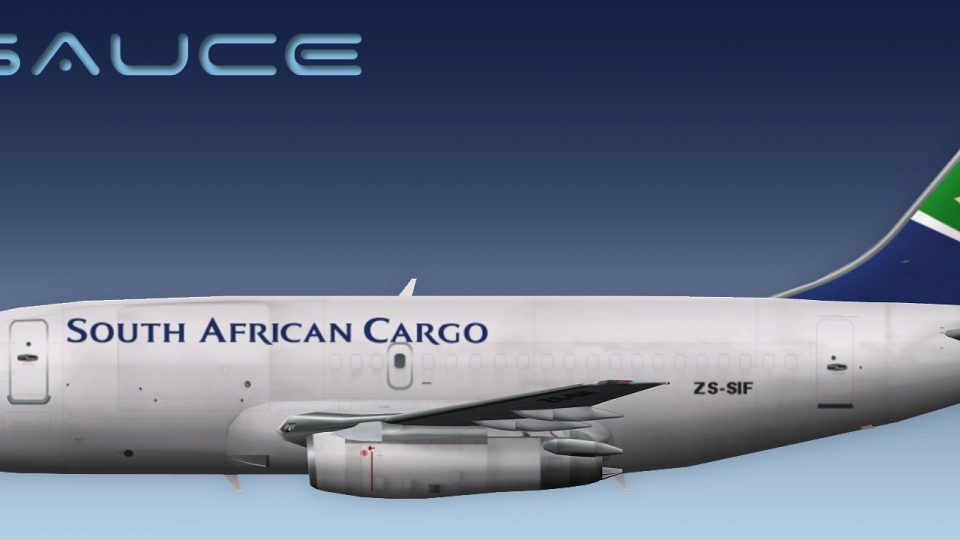
Profile perspective of Safair’s Boeing 737-200 with the custom paint scheme.
This repaint applies high-fidelity livery details across the fuselage and tail surfaces. DXT5 compression ensures minimal impact on performance while preserving clarity, whether your simulator settings prioritize detailed rendering at close range or quick loading times. Furthermore, the included custom lightmap ensures accurate illumination of fuselage windows and accessory lights during evening or nighttime operations, enhancing immersive realism.
The downloaded content provides a distinct texture.SFR_SAAC folder. This folder contains all essential files in an intuitive layout for seamless integration with the base model within your Microsoft Flight Simulator X directory. Since this release only offers the livery, users must have the FSX AI Bureau Boeing 737-200 freeware model installed beforehand, which can be found in the Fly Away Simulation library.
texture.SFR_SAAC folder into the corresponding base-model directory (ensure you have downloaded the base model previously).aircraft.cfg file from the base package and add the provided [fltsim.x] entries. Increment the x value sequentially, ensuring you do not duplicate any existing numeric values.When preparing flight plans or testing AI traffic schedules, keep the OpFor: SAAC designation in mind for organizational clarity. After installing this repaint, confirming proper texture loading and lightmap behavior is recommended. The addition of these realistic textures often proves valuable in representing modern or historical cargo operations across various virtual routes.
Free for all simmers · 2.71 MB · Scanned clean Oct 2026
Download speed: Free tier is capped at 0.5 Mbps. PRO members download at full line speed.
This file is a repaint — the package below is the base model it paints onto. Install it first, or the textures will have nothing to load onto.
texture.{airline}) inside FSX\SimObjects\Airplanes\{base-aircraft}\.aircraft.cfg in Notepad. Add a new [fltsim.X] section per the readme.readme.txt or README file. It tells you exactly where files go, what dependencies are needed, and any quirks specific to this add-on.The archive faib_b732_sfr_saac_fsx.zip has 12 files and directories contained within it.
This list displays the first 500 files in the package. If the package has more, you will need to download it to view them.
| Filename/Directory | File Date | File Size |
|---|---|---|
| ReadMe.txt | 05.15.12 | 3.35 kB |
| texture.SFR_SAAC | 05.14.12 | 0 B |
| FAIB_737_200_AlwaysOn_L.bmp | 03.17.12 | 4.07 kB |
| FAIB_737_200_L.bmp | 05.14.12 | 4.00 MB |
| FAIB_737_200_T.bmp | 05.14.12 | 5.33 MB |
| NO MIPS | 05.14.12 | 0 B |
| FAIB_737_200_T.bmp | 05.14.12 | 4.00 MB |
| Preview.jpg | 05.15.12 | 113.01 kB |
| Thumbnail.png | 05.15.12 | 6.60 kB |
| fltsim.txt | 05.15.12 | 418 B |
| flyawaysimulation.txt | 10.29.13 | 959 B |
| Go to Fly Away Simulation.url | 01.22.16 | 52 B |
Only PRO members can place votes.
More FSX & P3D add-ons hand-picked based on this download.
FSX Civil Aircraft
Includes several liveries such as Southwest Airlines (Canyon Blue) and United…
 FSX Civil Aircraft
Indonesian Boeing 737-200 Pack. This is a complete pack of Erick Cantu's Boei…
 FSX Civil Aircraft
Avior Boeing 737-200, registration YV491T. Complete pack. Textures for the mo…
 FSX Civil Aircraft
Fly one of the most successful Airplanes in history with this aircraft file f…
 FSX Civil Aircraft
FSX GB Airways Boeing 737-200. A GB Airways B737-200 in an old paint scheme f…
 FSX Civil Aircraft
FSX YeoDesigns Boeing 737-200; FS2002 model updated for use with FSX only. In…
 FSX Civil Aircraft
Aviacsa Estafeta Boeing 737-200. Textures for Aviacsa Estafeta Magnicharters …
 FSX Civil Aircraft
Model by YeoDesign. Repaint by Muhd Khairul Fathi Bin Mohammad. Screenshot of…
Be the first to leave a comment on this download.
Be the first to share your thoughts on this download.