

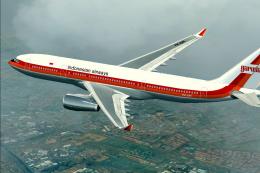
 FSX Civil Aircraft
Indonesian Airways Airbus A330-200 Fix
Indonesian Airways Airbus A330-200 Fix. This fix adds the "Indonesian Airways…
Indonesian Boeing 737-200 repaint pack support gets a clean aircraft.cfg correction for FSX, resolving a spacing issue that prevents one livery entry from showing in the aircraft selection menu. The update targets configuration accuracy only and requires the original 732IA.ZIP package for the model and base files.
 Rate
Rate
Indonesian Boeing 737-200 Fix. This is an update for the Indonesian Boeing 737-200 pack. This fixes an error on the aircraft.cfg file. The package 732IA.ZIP is required as the model is not included. By Dave Gregory.
===About this update===
There is a spacing fix for the aircraft.cfg file, to which separates one livery text. This will make it appear on the aircraft selection screen.
You will need the original 732IA.ZIP to make this work.
I apologize to all flightsimmers.
INSTALLATION
You must first create a backup of the original aircraft.cfg file. Mark this as "AIRCRAFT BACKUP 3.CFG".
Then copy the new aircraft.cfg file into the aircraft's folder.
That's all!
By Dave Gregory.
Free for all simmers · 5.46 KB · Scanned clean Oct 2026
Download speed: Free tier is capped at 0.5 Mbps. PRO members download at full line speed.
This add-on may require the following files to function properly. If this is a repaint, the dependency below is likely the base aircraft package.
FSX\SimObjects\Airplanes\. The folder must contain an aircraft.cfg file. Effects go into FSX\Effects\; gauges go into FSX\Gauges\.readme.txt or README file. It tells you exactly where files go, what dependencies are needed, and any quirks specific to this add-on.The archive 732iaup.zip has 4 files and directories contained within it.
This list displays the first 500 files in the package. If the package has more, you will need to download it to view them.
| Filename/Directory | File Date | File Size |
|---|---|---|
| aircraft.cfg | 05.10.10 | 14.47 kB |
| README!!.txt | 05.10.10 | 505 B |
| flyawaysimulation.txt | 10.29.13 | 959 B |
| Go to Fly Away Simulation.url | 01.22.16 | 52 B |
Only PRO members can place votes.
More FSX & P3D add-ons hand-picked based on this download.
FSX Civil Aircraft
Indonesian Airways Airbus A330-200 Fix. This fix adds the "Indonesian Airways…
 FSX Civil Aircraft
Indonesian Boeing 737-200 Pack. This is a complete pack of Erick Cantu's Boei…
 FSX Civil Aircraft
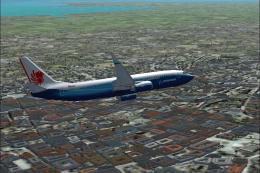
Indonesian Boeing 737-800 Pack, including Garuda Indonesia registration PK-GE…
 FSX Civil Aircraft
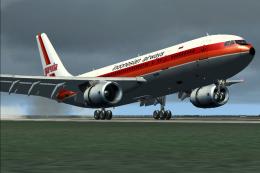
Garuda Indonesian Airways Airbus A300B4-200FFCC, registration PK-GAJ. Repaint…
 FSX Civil Aircraft
Royal Khmer Airlines Boeing 737-200 Fix for use with RKH.ZIP. This file conta…
 FSX Civil Aircraft
Texture fix for SSP2010762TAMPACARGOCOLOMBIA.ZIP. Fixes minor problems on nig…
 FSX Civil Aircraft
Boeing 737-800 Gauge Fix. Fixes several problems with the default FSX B737-80…
 FSX Civil Aircraft
Boeing 737-800 Texture Fix. These files will fix default FSX textures for thi…
Be the first to leave a comment on this download.
Be the first to share your thoughts on this download.