


 FSX Civil Aircraft
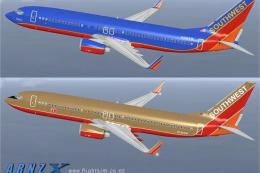
Southwest Boeing 737-800 Gold/Blue
FSX Southwest Boeing 737-800. Southwest "gold" and "blue" repaints for the de…
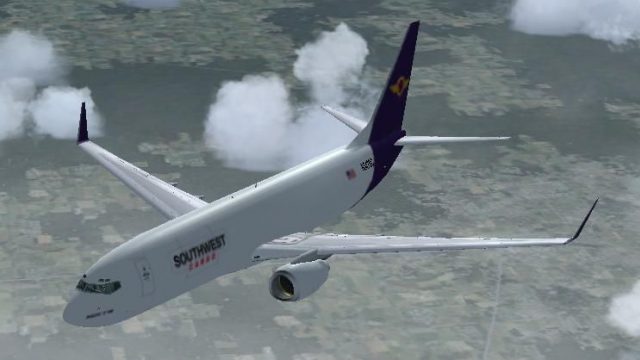
Southwest Cargo Boeing 737-800 livery gives the default jet a fictional freight-inspired look with Southwest-style branding and cargo markings, adding variety to airline operations and screenshots. Designed for Microsoft Flight Simulator X, it requires the default Boeing 737-800 and includes matching aircraft configuration entries for proper menu listing and ATC details.
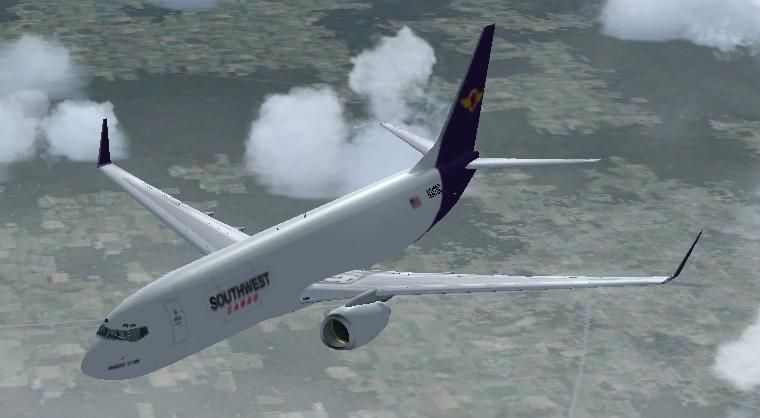
Southwest Cargo Boeing 737-800. This is a fictional repaint of the default B737-800 in Southwest Airlines Cargo paint. By James Cameron.
HOW TO INSTALL:
1. Copy the folder "texture.SWC" into your b737-800 directory (Found in SimObjects).
2. Paste the text below into the aircraft.cfg file.
[fltsim.#]
title=Boeing 737-800 Southwest Cargo
sim=Boeing737-800
model=
panel=
sound=
texture=SWC
kb_checklists=Boeing737-800_check
kb_reference=Boeing737-800_ref
atc_id=FedX737
atc_airline=Southwest Cargo
atc_flight_number=SWC737
ui_manufacturer="Boeing"
ui_type="737-800"
ui_variation=Southwest Cargo
ui_typerole="Commercial Airliner"
ui_createdby="Microsoft Corporation"
description="Southwest Cargo 737-800 aircraft. Paint by James Cameron"
4. Replace the "#"s in the new [fltsim #] tag with the next number in the sequence.
5. Save the file. (Make sure to save it as a .cfg file!)
By James Cameron
Free for all simmers · 2.6 MB · Scanned clean
Download speed: Free tier is capped at 0.5 Mbps. PRO members download at full line speed.
FSX\SimObjects\Airplanes\. The folder must contain an aircraft.cfg file. Effects go into FSX\Effects\; gauges go into FSX\Gauges\.readme.txt or README file. It tells you exactly where files go, what dependencies are needed, and any quirks specific to this add-on.The archive swc737.zip has 13 files and directories contained within it.
This list displays the first 500 files in the package. If the package has more, you will need to download it to view them.
| Filename/Directory | File Date | File Size |
|---|---|---|
| INSTALL.txt | 06.10.09 | 937 B |
| texture.SWC | 06.10.09 | 0 B |
| b737_800_1_T.dds | 06.10.09 | 682.80 kB |
| b737_800_1_T_Bump.dds | 06.09.09 | 1.00 MB |
| b737_800_1_T_Specular.dds | 06.09.09 | 1.33 MB |
| b737_800_2_T.dds | 06.09.09 | 1.33 MB |
| b737_800_2_T_Specular.dds | 06.09.09 | 1.33 MB |
| Fresnel_Ramp.dds | 06.09.09 | 640 B |
| texture.cfg | 06.09.09 | 137 B |
| thumbnail.jpg | 06.10.09 | 35.50 kB |
| thumbnail.jpg | 06.10.09 | 35.50 kB |
| flyawaysimulation.txt | 10.29.13 | 959 B |
| Go to Fly Away Simulation.url | 01.22.16 | 52 B |
More FSX & P3D add-ons hand-picked based on this download.
FSX Civil Aircraft
FSX Southwest Boeing 737-800. Southwest "gold" and "blue" repaints for the de…
 FSX Civil Aircraft
Textures only for the default B737-800. Repaint by Lee Tennant. Screenshot of…
 FSX Civil Aircraft
Southwest Airlines Boeing 737-800 Shamu Seaworld livery. This texture is for …
 FSX Civil Aircraft
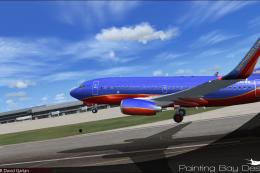
FSX Southwest Airlines Boeing 737-700, registration N240WN (new colors). Mode…
 FSX Civil Aircraft
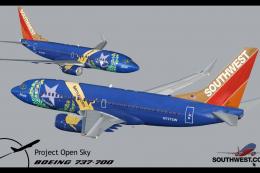
Includes several liveries, "Canyon Blue", "Maryland One", "Nevada One", "Sham…
 FSX Civil Aircraft
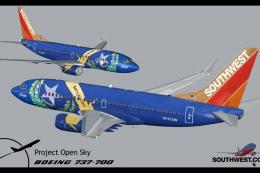
FSX Southwest Boeing 737 (no eyebrows). Model by Project Open Sky. Thank you …
 FSX Civil Aircraft
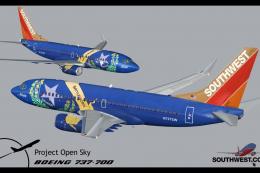
Final package. Includes several liveries, "Canyon Blue", "Maryland One", "Nev…
 FSX Civil Aircraft
Southwest Boeing 737-700 "Florida One" with advanced VC for Skyspirit native …
Be the first to leave a comment on this download.
Be the first to share your thoughts on this download.