


 United States of America
  FSX Scenery
Bangor International Airport
Experience an expanded representation of Bangor International Airport (KBGR) …
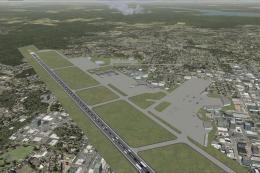
Bangor International Airport (KBGR) for Maine gets a sharper, more realistic layout in FSX with reworked aprons, taxiways, and roads, plus corrected airline gate assignments. Expanded GA, military cargo, and fighter parking join new fire station details, static vehicles, and relocated fencing, built with stock objects for broad compatibility.
Bangor Int'l Airport (KBGR), Maine (ME). Here is an improved version of the stock Bangor International Airport. Adjusted aprons, taxiways, and roads. Airlines have the proper gate assignments. Added GA parking, Military cargo and military combat parking at the Air National Guard apron. Added the fire station, static vehicles and other scenery objects. Moved boundary fence. By Jim Cook.

Bangor Int'l Airport Scenery.
I use Ultimate Terrain and FSGenesis landclass but they are not required. All objects are stock FSX so no additional object libraries are needed. Updates made using AirNav diagrams and Google Earth to be as accurate as possible. All work done with Flight 1's AFX program and Instant Scenery.
INSTALLATION:
Extract the two files KBGR_AFX_JC.bgl and KBGR_JC.bgl into your Addon Scenery/Scenery folder, re-start FSX and enjoy.
Jim Cook
Free for all simmers · 30.43 KB · Scanned clean Oct 2026
Download speed: Free tier is capped at 0.5 Mbps. PRO members download at full line speed.
FSX\Addon Scenery\ containing scenery and texture sub-folders.readme.txt or README file. It tells you exactly where files go, what dependencies are needed, and any quirks specific to this add-on.Use these coordinates to fly directly to this location once the mod is installed.
44.80744000,-68.82814000
Launch FSX or Prepar3D and use Flights → Load to open the downloaded .pln file. Your aircraft will be positioned at this location.
The archive bangor.zip has 6 files and directories contained within it.
This list displays the first 500 files in the package. If the package has more, you will need to download it to view them.
| Filename/Directory | File Date | File Size |
|---|---|---|
| BGR.jpg | 09.20.09 | 13.71 kB |
| KBGR_AFX_JC.bgl | 09.09.09 | 32.90 kB |
| KBGR_JC.bgl | 09.09.09 | 2.25 kB |
| bangor_readme.txt | 09.20.09 | 885 B |
| flyawaysimulation.txt | 10.29.13 | 959 B |
| Go to Fly Away Simulation.url | 01.22.16 | 52 B |
Only PRO members can place votes.
More FSX & P3D add-ons hand-picked based on this download.
FSX Scenery
Experience an expanded representation of Bangor International Airport (KBGR) …
 FSX Scenery
FSX Atlanta Int'l Airport. Scenery for Hartsfield - Jackson Atlanta Internati…
 FSX Scenery
Vienna Schwechat Int'l Airport (LOWW), Austria. Features Skylink terminal, fi…
 FSX Scenery
Denver Int'l Airport (KDEN), Colorado (CO). Features added jetways, expanded …
 FSX Scenery
Tocumen Int'l Airport (MPTO), Panama. This is an AFCAD-type scenery (plus a l…
 FSX Scenery
Venice Tessera Int'l Airport "Marco Polo" (LIPZ), Italy. Based on the latest …
 FSX Scenery
Kingsford Smith Int'l Airport (YSSY), Sydney, Australia. Includes two version…
 FSX Scenery
Maceio Int'l Airport (SBMO), Brazil. Functional, with taxiway signs. By Gusta…
Be the first to leave a comment on this download.
Be the first to share your thoughts on this download.