









 MSFS Scenery
Grand Canyon National Park Airport (KGCN)
This mod developed by JustOkayPilot brings Grand Canyon National Park Airport…
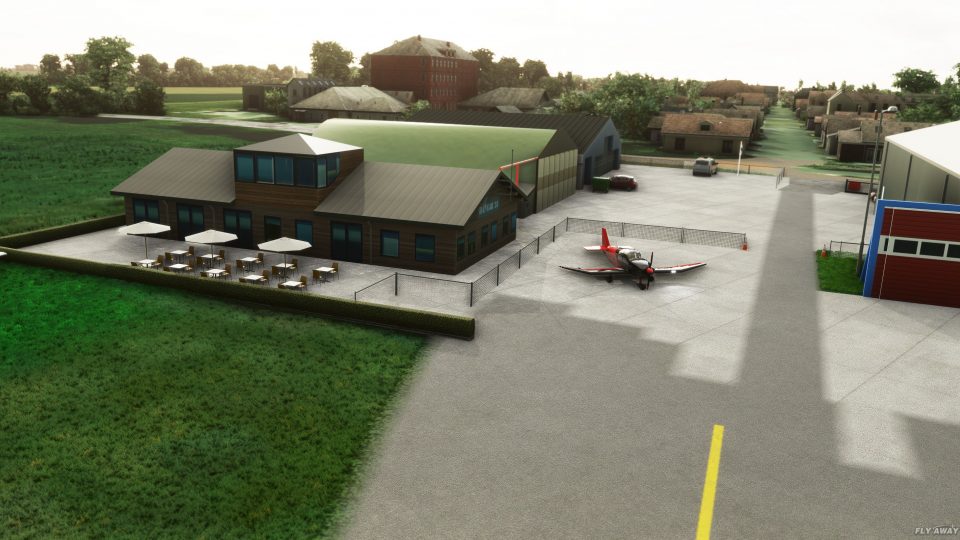
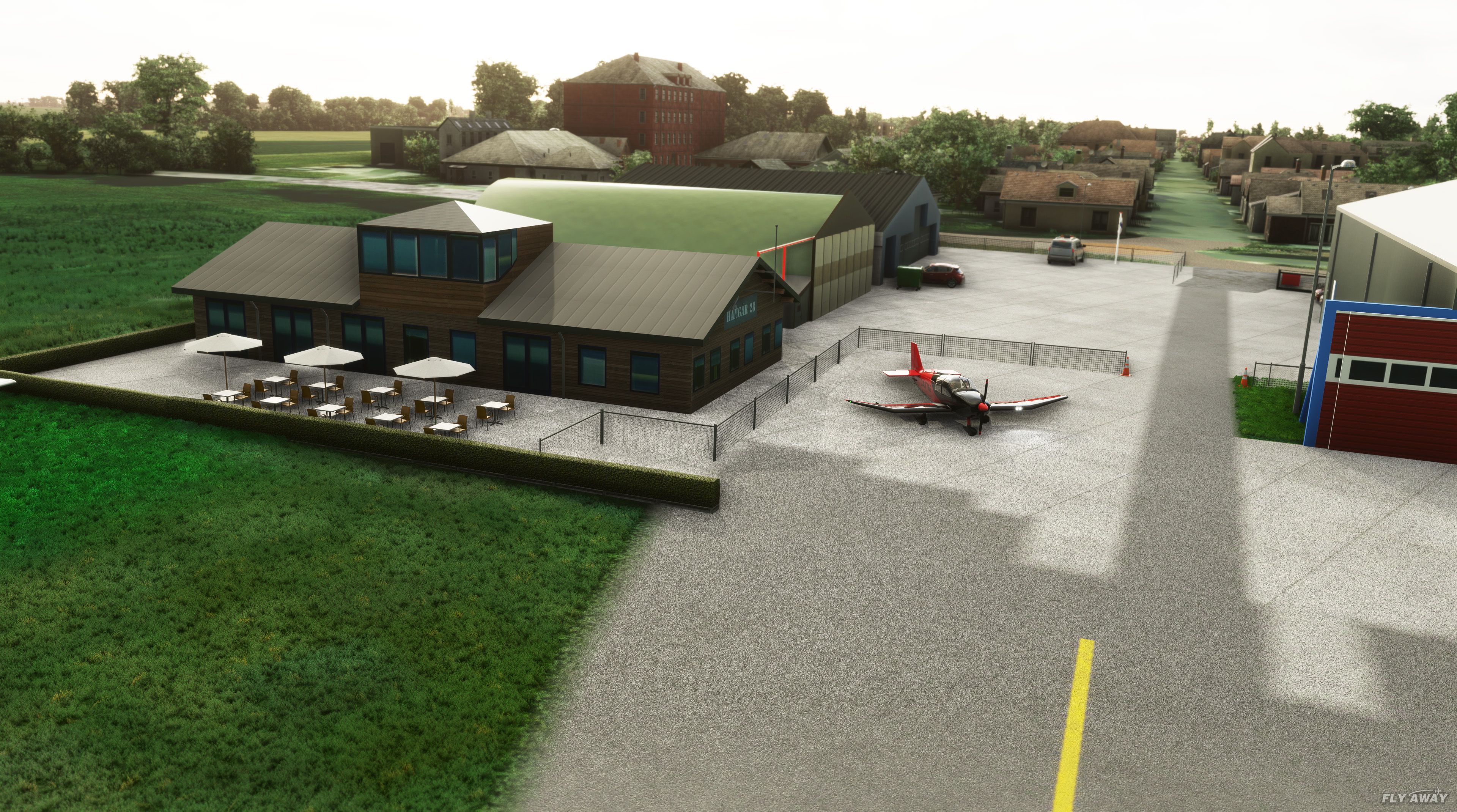
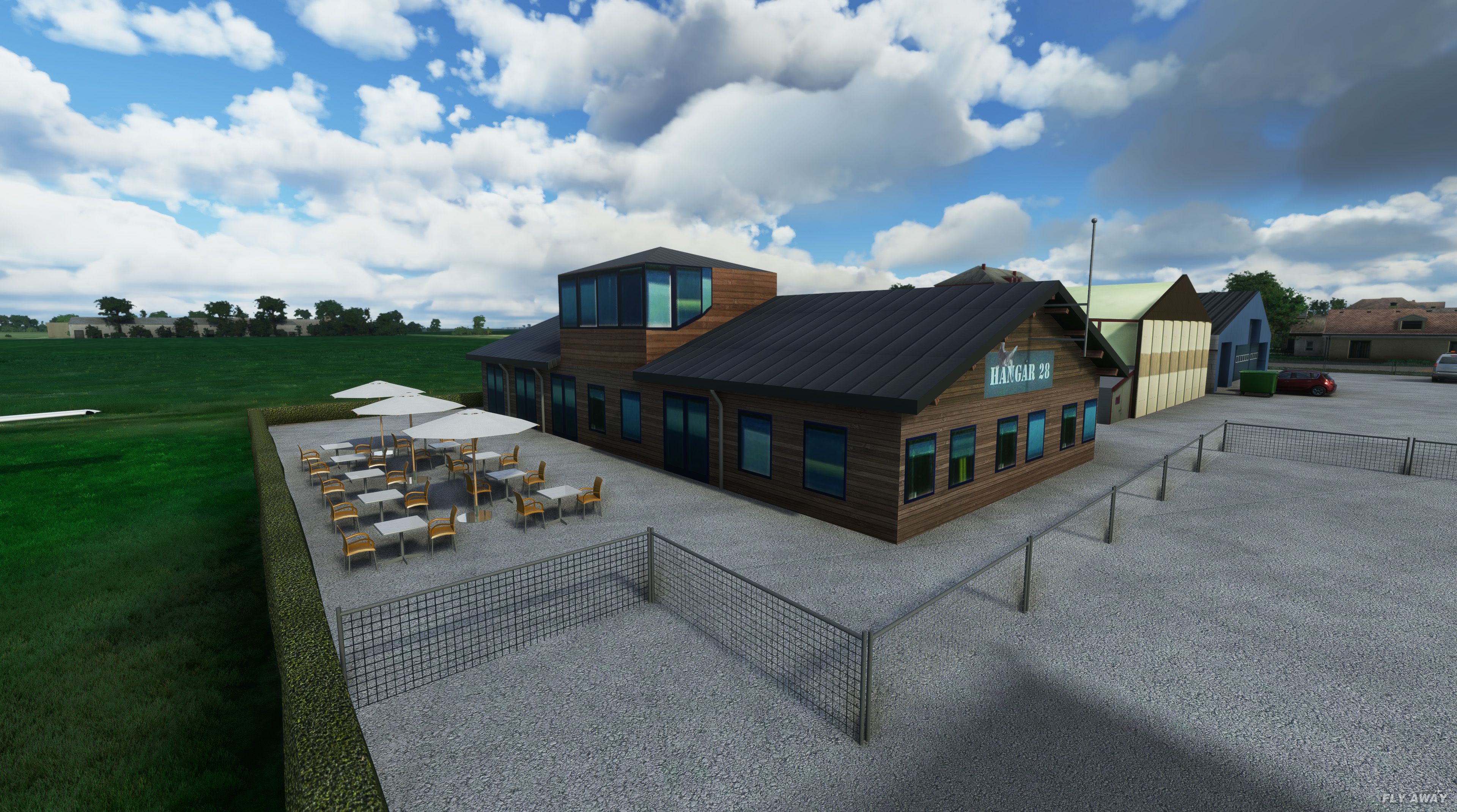
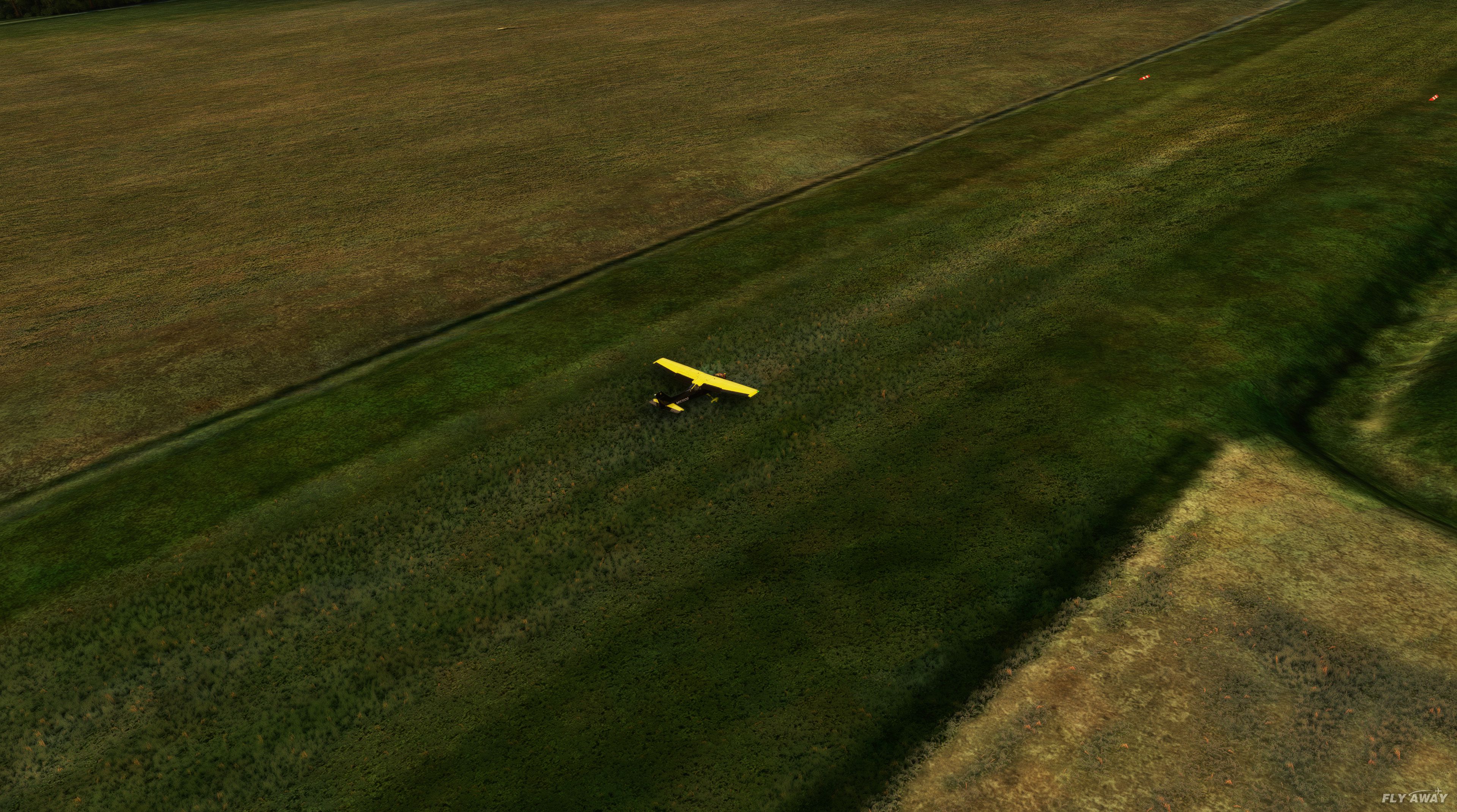
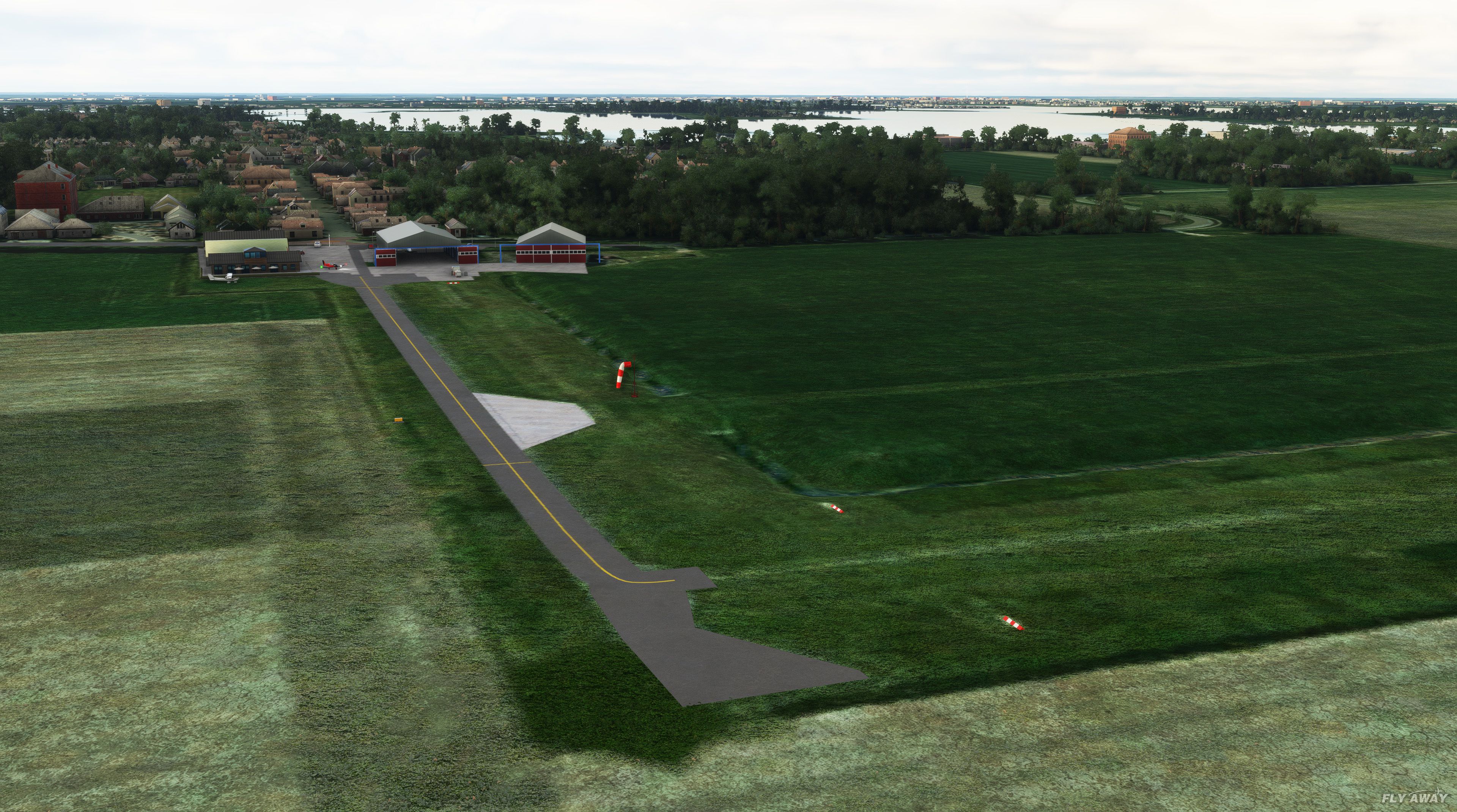
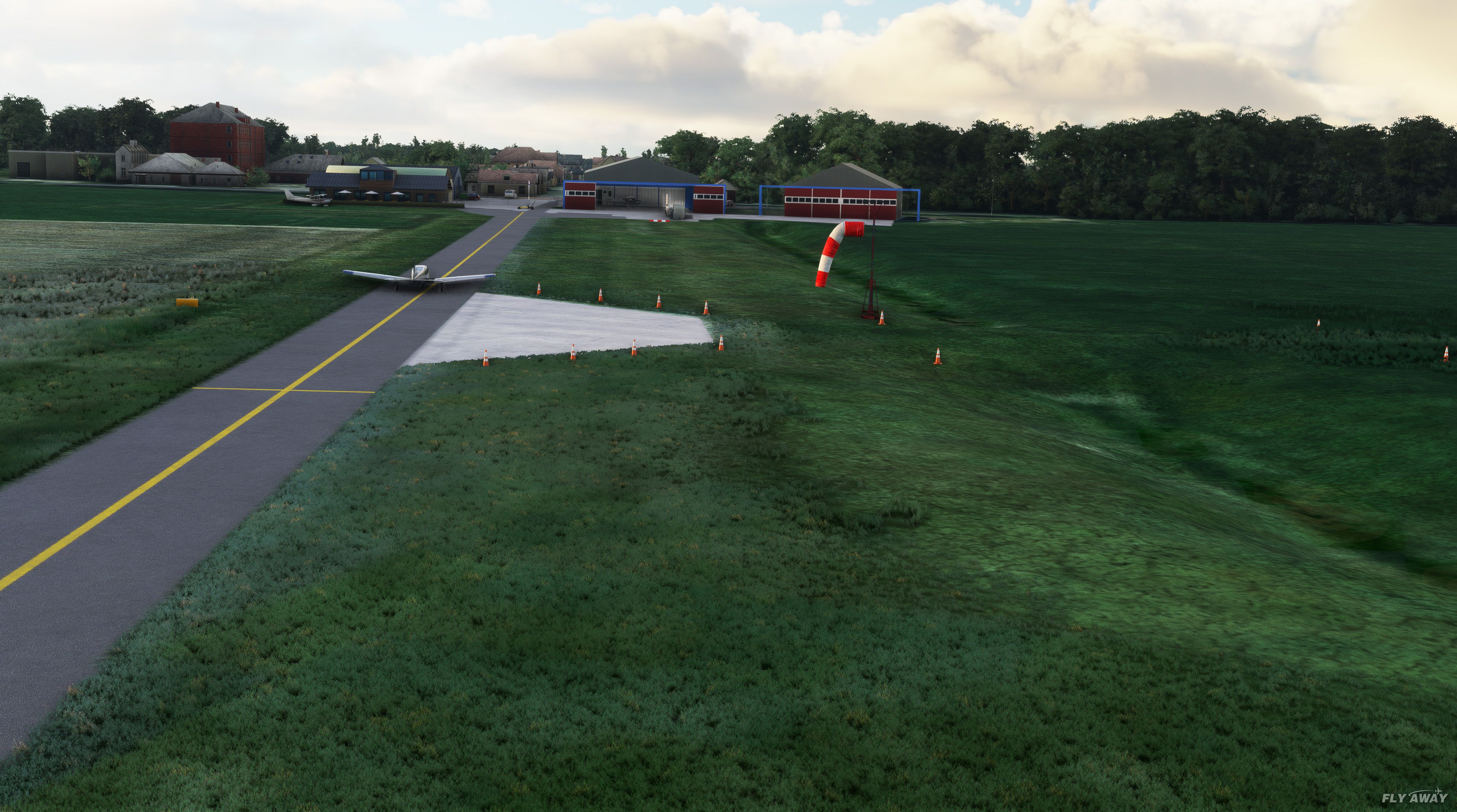
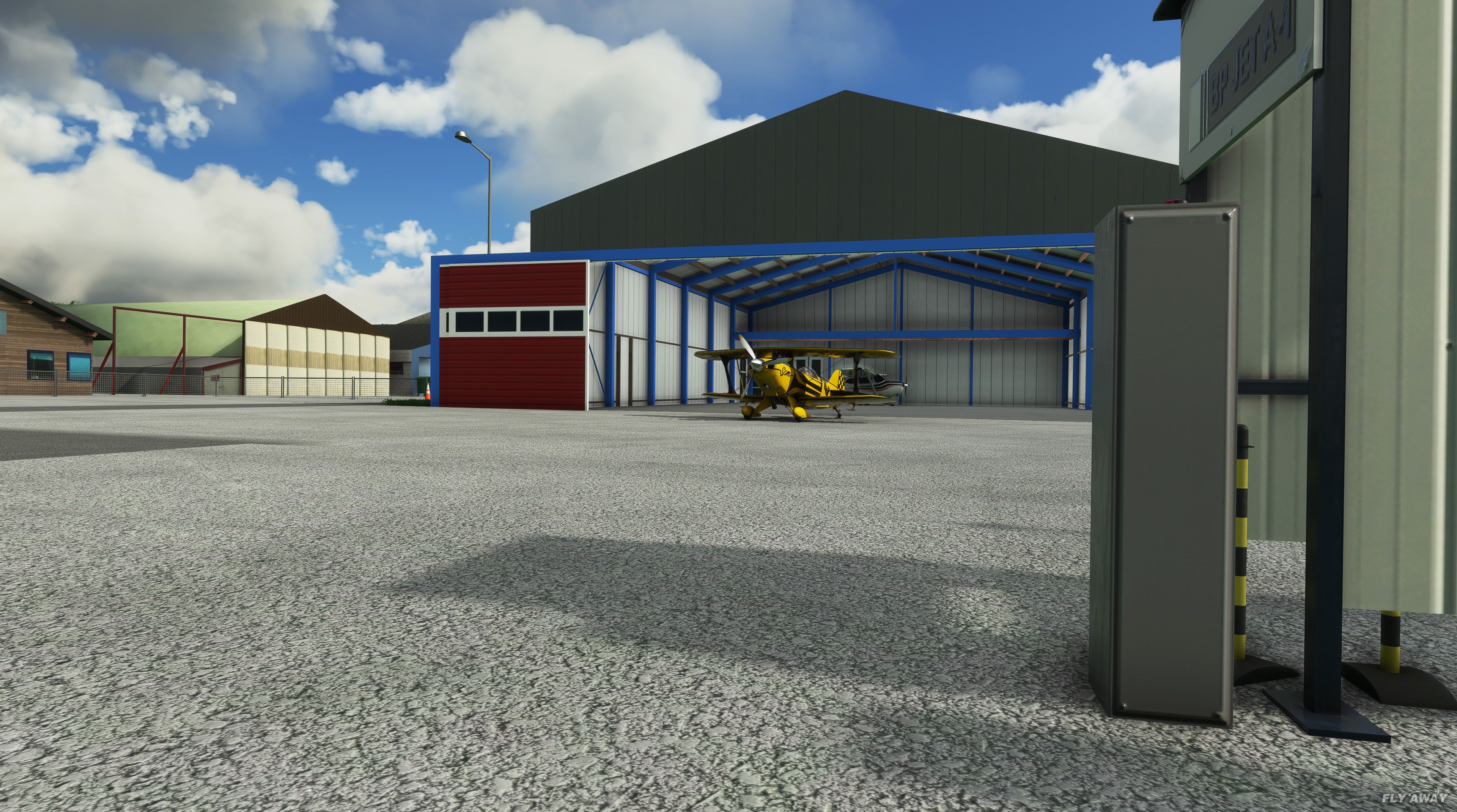
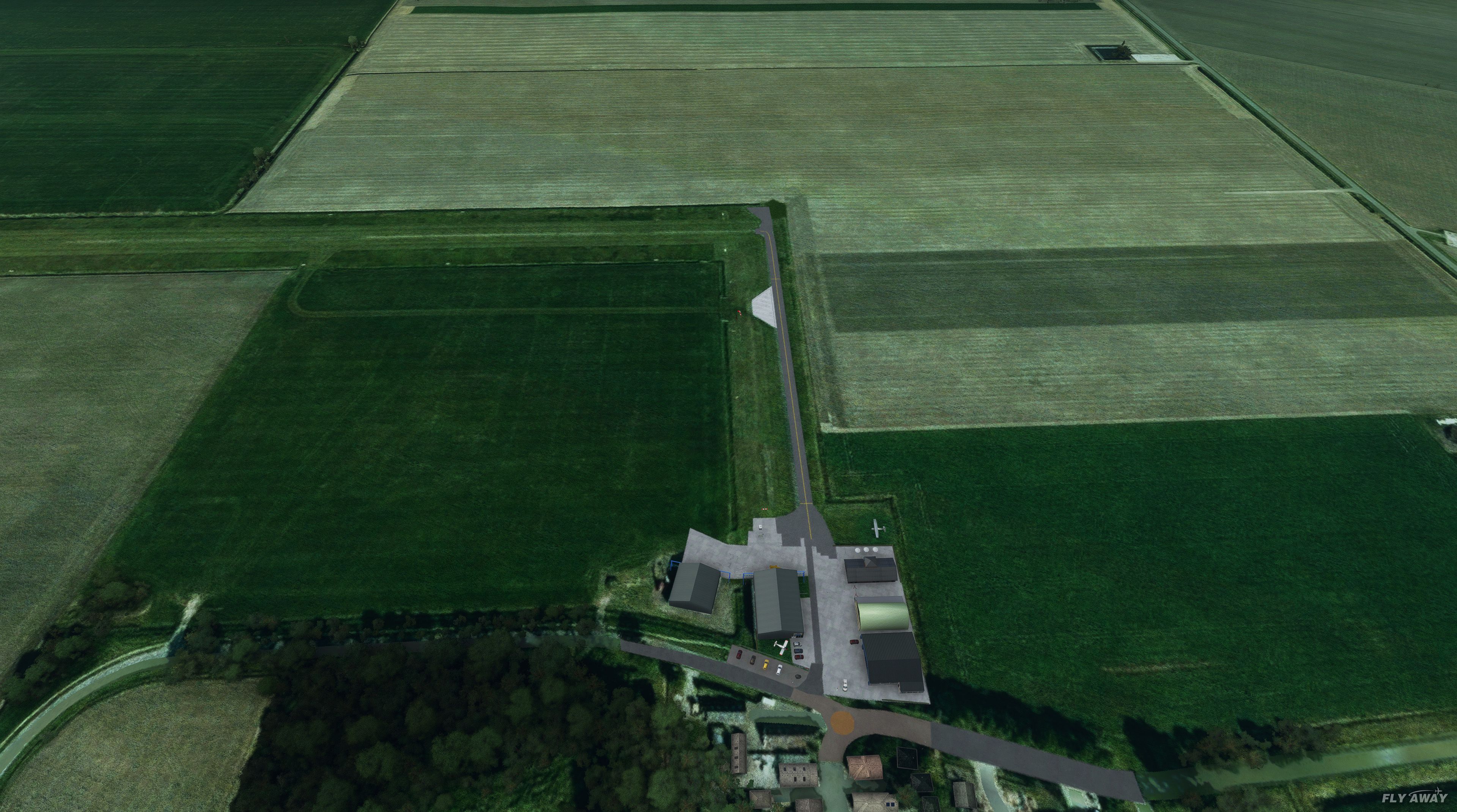
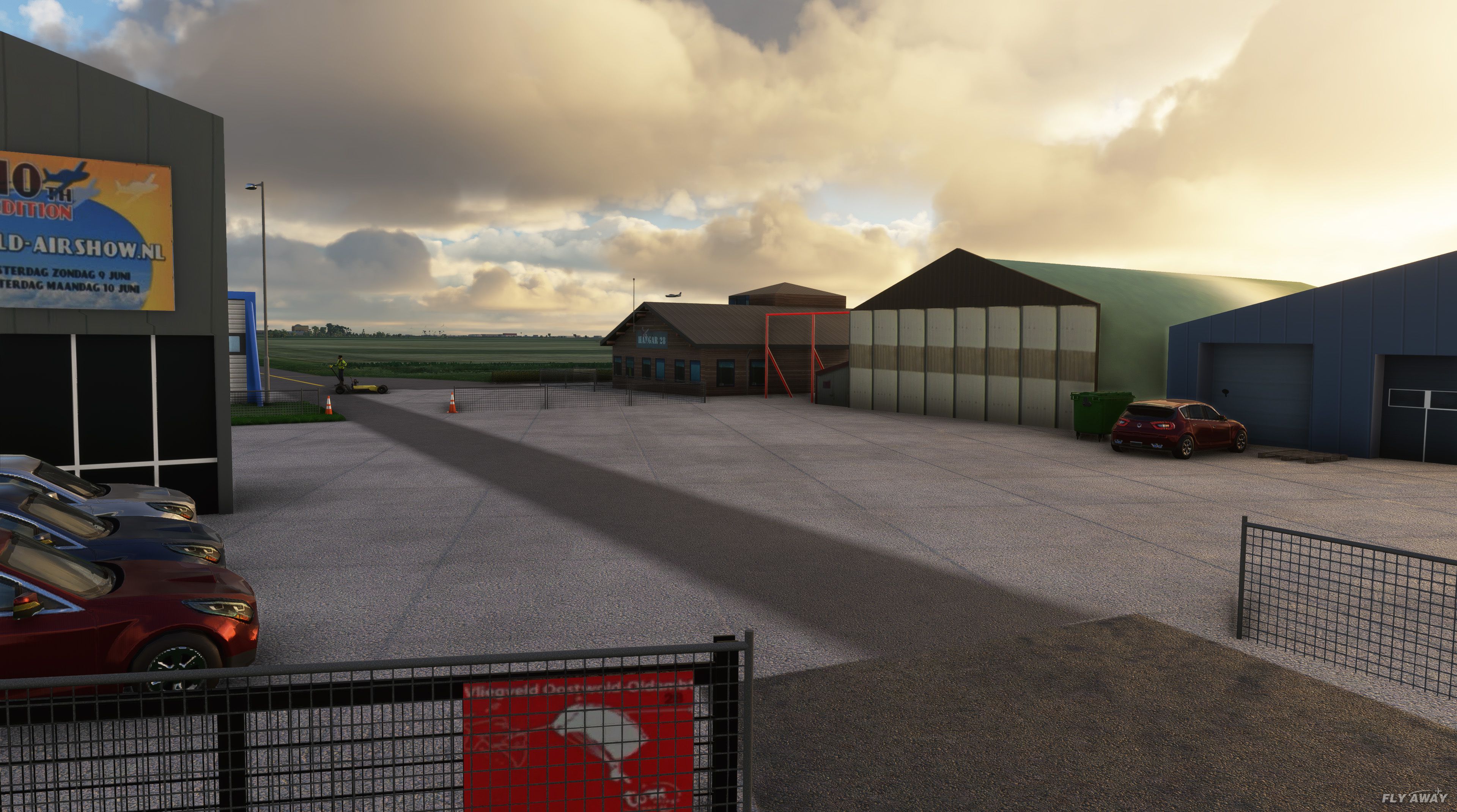
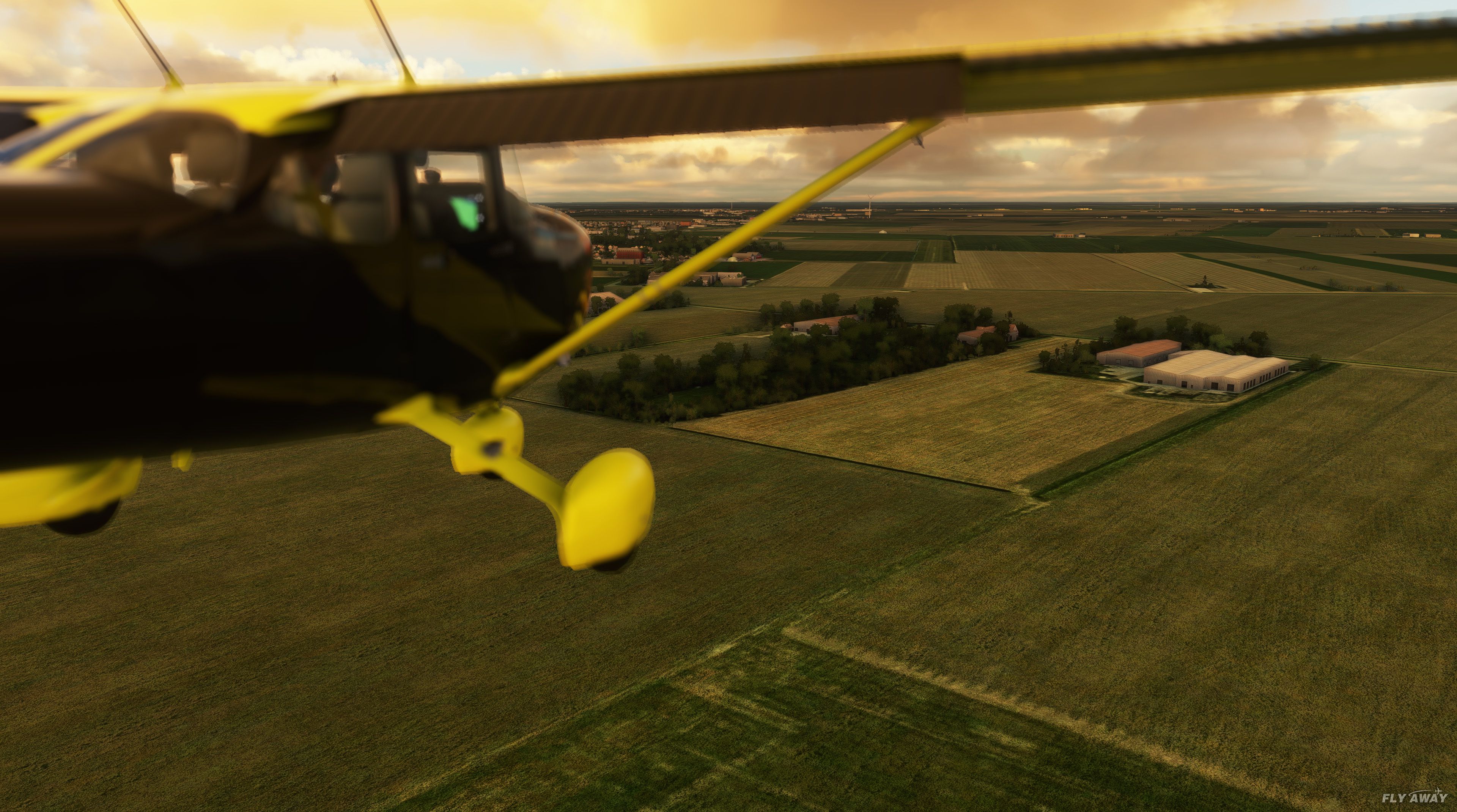
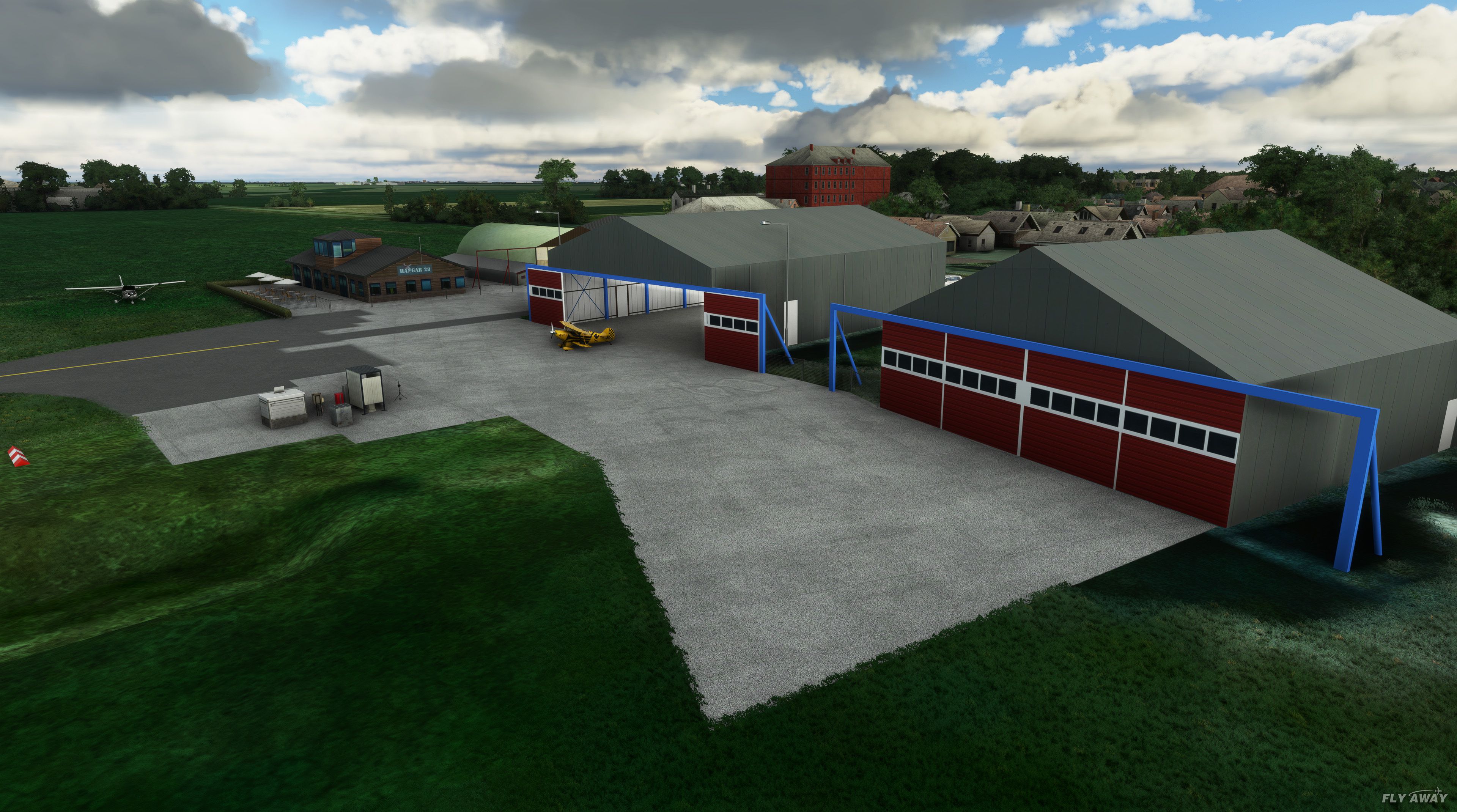
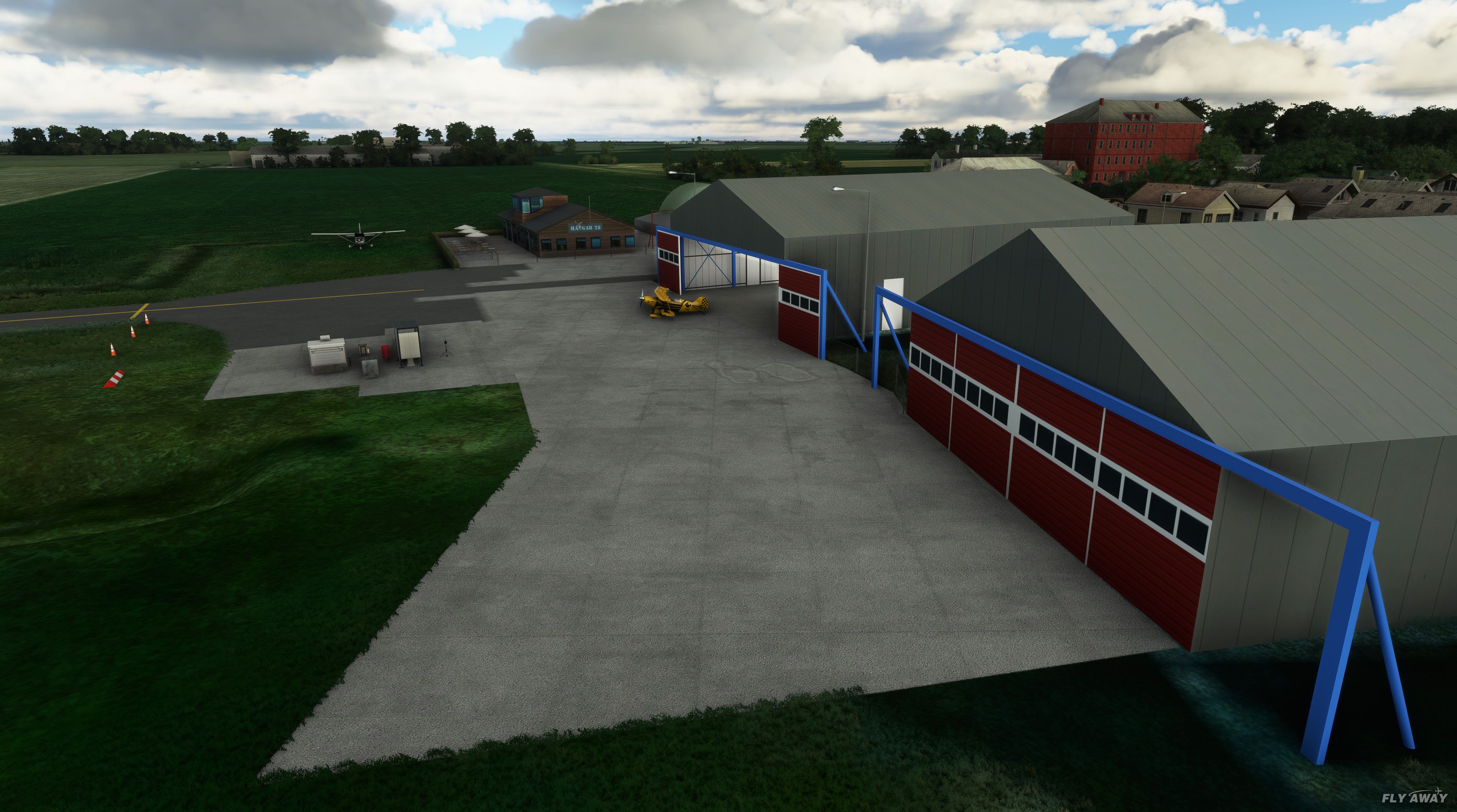
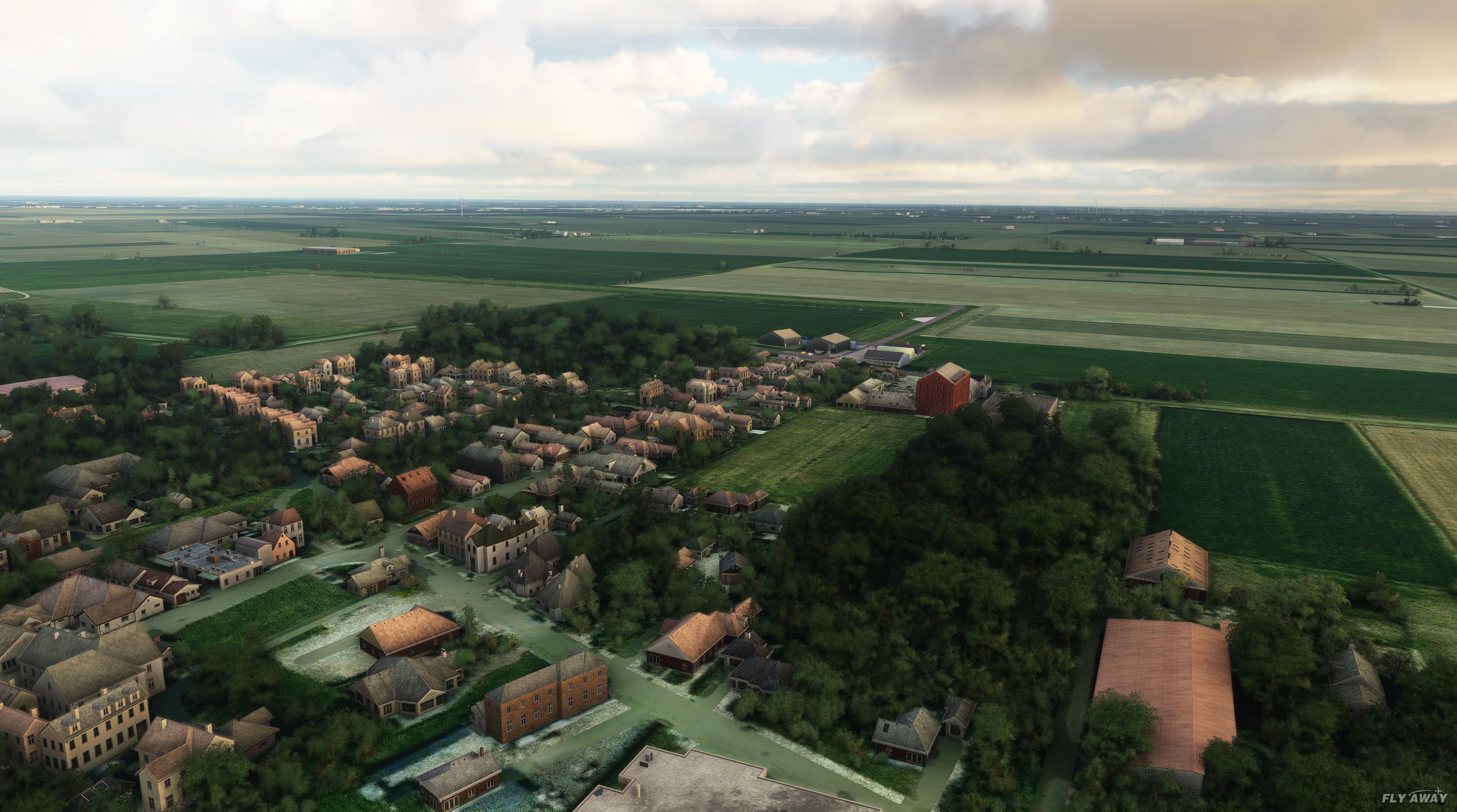
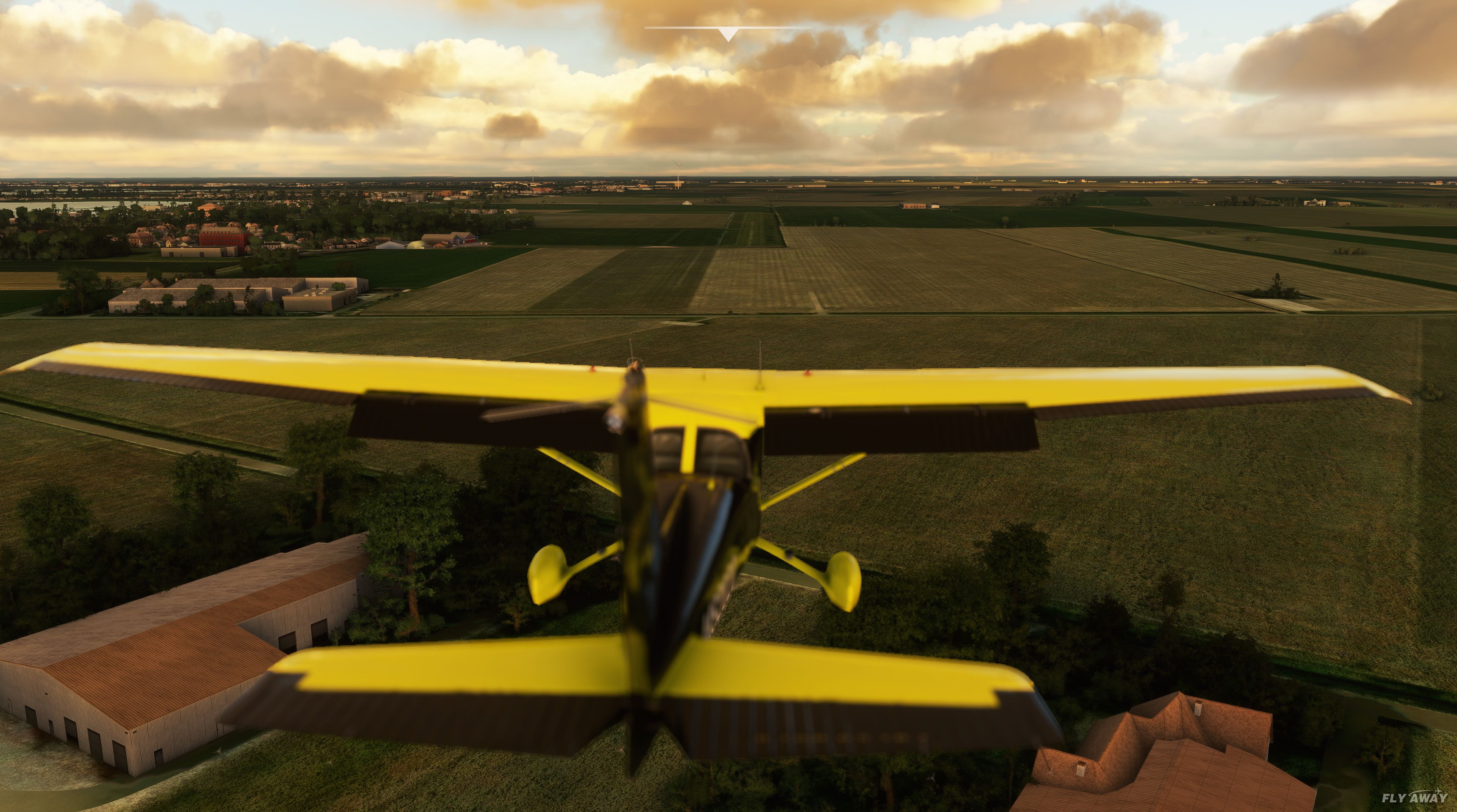
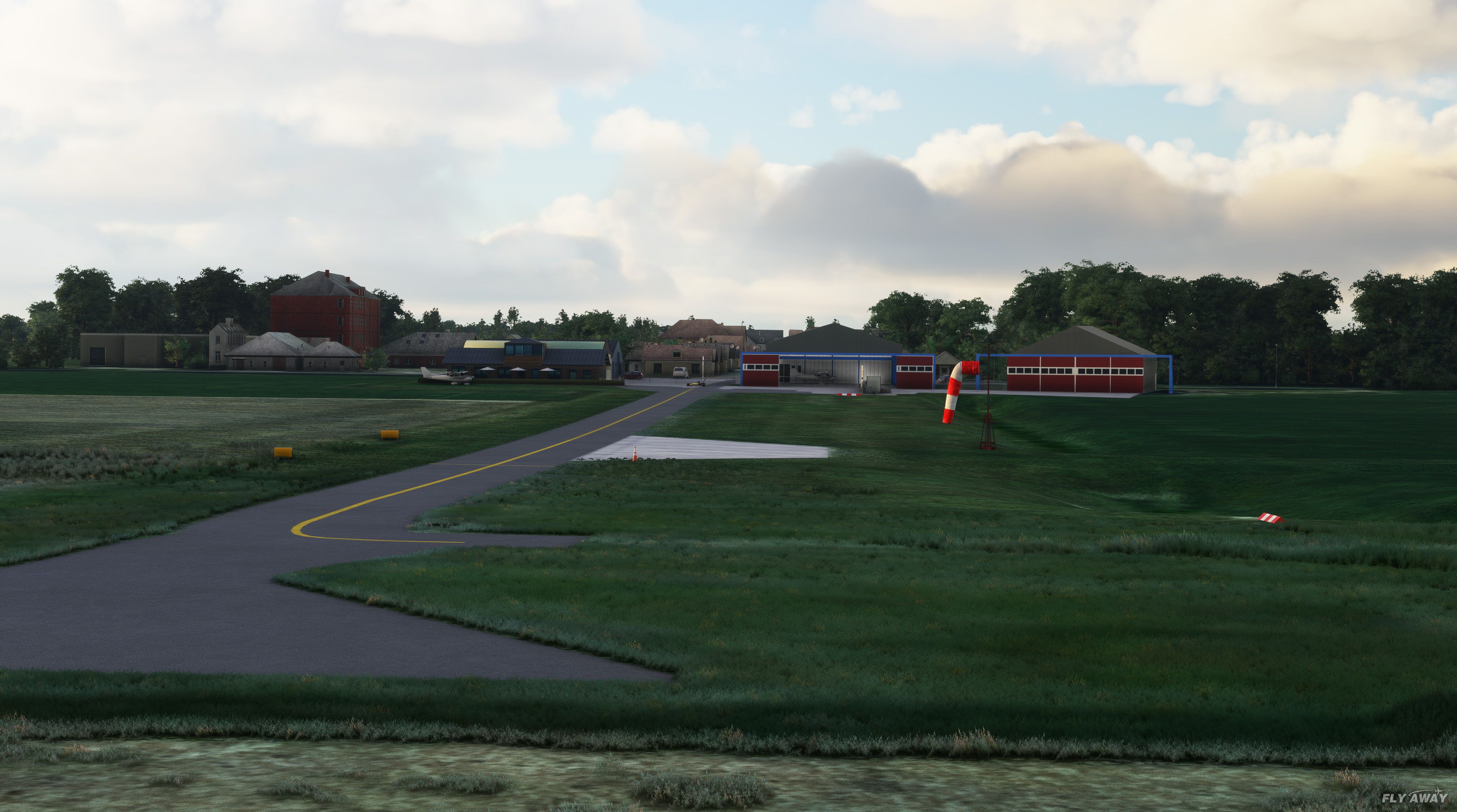
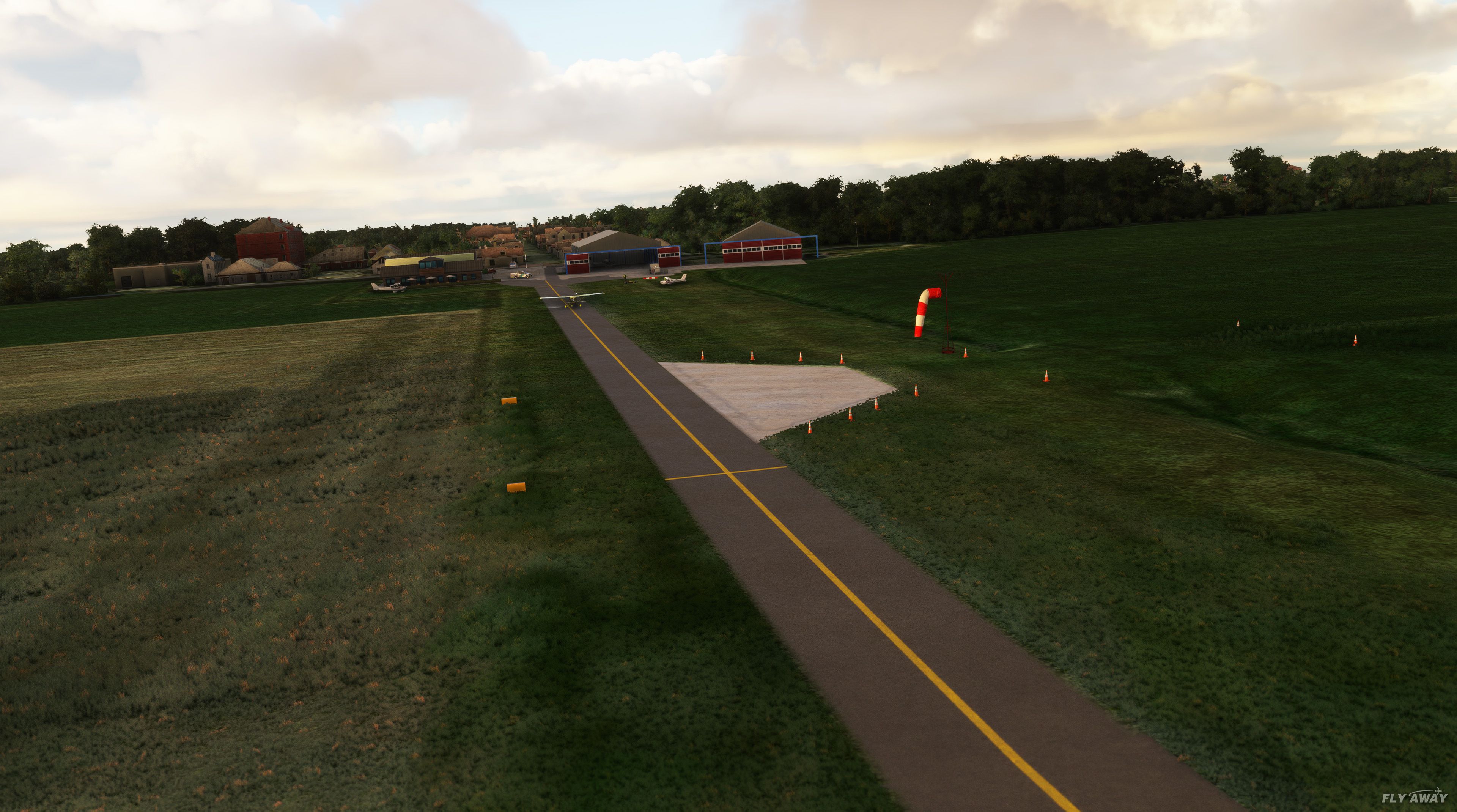
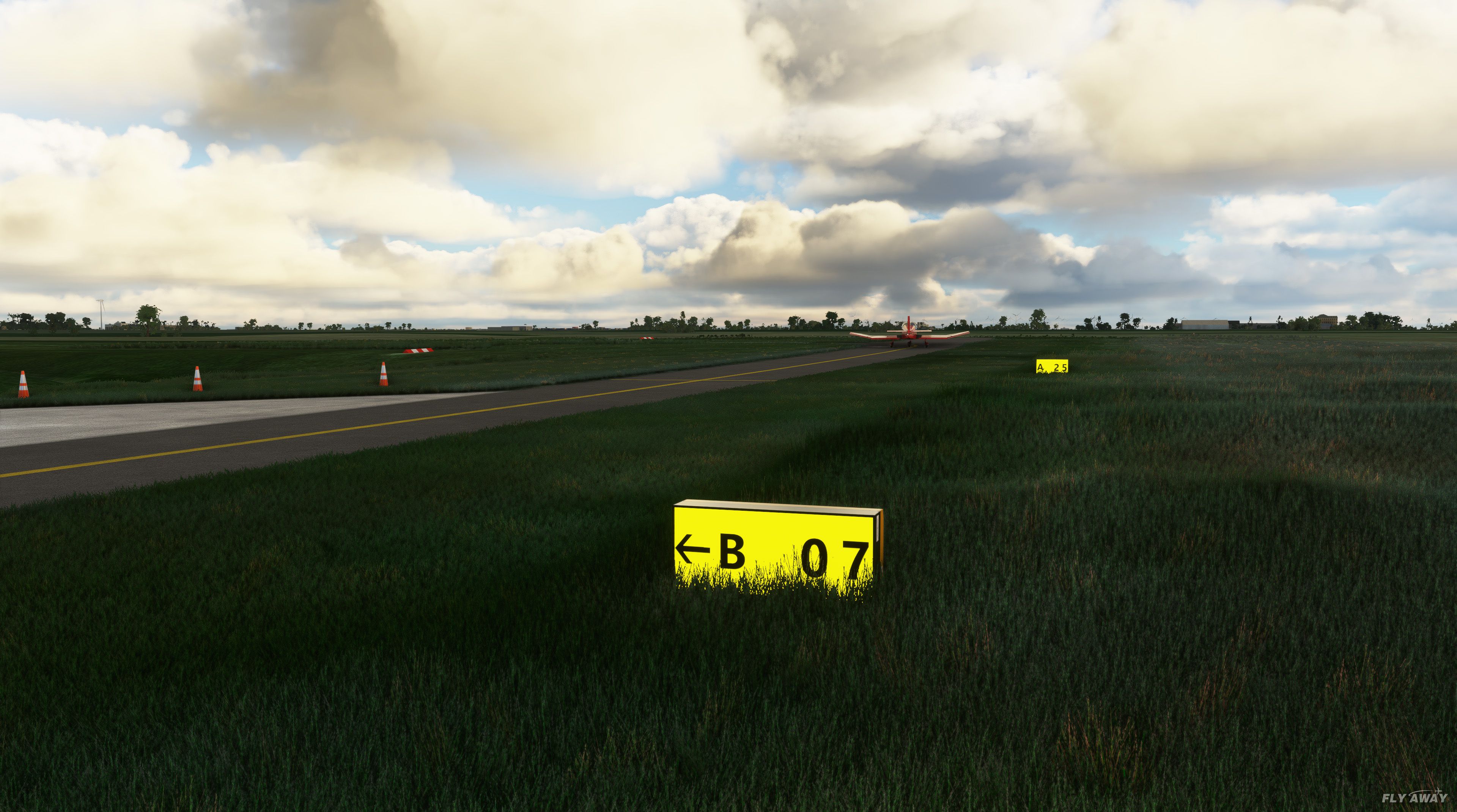
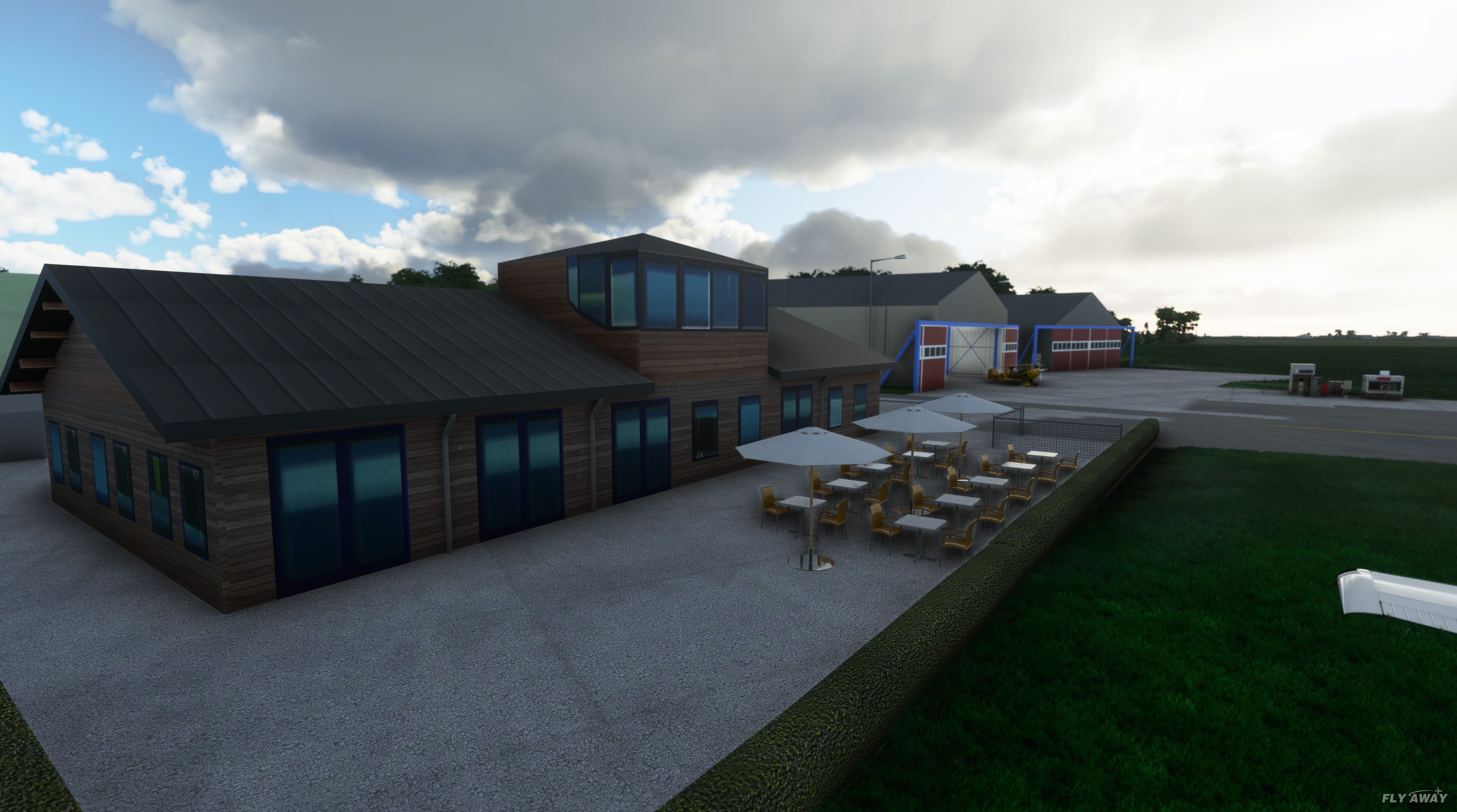
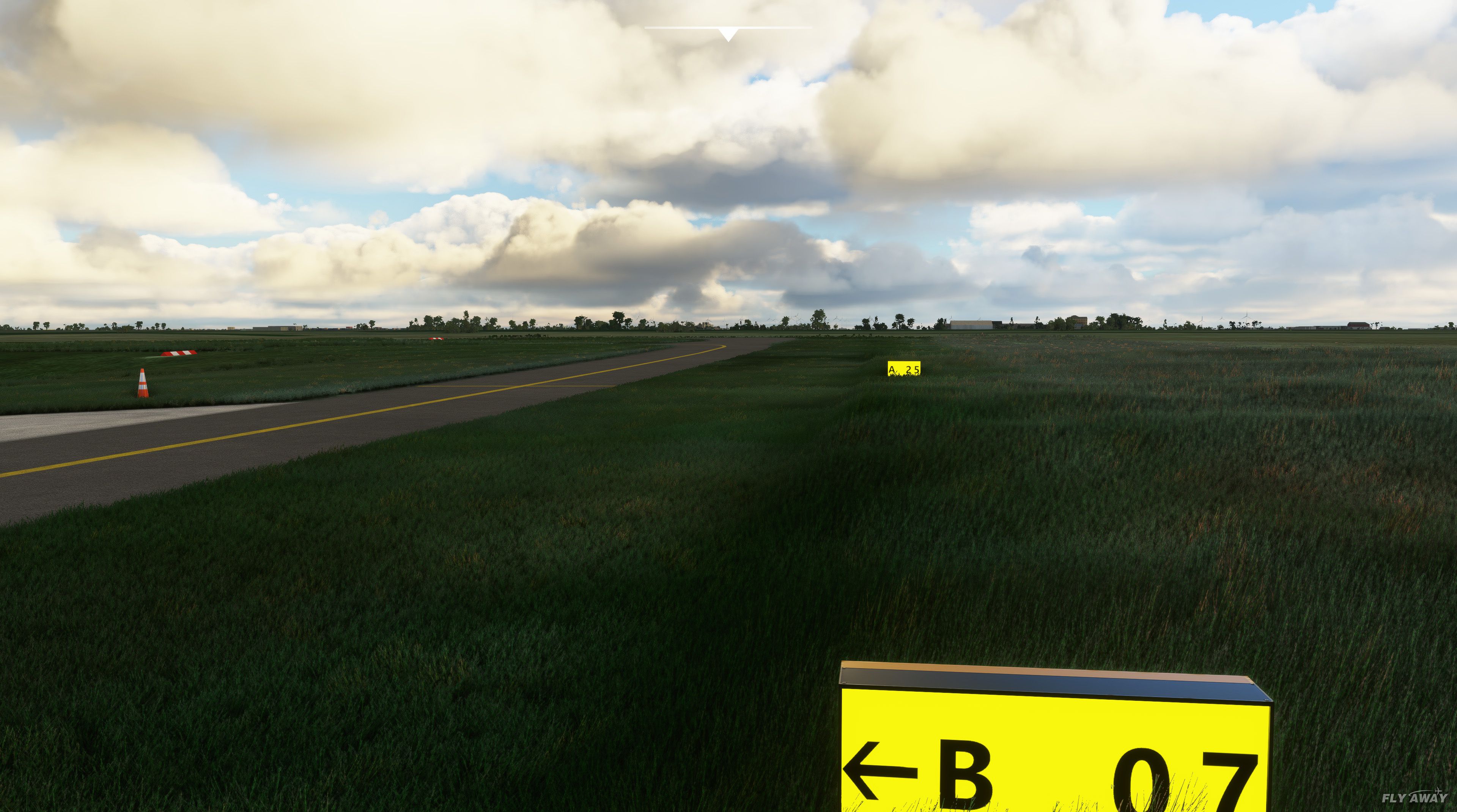
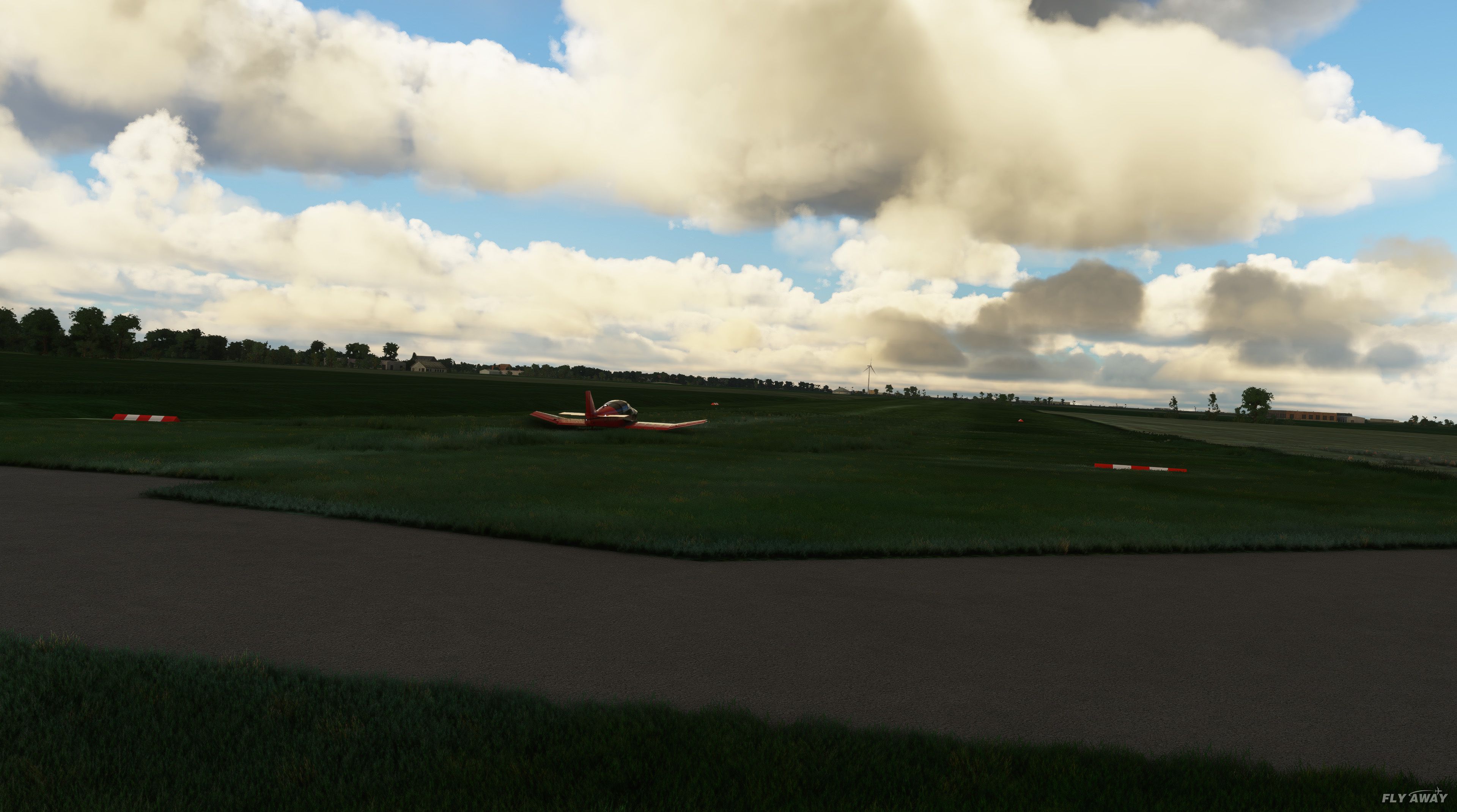
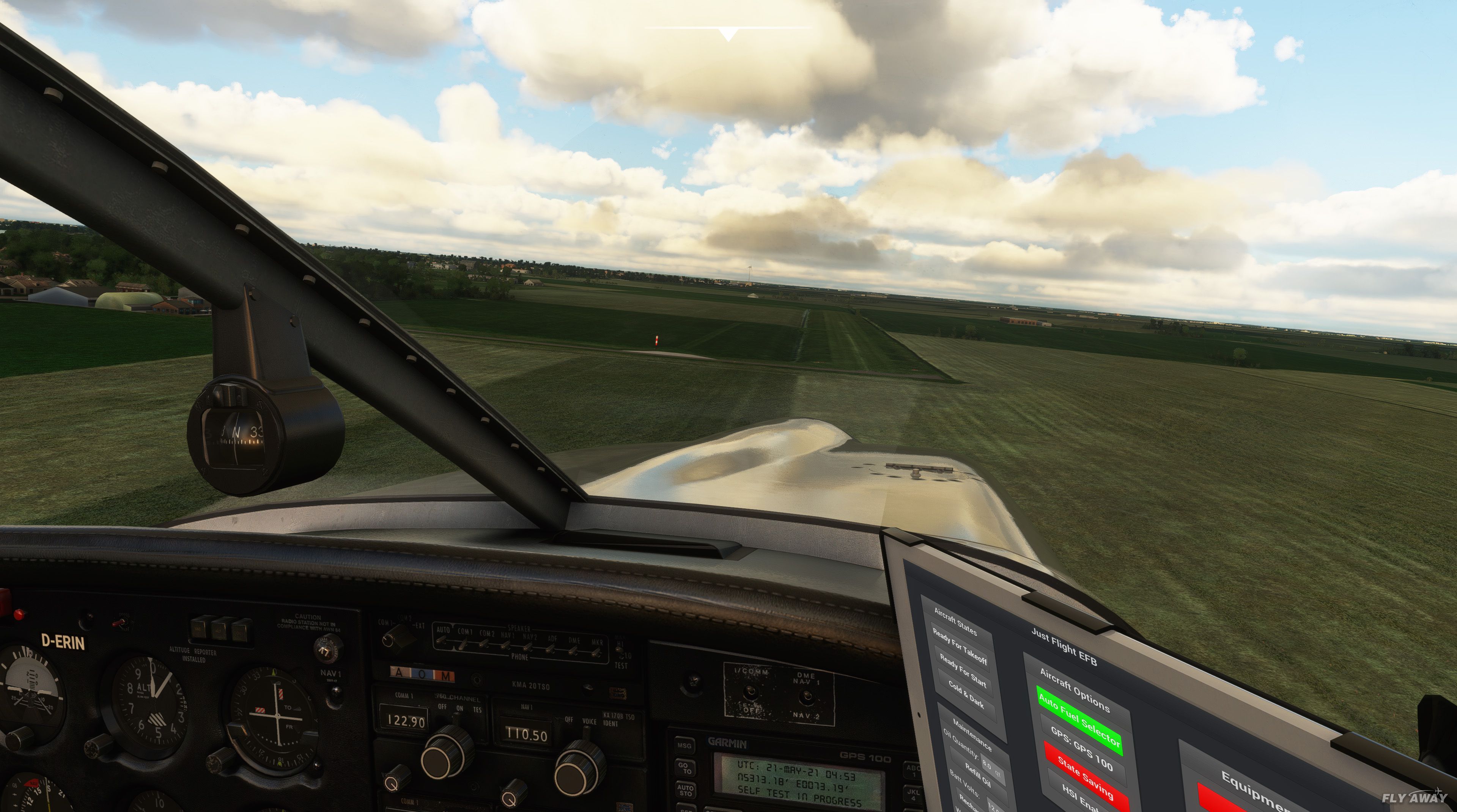
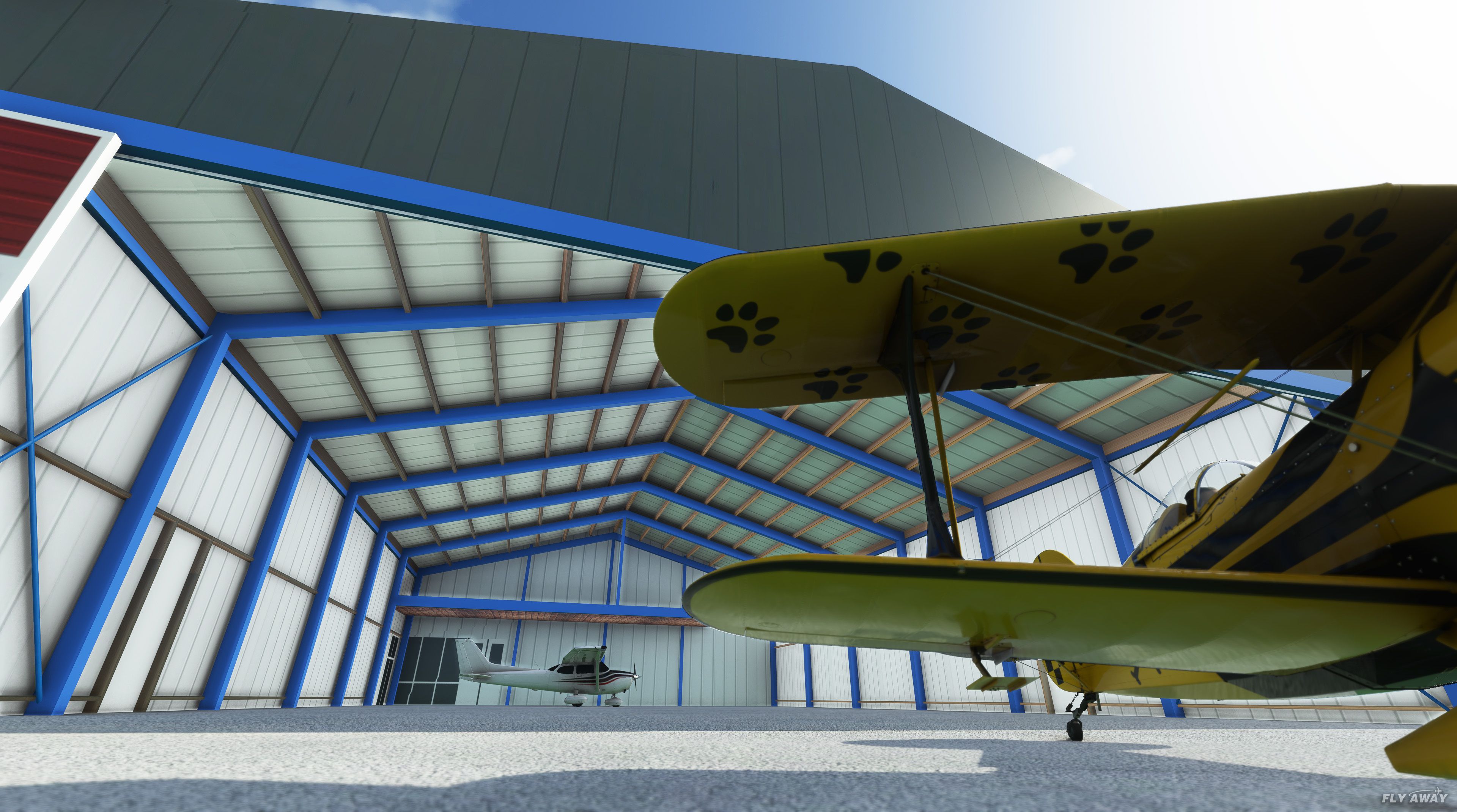
Oostwold Airport (EHOW) in Groningen, Netherlands comes to life with custom-built 3D objects, refreshed apron surfaces, accurate runway markings and signage, and reworked grass taxiways. The scenery also enhances local roads with roundabouts, adds realistic barriers, fuel parking, and detailed street and airfield lighting for Microsoft Flight Simulator.
 Rate
Rate
 Netherlands

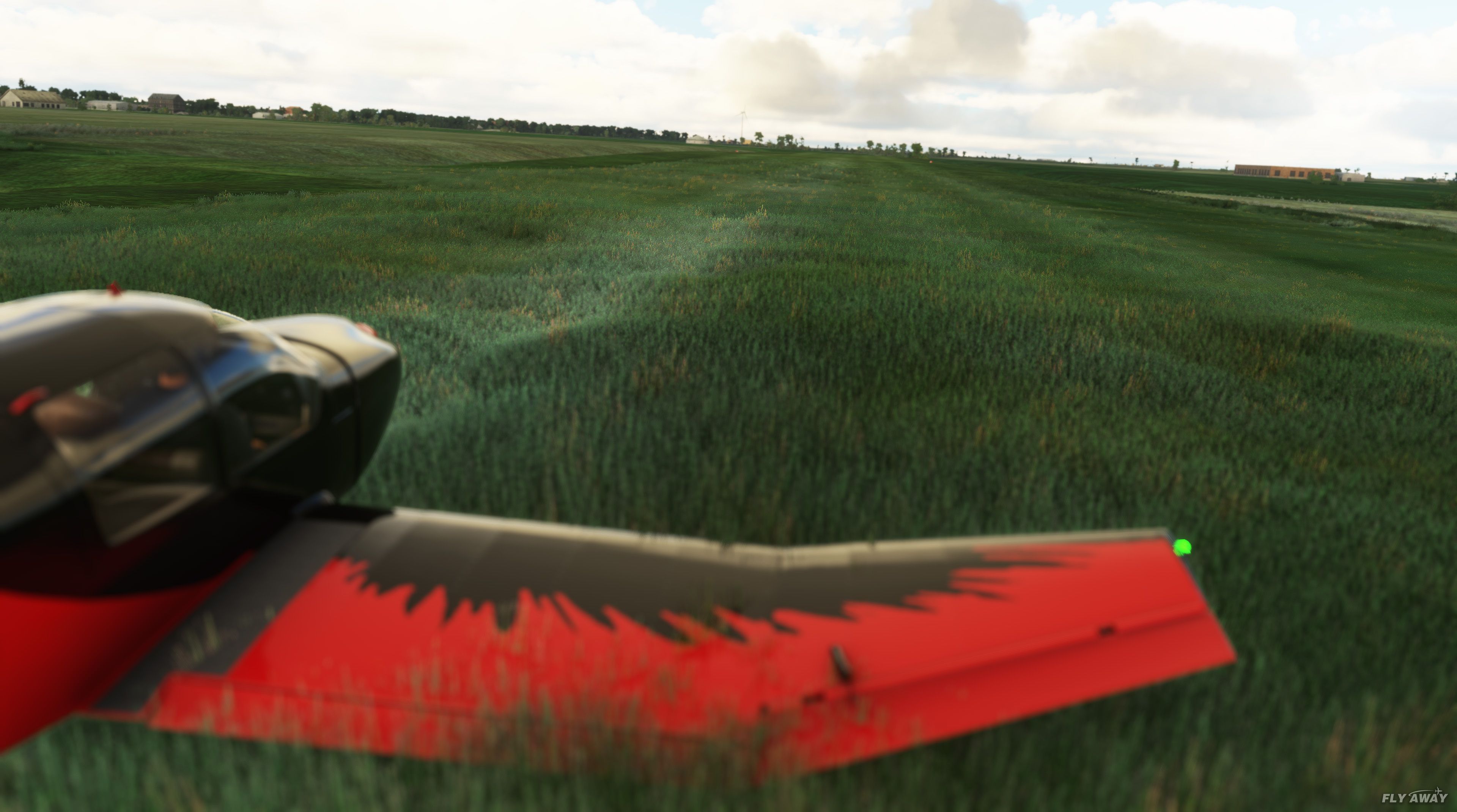
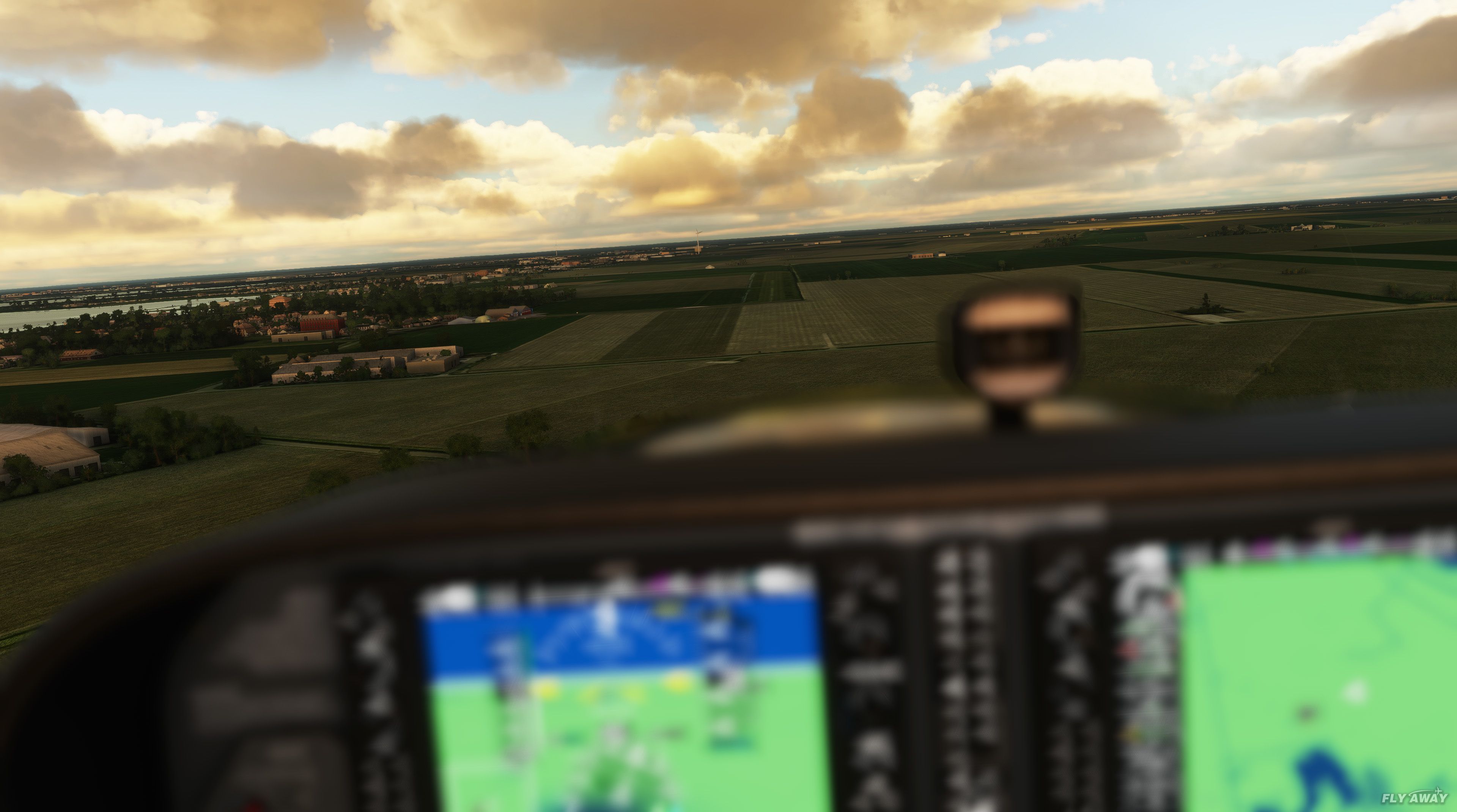
MSFS Oostwold Airport (EHOW) Scenery offers a thoughtfully recreated airfield near Winschoten in the Groningen region of the Netherlands, featuring precise runway markings, authentic barriers, and life-like lighting fixtures. This freeware mod captures the airport’s single grass runway along with custom 3D objects, roundabouts, roads, and an updated apron that brings the environment closer to its real-world counterpart. Despite being in an early beta stage, the developer, Ruben, continues to refine the scenery with future updates.
Having tested it extensively, I can attest that the level of detail—from the newly built hangar to the carefully placed grass stone lines—adds an immersive layer of realism to Microsoft Flight Simulator 2020. Key highlights include accurately placed airport signage, practical fuel parking, and more realistic taxiways designed based on the actual layout. If you’re looking to expand your virtual flying experiences, this mod provides a refreshingly authentic regional airport that’s already a delight to explore.
A fun little recreation of EHOW Oostwold Airport for Microsoft Flight Simulator (MSFS) 2020 release by the developer Ruben.
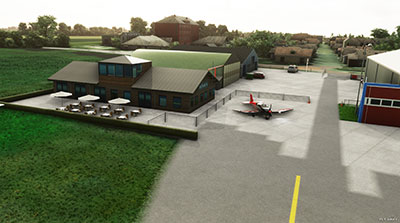 ?The scenery is indeed a beta and early release with the developer announcing and releasing further updates as they develop them.
Included in the scenery are;
The developer's quote;
This is a little airport created by myself. The airport is close to the town Windschoten located at Groningen in the Netherlands. This airport has one grass runway and two taxiways. I created all of the 3D objects in Blender and exported them to FS2020. This airport is a freeware creation.
Developer (and submitted by): Ruben.
Currently, the developer does not publish a public donation page.
Free for all simmers · 67.02 MB · Scanned clean Oct 2026
Download speed: Free tier is capped at 2 Mbps (this file takes approximately 5 mins at the cap). PRO members download at full line speed.
%LOCALAPPDATA%\Packages\Microsoft.FlightSimulator_8wekyb3d8bbwe\LocalCache\Packages\Community\. Steam version: %APPDATA%\Microsoft Flight Simulator\Packages\Community\. Tip: enable Developer Mode in MSFS to see your exact Community folder path.readme.txt or README file. It tells you exactly where files go, what dependencies are needed, and any quirks specific to this add-on.Only PRO members can place votes.
More MSFS add-ons hand-picked based on this download.
MSFS Scenery
This mod developed by JustOkayPilot brings Grand Canyon National Park Airport…
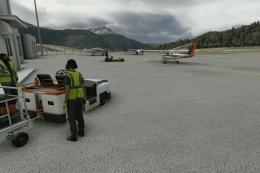 MSFS Scenery
Sandane Airport (ENSD) is located on the beautiful west coast of Norway and i…
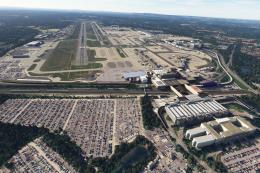 MSFS Scenery
Enhance your flight simulation experience with this mod for Microsoft Flight …
 MSFS Scenery
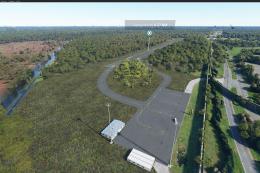
The Disney World airport/STOLport (also known as the Lake Buena Vista airport…
 MSFS Scenery
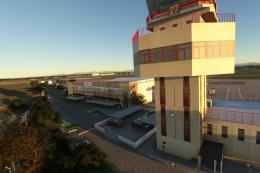
Enhance your flight simulation experience with a detailed rendition of Madrid…
 MSFS Scenery
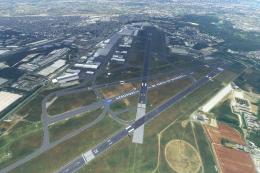
A complete and extensive replacement freeware scenery package for Paris–Le Bo…
 MSFS Scenery
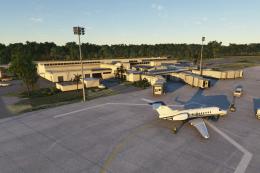
A highly detailed rendition of Gainesville Regional Airport (KGNV), Florida (…
 MSFS Scenery
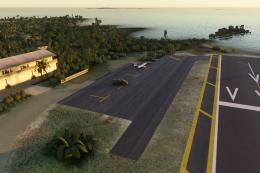
A rendition of George T. Lewis Airport for Microsoft Flight Simulator (MSFS) …
Be the first to leave a comment on this download.
Be the first to share your thoughts on this download.