


 United States of America
  FSX Scenery
Telluride Regional Airport
Colorado (CO), USA. Telluride Regional is the highest commercial airport in A…
Eastern Sierra Regional Airport (KBIH) for Microsoft Flight Simulator X refreshes Bishop, California with corrected runway and taxiway alignment, refined aprons, and terrain-aware placement based on satellite references. Repositioned buildings and thoughtfully added default library objects create a convincing high-desert airfield environment while preserving smooth, reliable performance.
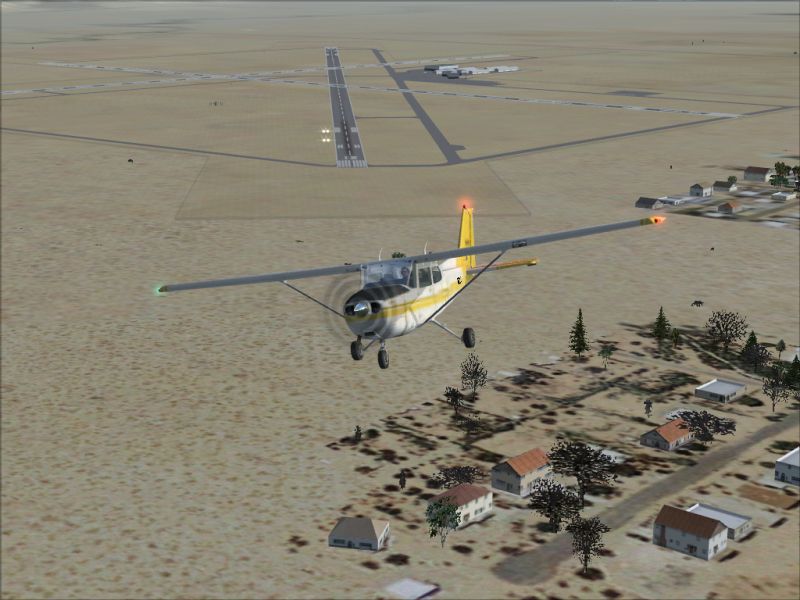
Discover a precise recreation of Eastern Sierra Regional Airport (KBIH), ideally suited for pilots who want accurate runway alignment and detailed terrain placement in Microsoft Flight Simulator X. This update adjusts airport elements to match real-world positions and introduces multiple default library objects, ensuring a more immersive flying environment. Developed by Phillip Coyle, this freeware package leverages carefully compiled design data and real satellite references.
In this comprehensive enhancement, all taxiways, runways, and aprons have been realigned to align with their real-world markings. The airport’s configuration fits the factual geometry of the region, reflecting the natural layout of Bishop, California. This careful adjustment helps users enjoy a more authentic approach and departure, especially when operating general aviation flights in the nearby high-desert environment.
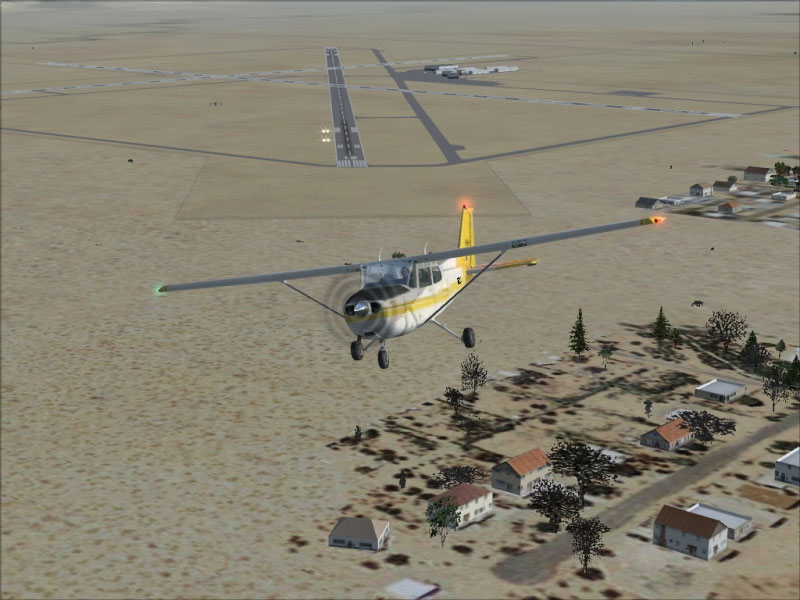
Eastern Sierra Regional Airport Scenery.
All buildings have been carefully relocated and adjusted to maintain their correct orientation. Using accurate satellite imagery from Google Earth, the scenery update positions hangars, terminals, and supporting structures where they should be, creating a faithful representation of the airport’s physical layout. Additionally, default objects taken from standard FSX scenery libraries add another layer of realism to every part of the airfield.
The included BGL files were created using Airport Design Editor, which grants precise control over airport features. This professional-grade software was used to compile the updated scenery data, ensuring that runway headings, taxiway routes, and terrain elements follow consistent standards.
To view the majority of the placed objects, it is advisable to keep scenery settings at least on NORMAL. This allows the native objects, placed by default FSX libraries, to be fully rendered. With higher detail levels, the result is an even more engaging backdrop, reflecting the characteristic environment of Owens Valley and the backdrop of the Sierra Nevada range.
This scenery is freely provided by Phillip Coyle. While it has been thoroughly tested, it is supplied with the understanding that you assume all risks upon installation. The creator cannot be held liable for any potential impact on your system. No additional help or technical support is offered for these files.
Free for all simmers · 323.27 KB · Scanned clean
Download speed: Free tier is capped at 0.5 Mbps. PRO members download at full line speed.
FSX\Addon Scenery\ containing scenery and texture sub-folders.readme.txt or README file. It tells you exactly where files go, what dependencies are needed, and any quirks specific to this add-on.Use these coordinates to fly directly to this location once the mod is installed.
37.37305600,-118.36388900
Launch FSX or Prepar3D and use Flights → Load to open the downloaded .pln file. Your aircraft will be positioned at this location.
The archive kbih_sce.zip has 6 files and directories contained within it.
This list displays the first 500 files in the package. If the package has more, you will need to download it to view them.
| Filename/Directory | File Date | File Size |
|---|---|---|
| KBIH_ADE.BGL | 12.18.08 | 11.53 kB |
| KBIH_ADE_CVX.bgl | 12.18.08 | 738 B |
| KBIH_Scenery.jpg | 12.17.08 | 315.36 kB |
| Readme.txt | 12.17.08 | 4.29 kB |
| flyawaysimulation.txt | 10.29.13 | 959 B |
| Go to Fly Away Simulation.url | 01.22.16 | 52 B |
More FSX & P3D add-ons hand-picked based on this download.
FSX Scenery
Colorado (CO), USA. Telluride Regional is the highest commercial airport in A…
 FSX Scenery
Manchester-Boston Regional Airport. This airport was made using Airport Desig…
 FSX Scenery
Pensacola Regional Airport (KPNS), Florida (FL). Based on currently available…
 FSX Scenery
This freeware scenery package transforms Tallahassee Regional Airport (KTLH) …
 FSX Scenery
New Zealand (NZNS). Welcome to Nelson Regional Airport, located in the north-…
 FSX Scenery
Scenery Lleida-Alguaire Regional Airport, Catalonia, Spain (LEDA). Version 1.…
 FSX Scenery
KEKO Elko Regional Airport NV by Eric Cagan. This is my rendition of Elko NV …
 FSX Scenery
Worcester Regional Airport (KORH), Worcester, Massachusetts (MA). An improved…
Be the first to leave a comment on this download.
Be the first to share your thoughts on this download.