


 France
  FSX AFCAD Files
Afcad Nice/Cote d'Azur - LFMN - France
Enhance your virtual flights around the French Riviera with this freeware AFC…
Nice Côte d’Azur Airport (LFMN) receives a thorough AFCAD refresh for the default FSX scenery, with airline-style parking assignments, added stands, updated taxiways and signage, corrected PAPI on both runways, rebuilt service roads, extra fuel and support vehicles, and improved tower-view perspectives based on current charts. Requires Acceleration for car-park vehicles.
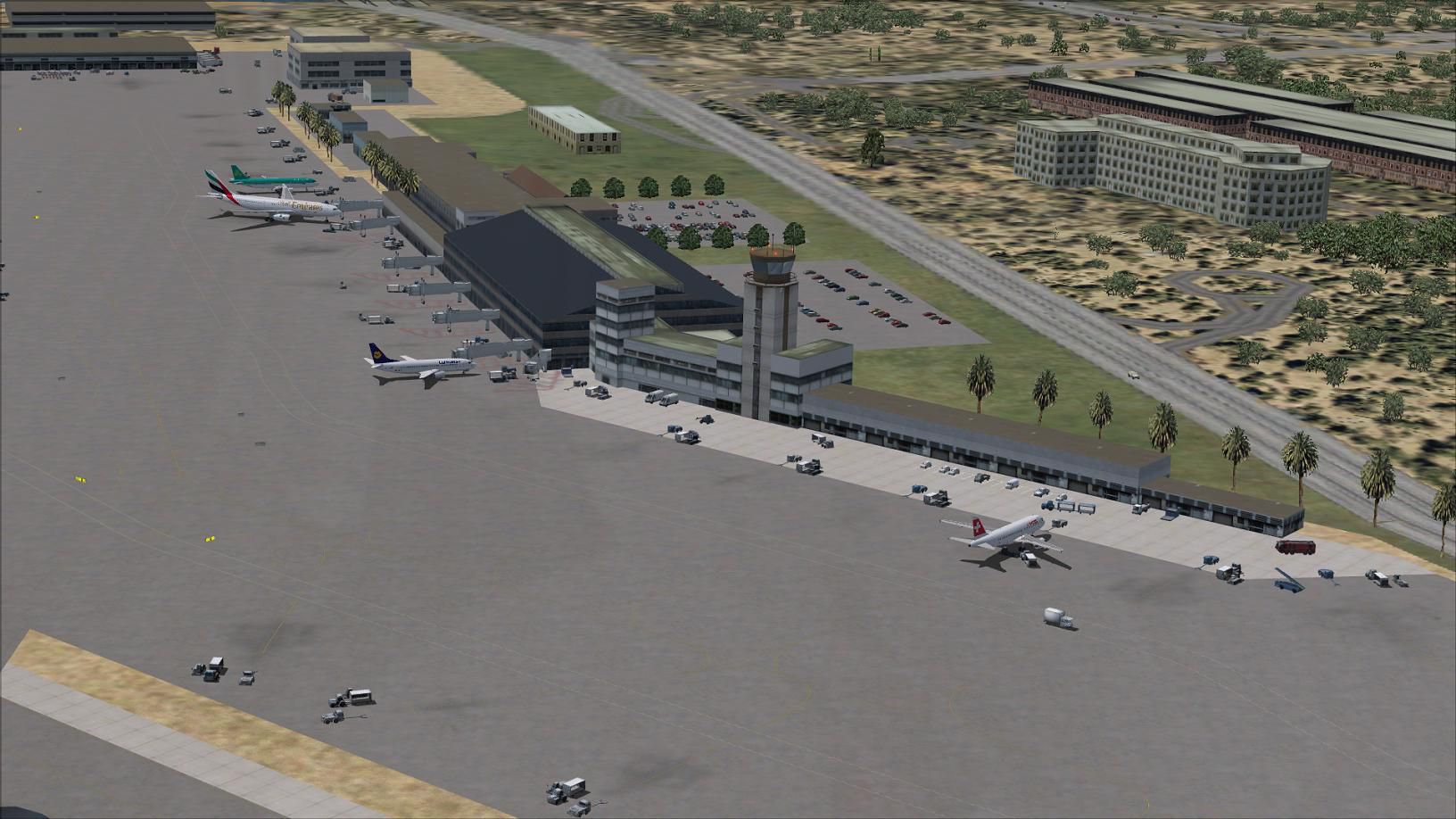
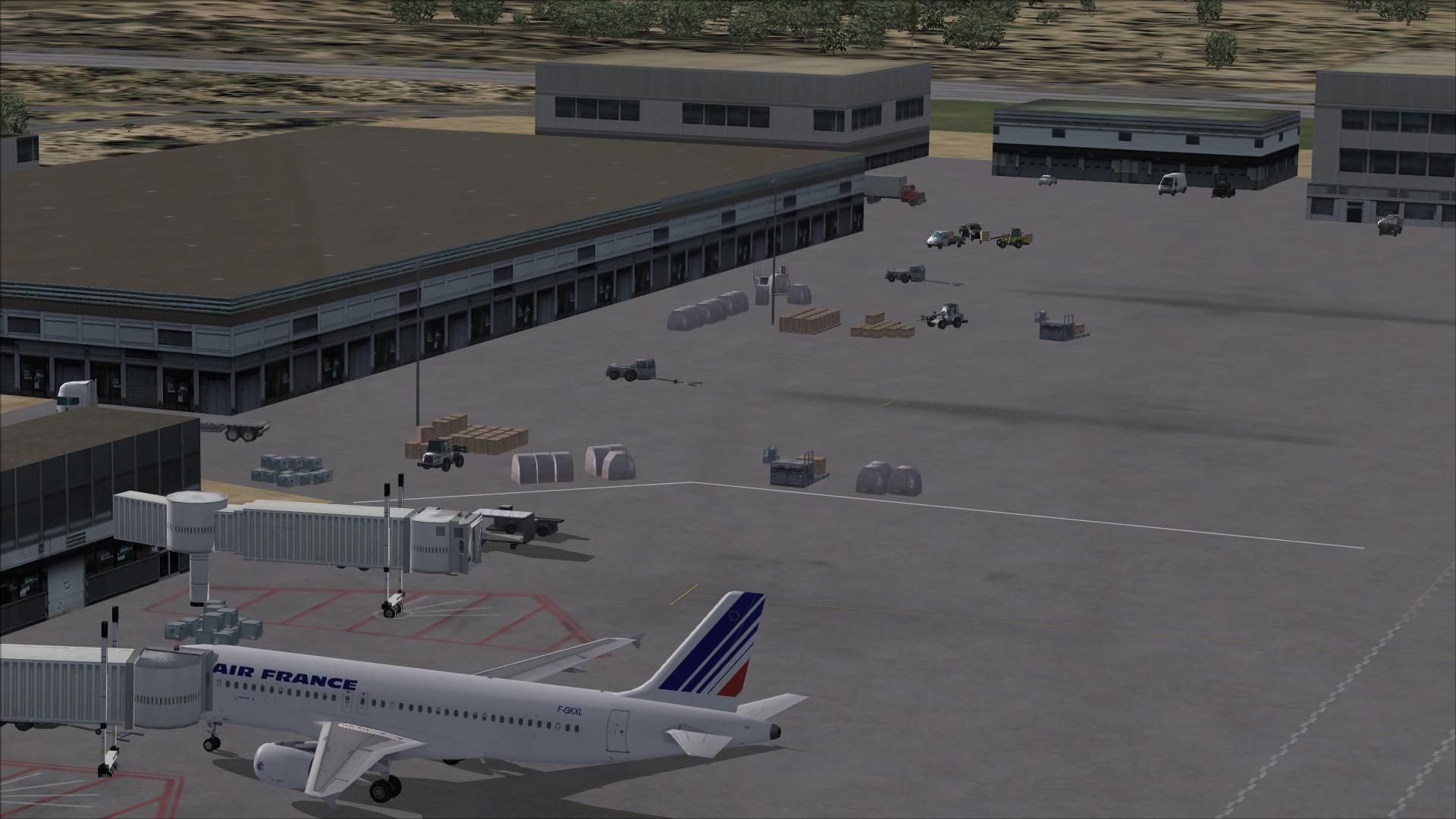
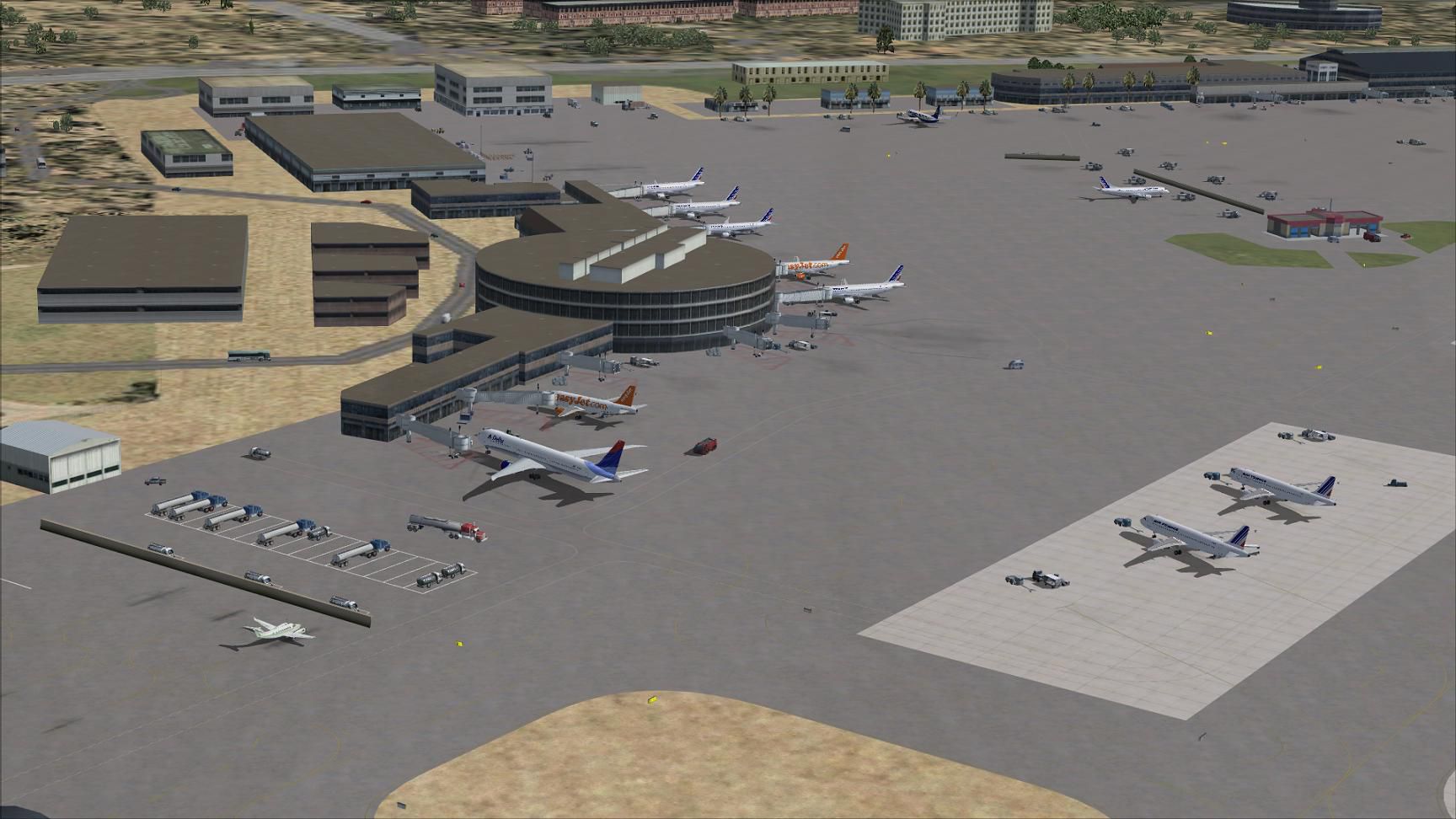
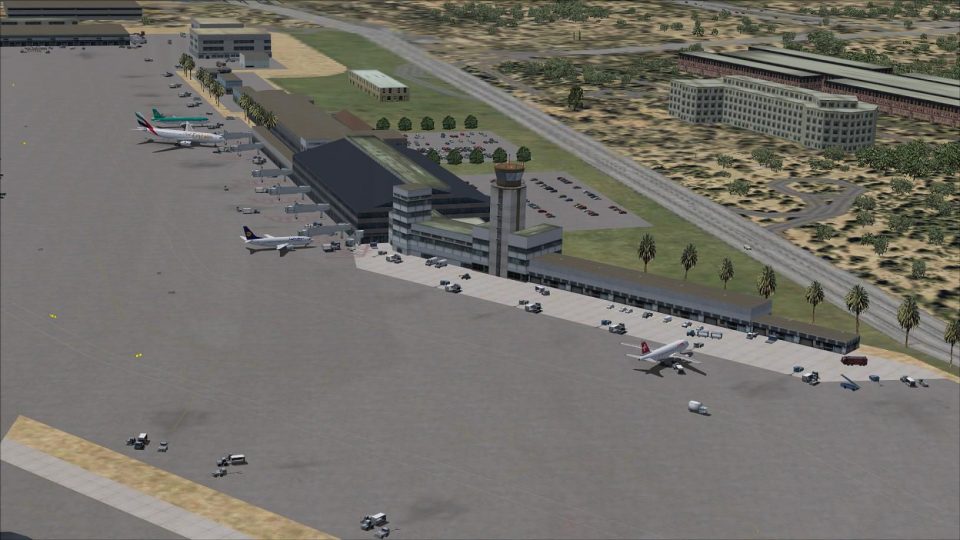
Nice/Cote d'Azur, France. This airport update is for LFMN and made only for the FSX default airport. Assigned parking as per their website with extra parking, taxiways and taxi signs updated to the latest charts, PAPI corrected for both runways, extra fuel trucks, support vehicle roads rebuilt and many other improvements, airport views are from the roof of the control tower (when in tower view). By Ray Smith.
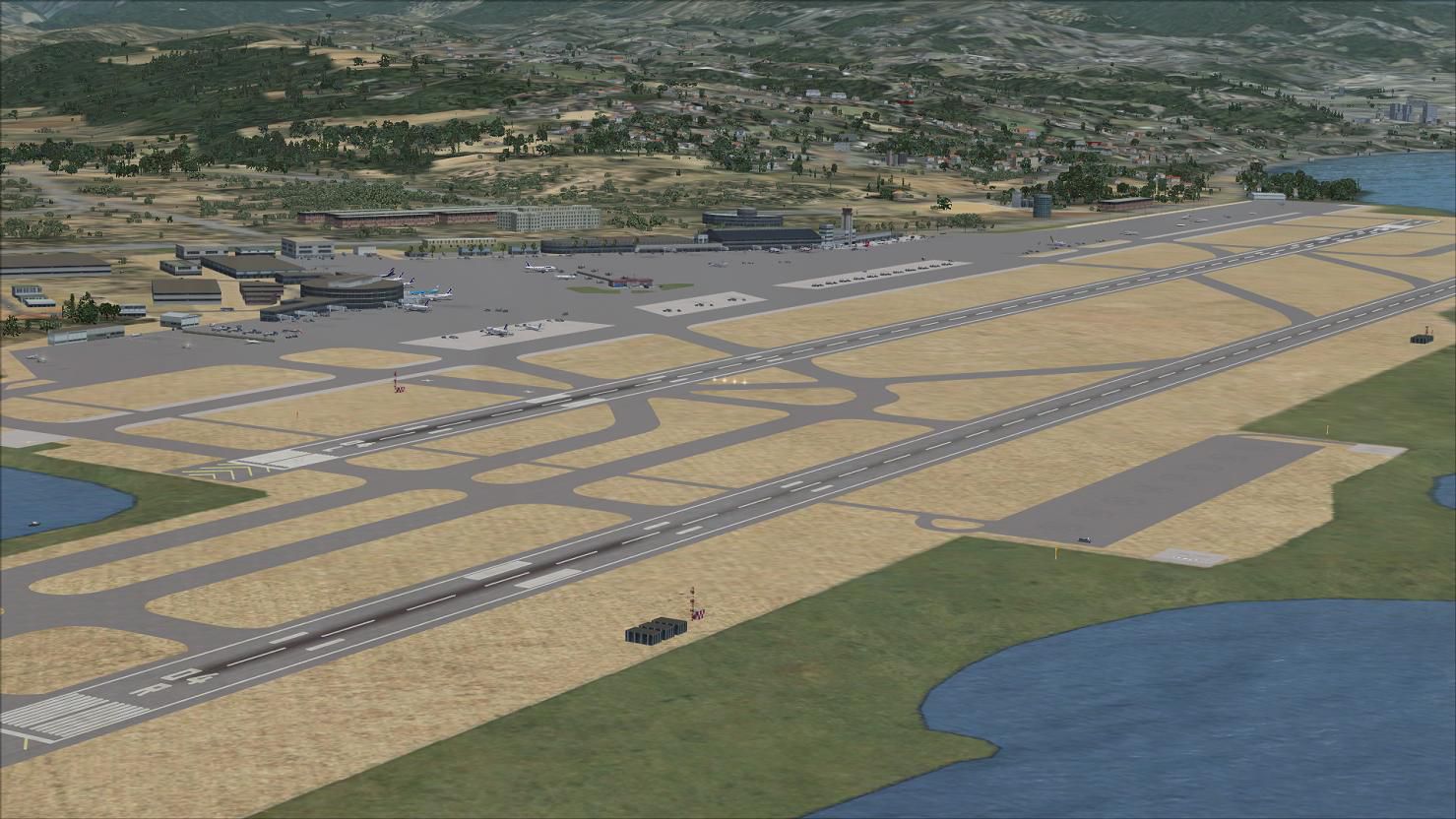
Aerial view of Nice/Cote d'Azur, France.
There are 3 BGL files: LFMN_RS.BGL, LFMN_CVX.bgl and a LFMN_OBJ.BGL file.
Installation:
If you are using my earlier version please remove/delete these files first, if you would rather keep them remove them to another folder not associated with FSX.
Runway operations are set for takeoff 4R/22L and landing 4L/22R.
NOTE: Only those with Acceleration installed will see the vehicles in the car park.
Please only use these LFMN.BGL files at any time for this airport. I.E. Make sure only the LFMN_RS.BGL file and the LFMN_CVX.bgl file are in the Addon Scenery/scenery folder at any time, remove/delete any other LFMN.bgl to avoid incorrect aircraft parking and other airport conflicts.
If you have any AI Traffic Addons please make sure they have "NOT" installed another Afcad for this airport as this will also cause a conflict.
Uninstall:
Free for all simmers · 772.16 KB · Scanned clean Sep 2026
Download speed: Free tier is capped at 0.5 Mbps. PRO members download at full line speed.
AF2_*.bgl or AFX_*.bgl) go into FSX\Addon Scenery\Scenery\ or a dedicated AFCAD folder you create.readme.txt or README file. It tells you exactly where files go, what dependencies are needed, and any quirks specific to this add-on.Use these coordinates to fly directly to this location once the mod is installed.
43.65840000,7.21590000
Launch FSX or Prepar3D and use Flights → Load to open the downloaded .pln file. Your aircraft will be positioned at this location.
The archive lfmn_rs_fsx.zip has 11 files and directories contained within it.
This list displays the first 500 files in the package. If the package has more, you will need to download it to view them.
| Filename/Directory | File Date | File Size |
|---|---|---|
| LFMN.jpg | 06.14.13 | 185.92 kB |
| LFMN1.jpg | 06.14.13 | 183.65 kB |
| LFMN2.jpg | 06.14.13 | 188.07 kB |
| LFMN3.jpg | 06.14.13 | 184.53 kB |
| LFMN_CVX.bgl | 06.04.13 | 721 B |
| LFMN_OBJ.BGL | 06.13.13 | 35.72 kB |
| LFMN_RS.BGL | 06.13.13 | 57.17 kB |
| ReadMe.txt | 06.14.13 | 2.99 kB |
| FSX_lfmn_rs | 06.14.13 | 0 B |
| flyawaysimulation.txt | 10.29.13 | 959 B |
| Go to Fly Away Simulation.url | 01.22.16 | 52 B |
Only PRO members can place votes.
More FSX & P3D add-ons hand-picked based on this download.
FSX AFCAD Files
Enhance your virtual flights around the French Riviera with this freeware AFC…
 FSX AFCAD Files
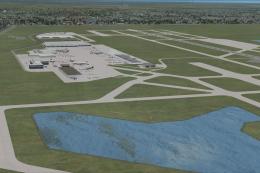
Gatwick International Airport, London, UK. This airport update is for EGKK an…
 FSX AFCAD Files
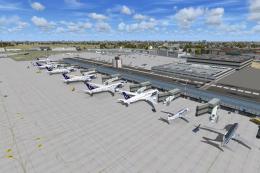
Chicago-O'Hare International Airport, Illinois (IL), USA. This airport update…
 FSX AFCAD Files
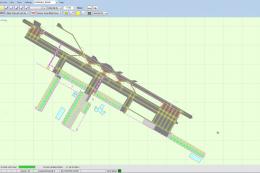
Warsaw Chopin Airport (Okecie) is the largest international airport in Poland…
 FSX AFCAD Files
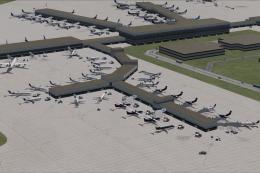
Dubai World Central Airport is a new airport that opened in June 2010. Theref…
 FSX AFCAD Files
This freeware add-on for Microsoft Flight Simulator X modernizes the default …
 FSX AFCAD Files
This comprehensive freeware package refines Auckland International Airport (N…
 FSX AFCAD Files
This freeware add-on, authored by Ray Smith, refines Seattle-Tacoma Internati…
Be the first to leave a comment on this download.
Be the first to share your thoughts on this download.