

 FSX Scenery
Naples Municipal Airport
Immerse yourself in a carefully overhauled representation of Naples Municipal…
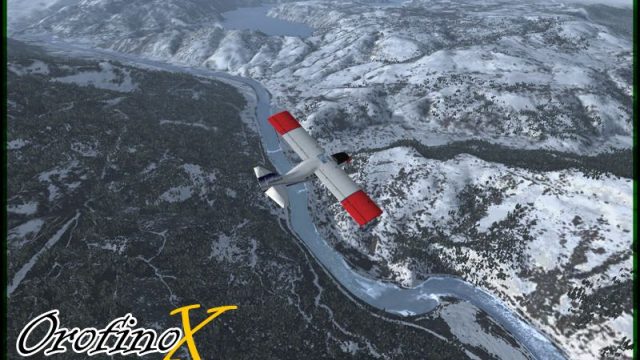
Orofino Municipal Airport (S68) in Orofino, Idaho comes to life with detailed scenery for FSX, featuring photoreal terrain, custom ground polygons, and seasonal texture variations. Bump-mapped airport objects add depth and realism across the field, enhancing low-and-slow flying in the Clearwater River valley.
 Rate
Rate
 United States of America
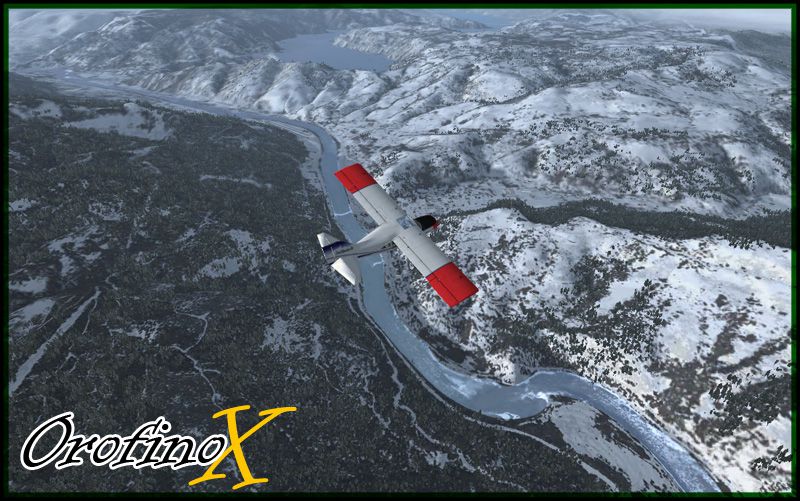
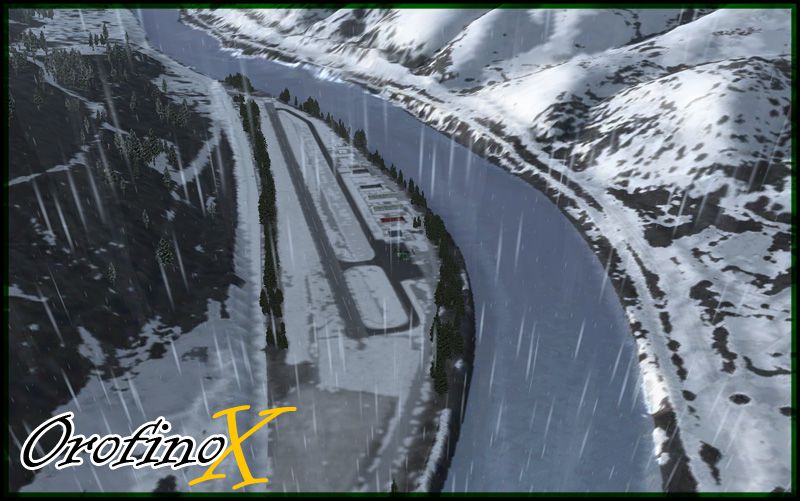
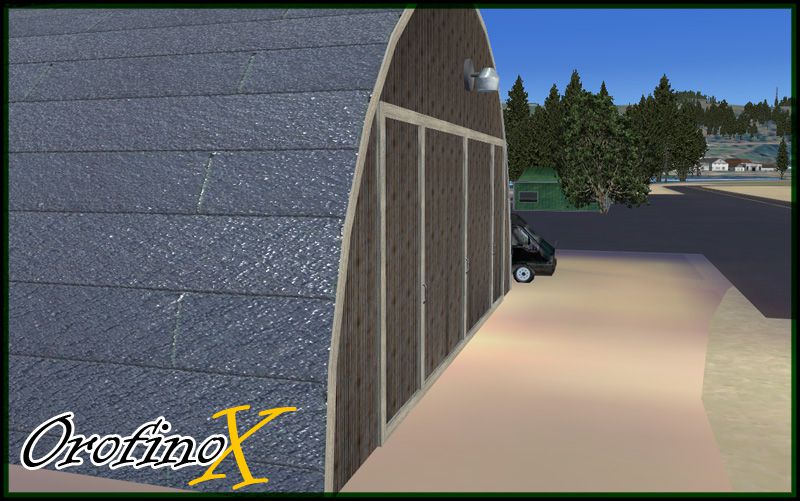
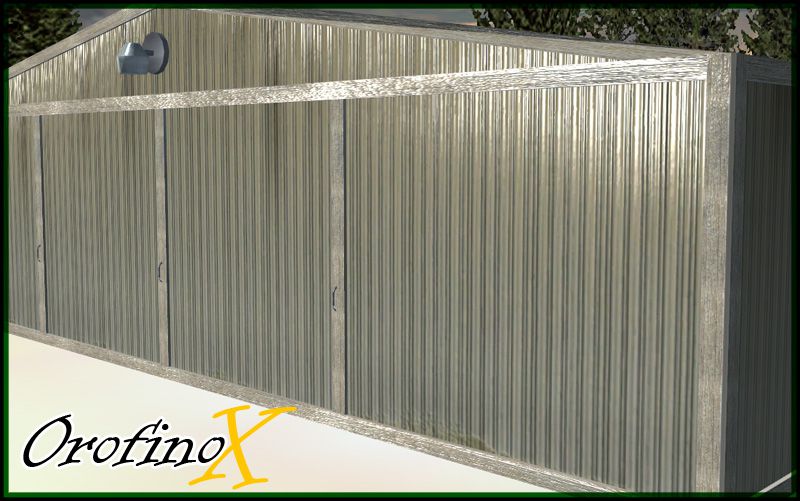
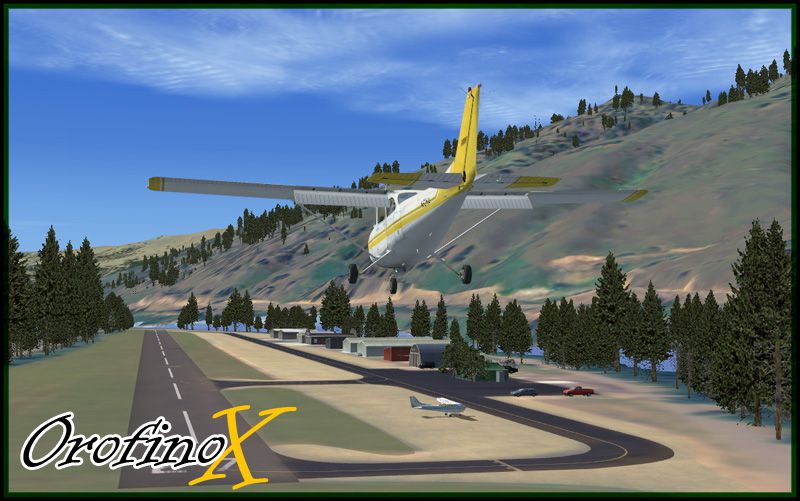
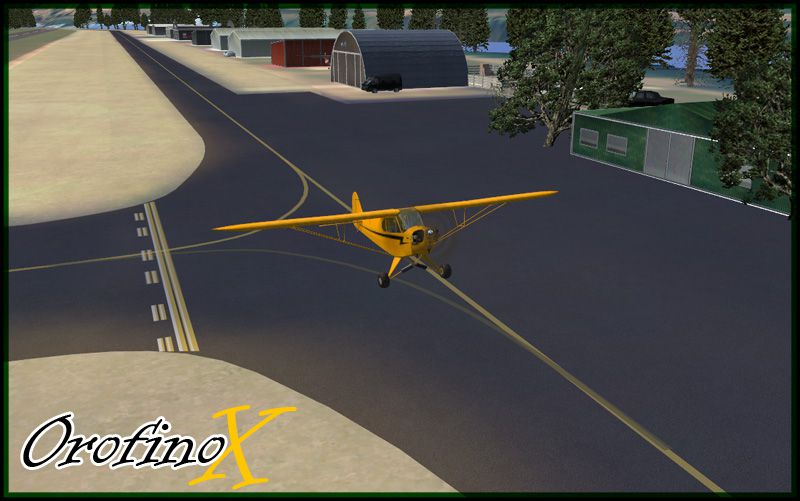
Orofino Municipal Airport (S68), Orofino, Idaho (ID). Includes photoreal terrain and ground polygons with seasonal variations. Many of the objects make use of bump mapping. By Kobbe Farwick.
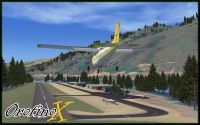
Orofino Municipal Airport Scenery.
Installation:
1) Run the Orofino X installer.
2) Open Flight Simulator X...
3) Navigate to the Settings menu...
4) On the far right, click Scenery Library...
5) Now click Add Area...
6) Navigate to the Addon Scenery folder, then click on the Orofino folder, then click OK.
7) Restart Flight Simulator X and you are ready to go!
Kobbe Farwick (Real Scenes)
Credits:
Many thanks to Arno and others at FS Developer for help on issues such as seasonal texturing.
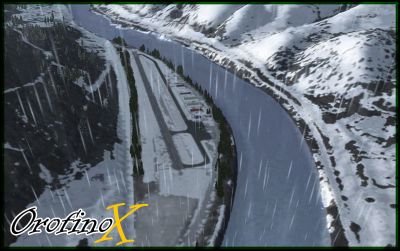
Orofino Municipal Airport Scenery.
Free for all simmers · 58.53 MB · Scanned clean Sep 2026
Download speed: Free tier is capped at 0.5 Mbps (this file takes approximately 16 mins at the cap). PRO members download at full line speed.
FSX\Addon Scenery\ containing scenery and texture sub-folders.readme.txt or README file. It tells you exactly where files go, what dependencies are needed, and any quirks specific to this add-on.Use these coordinates to fly directly to this location once the mod is installed.
46.49000000,-116.33000000
Launch FSX or Prepar3D and use Flights → Load to open the downloaded .pln file. Your aircraft will be positioned at this location.
The archive orofinox_inst.zip has 10 files and directories contained within it.
This list displays the first 500 files in the package. If the package has more, you will need to download it to view them.
| Filename/Directory | File Date | File Size |
|---|---|---|
| 2.jpg | 08.13.09 | 190.23 kB |
| 3.jpg | 08.13.09 | 243.35 kB |
| 4.jpg | 08.13.09 | 154.51 kB |
| 5.jpg | 08.13.09 | 185.42 kB |
| 6.jpg | 08.13.09 | 177.24 kB |
| orofinox_inst.exe | 08.16.09 | 57.57 MB |
| Orofino_Readme.txt | 08.13.09 | 676 B |
| 1.jpg | 08.13.09 | 181.73 kB |
| flyawaysimulation.txt | 10.29.13 | 959 B |
| Go to Fly Away Simulation.url | 01.22.16 | 52 B |
Only PRO members can place votes.
More FSX & P3D add-ons hand-picked based on this download.
FSX Scenery
Immerse yourself in a carefully overhauled representation of Naples Municipal…
 FSX Scenery
Morristown Municipal Airport serves Morristown and Morris County and is owned…
 FSX Scenery
Pueblo Municipal Airport. Pueblo Memorial is the airport located in Pueblo, C…
 FSX Scenery
Chilliwack Municipal Airport (CYCW), British Columbia, Canada. Enhances the a…
 FSX Scenery
Flying Cloud Municipal Airport (KFCM), Minnesota. Flying Cloud, now with an e…
 FSX Scenery
La Crosse Municipal Airport (KLSE), La Crosse, Wisconsin (WI). This scenery i…
 FSX Scenery
Lebanon Municipal Airport (KLEB), Lebanon, New Hampshire (NH). An improved ve…
 FSX Scenery
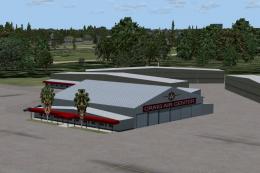
Craig Municipal Airport (KCRG), Jacksonville, Florida (FL). This update to th…
Be the first to leave a comment on this download.
Be the first to share your thoughts on this download.