

 FSX Historic & Vintage Aircraft
Lockheed P-38 Lightning Fear The Reaper
This is David C. Copley's P38 Lightning updated for Microsoft Flight Simulato…
Lockheed P-38 Lightning “Cobra In The Clouds” recreates Bob Faurot’s Pacific-war aircraft, tail 42-12633 of the 39th Fighter Squadron, with accurate markings and two finish options. Updated for Microsoft Flight Simulator X, it includes working 2D and virtual cockpit panels plus included background history and reference photos.
 Rate
Rate
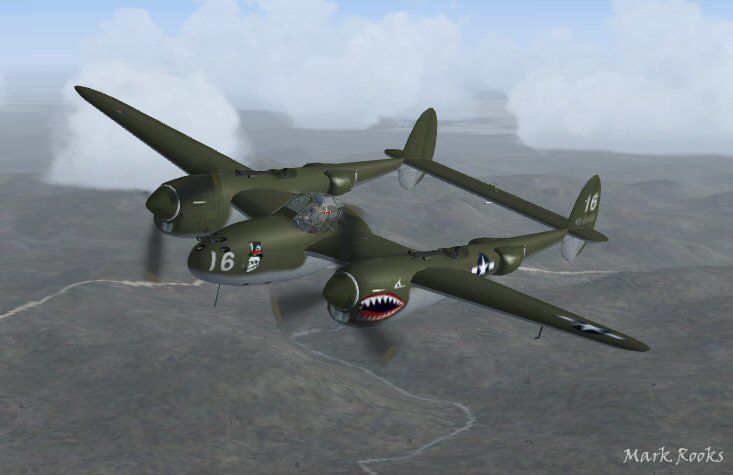
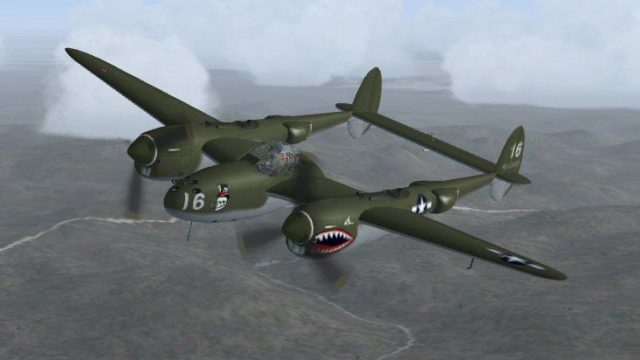
This is David C. Copley's Lockheed P38 Lightning updated for Microsoft Flight Simulator X. This aircraft with the top hatted skull belongs to by Bob Faurot who has the honor of the first P-38 kill in the Pacific. This P-38, tail number 42-12633 of the 39th Fighter Squadron "Cobra In The Clouds", carries Bob Faurot's #16. This aircraft includes a 2D and 3D P-38 panel and also includes history and pictures of the actual aircraft. Updated 2D panel original by Mel Mutter. VC panel now works in FSX. Includes two textures, one regular and one semi-gloss. Updates by Mark Rooks of RDG Aircraft.
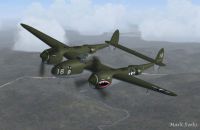
Screenshot of P-38 'Cobra In The Clouds' in flight.
To install this aircraft:
As always back up any original files.
1. Unzip downloaded folders to your desktop or temporary directory of your choice.
2. Copy the " P-38 Lightning .. Cobra in The Clouds " and paste it in the main aircraft folder. By default the main aircraft folder is located at: "C:Program FilesMicrosoft GamesFSXSIM Objects /Aircraft".
3. Be sure to completely unzip all files the aircraft file when complete will Cotain 6 files the Following 6 files goes in the aircraft folder CFG Airfile Model Sound Panel Textures.
4. Unzip the gauges folder and put the gauges in the FSX gauges folder located at "C:Program FilesMicrosoft GamesFSXGauges". If you desire you don't have to gauges work just fine in the panel folder..
When using Mel Mutter's Original P-38 Panel in the Panel file only used a [VCockpit01] yet the Model was created with a [VCockpit01] & [VCockpit04] This left gamers looking out to their left and seeing a 1024 X 1024 Black square . The solution was to add a [VCockpit04] and I just made the a pixel size 1 x 1 This panel uses Mell Mutter's panel in 2D and the original Texture as the 3D panel this rework makes both work correctly.
Original text from the David C original P-38
[VCockpit04]

Background_color=0,0,0

size_mm=256,256

position=7

visible=0

ident=

pixel_size=1024,1024

texture=$vc2

gauge00=xp38nmod!Magnetic-Compass, 198, 199, 48
Made Simpler:
Make sure all files are unzipped the New Plane folder should contain 6 files unzipped they are CFG Airfile Sound Model Texture Panel the New Plane folder with the 6 files goes in the game aircraft folder found at C:Program FilesMicrosoft GamesMicrosoft Flight Simulator XSimObjectsAirplanes follow the path ie open the c drive then open program files then open Microsoft Games then open Microsoft Flight Simulator X then open SimObjects then open Airplanes folder the New Plane goes in that folder.
Textures and FSX updates created by Mark "Fire Ball" Rooks.
Enjoy your new repaint.
Thanks for downloading.
Be sure to Thank David C. Copley for his wonderful aircraft and his work.
Thank Mell Mutterf or his Great Panel and his work.
Fire Ball"
Free for all simmers · 17.84 MB · Scanned clean Oct 2026
Download speed: Free tier is capped at 0.5 Mbps (this file takes approximately 5 mins at the cap). PRO members download at full line speed.
SimObjects\Airplanes\, Addon Scenery\, Effects\, or Gauges\.readme.txt or README file. It tells you exactly where files go, what dependencies are needed, and any quirks specific to this add-on.The archive fsx_p-38_39th_fs.zip has 10 files and directories contained within it.
This list displays the first 500 files in the package. If the package has more, you will need to download it to view them.
| Filename/Directory | File Date | File Size |
|---|---|---|
| 1Screen P-38.jpg | 01.11.12 | 41.26 kB |
| 39th Fighter Sq Pictures and History.zip | 01.11.12 | 1.47 MB |
| Gauges.zip | 01.11.12 | 1.14 MB |
| Original readme_first.txt | 01.11.12 | 4.13 kB |
| P-38 Cobra's In The Clouds.zip | 01.11.12 | 12.89 MB |
| Read Me First.txt | 01.11.12 | 3.90 kB |
| Reg. Text.txt | 01.11.12 | 587 B |
| Semi Gloss Texture.zip | 01.11.12 | 2.30 MB |
| flyawaysimulation.txt | 10.29.13 | 959 B |
| Go to Fly Away Simulation.url | 01.22.16 | 52 B |
Only PRO members can place votes.
More FSX & P3D add-ons hand-picked based on this download.
FSX Historic & Vintage Aircraft
This is David C. Copley's P38 Lightning updated for Microsoft Flight Simulato…
 FSX Historic & Vintage Aircraft
This is David C. Copley's Lockheed P38 Lightning modified for Microsoft Fligh…
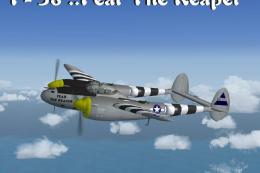 FSX Historic & Vintage Aircraft
The P-38 Lightning “Fear The Reaper” freeware package provides a faithful rec…
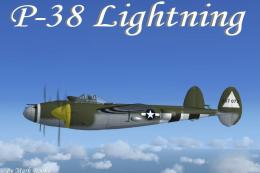 FSX Historic & Vintage Aircraft
Enhance your virtual hangar with this freeware Lockheed P-38 Lightning model …
 FSX Historic & Vintage Aircraft
Sikorsky S-38 NC144M. The Sikorsky S38 was used by Pan American Airways throu…
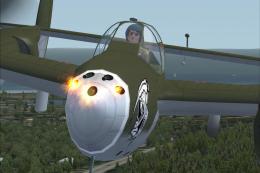 FSX Historic & Vintage Aircraft
Weapons configuration for the P-38 "Fear the Reaper" by David Copley. Require…
 FSX Historic & Vintage Aircraft
Now version 3.14 (V3.1406). This package includes the latest Douglas C-47 Sky…
 FSX Historic & Vintage Aircraft
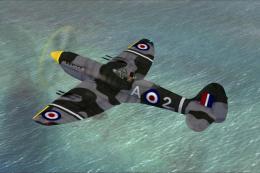
This is A.F. Scrub's Submarine MK-22 Spitfire Updated For Flight Simulator X.…
Read what other simmers think, or add your own.

Can't seem to install new aircraft into FSX. I'm still using wWindows XP. I wonder if this is why aircraft wont install? I have followed tutorials, including F-14 install, but still no new aircraft. Can anyone help? I have installed some new aircraft into FS2004 without any hassle. Hmmm?

I like this plane a lot, but are there any special effects for firing ordnance and flash effects that can be added?

Great plane. When i put it into FSX,it created not only the plane folder, but a subfolder by the same name. I had to eliminate the subfolder, and move any files to the main plane folder. After that it was just fine.