

 FSX Civil Aircraft
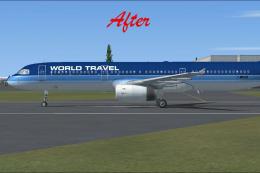
Default Airbus A321-200 Blurred Texture Fix
This freeware package, developed by Paul Craig, provides replacement texture …
Default Airbus A321 autobrake control becomes fully clickable in the 2D gear panel, restoring reliable braking mode selection for rollout and rejected takeoffs in Microsoft Flight Simulator X. The patch updates gauge logic while keeping the original panel layout intact, and it requires the PAPA320_W gauge folder for proper operation.
 Rate
Rate
This freeware patch resolves an issue where pressing the autobrake knobs in the default Airbus A321 gear panel window was not functional within Microsoft Flight Simulator X. Created by developer Joshua Annang, it targets the 2D instrument panel exclusively and does not alter any virtual cockpit behavior.
The Airbus A321 is a well-known narrow-body twin-engine aircraft widely employed by carriers worldwide for short-to-medium-range operations. In the default FSX setup, the autobrake system sometimes fails to respond when activated from the gear panel window, especially in the 2D cockpit layout. This fix modifies specific gauge logic and brings that functionality to the 2D panel, ensuring complete control over braking modes during rollout or rejected takeoff. Although the virtual cockpit switches remain inactive, the improvement to the 2D cockpit offers a more consistent experience when managing runway deceleration and overall handling.
Gauges folder. Copy the PAPA320_W gauge folder into that directory.panel.cfg file for the default Airbus A321. Under the section labeled [Window05], insert the line:Free for all simmers · 1.18 MB · Scanned clean Oct 2026
Download speed: Free tier is capped at 0.5 Mbps. PRO members download at full line speed.
FSX\SimObjects\Airplanes\. The folder must contain an aircraft.cfg file. Effects go into FSX\Effects\; gauges go into FSX\Gauges\.readme.txt or README file. It tells you exactly where files go, what dependencies are needed, and any quirks specific to this add-on.The archive fsxdefaulta321autobrakefix.zip has 5 files and directories contained within it.
This list displays the first 500 files in the package. If the package has more, you will need to download it to view them.
| Filename/Directory | File Date | File Size |
|---|---|---|
| Autobrake Fix | 12.20.09 | 0 B |
| PAPA320_W.CAB | 02.23.08 | 1.32 MB |
| README.txt | 12.20.09 | 420 B |
| flyawaysimulation.txt | 10.29.13 | 959 B |
| Go to Fly Away Simulation.url | 01.22.16 | 52 B |
Only PRO members can place votes.
More FSX & P3D add-ons hand-picked based on this download.
FSX Civil Aircraft
This freeware package, developed by Paul Craig, provides replacement texture …
 FSX Civil Aircraft
Project Airbus Default A321 VC Merge; Northwest Airlines pack. Compiled by Ry…
 FSX Civil Aircraft
Default Airbus A321 Reworked And Added Views. Original views reworked and add…
 FSX Civil Aircraft
Default Airbus A321 Night Lighting. Realistic night lighting effects. Works o…
 FSX Civil Aircraft
Default A321 Fixes And New Sounds. The FSX Default A321 is probably the most …
 FSX Civil Aircraft
Boeing 737-800 Texture Fix. These files will fix default FSX textures for thi…
 FSX Civil Aircraft
This package resolves the blurry exterior textures that sometimes appear on t…
 FSX Civil Aircraft
This freeware package provides replacement surface detail files for the stand…
Read what other simmers think, or add your own.

I’ve downloaded the autobrakes fix and followed instructions. However, my panel.cfg file only goes up to [Window03], so I can’t put the code in a [Window05] section. I have mfs x.
Can anyone help? I’m not so good at messing around with code these days. It would be really nice to have a download that does the whole job. Does one exist?

I dont need help any more. But there is sure other guys who doesn't know how to install this. So, 1. Download the file 2. Put the downloaded file on the gauges folder (if you have windows 7 write on the "start" menu "FSX" the select gauges and put it there 3. Go back to the "FSX" folder and go to the "SimObjects" folder, select Airbus A321, then "panel" folder and select the "panel" text file. Then scroll down and there will be "[window05". Put under "Window05" text this:gauge01=PAPA320_W!Autobrakes Switch, 60,90,94,28. 4. Then save it and go back to the "Airbus_A321" folder on your "SimObjects" folder. There is text file named "aircraft". Go there and search for "brakes". Under the "[brakes]" you can see "auto_brakes". After it is maybe number 3. Change it to 4 and save. That's it! This is long but hopey easier to use than the original tutorial. Leave a comment if this helped. Thanks.
i cant do this. i dont know where i can find the "panel.cfg" file. and where i can find the "gauge01=PAPA320_W!Autobrakes Switch, 60,90,94,28" thing. please help

Problem solved. I just used hint from 'FATCAT' comment about changing aircraft.cfg file. Thanks.
Autobrake Fix works only for two buttons: 'Lo' and 'Med' The 'Max' button doesn't work and if I press 'Max' button then all autobrake panel stops working.

Excellent fix. I also needed to change my aircraft.cfg file for the A321 from auto_brakes = 3 to auto_brakes = 4 to get the max brake switch to work.