

 MSFS Utilities & Tools
Jetstream - Airline Career Mode and Pilot Progression
Jetstream gives Microsoft Flight Simulator 2020 and Microsoft Flight Simulato…
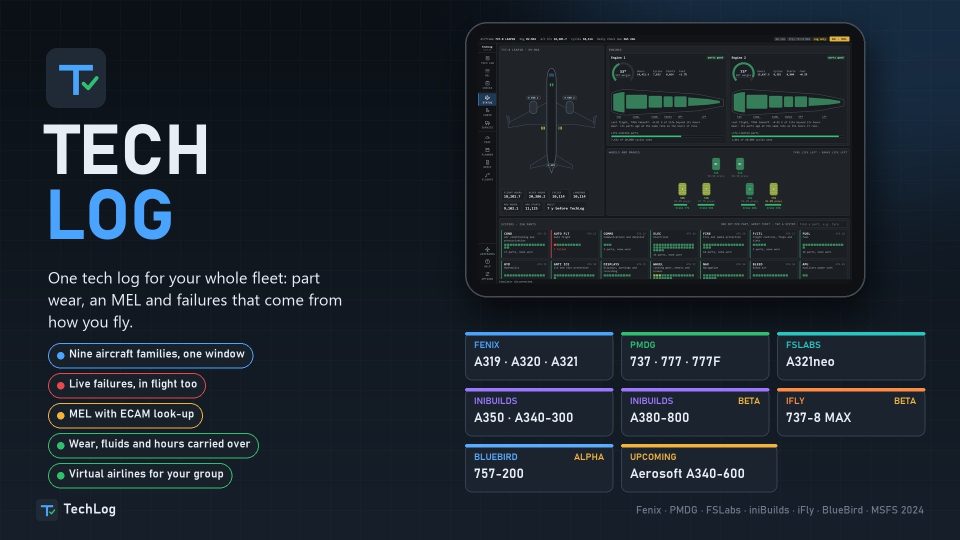
TechLog preserves individual airframe histories in Microsoft Flight Simulator 2024, linking component wear and handling damage to failures, maintenance and dispatch decisions. It requires supported third-party aircraft for live integration and combines MEL deferrals, servicing, maintenance planning, cabin tracking, cockpit profiles, performance calculations and automatic flight records through desktop, EFB or browser access.
 Rate
By NaughtyPickle
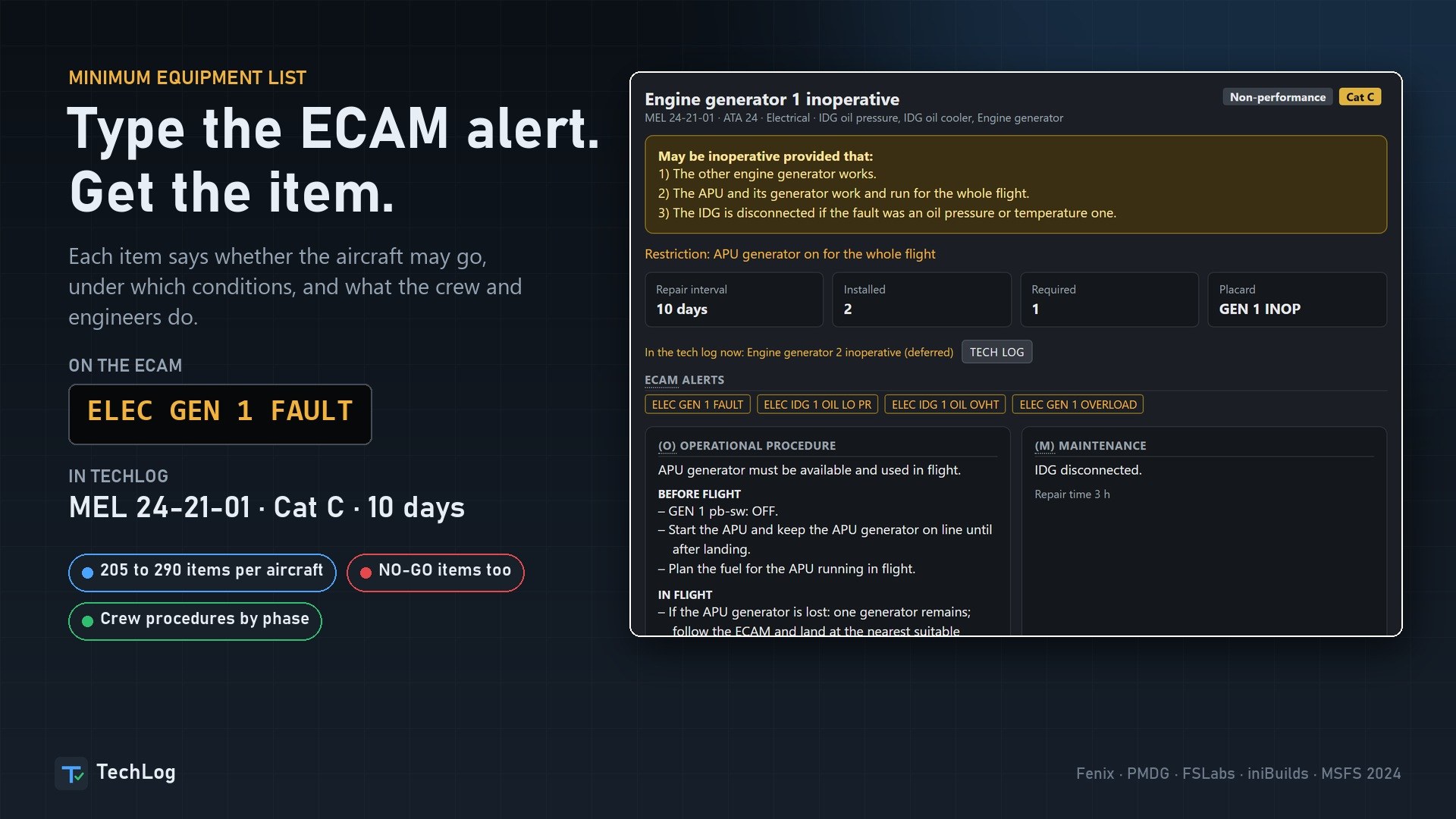
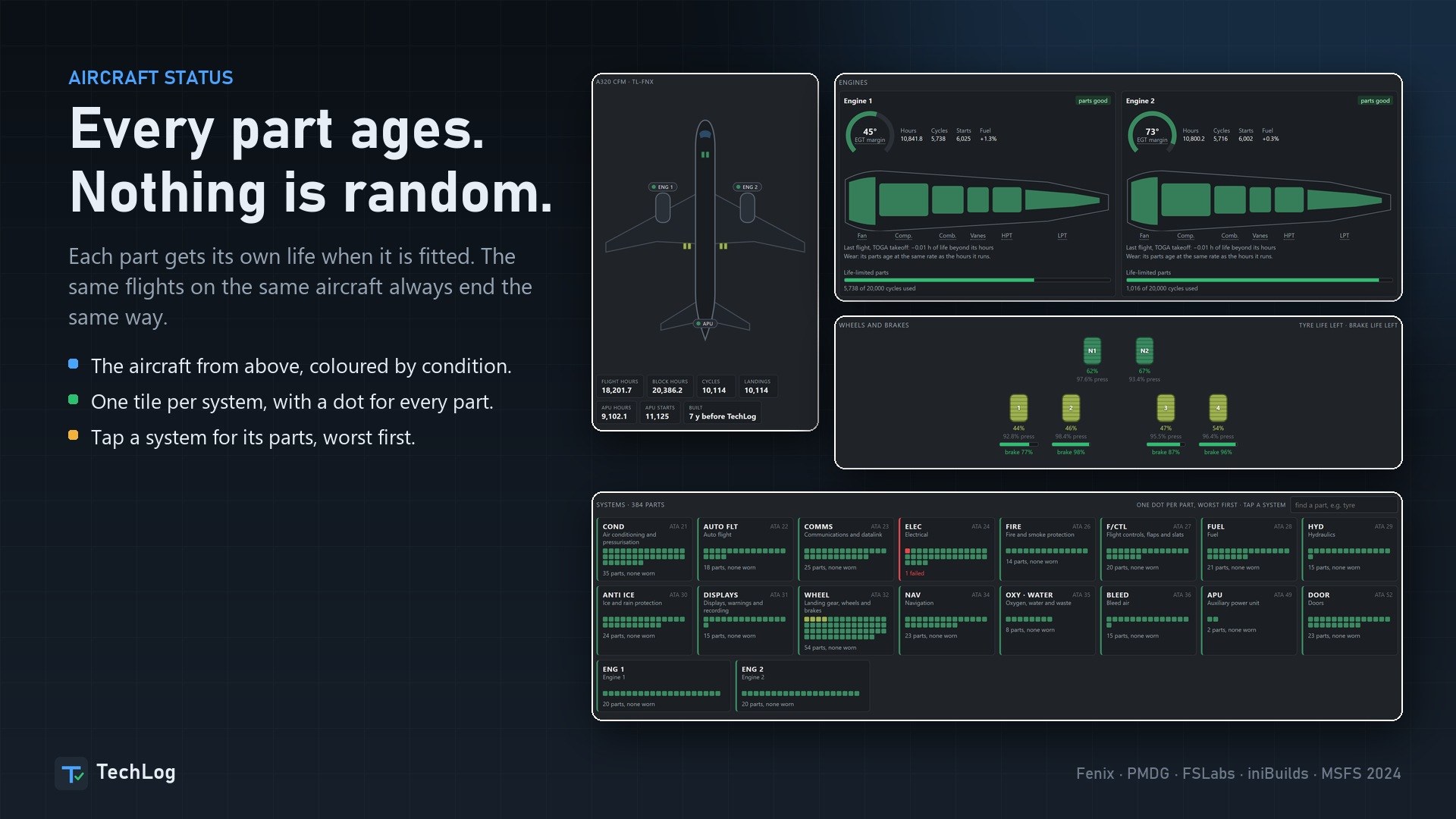

A worn part reaching its limit at engine start or gear selection adds a consequence I don't get from the stock sim alone. TechLog's component-life approach makes sense to me: takeoff thrust costs more engine life than idle, and repeated repairs restore progressively less life. There's a reason to look after the machinery. Searching for “ELEC GEN 1 FAULT,” I got the generator's MEL entry with its ten-day repair interval and the requirement to keep the APU generator running throughout the flight. That turned an alert into a dispatch decision, with the crew procedure beside the maintenance work. I particularly like that Realistic maintenance finishes with TechLog closed; an overnight repair needn't mean leaving another application running. The breadth of aircraft support needs careful reading, though. The BlueBird 757 alpha still lacks general failure injection, so don't expect its extensive MEL coverage to mean the same live control available elsewhere. I'd choose an airframe with a deeper connection before building a regular flying schedule around this.
TechLog tracks maintenance, wear and defects across supported airliners in Microsoft Flight Simulator 2024. NaughtyPickle’s utility keeps a separate history for each airframe and links its condition to aircraft failures, dispatch restrictions and servicing. You can use the same tech log in its desktop window, on the EFB, or through a browser on your PC or a networked tablet.
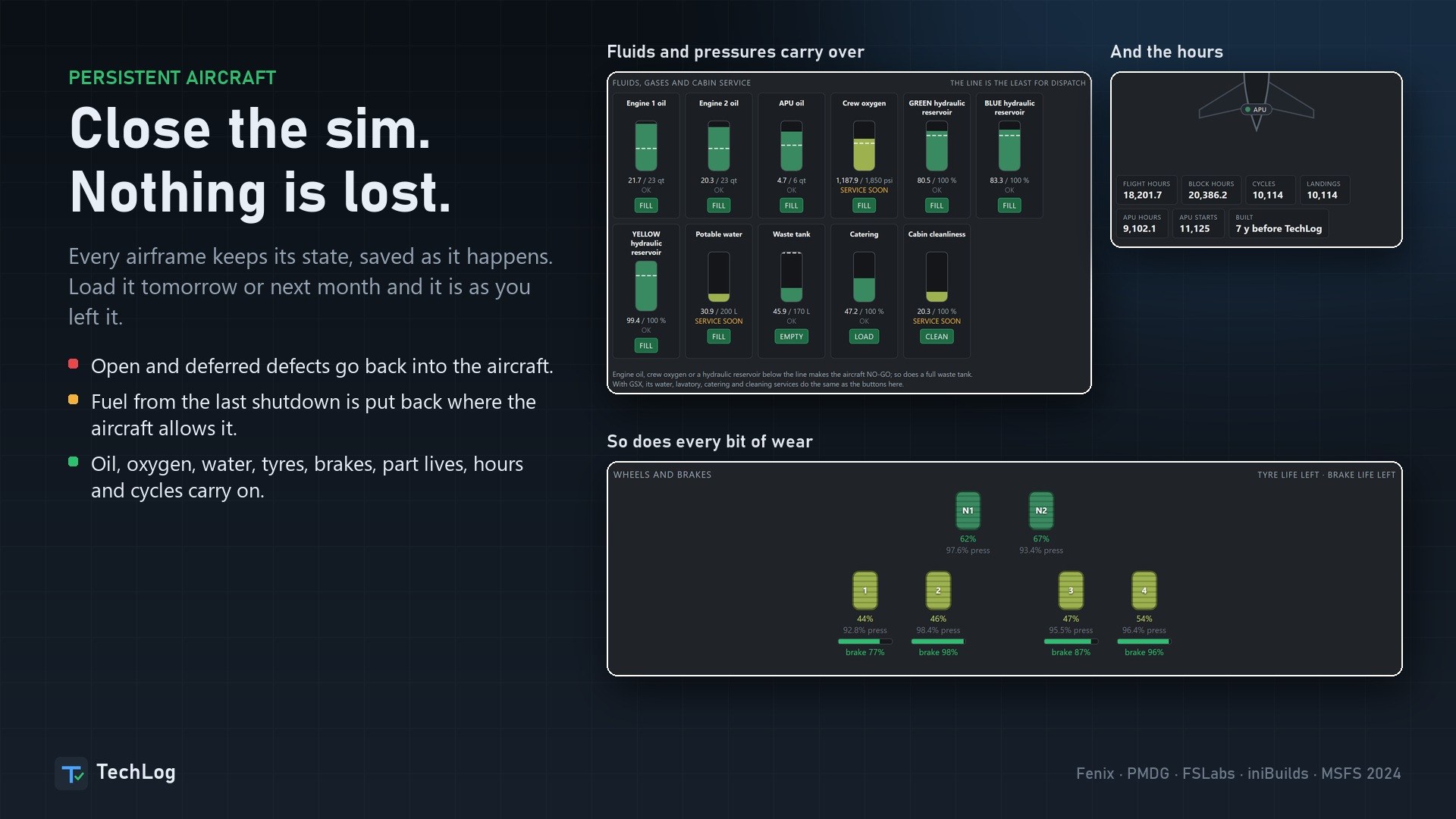
The point is continuity between flights. Shut down the simulator and the aircraft retains its defects, fluids, tires, brakes, remaining component lives, hours and cycles. Fuel carries over where the aircraft supports it. State is saved as it changes.
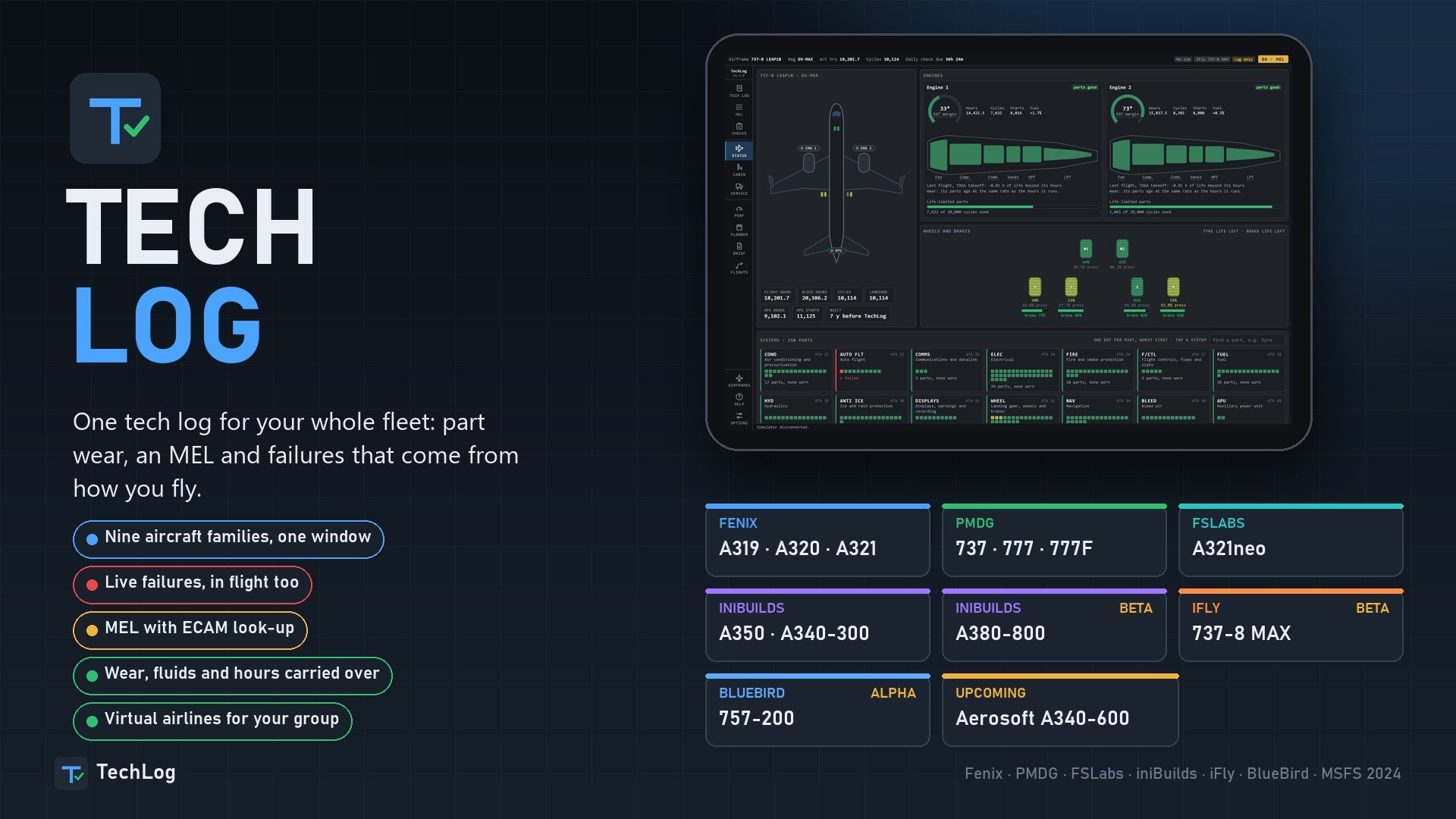
Core support covers six aircraft families from four developers, with additional beta and alpha integrations detailed below. You’ll need the corresponding third-party aircraft for live use; the depth of the connection varies considerably by model. The BlueBird 757, in particular, doesn’t yet have general failure injection.
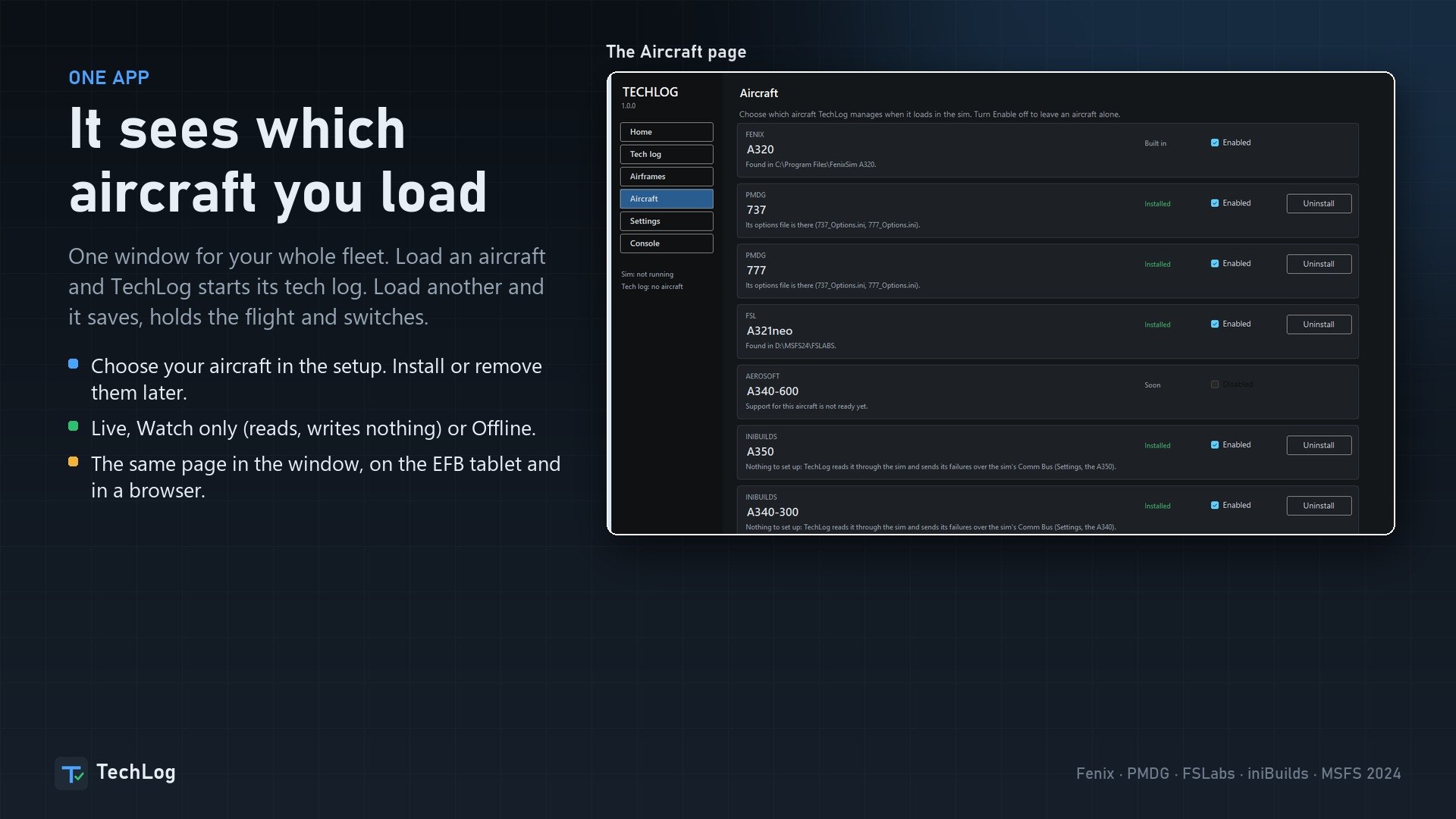
TechLog identifies the loaded aircraft and opens its log. Change aircraft and it saves, holds the flight and switches automatically. You can install, uninstall, enable or disable individual integrations later on the Aircraft page.
There are three operating modes. Live provides the full aircraft connection; Watch only reads aircraft data without writing anything back; Offline lets you work with the tech log without running the simulator. Automatic startup is optional, as is closing TechLog when the simulator closes.
If you’re moving from Fenix, PMDG or FSL TechLog, the setup finds those applications, offers to import their airframes, flights and defects, and removes them from the simulator’s startup list. TechLog replaces all three; the older applications will receive no further updates.
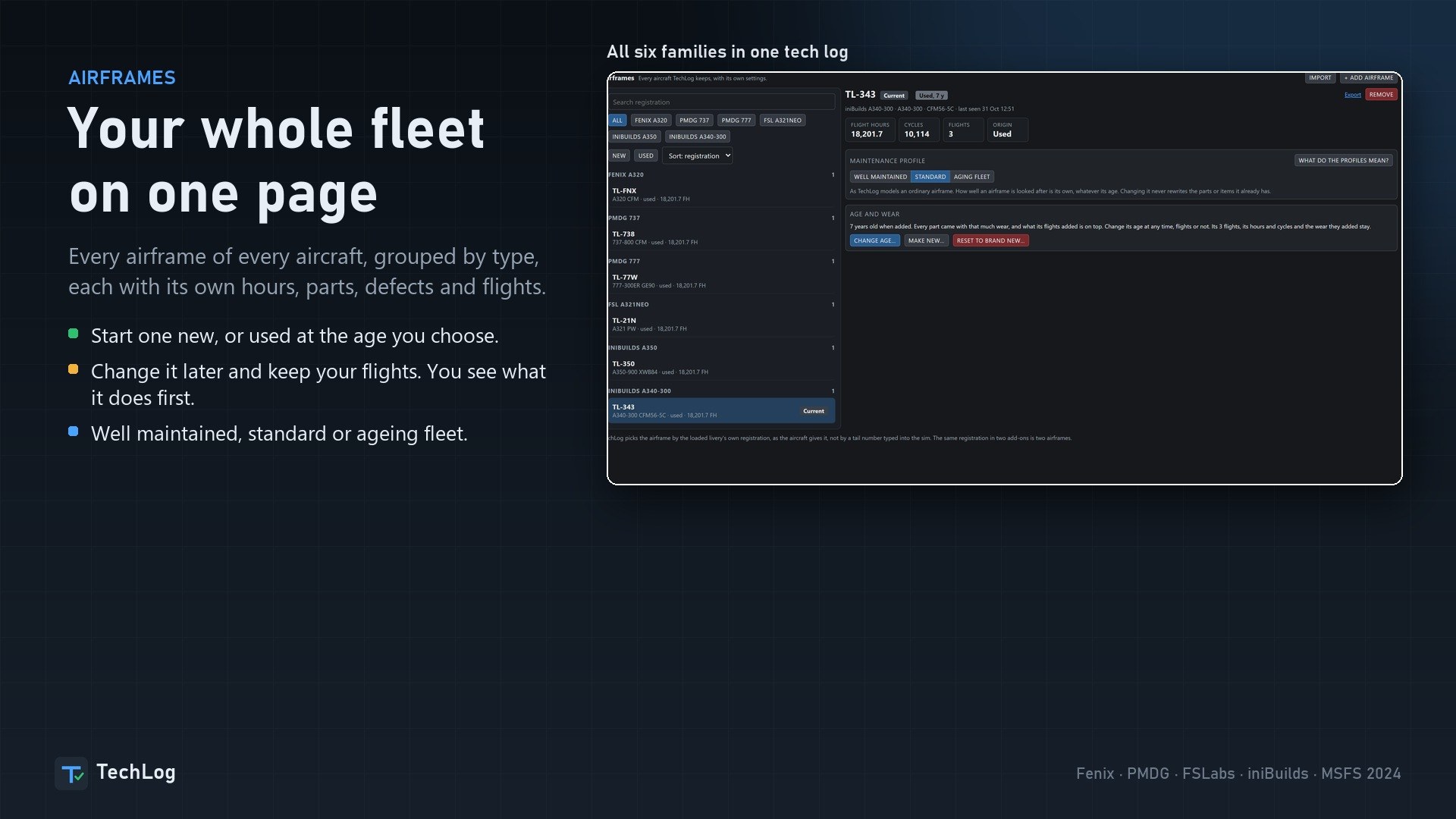
The fleet page groups every airframe by aircraft type. Using the same registration in two different aircraft products creates two separate airframes, each with its own components and maintenance history.
Start with a new aircraft or choose the age of a used one. A used airframe arrives with accumulated hours, worn parts, earlier crews’ deferred items and findings already in the log. You can change an existing airframe from new to used, or back again, without losing your flights. TechLog previews the consequences before you confirm.
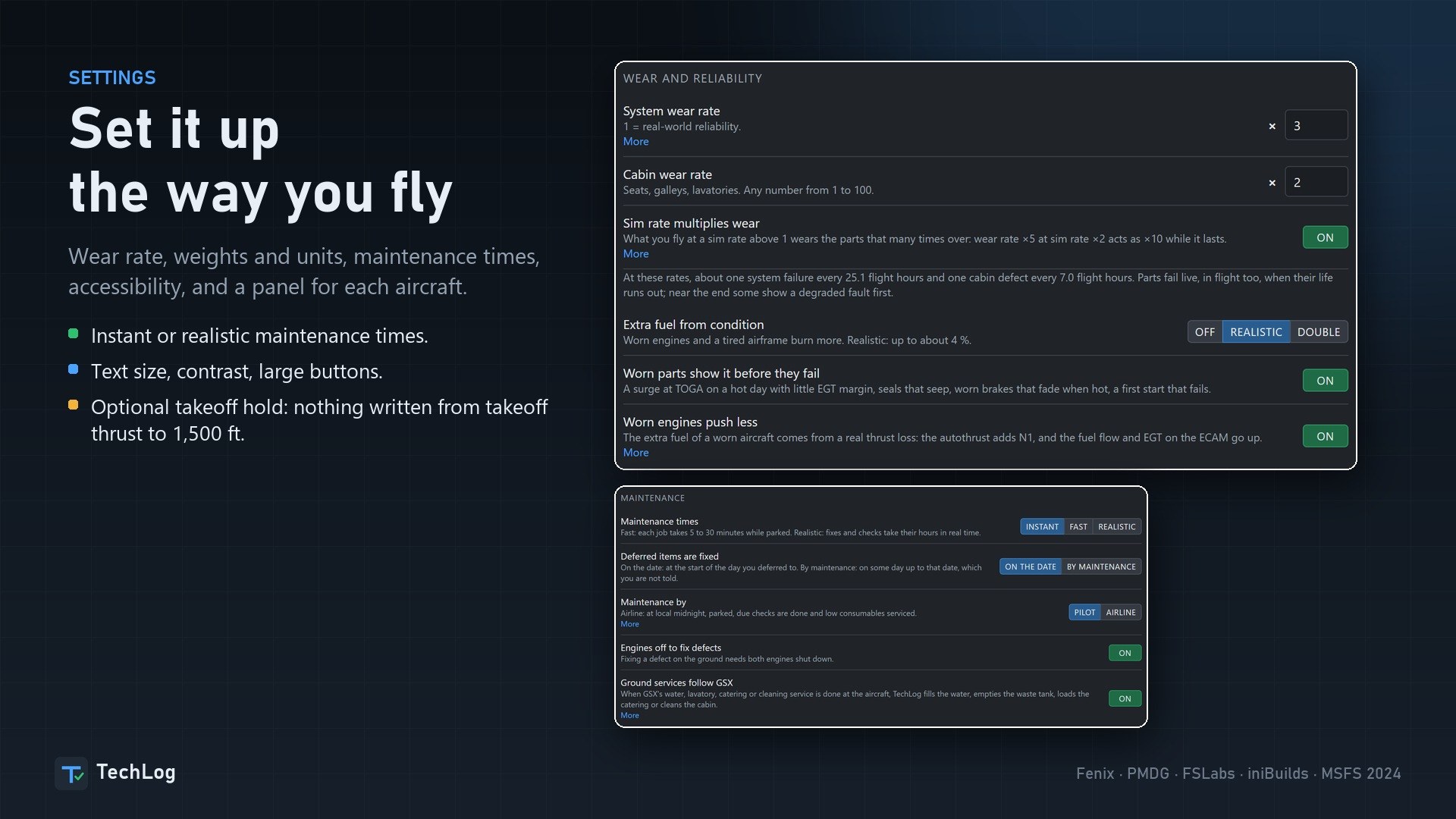
Maintenance profiles cover well-maintained, standard and aging fleets. Wear rate, units, accessibility options and maintenance times are adjustable, and each aircraft has its own settings panel. The in-app guide follows the aircraft currently loaded.
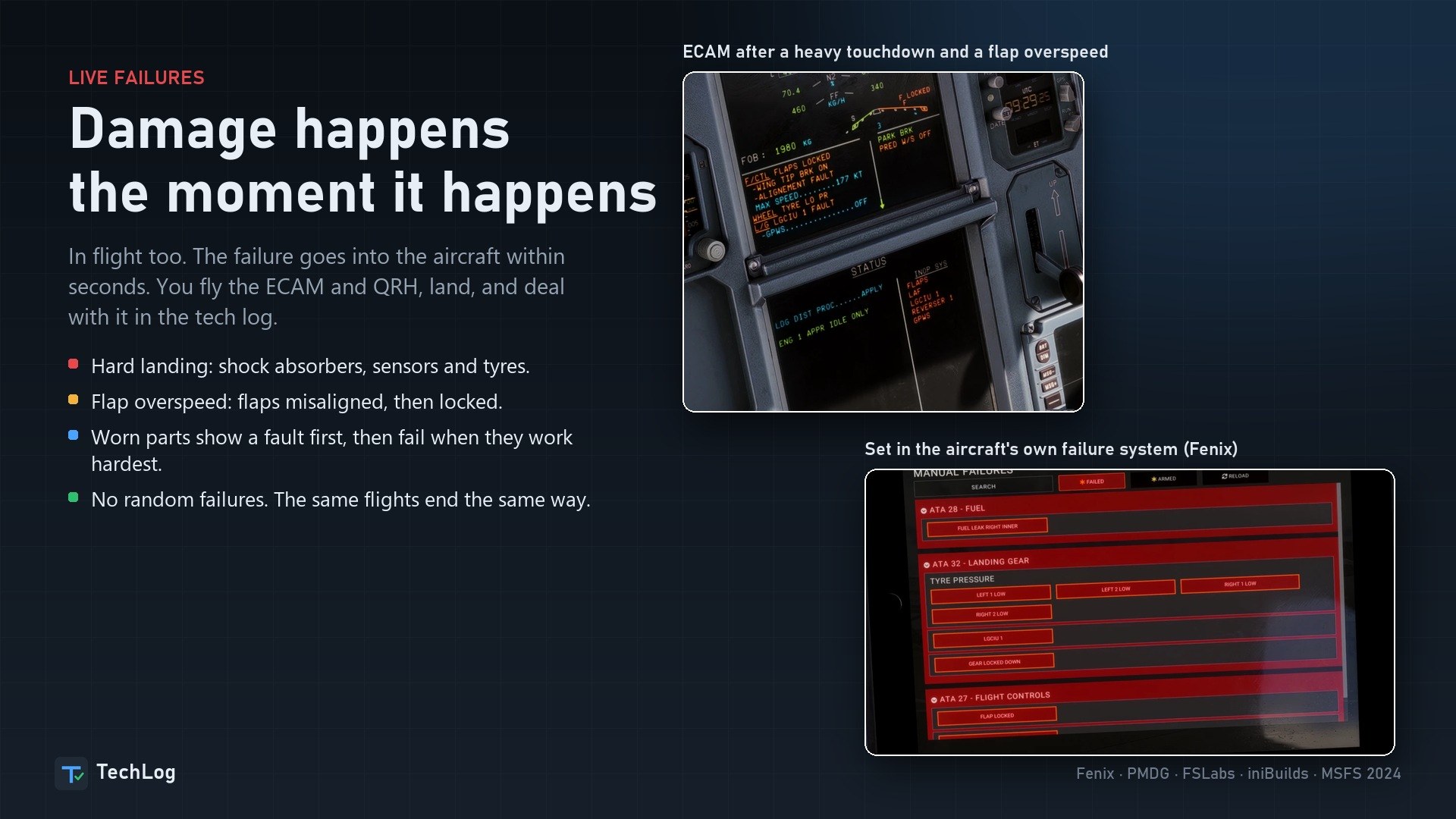
Failures follow component life rather than a random draw. Each fitted part has its own life measured in the appropriate unit: flight hours, engine hours, starts, cycles, reverser deployments or days. The same flights on the same airframe produce the same outcome.
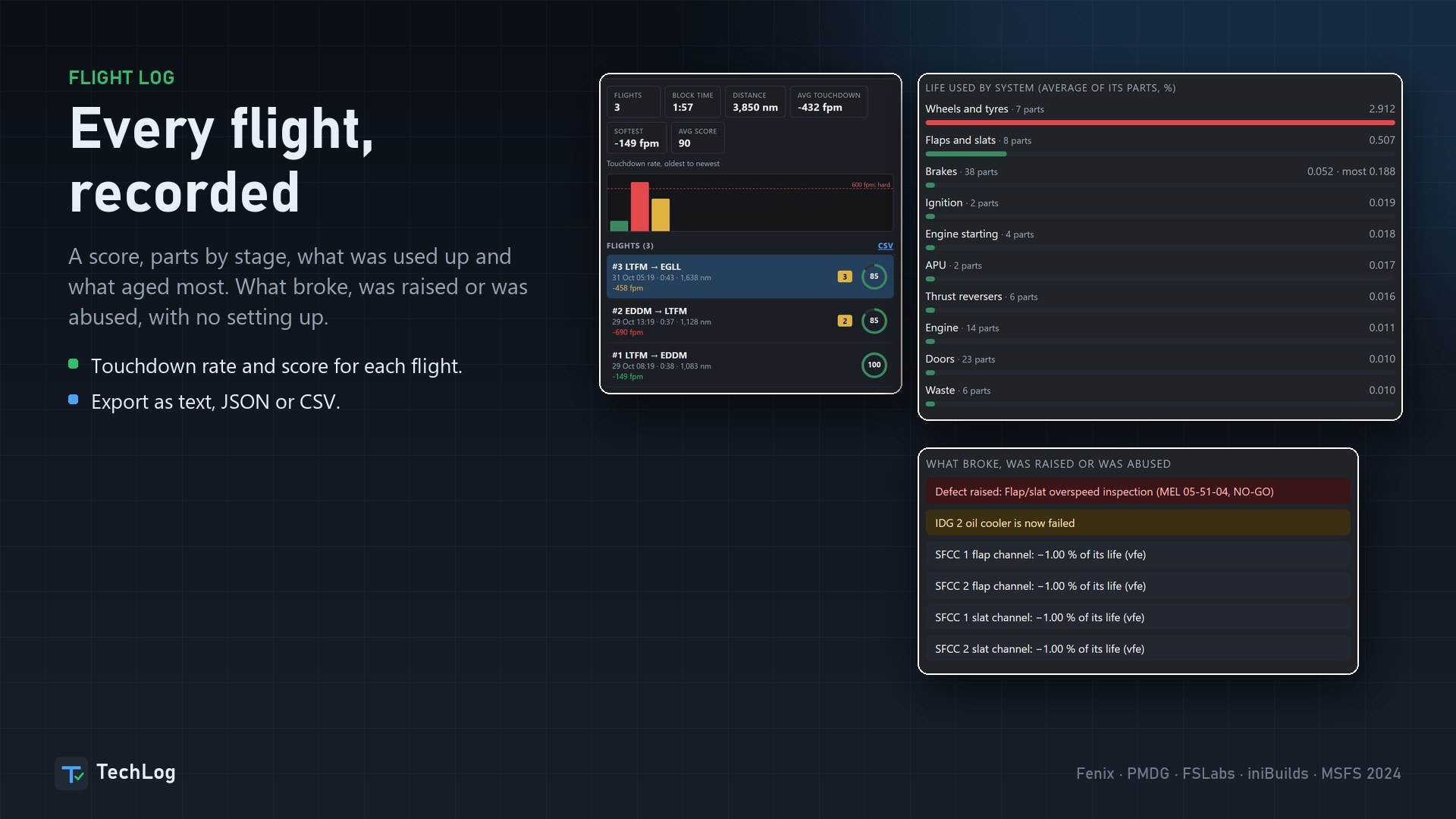
Mishandling shortens the lives of the affected parts. TechLog records hard landings, overspeeds, flap and gear limit exceedances, tail strikes, pod strikes, hot brakes, excessive tire speed, overweight landings and takeoff thrust held too long. Each produces a log item; more serious damage is passed to the aircraft immediately.
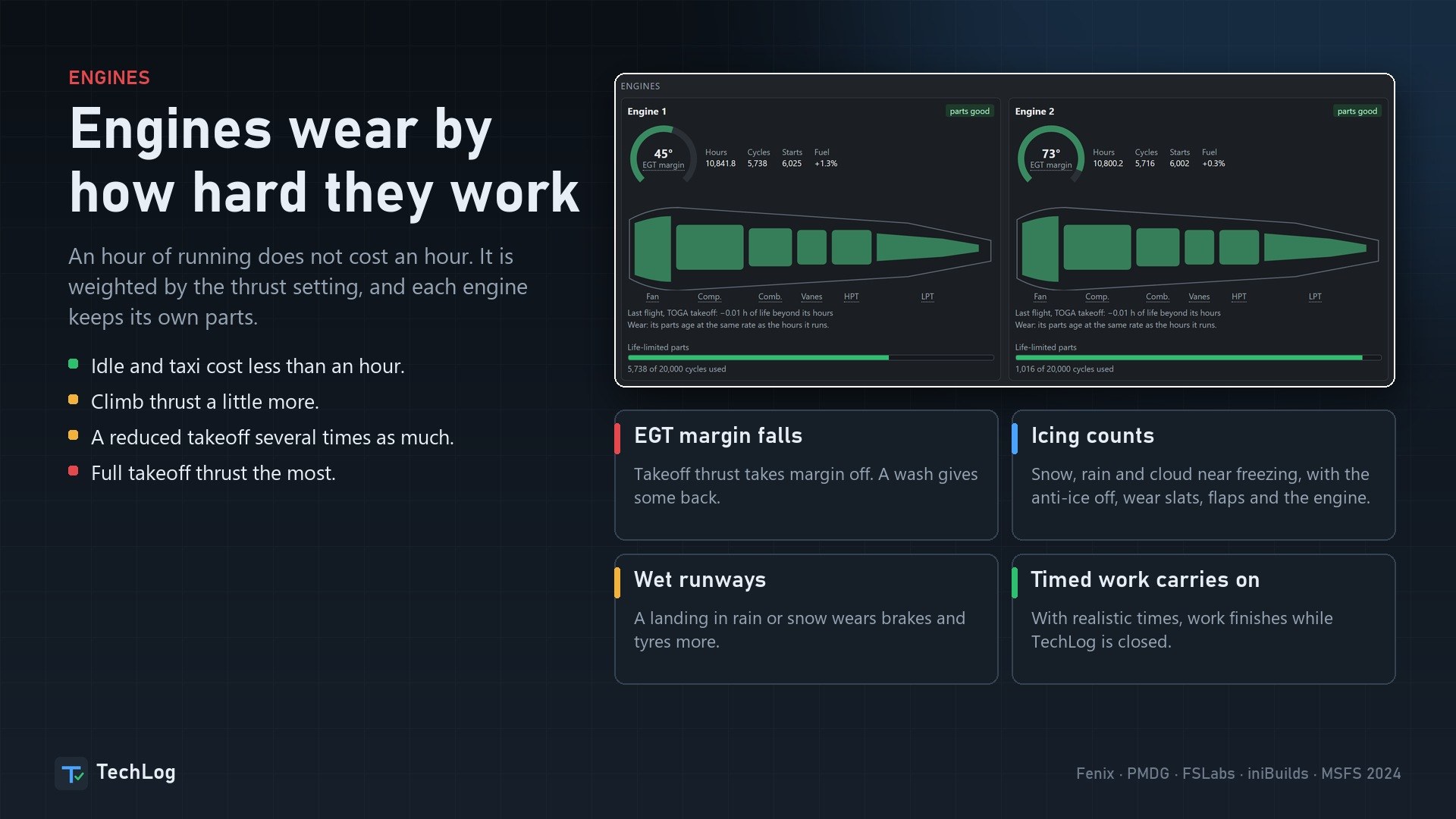
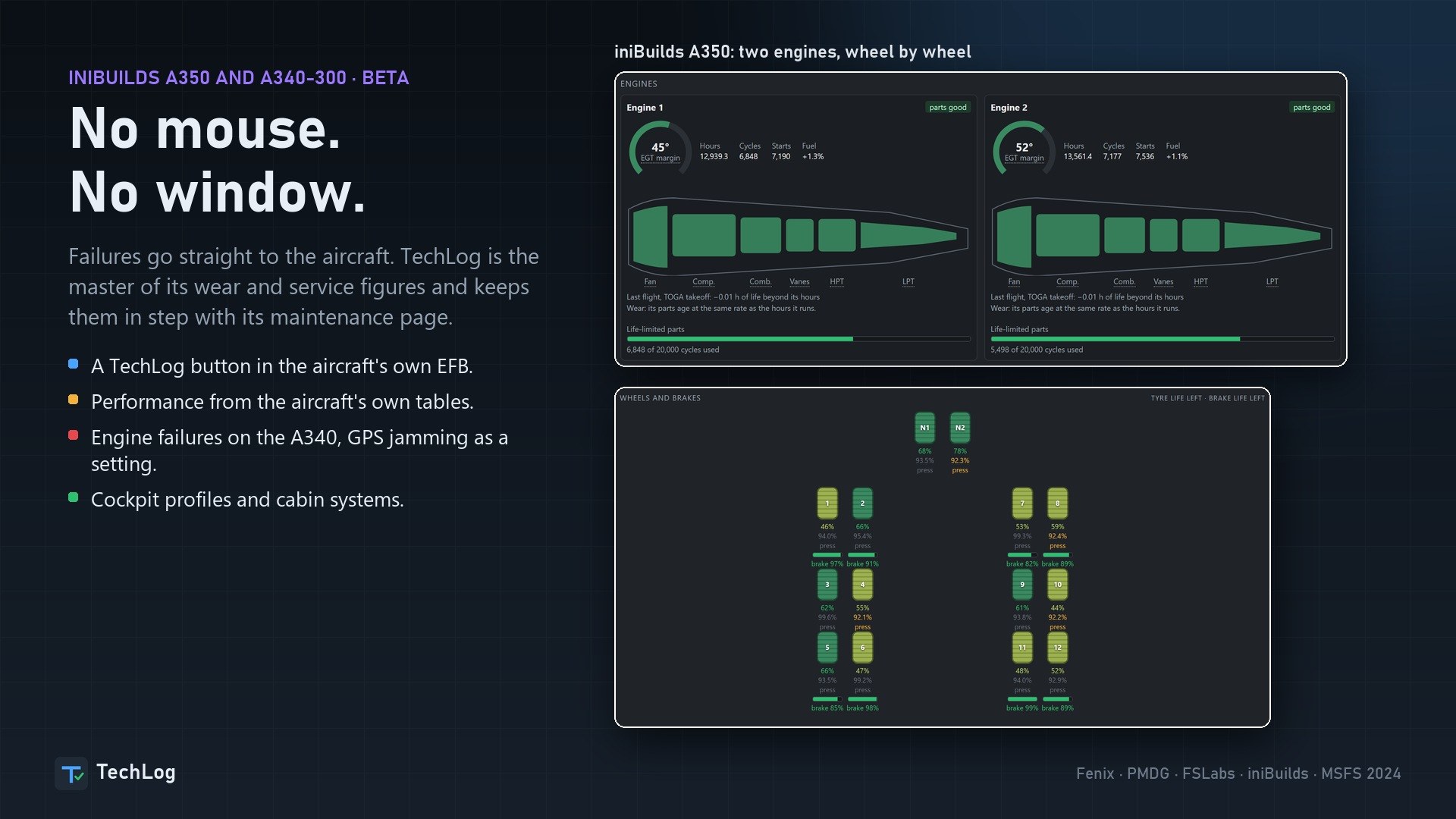
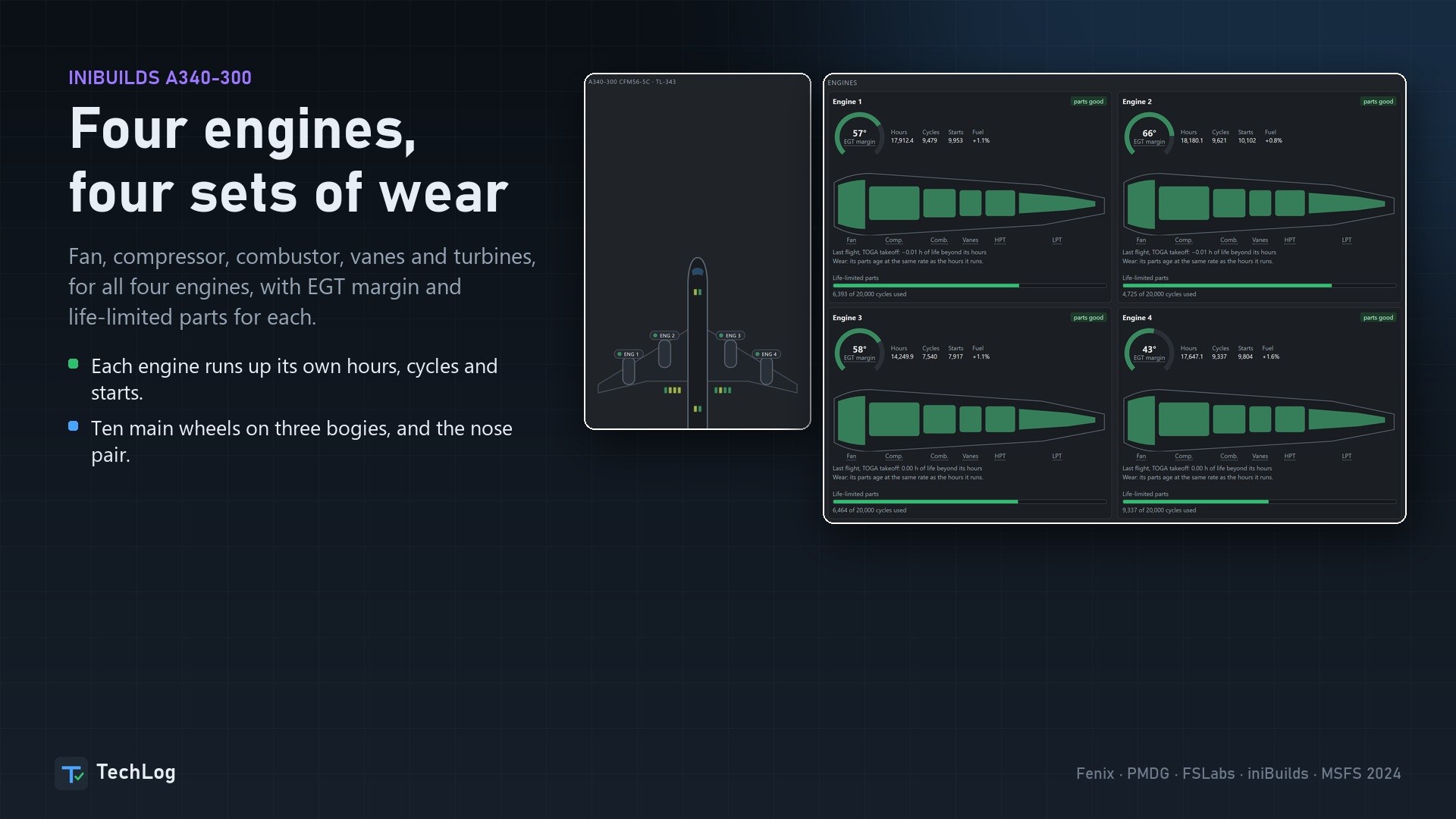
Engine wear also follows workload. Idle consumes little life, climb consumes more, and takeoff thrust several times as much. A reduced-thrust takeoff costs less than full thrust. Each engine has separate fan, compressor, combustor and turbine components, plus its own EGT margin.
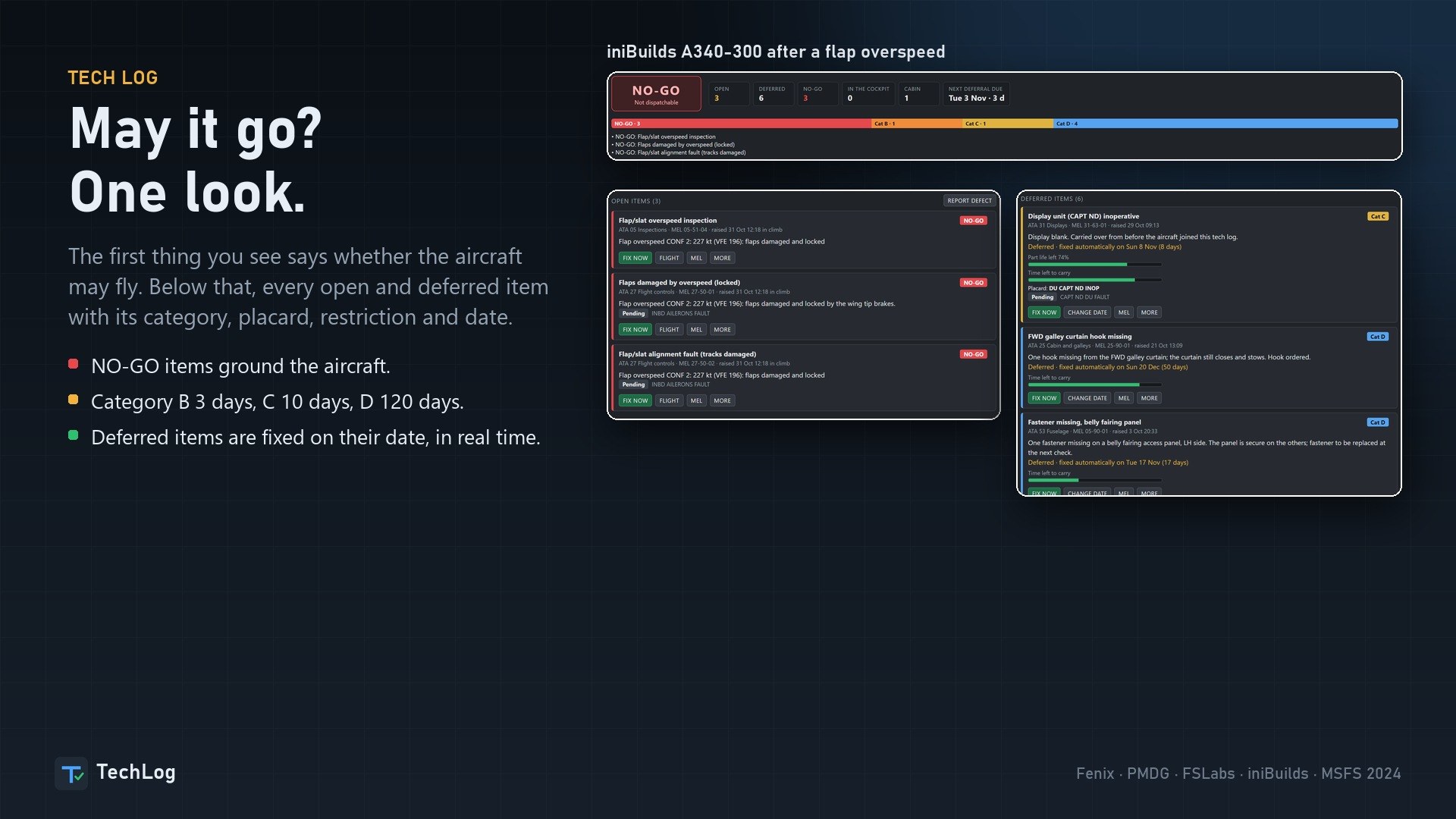
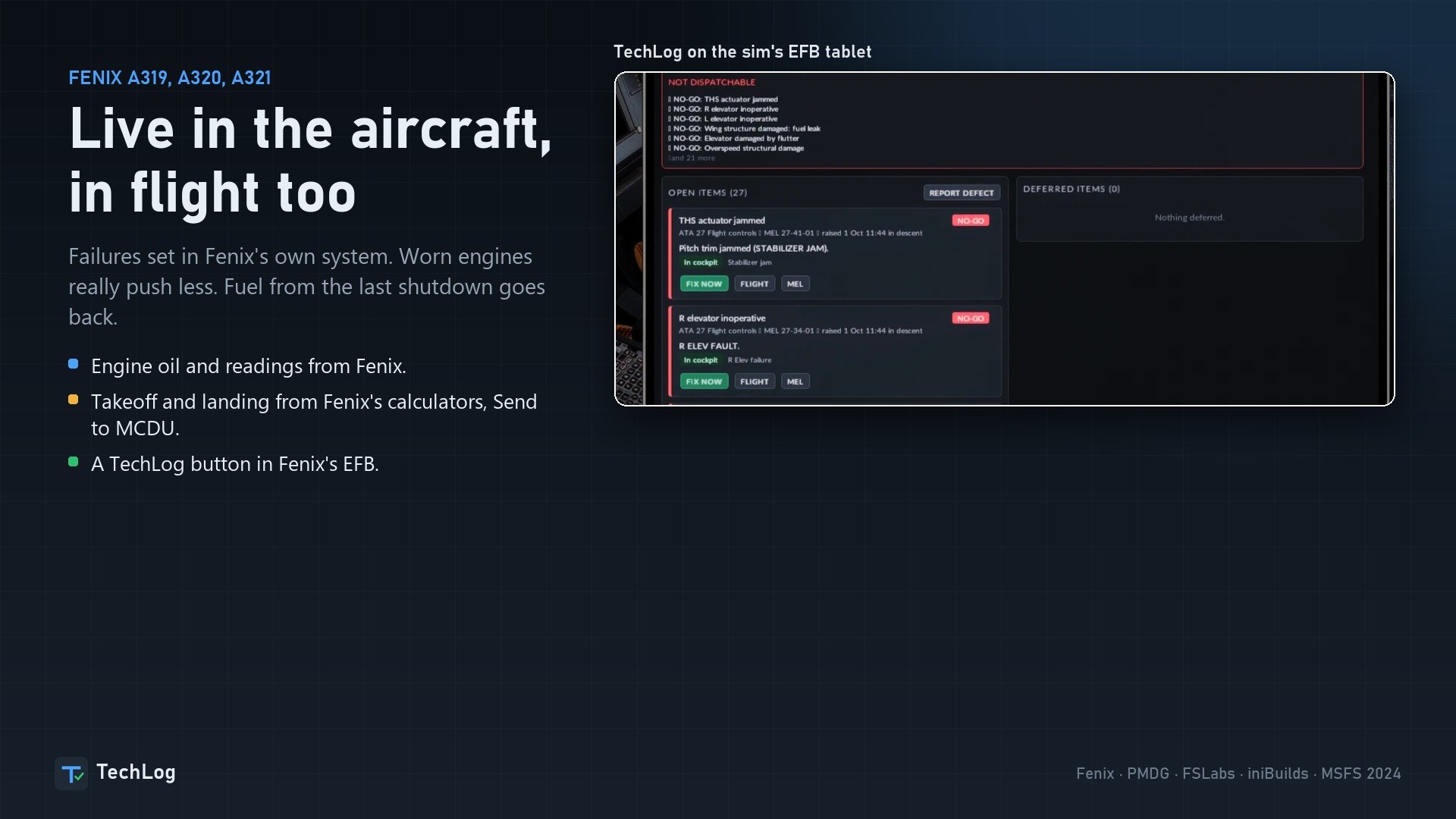
The tech log leads with whether the aircraft may depart. Open and deferred items appear below it with their category, placard, operating restriction and expiry date. NO-GO items ground the aircraft.
Eligible defects can be deferred to calendar deadlines. Category B allows 3 days, C allows 10 days and D allows 120 days. When the deadline arrives, the defect must be repaired or it prevents dispatch.
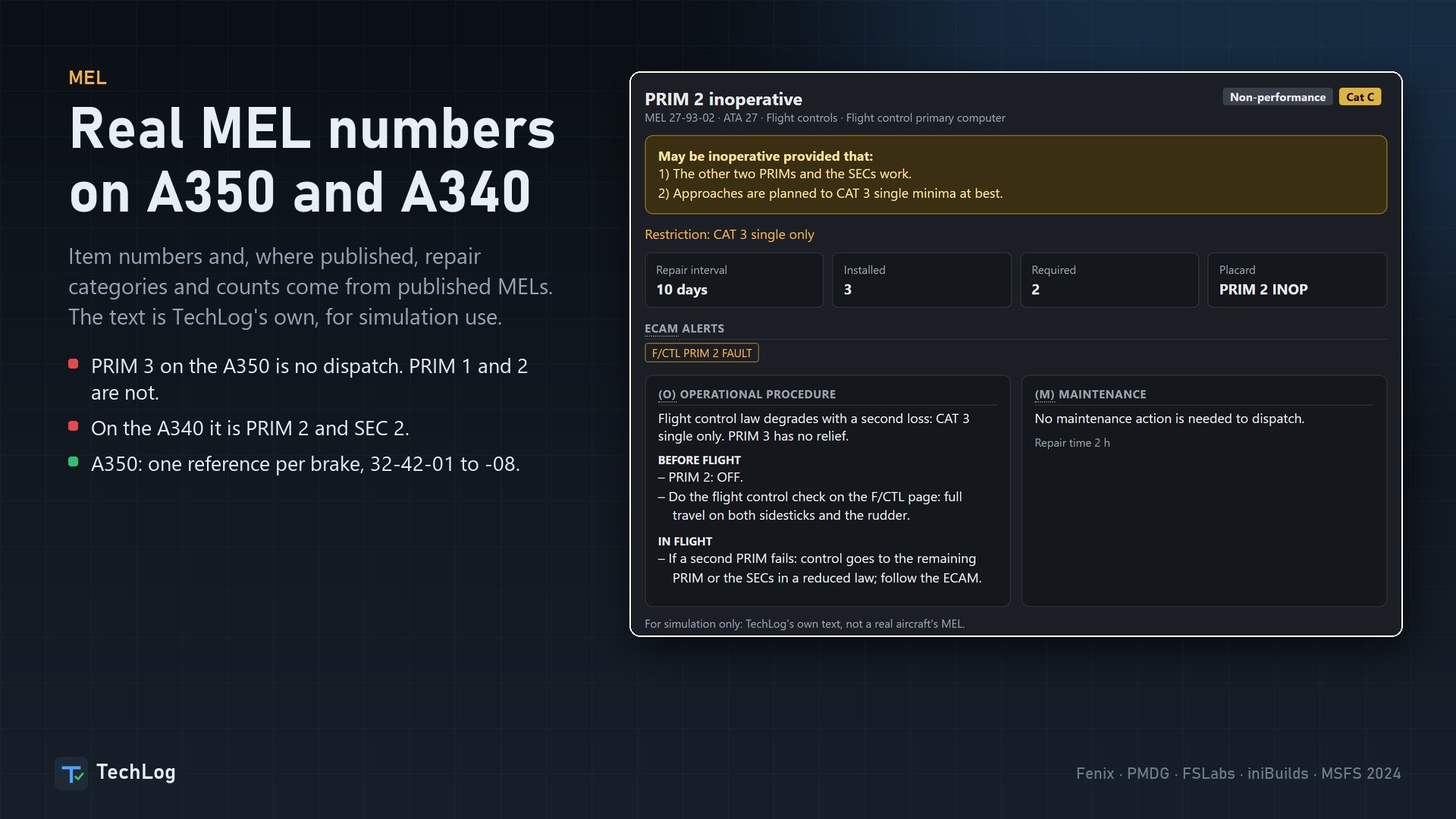
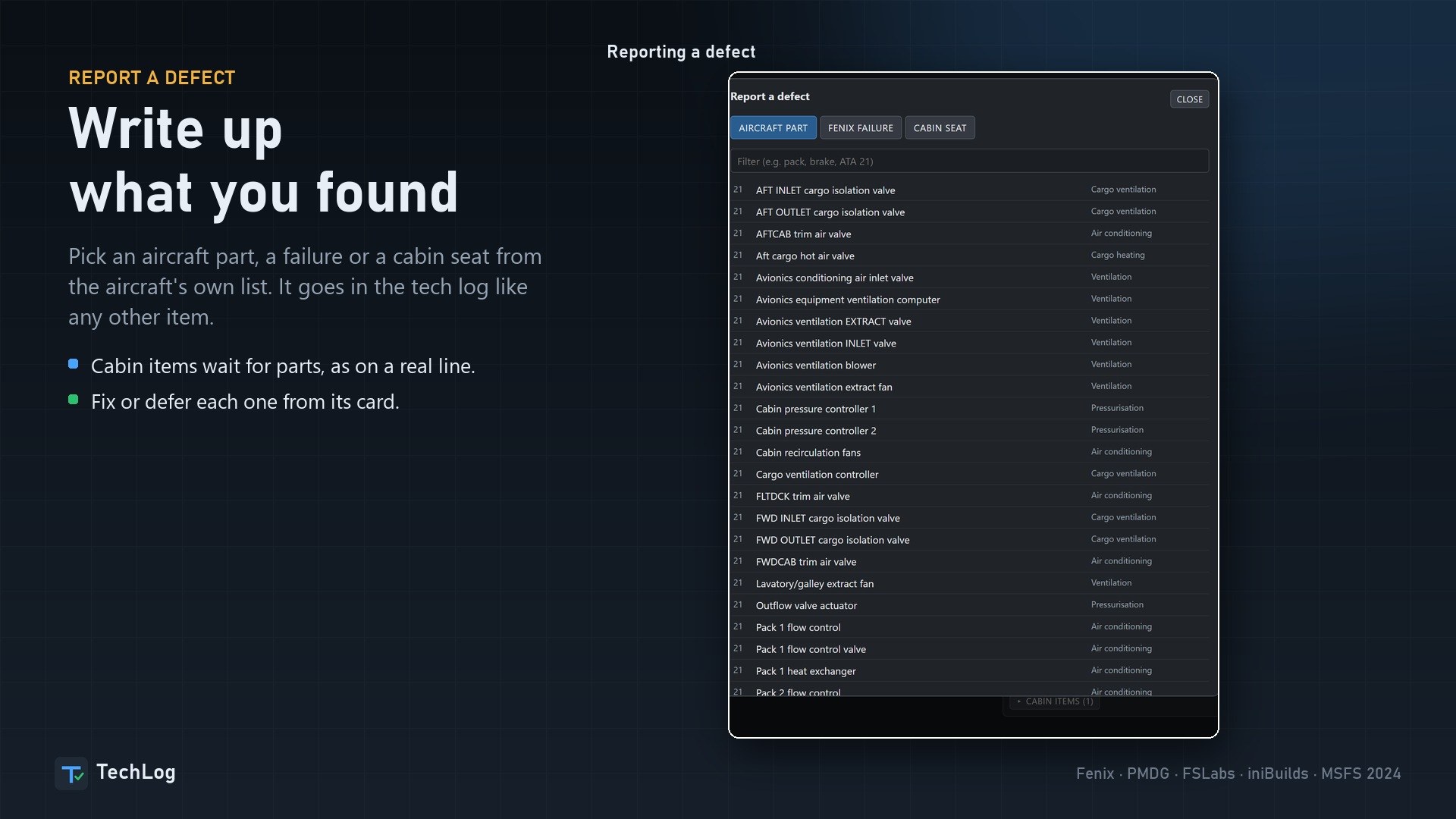
Each item explains its dispatch conditions, crew actions by flight phase, engineering work, repair duration and required placard. You can search by typing the alert as it appears on the ECAM.
The A350 and A340 entries use real item numbers and, where published, real repair categories and installed/required equipment counts. The specified no-dispatch items remain no-dispatch, including PRIM 3 on the A350 and PRIM 2 and SEC 2 on the A340. TechLog’s MEL text is its own wording and is for simulation use only.
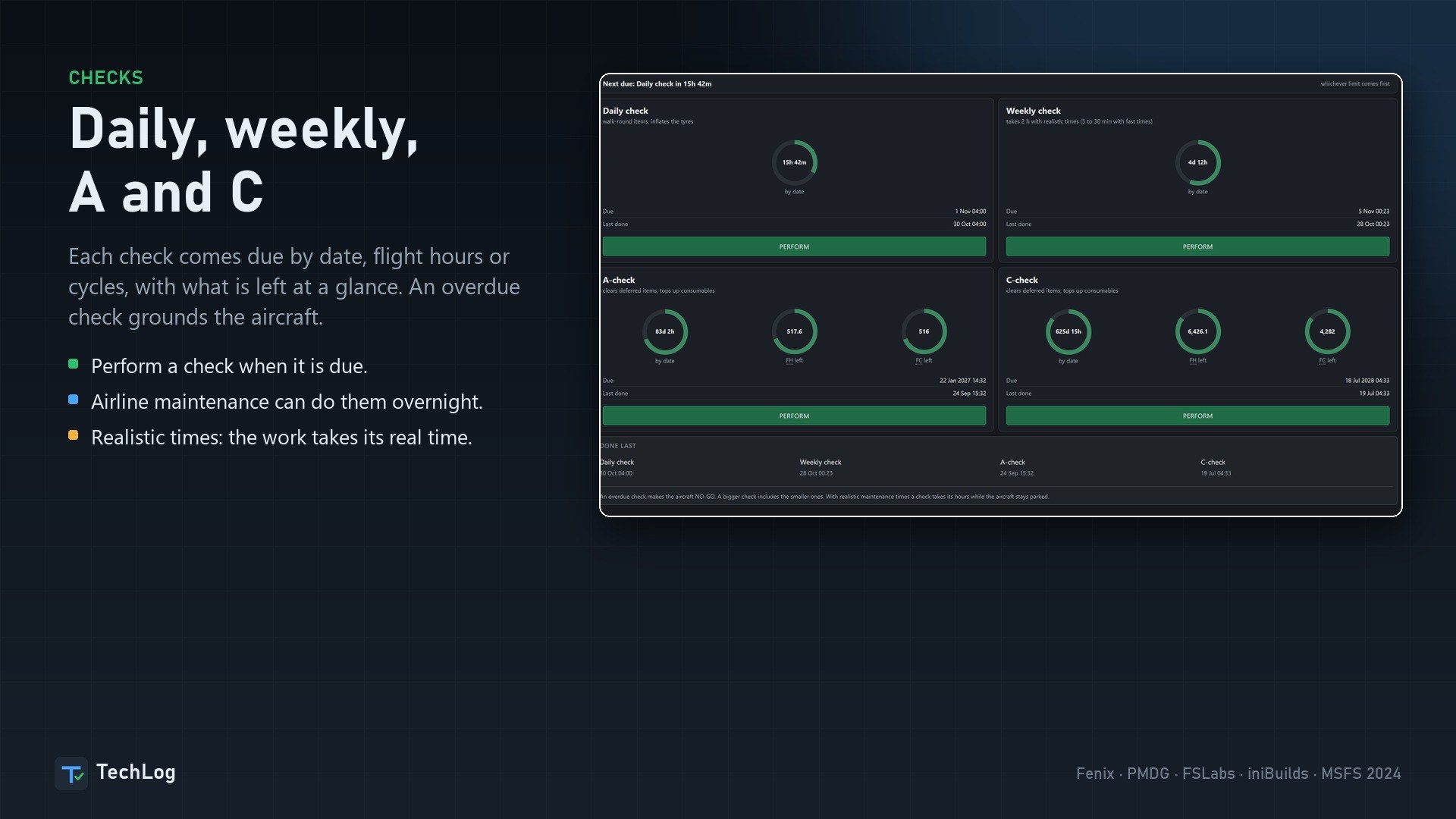
Maintenance can be Instant or Realistic. Realistic work takes its allotted time and continues to completion with TechLog closed. Airline maintenance can handle checks and top-ups overnight.
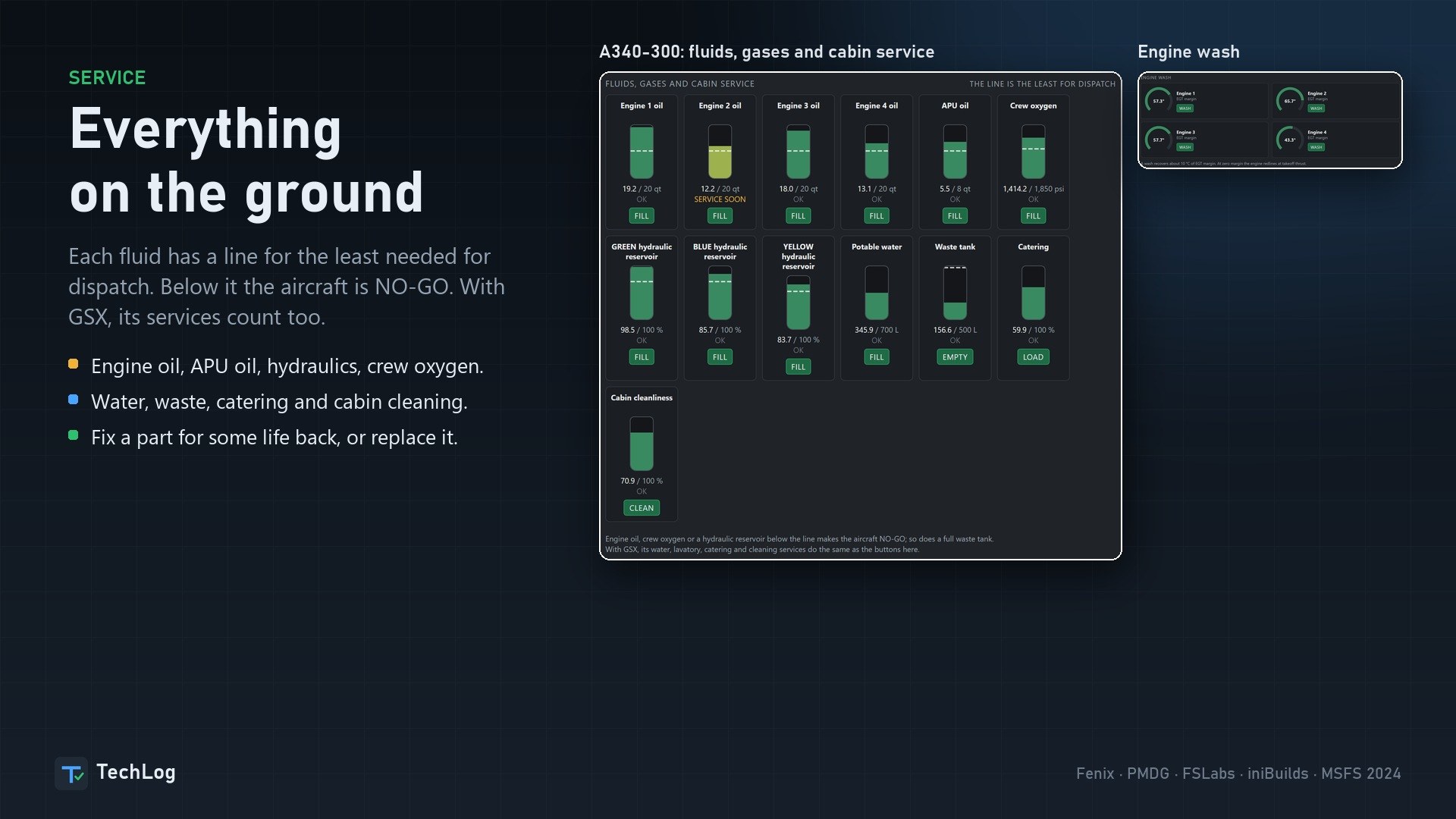
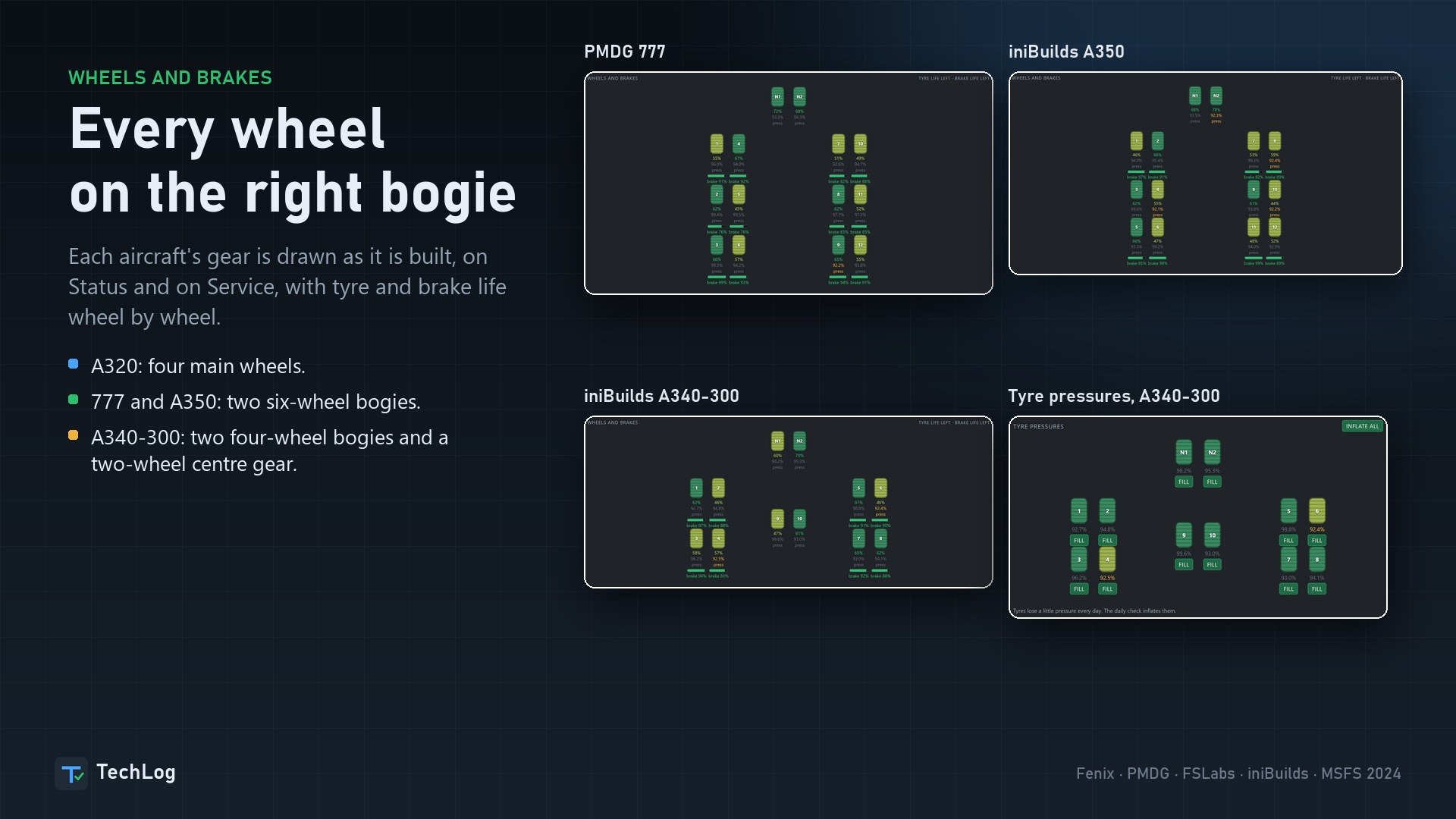
Ground servicing covers oil, hydraulics, oxygen, water, waste, catering and cabin cleaning, with minimum dispatch quantities marked. Repairing a component restores some life, with diminishing returns on subsequent repairs; replacement fits a new part. The Service and Status views draw each aircraft’s landing-gear arrangement as built.
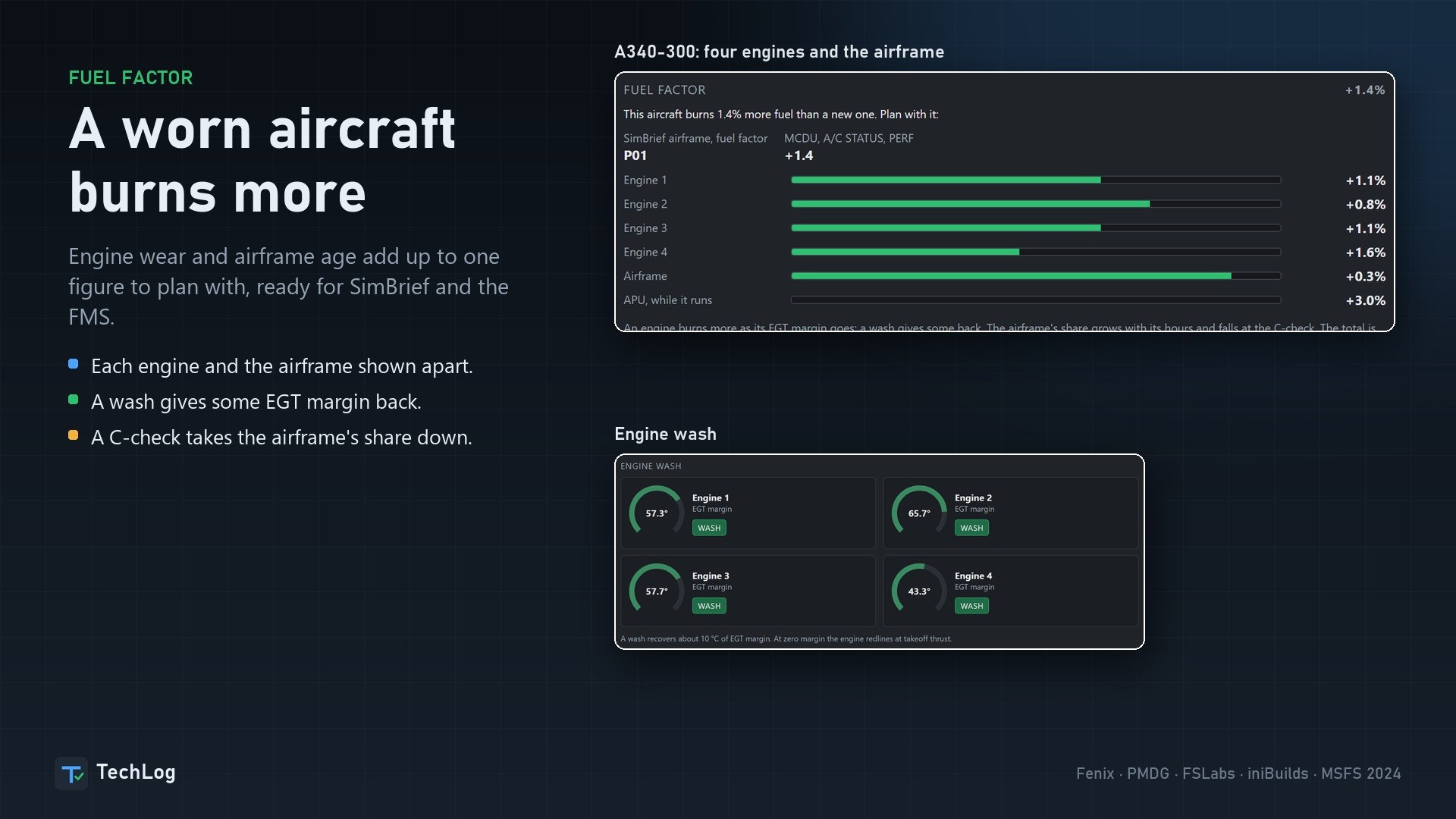
Engine wear and airframe age contribute to a fuel factor you can use in SimBrief and the FMS. An engine wash restores some EGT margin.
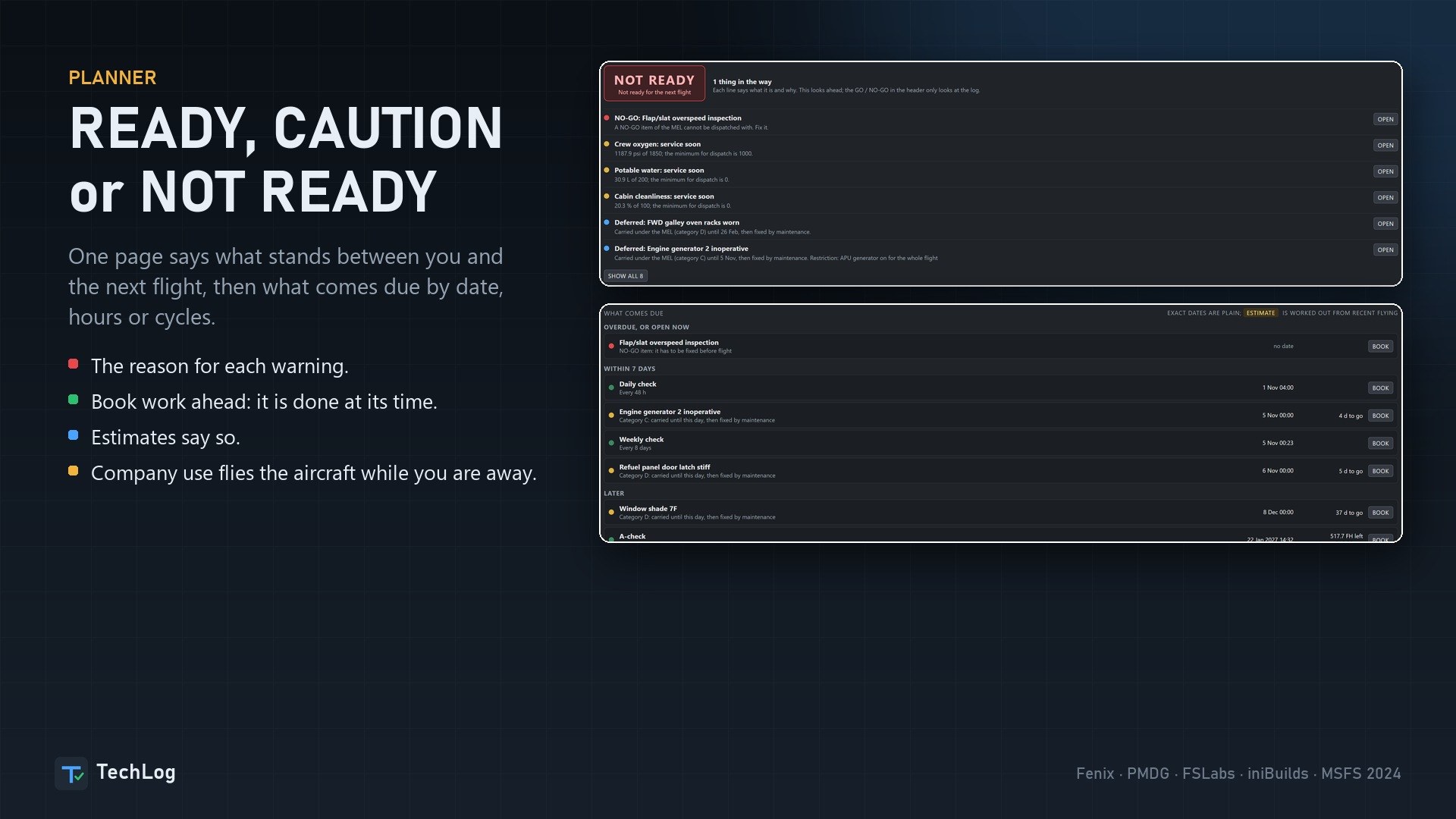
The Planner gives the next flight a READY, CAUTION or NOT READY assessment and explains each reason. It also lists work coming due by date, hours or cycles. Book maintenance ahead and it takes place at the scheduled time.
Optional company use lets the airline fly your aircraft while you’re away. Aircraft in the hangar are excluded.
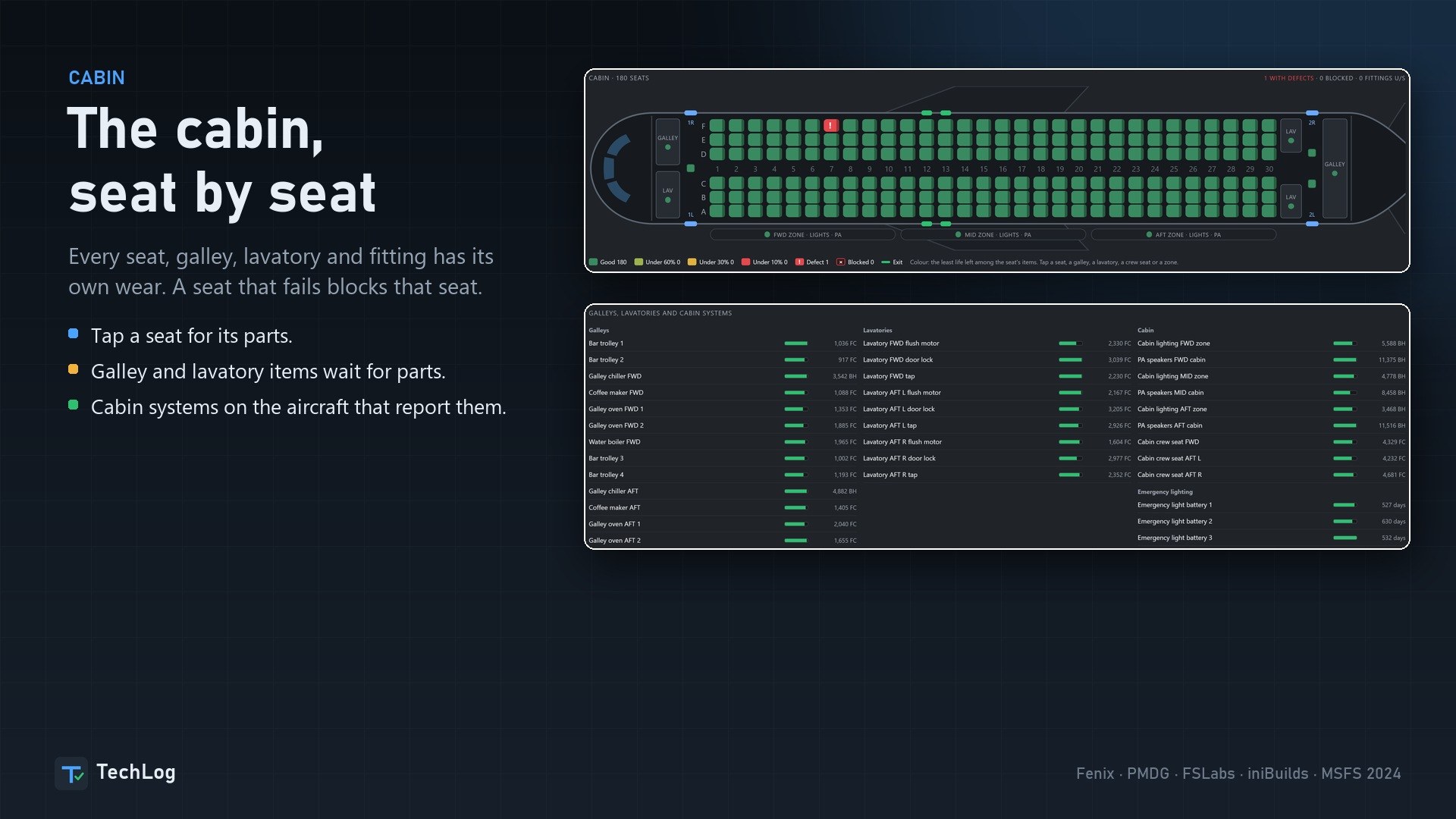
The cabin view tracks individual seats, galleys, lavatories and fittings, each with its own wear. Select a seat to inspect it. Where the aircraft exposes the data, cabin-system displays also follow its doors, slides, water and waste.
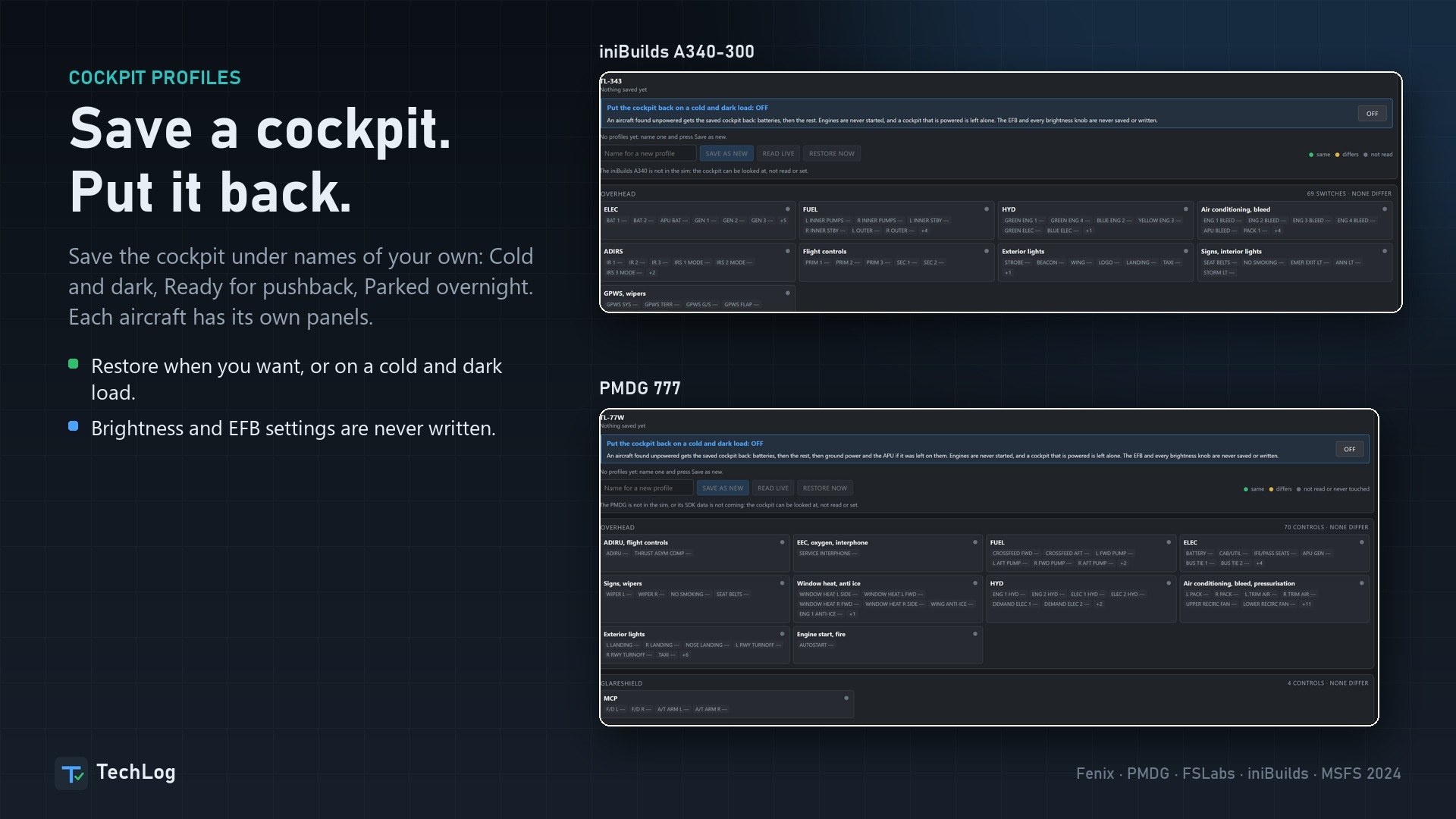
Cockpit profiles save a named configuration, such as Cold and dark, Ready for pushback or Parked overnight. Restore one manually or have it applied automatically on a cold-and-dark load. TechLog never writes brightness or EFB settings.
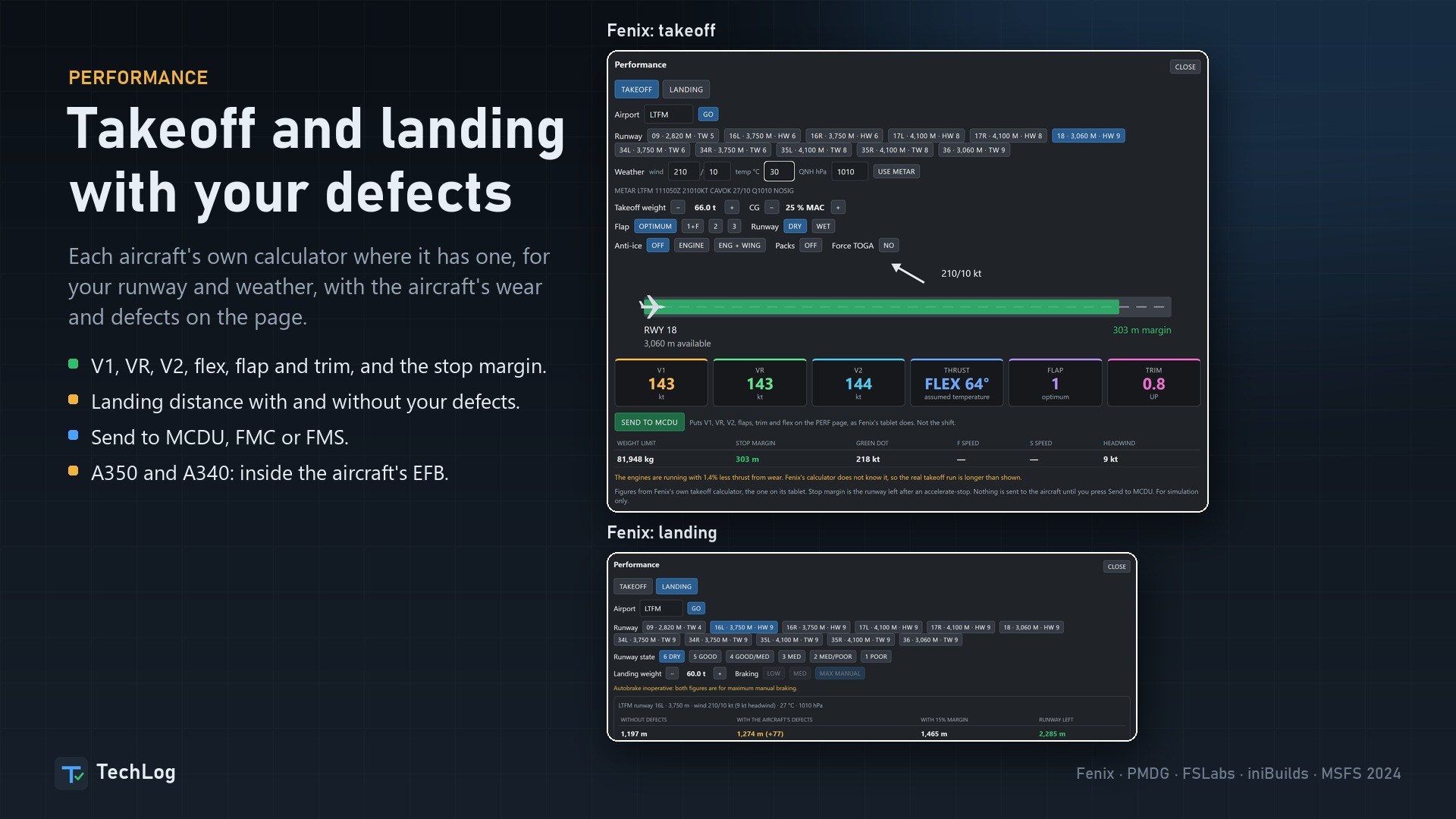
Takeoff and landing calculations account for defects and use the aircraft’s own calculator where available. Fenix, PMDG and FSLabs have separate performance pages that retain the aircraft’s terminology, including FLEX or ASSUMED, CONF or FLAPS, and MCDU or FMC. On the iniBuilds A350 and A340, performance opens through the TechLog button in the aircraft’s EFB and uses its own tables.
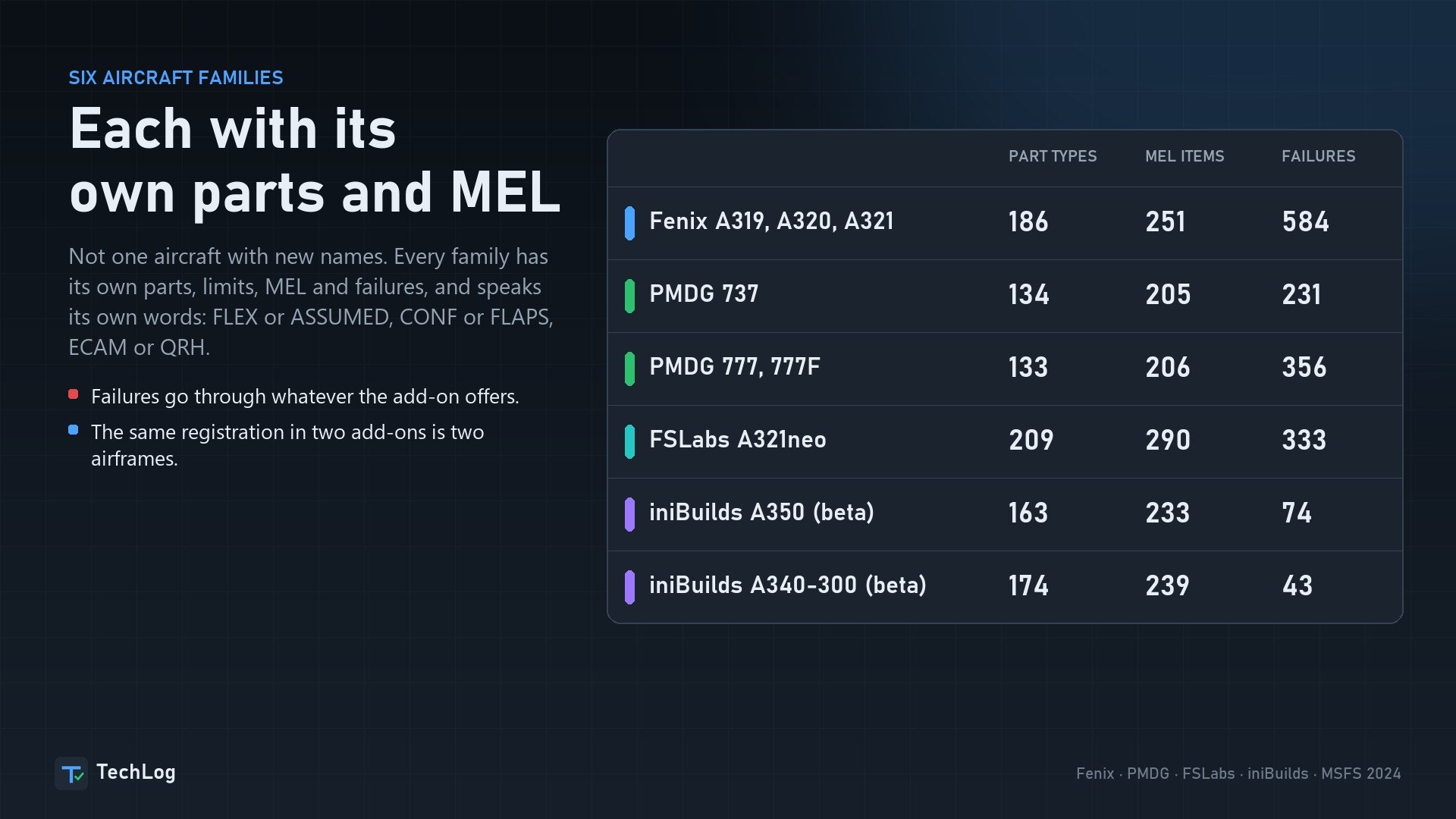
The counts below distinguish component types, MEL entries and failures TechLog can set. They aren’t interchangeable measures of support. Some aircraft expose much more maintenance data and control than others.
186 part types, 251 MEL items, 584 settable failures. Failures can be applied live, including in flight, and worn engines produce less thrust. TechLog restores fuel from the previous shutdown and reads engine oil from the aircraft.
The integration includes cabin systems, takeoff and landing calculations through Fenix’s calculators, Send to MCDU and a TechLog button in the Fenix EFB.
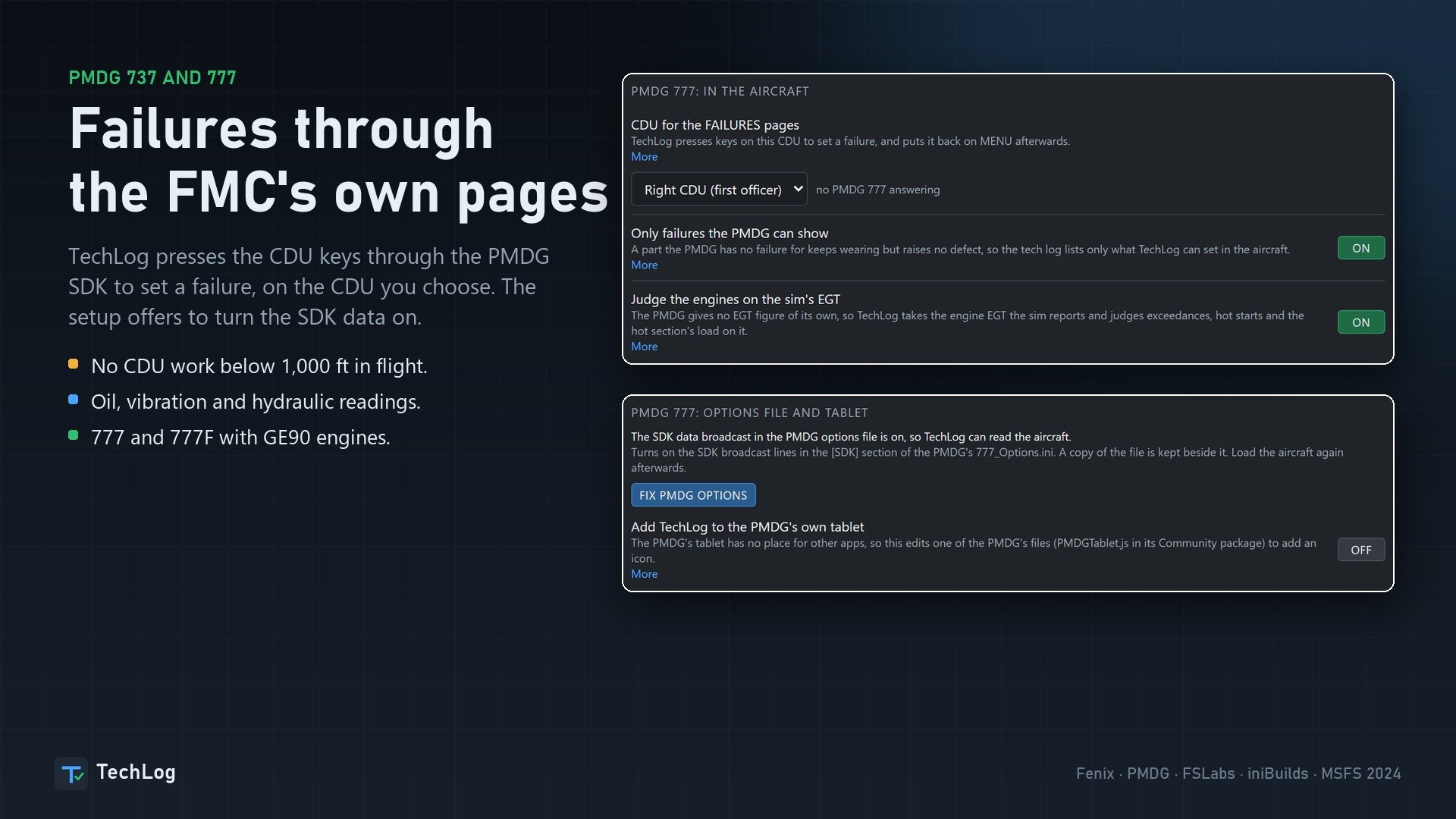
134 part types, 205 MEL items, 231 settable failures. TechLog uses the PMDG SDK to work through the FMC’s failure pages; setup offers to enable the SDK. It performs no CDU work below 1,000 ft in flight.
Oil, vibration and hydraulic readings are supported, along with aircraft-specific cockpit profiles and Performance with Send to FMC.
133 part types, 206 MEL items, 356 settable failures. The 777 has its own parts, MEL and limits, with GE90 engines and twelve main wheels represented. The PMDG Performance pages require the simulator’s Developer Mode.
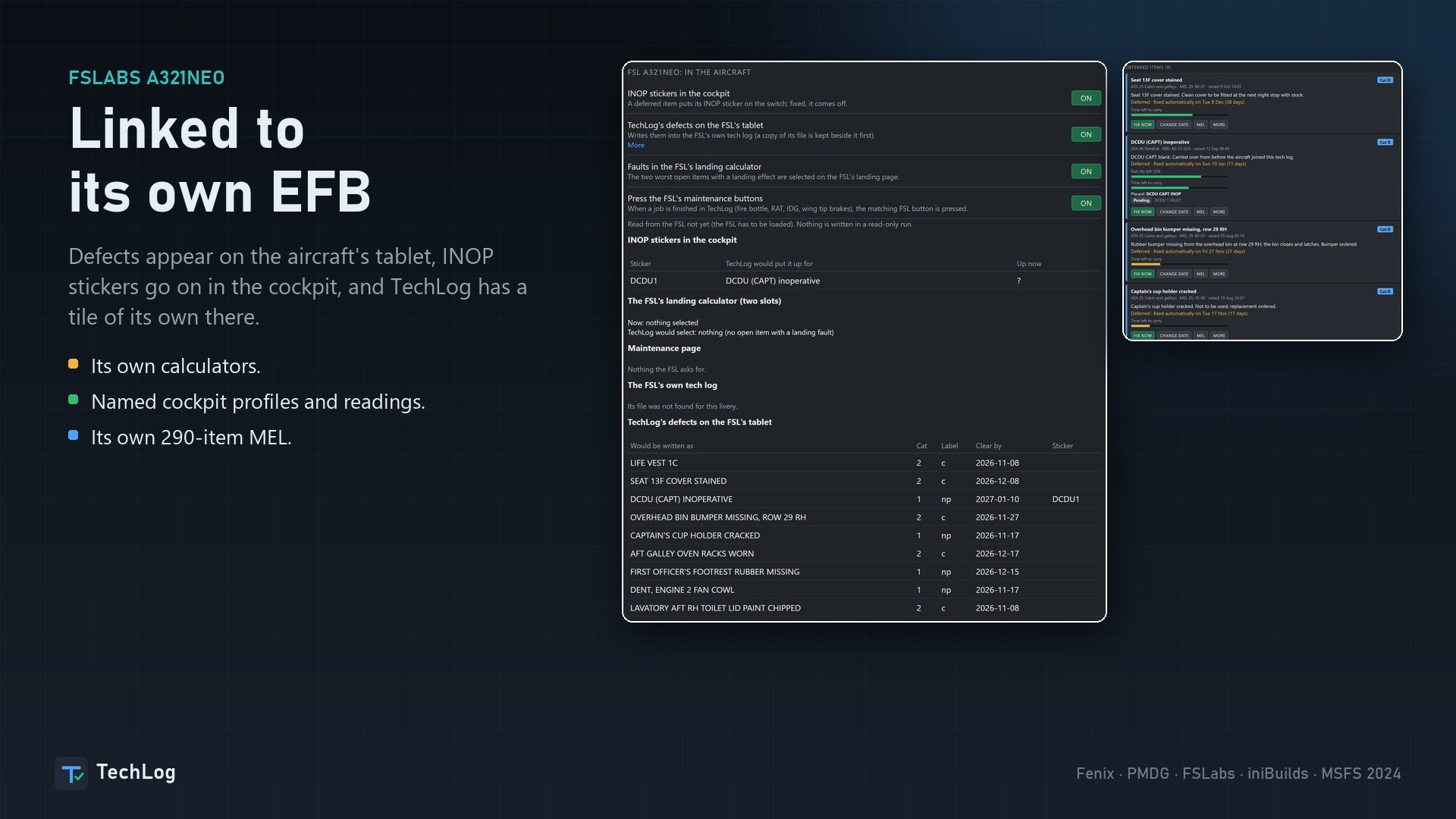
209 part types, 290 MEL items, 333 settable failures. The EFB connection puts defects on the aircraft’s tablet and adds a TechLog tile. It also supports cockpit INOP stickers, the aircraft’s calculators, cockpit profiles and readings.
163 part types, 233 MEL items, 74 settable failures. Failures are sent directly to the aircraft without mouse input or a separate window. TechLog controls brake and tire wear, oil, hydraulics, batteries and APU figures, and synchronizes them with the aircraft’s maintenance page.
The EFB connection includes a TechLog button, Performance and Send to FMS. Cockpit profiles, cabin systems and a GPS-jamming setting are also supported.
174 part types, 239 MEL items, 43 settable failures. The A340 carries the A350 integration’s capabilities across to four engines, with engine failures and fuel retained from the last shutdown.
Its optional TechLog EFB icon is disabled by default. Enabling it changes one aircraft file and keeps a backup copy.
174 part types, 239 MEL items, 43 settable failures. This integration covers four engines and 22 wheels. Failures use the aircraft’s own failure switches without mouse input. Water, waste and fluid readings come from the aircraft; TechLog maintains engine oil.
Performance uses the aircraft’s takeoff calculation and landing table. Both Performance and the optional TechLog EFB icon require Developer Mode. Neither changes an aircraft file.
134 part types, 205 MEL items, 110 settable failures. Failures go through iFly’s EFB program and are checked against its state. Failures you set on the aircraft’s tablet are also entered in the tech log.
Performance uses iFly’s calculator. Cockpit state is stored per airframe through its panel files, and an optional TechLog tab can be added to the tablet. EGT, fuel flow and vibration aren’t exposed by the aircraft, so TechLog doesn’t assess them.
133 part types and 530 MEL items with real MMEL numbers. The alpha supports the tech log, component wear, cockpit profiles, readings and chocks.
General failure setting is not yet implemented; those failures must be selected in the aircraft’s own EFB. There is one experimental exception in Settings for setting fire-detector loop faults.
Aerosoft A340-600 support is planned.
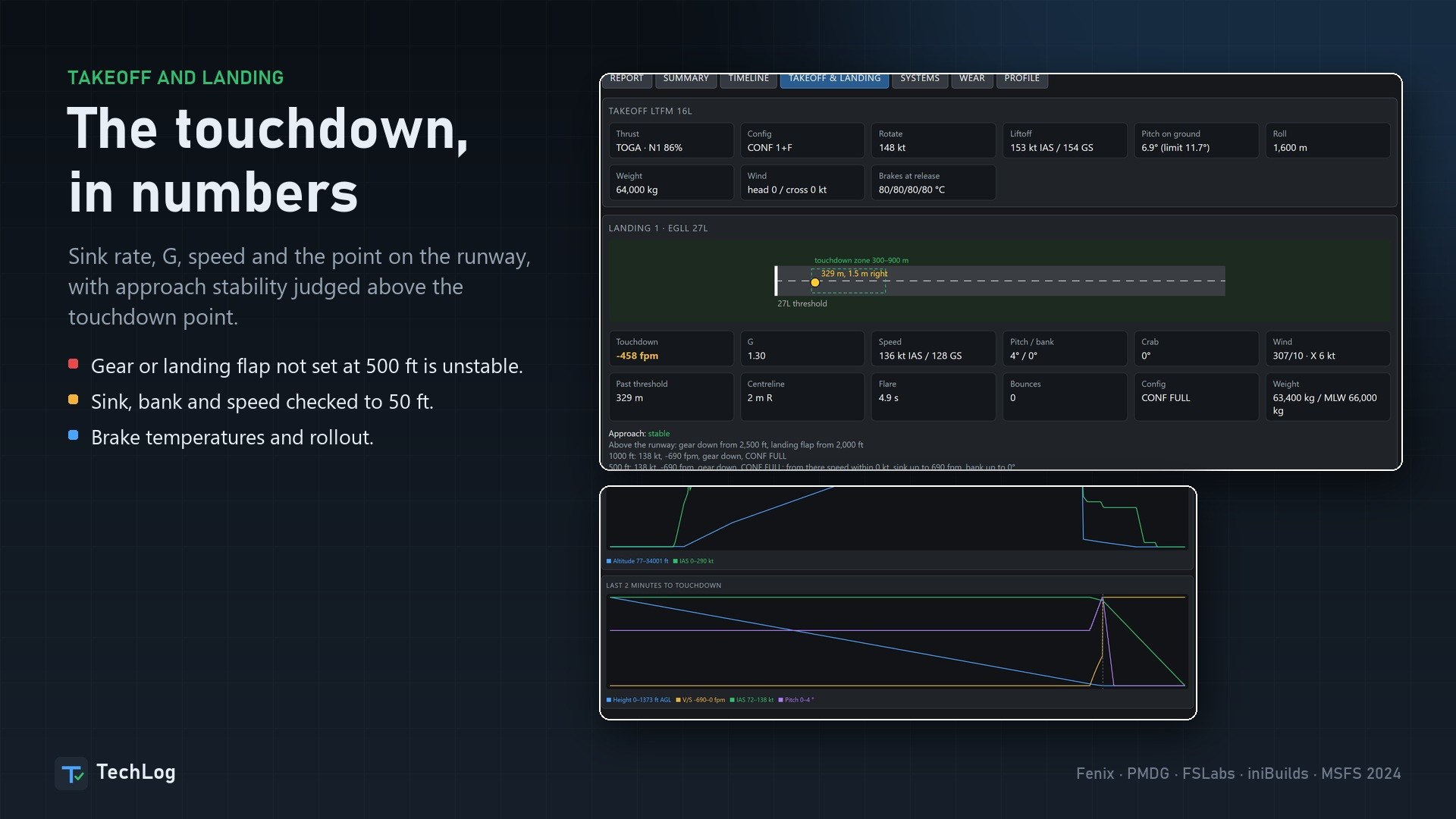
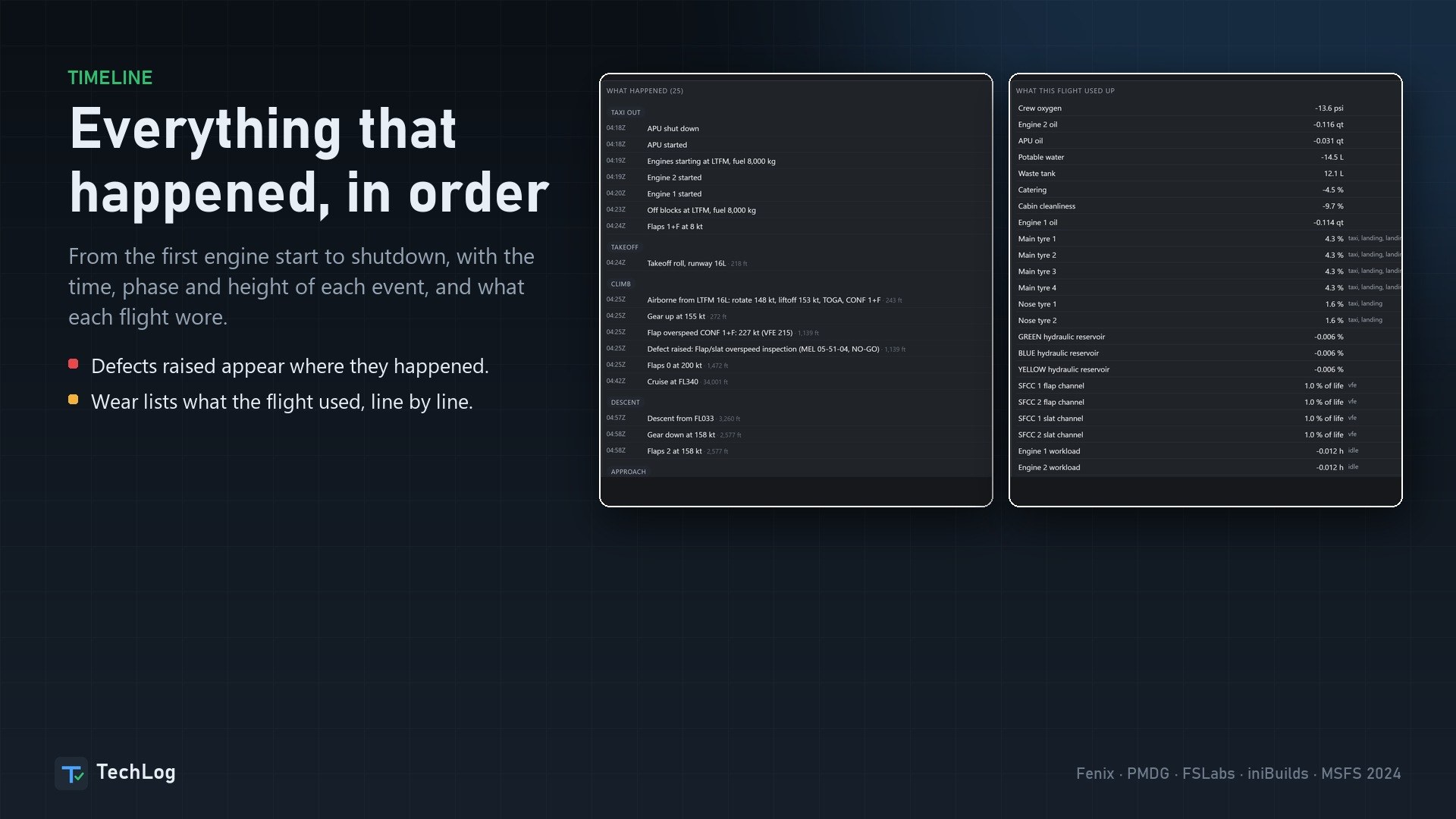
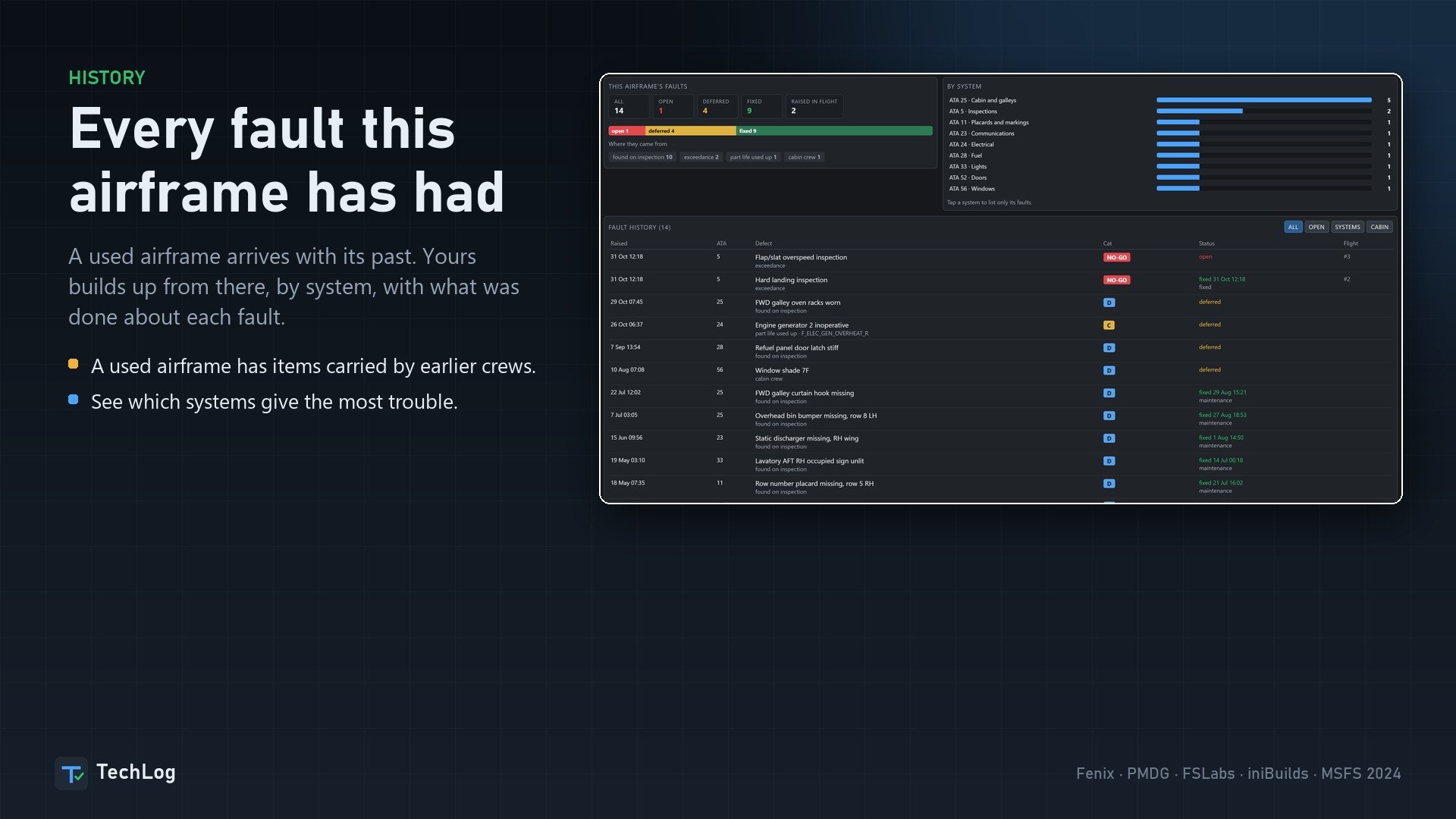
Flights are logged automatically with a score, touchdown rate and runway touchdown point, approach stability, an event timeline and a plotted flight profile. The record also shows what the flight did to the aircraft, component by component. Stable approaches are assessed at the same heights used by crews. Airframe history retains every fault by system and the action taken to resolve it.
Writes to the aircraft are spaced apart. An optional takeoff hold suspends all writes from takeoff thrust until 1,500 ft; it is off by default. Every write is logged, and Copy crash report in the Console captures what TechLog did before a crash.
TechLog’s engine restarts if memory usage grows, but only while the aircraft is parked.
Free for all simmers · 155.56 MB · Scanned clean Nov 2026
Download speed: Free tier is capped at 2 Mbps (this file takes approximately 11 mins at the cap). PRO members download at full line speed.
Initial release.
%LOCALAPPDATA%\Packages\Microsoft.FlightSimulator_8wekyb3d8bbwe\LocalCache\Packages\Community\. Steam version: %APPDATA%\Microsoft Flight Simulator\Packages\Community\. Tip: enable Developer Mode in MSFS to see your exact Community folder path..exe installer if provided, or follow the readme. Some utilities use SimConnect — ensure MSFS is running before launching.readme.txt or README file. It tells you exactly where files go, what dependencies are needed, and any quirks specific to this add-on.Senior backend software engineer
Are you NaughtyPickle? Sign in to Fly Away Creators for download stats, comment replies and updates. Make add-ons? Publish them here.
Only PRO members can place votes.
More MSFS add-ons hand-picked based on this download.
MSFS Utilities & Tools
Jetstream gives Microsoft Flight Simulator 2020 and Microsoft Flight Simulato…
 FSX Turboprops
An AI Lockheed Hercules L100-30 of DFW Maintenance from "The DFW group". This…
 FS2004 Utilities/Misc
Many users of the Microsoft Flight simulator surely know the additional progr…
 FS2004 Civil Jet Aircraft
This plane is highly realistic with Callouts, Custom Panel and Gauges, Retrac…
 FS2002
USAF Lockheed F-16C Fighting Falcon by G.Chiacchietta, textures by Paolo Trab…
 FS2004 Military Aircraft
by Yan Tao The earlier version of mig19c model created in Gmax.The package in…
 FSX Misc
Alternative aircraft viewer and loading screen. By Hugo Van Pelt. Alternative…
 FSX General Aviation Aircraft
A guided flight from Popes Farm Lancashire to Dairy House Farm Cheshire Engla…
Be the first to leave a comment on this download.
Be the first to share your thoughts on this download.