

 FSX Civil Aircraft
First Choice Airways Boeing 757
This is a QWHDT repaint of what used to be the First Choice Airways aircraft …
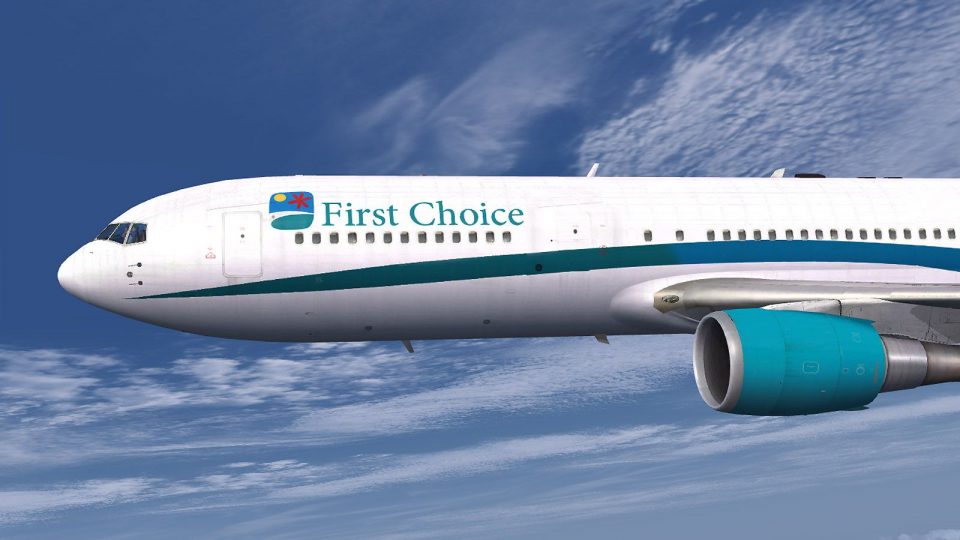
First Choice Airways’ Boeing 767-300 GE in circa-2008 colors brings G-OOBL to life with an accurate repaint and airline-specific markings for authentic charter-era flying in Microsoft Flight Simulator X. Requires the payware Captain Sim 767-300 base package, with textures tailored to match the GE variant inside and out.
 Rate
Rate
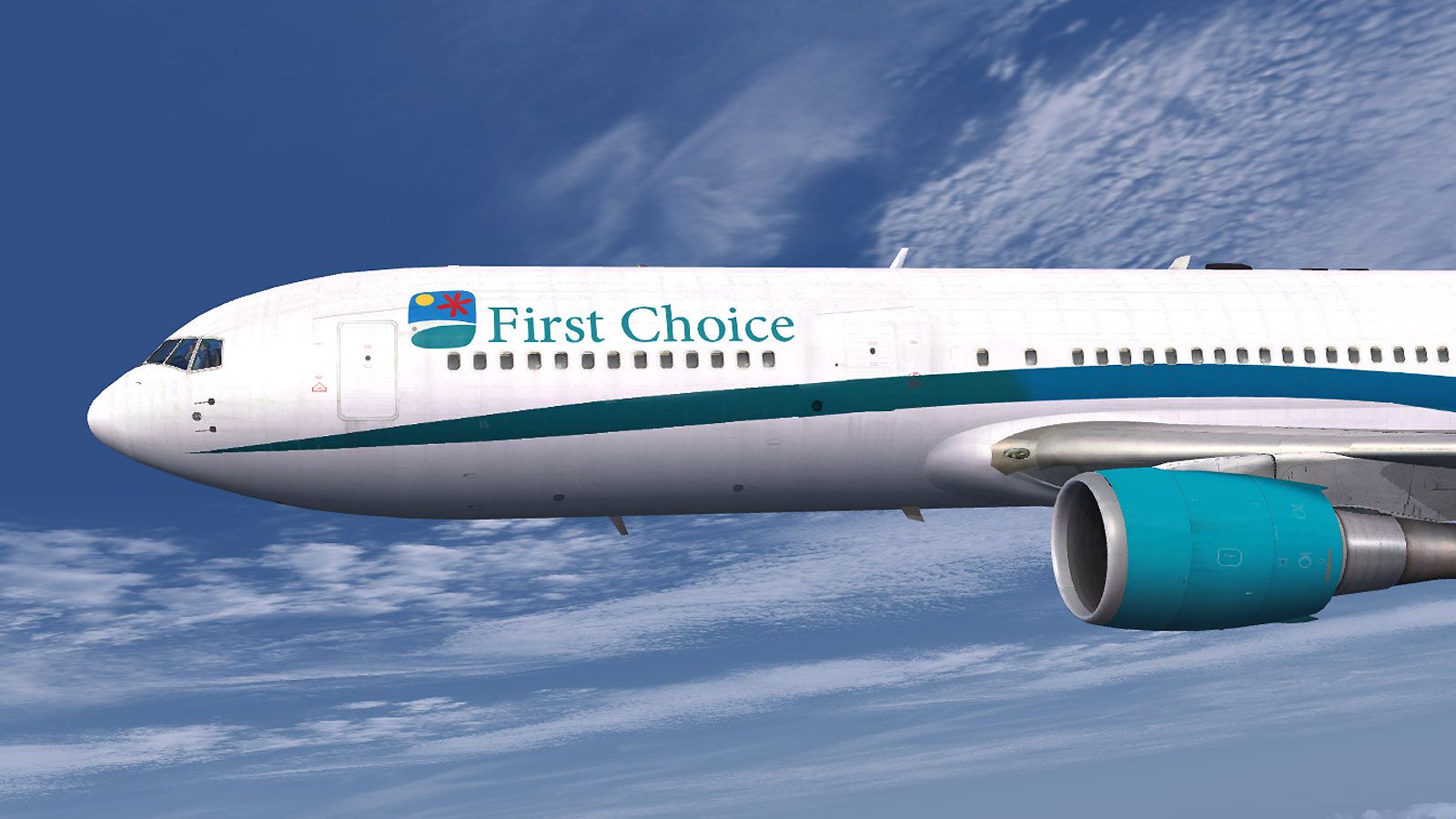
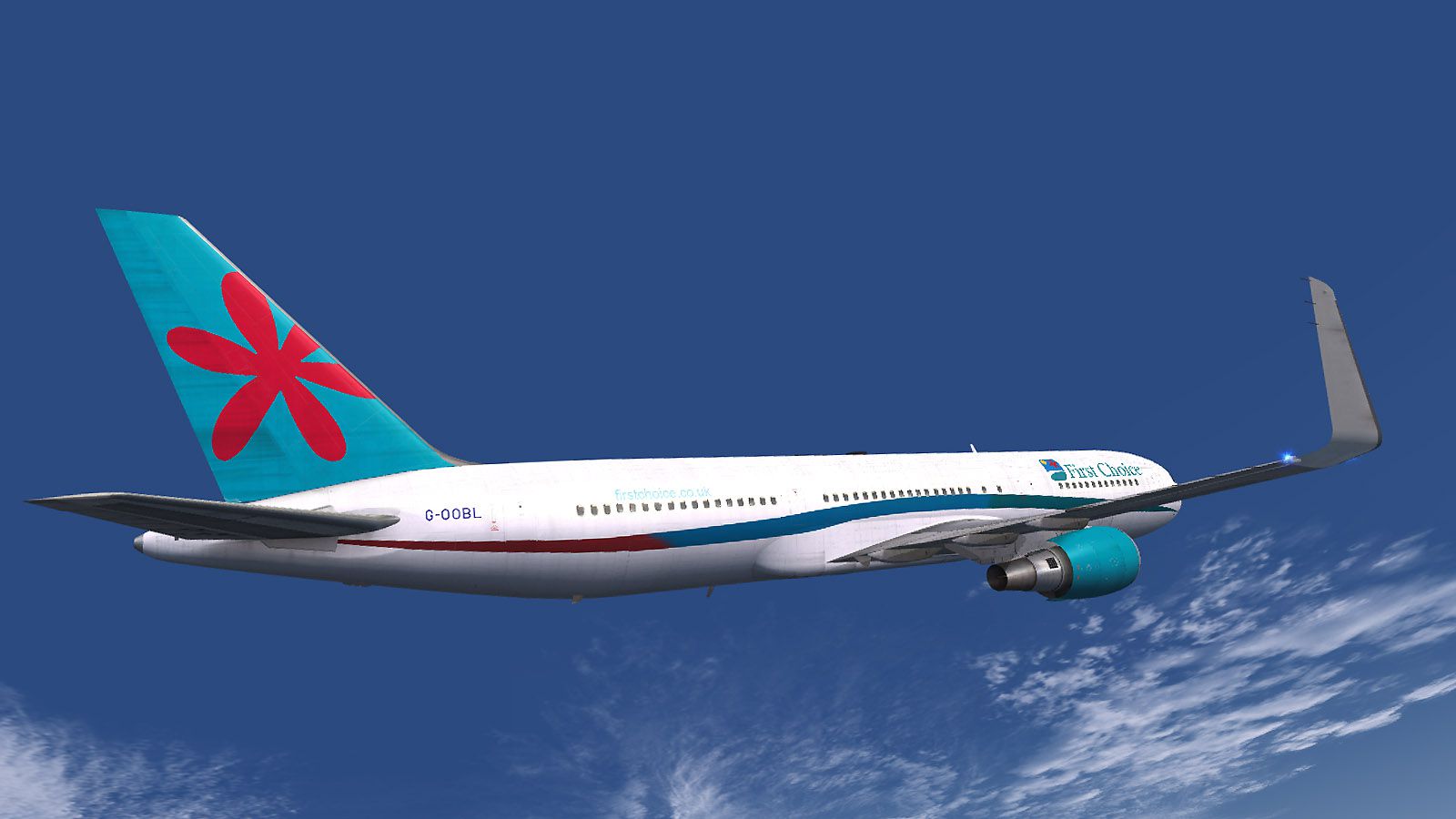
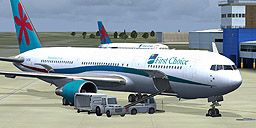
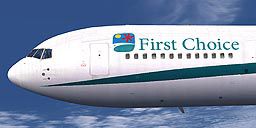
First Choice Airways Boeing 767-300 GE, circa 2008. A repaint of the payware Captain Sim B767 By Steve Barker.
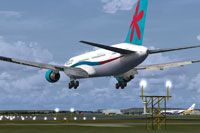
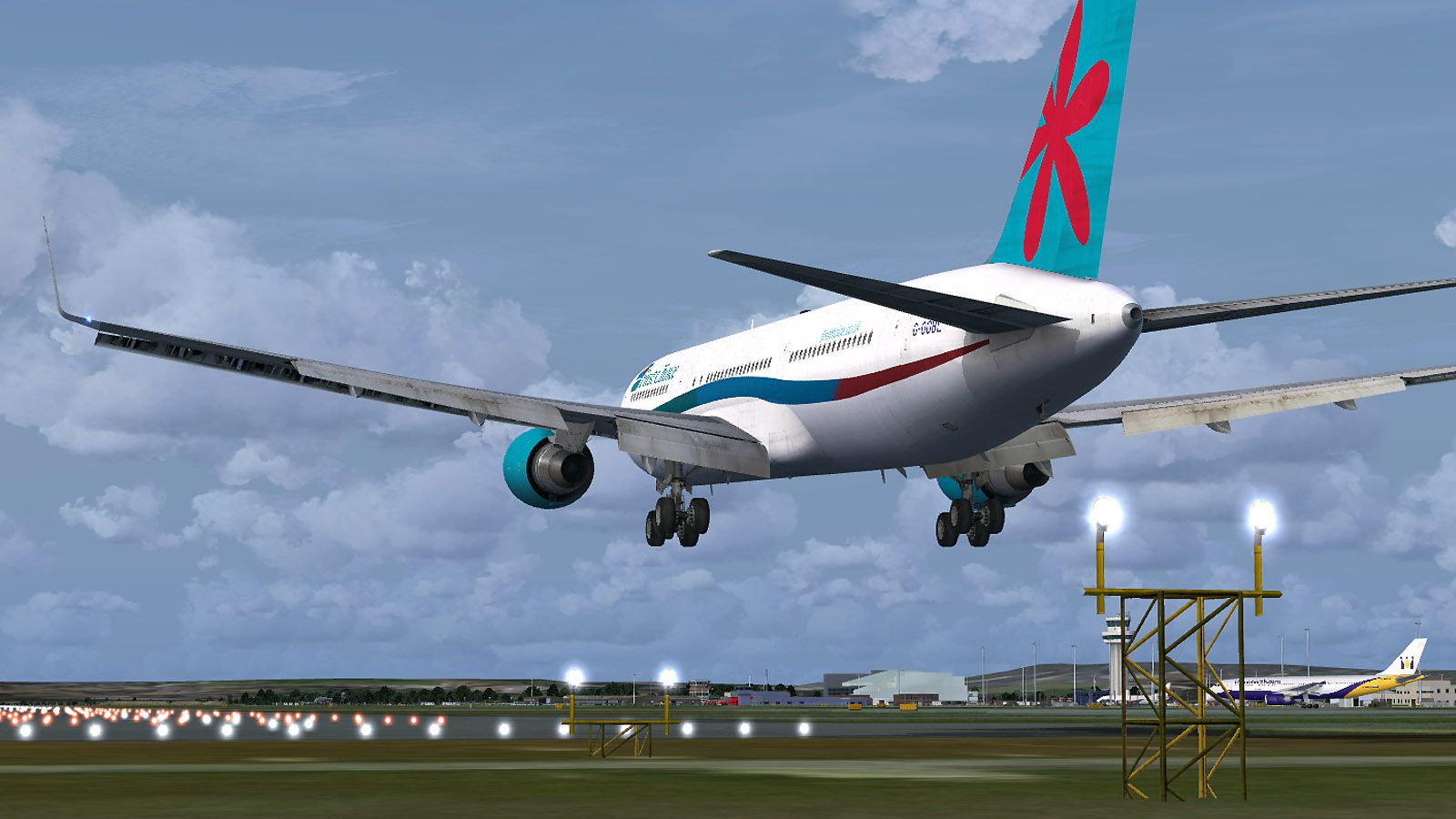
Screenshot of First Choice Airways Boeing 767-300 landing on runway.
To install this repaint please follow the instructions below or install using ACE:
[fltsim.XXXX]

title=CS 767-300 Captain PaintXXXX

sim=B767-300GE

model=ge5

panel=

sound=GE

texture=firstchoice

kb_checklists=

kb_reference=

atc_id=G-OOBL

atc_airline=

atc_flight_number=

ui_manufacturer="Boeing"

ui_type="767-300 GE"

ui_variation="First Choice"

ui_typerole="Commercial Airliner"

ui_createdby="Captain Sim"

description="767-300 Base Pack v1.5\n2011 Captain Sim. First Choice 767 G-OOBL repaint by Steve Barker"

ui_wglts=1
Happy flying!
Free for all simmers · 1.85 MB · Scanned clean Oct 2026
Download speed: Free tier is capped at 0.5 Mbps. PRO members download at full line speed.
texture.{airline}) inside FSX\SimObjects\Airplanes\{base-aircraft}\.aircraft.cfg in Notepad. Add a new [fltsim.X] section per the readme.readme.txt or README file. It tells you exactly where files go, what dependencies are needed, and any quirks specific to this add-on.The archive first_choice.zip has 20 files and directories contained within it.
This list displays the first 500 files in the package. If the package has more, you will need to download it to view them.
| Filename/Directory | File Date | File Size |
|---|---|---|
| FILE_ID.DIZ | 02.28.14 | 121 B |
| FirstChoice1.jpg | 02.28.14 | 208.47 kB |
| FirstChoice2.jpg | 02.28.14 | 132.12 kB |
| FirstChoice3.jpg | 02.28.14 | 203.60 kB |
| readme.txt | 02.28.14 | 2.16 kB |
| screenshot.jpg | 02.28.14 | 24.44 kB |
| texture.firstchoice | 02.28.14 | 0 B |
| cs763_1_T.dds | 02.28.14 | 1.00 MB |
| cs763_2_T.dds | 02.28.14 | 1.00 MB |
| cs763_3_T.dds | 02.28.14 | 1.00 MB |
| cs763_4_T.dds | 02.28.14 | 1.00 MB |
| cs763_5_T.dds | 12.09.13 | 512.12 kB |
| cs767_6_T.dds | 10.23.13 | 32.12 kB |
| cs767_7_T.dds | 02.28.14 | 1.00 MB |
| cs767_8_T.dds | 02.28.14 | 1.00 MB |
| description.txt | 02.28.14 | 363 B |
| texture.cfg | 10.13.11 | 144 B |
| thumbnail.jpg | 12.06.13 | 35.39 kB |
| flyawaysimulation.txt | 10.29.13 | 959 B |
| Go to Fly Away Simulation.url | 01.22.16 | 52 B |
Only PRO members can place votes.
More FSX & P3D add-ons hand-picked based on this download.
FSX Civil Aircraft
This is a QWHDT repaint of what used to be the First Choice Airways aircraft …
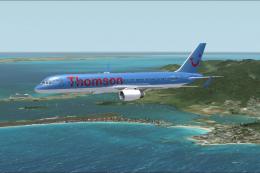 FSX Civil Aircraft
This carefully crafted freeware package offers a detailed Boeing 757 renditio…
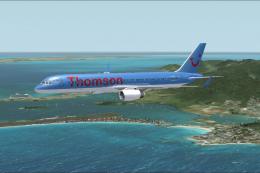 FSX Civil Aircraft
This freeware package features the iconic Boeing 757 equipped with winglets i…
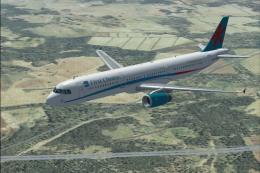 FSX Civil Aircraft
This repaint replicates the vibrant First Choice livery on the default Airbus…
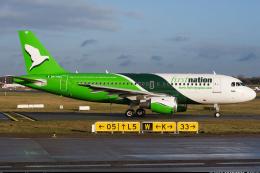 FSX Civil Aircraft
Textures only for the FAIB A319CFM (FAIBA319.ZIP). Paint by Joel Branchu. Scr…
 FSX Civil Aircraft
JAL Boeing 747-400 (first color). A repaint of the default B747-400. Repaint …
 FSX Civil Aircraft
ANA Boeing 747-400 (Triton Blue first color). Textures only for the default B…
 FSX Civil Aircraft
Textures for the FSX AI Bureau Boeing 737-200 for FSX (FAIB_B7372.ZIP). Inclu…
Be the first to leave a comment on this download.
Be the first to share your thoughts on this download.