

 FSX Civil Aircraft
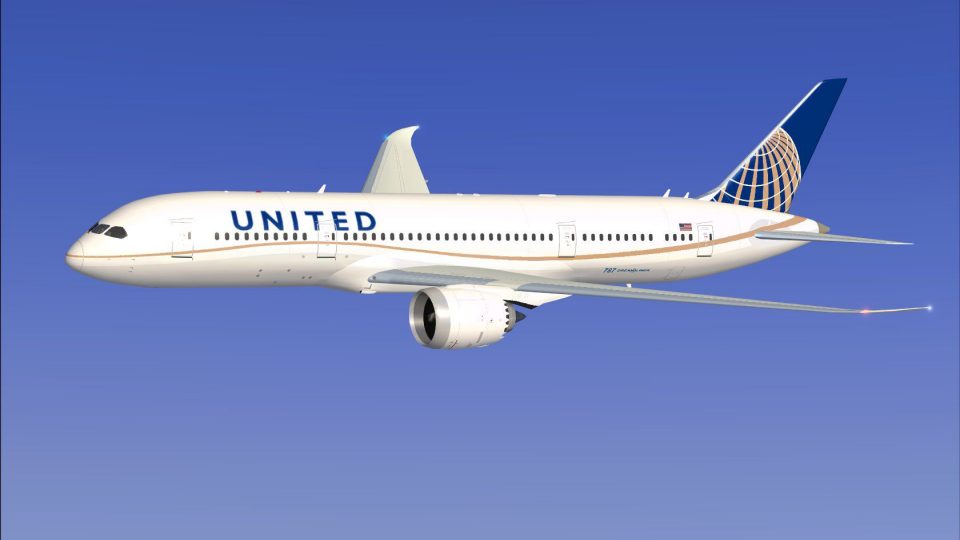
AI United Airlines Boeing 787-9
Experience a meticulously crafted repaint of the Boeing 787-9 in the distinct…
United Airlines’ Boeing 787-8 livery brings authentic Dreamliner traffic to AI schedules in FSX, with clean logo placement, subtle shading, and crisp fuselage detailing tailored for realistic airline movements. Designed for the CamSim 787-8 AI package, it requires the CamSim base model and keeps the original aircraft model unchanged.
 Rate
Rate
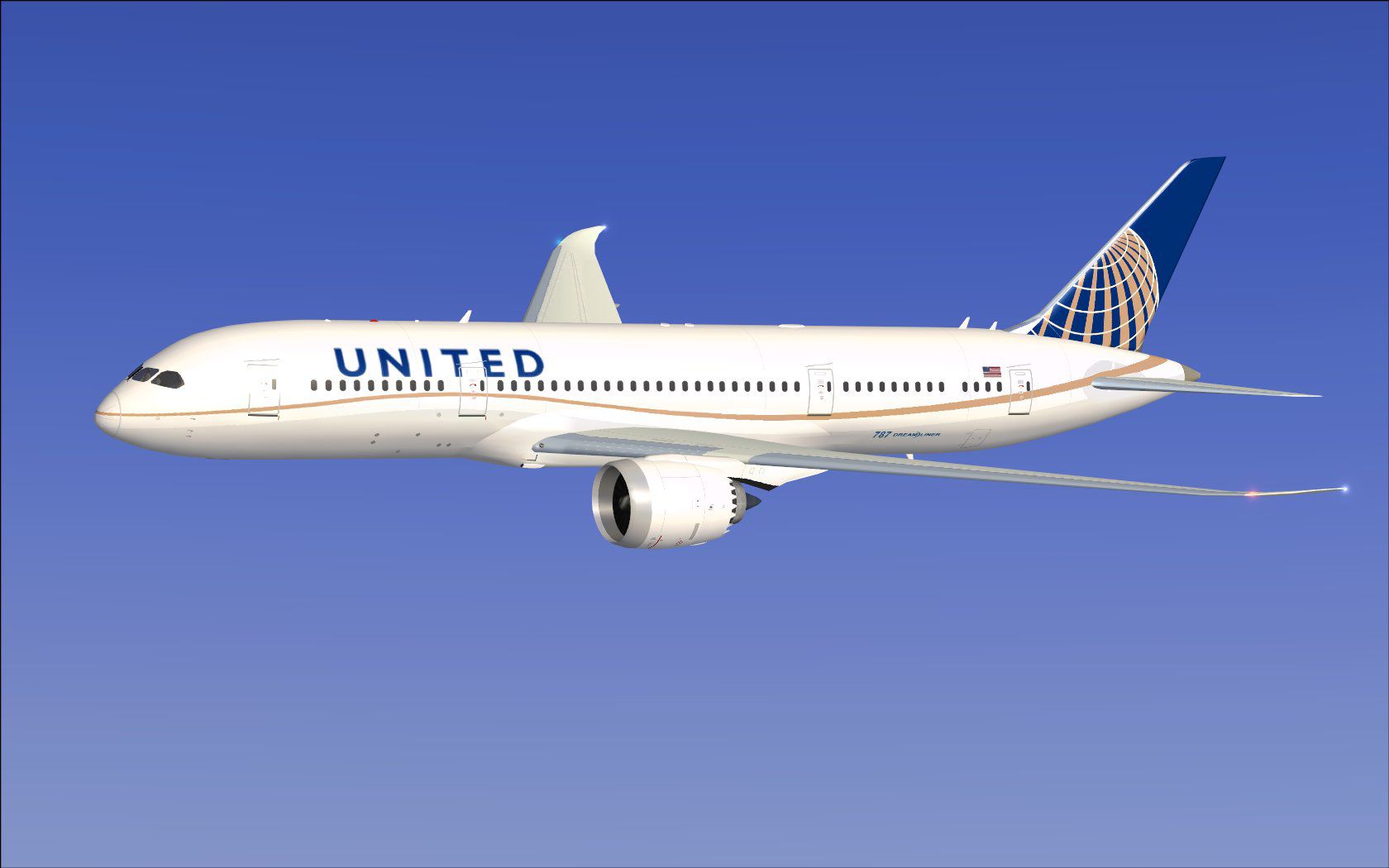
This release features a dedicated repaint of the United Airlines livery for Boeing’s advanced 787-8, intended explicitly for AI flight schedules in FSX. Developed by Camil Valiquette, these textures showcase the iconic United color scheme on the CamSim AI base package (CAMSIM788AI_X.ZIP, available separately). This repaint delivers an accurate depiction of United’s Dreamliner operations without altering the core aircraft model, which must be downloaded as the freeware base from the Fly Away Simulation library. Enthusiasts of virtual aviation will appreciate the detailed fuselage elements, subtle shading effects, and precise alignment of logos.
The Boeing 787-8, widely recognized under the “Dreamliner” moniker, employs composite materials (fiberglass and carbon fiber) throughout its airframe. This yields benefits like a pressurization system configured for enhanced passenger comfort and a specialized wing design featuring raked wingtips. United Airlines typically deploys this model on transcontinental routes and certain long-haul flights, showcasing its impressive fuel efficiency. In AI traffic simulation, this repaint contributes to busier skies, reflecting realistic movements of a fleet that is known for modern avionics and a quieter cabin environment in the real world.
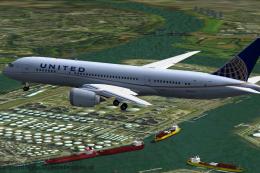
Screenshot: United Airlines Boeing 787-8 AI model cruising above simulated airspace.
[fltsim.x] to the next sequential number as needed.
[fltsim.x]
title=Boeing 787-8 v5 AI United
sim=787-8
model=787-8 ai v5
panel=
sound=
texture=ua
kb_checklists=
kb_reference=
atc_id=xx
atc_airline=xxx
atc_flight_number=xxx
atc_heavy=1
ui_manufacturer="CamSim AI Aircaft"
ui_type="Boeing 787-8 V5 AI"
ui_variation="AI United"
ui_typerole="Commercial Airliner"
ui_createdby="CamSim"
description="Boeing AI Boeing 787-8 Version 5."
For those operating Microsoft Flight Simulator X under Windows 7, it is recommended to uncheck the Preview DirectX 10 option under Options > Settings > Display > Global. This prevents missing or transparent sections on the fuselage during dawn or dusk operations, ensuring the textures display consistently.
The model design and repaint are solely produced by Camil Valiquette, whose contributions make this AI United Airlines 787-8 repaint possible. To enjoy every detail, remember that this texture set is freeware and requires the official CamSim base model, downloadable through the Fly Away Simulation catalog.
Free for all simmers · 528.16 KB · Scanned clean Oct 2026
Download speed: Free tier is capped at 0.5 Mbps. PRO members download at full line speed.
texture.{airline}) inside FSX\SimObjects\Airplanes\{base-aircraft}\.aircraft.cfg in Notepad. Add a new [fltsim.X] section per the readme.readme.txt or README file. It tells you exactly where files go, what dependencies are needed, and any quirks specific to this add-on.The archive camsim788ai_ua_x.zip has 19 files and directories contained within it.
This list displays the first 500 files in the package. If the package has more, you will need to download it to view them.
| Filename/Directory | File Date | File Size |
|---|---|---|
| CamSim Boeing 787-8 V5 AI Texture Only United | 11.04.14 | 0 B |
| 788v4ua_1.jpg | 07.10.12 | 84.02 kB |
| Effects.zip | 03.25.06 | 1.80 kB |
| file_id.diz | 11.04.14 | 232 B |
| Read Me_FSX.txt | 11.04.14 | 1.58 kB |
| texture.ua | 11.04.14 | 0 B |
| 787eng_t.bmp | 05.05.10 | 1.00 MB |
| 787ext_t.bmp | 02.11.11 | 1.00 MB |
| 787int_t.bmp | 07.12.12 | 1.00 MB |
| 787tail_t.bmp | 07.12.12 | 1.00 MB |
| 788fuse_t.bmp | 07.12.12 | 1.00 MB |
| 789wings_t.bmp | 08.19.13 | 1.00 MB |
| gris_t.bmp | 12.09.09 | 16.07 kB |
| tail.bmp | 12.02.12 | 1.00 MB |
| thumbnail.jpg | 11.04.14 | 4.79 kB |
| w787x_t.bmp | 07.17.13 | 16.07 kB |
| w_t.bmp | 07.17.13 | 16.07 kB |
| flyawaysimulation.txt | 10.29.13 | 959 B |
| Go to Fly Away Simulation.url | 01.22.16 | 52 B |
Only PRO members can place votes.
More FSX & P3D add-ons hand-picked based on this download.
FSX Civil Aircraft
Experience a meticulously crafted repaint of the Boeing 787-9 in the distinct…
 FSX Civil Aircraft
Experience a meticulously repainted Boeing 787-8 Dreamliner representing Unit…
 FSX Civil Aircraft
This updated package showcases a United Airlines Boeing 787-8 in the post-mer…
 FSX Civil Aircraft
This updated freeware release depicts the classic United Airlines Retro Jet l…
 FSX Civil Aircraft
Experience an enhanced rendition of United Airlines’ Boeing 787-10, developed…
 FSX Civil Aircraft
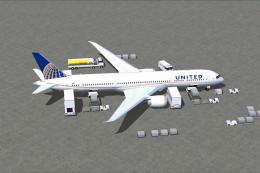
This full-featured Boeing 787-9 package, wearing the United Airlines livery, …
 FSX Civil Aircraft
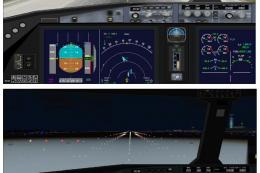
This complete freeware package offers a highly detailed rendition of the Boei…
 FSX Civil Aircraft
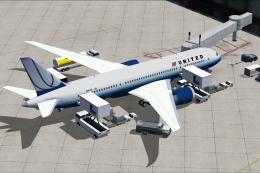
Explore a finely rendered rendition of a Boeing 787-8 in the classic United A…
Read what other simmers think, or add your own.
