

 FSX Civil Aircraft
Japan Airlines Boeing 787-8 V2
Immerse yourself in a refined rendition of the Boeing 787-8 Dreamliner emblaz…
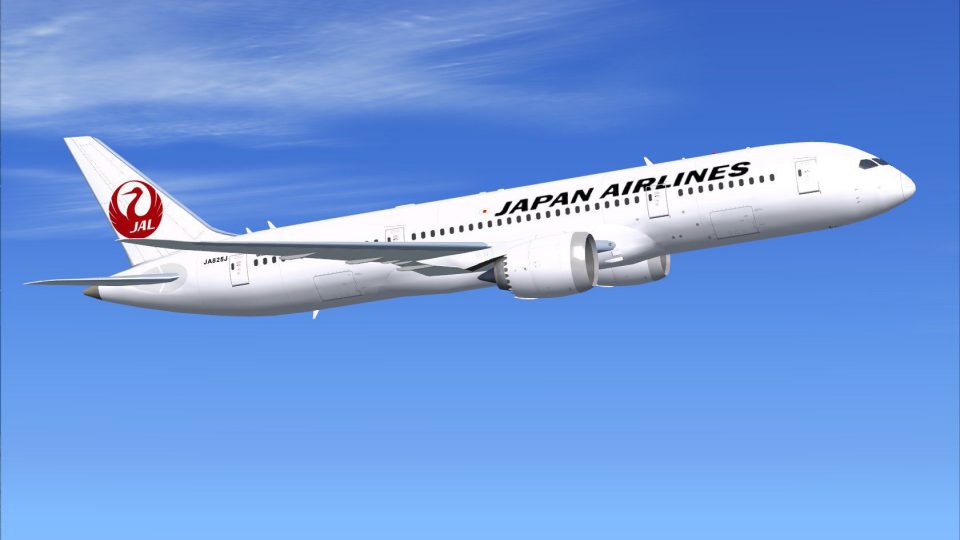
Japan Airlines Boeing 787-8 AI repaint brings JAL’s signature titles, tail crane, and fuselage markings to the CamSim Dreamliner for believable airline traffic in FSX. Designed for AI operations with clean, performance-friendly textures, it requires the CamSim Boeing 787-8 AI base model to populate routes with authentic long-haul visuals.
 Rate
Rate
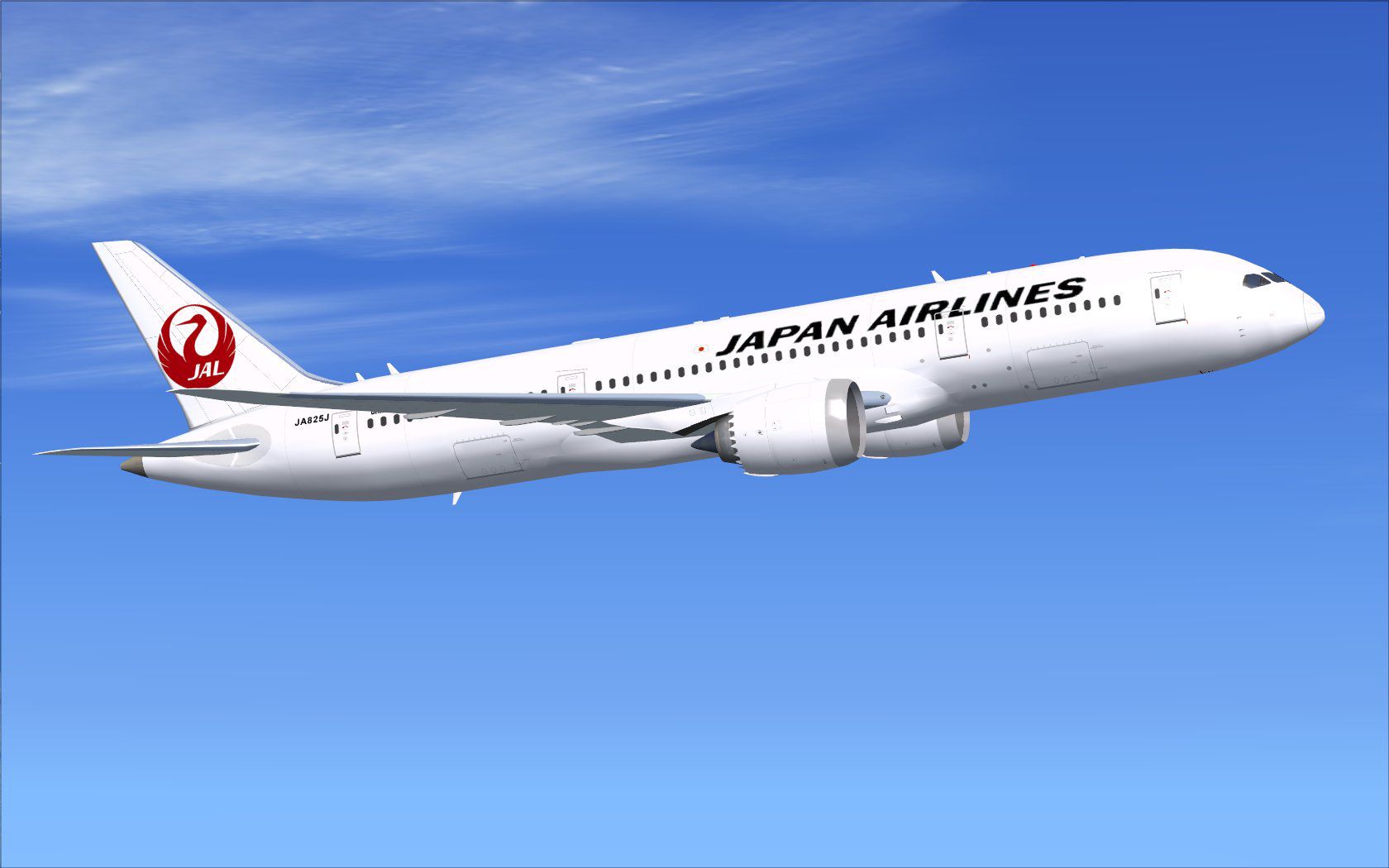
This high-fidelity repaint modifies the CamSim Boeing 787-8 model to display Japan Airlines (JAL) markings. It is offered as a freeware texture package, exclusively requiring the original CamSim AI Aircraft base model (available from the Fly Away Simulation library). Created by Camil Valiquette, this texture set is intended for AI operations. It provides an authentic visual experience for those who want to populate their simulator skies with accurate airline liveries.
This specialized repaint incorporates JAL’s distinct corporate branding and fuselage insignia. The Boeing 787-8 (often referred to as a “Dreamliner” due to its advanced design) features a modern composite airframe [meaning its structure is largely composed of carbon fiber reinforced polymer]. In addition, Boeing devised its engines with low-noise technology, which makes the 787-8 ideal for long-haul routes under Japan Airlines.
Since these textures have been tailored for use in AI traffic, you will need the standalone CamSim AI Aircraft Base Model. Search for “CAMSIM788AI_X.ZIP” in the Fly Away Simulation file library. Once integrated, these optimized paint files will feed your AI engine, ensuring that your virtual airspace features realistic Japan Airlines planes.
Screenshot of Japan Airlines Boeing 787-8 in flight.
[fltsim.x] section to the correct sequence (for example, [fltsim.1] or the next available number).[fltsim.x]
title=Boeing 787-8 v5 AI Japan Airlines
sim=787-8
model=787-8 ai v5
panel=
sound=
texture=jal
kb_checklists=
kb_reference=
atc_id=xx
atc_airline=xxx
atc_flight_number=xxx
atc_heavy=1
ui_manufacturer="CamSim AI Aircraft"
ui_type="Boeing 787-8 V5 AI"
ui_variation="AI Japan Airlines"
ui_typerole="Commercial Airliner"
ui_createdby="CamSim"
description="Boeing AI Boeing 787-8 Version 5."
Windows 7 users encountered missing visual parts at dawn or dusk when running Flight Simulator X with DirectX 10 Preview enabled. To address that issue, deactivate the Preview DirectX 10 option by navigating to Options > Settings > Display under the Global tab and unchecking the DirectX 10 Preview setting.
The development and artwork of this package, including the paintwork and AI-friendly design, originate from Camil Valiquette (CamSim). This freeware repaint offers an excellent way to add authentic Japan Airlines traffic for those who prefer a more realistic environment in their flight simulator.
Free for all simmers · 502.48 KB · Scanned clean Oct 2026
Download speed: Free tier is capped at 0.5 Mbps. PRO members download at full line speed.
texture.{airline}) inside FSX\SimObjects\Airplanes\{base-aircraft}\.aircraft.cfg in Notepad. Add a new [fltsim.X] section per the readme.readme.txt or README file. It tells you exactly where files go, what dependencies are needed, and any quirks specific to this add-on.The archive camsim788ai_jal_x.zip has 20 files and directories contained within it.
This list displays the first 500 files in the package. If the package has more, you will need to download it to view them.
| Filename/Directory | File Date | File Size |
|---|---|---|
| CamSim Boeing 787-8 V5 AI Texture Only JAL | 11.04.14 | 0 B |
| 788v4jal_.jpg | 04.05.12 | 99.94 kB |
| Effects.zip | 03.25.06 | 1.80 kB |
| file_id.diz | 11.04.14 | 240 B |
| Read Me_FSX.txt | 11.04.14 | 1.61 kB |
| texture.jal | 11.04.14 | 0 B |
| 787eng_t.bmp | 10.07.13 | 1.00 MB |
| 787ext_t.bmp | 10.08.13 | 1.00 MB |
| 787int_t.bmp | 10.08.13 | 1.00 MB |
| 787tail_t.bmp | 10.07.13 | 1.00 MB |
| 788fuse_t.bmp | 10.09.13 | 1.00 MB |
| 789wings_t.bmp | 08.21.13 | 1.00 MB |
| gris_t.bmp | 12.09.09 | 16.07 kB |
| pilot1.bmp | 12.06.06 | 256.07 kB |
| tail.bmp | 12.02.12 | 1.00 MB |
| thumbnail.jpg | 11.04.14 | 5.37 kB |
| w787x_t.bmp | 07.17.13 | 16.07 kB |
| w_t.bmp | 10.22.13 | 16.07 kB |
| flyawaysimulation.txt | 10.29.13 | 959 B |
| Go to Fly Away Simulation.url | 01.22.16 | 52 B |
Only PRO members can place votes.
More FSX & P3D add-ons hand-picked based on this download.
FSX Civil Aircraft
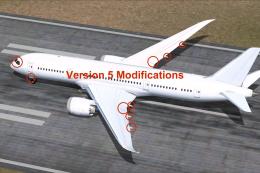
Immerse yourself in a refined rendition of the Boeing 787-8 Dreamliner emblaz…
 FSX Civil Aircraft
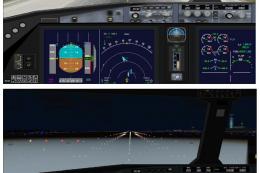
The latest release of this freeware Japan Airlines Boeing 787-9 includes a re…
 FSX Civil Aircraft
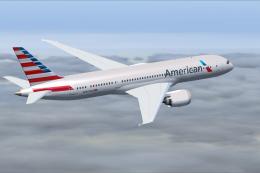
This specialized package features Japan Airlines’ updated livery on a Boeing …
 FSX Civil Aircraft
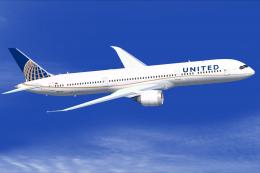
This repaint package features an authentic American carrier livery for the Bo…
 FSX Civil Aircraft
Experience a meticulously crafted repaint of the Boeing 787-9 in the distinct…
 FSX Civil Aircraft
Immerse yourself in a refined AI traffic experience by installing this specia…
 FSX Civil Aircraft
This addition offers a specialized AI repaint for China Southern Airlines on …
 FSX Civil Aircraft
This release features a dedicated repaint of the United Airlines livery for B…
Be the first to leave a comment on this download.
Be the first to share your thoughts on this download.