

 FSX Civil Aircraft
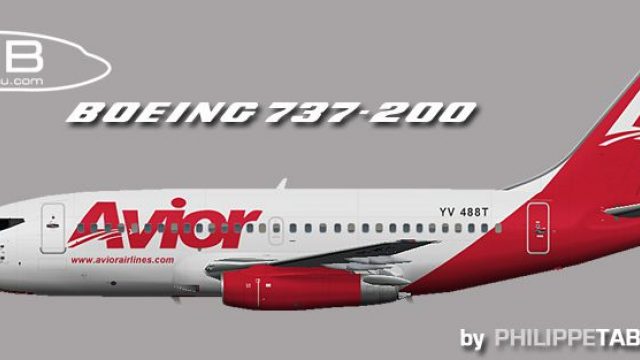
Avior Boeing 737-200 ADV YV495T
This freeware repaint brings the distinctive Avior Airlines color scheme to t…
Avior’s Boeing 737-200 ADV repaint captures registration YV488T with crisp airline markings suited to classic regional operations and period-correct AI traffic. Built for Microsoft Flight Simulator X, it integrates cleanly into existing fleets and requires the freeware FAIB 737-200 ADV base model, offering an authentic retro jet option for enthusiasts.
 Rate
Rate
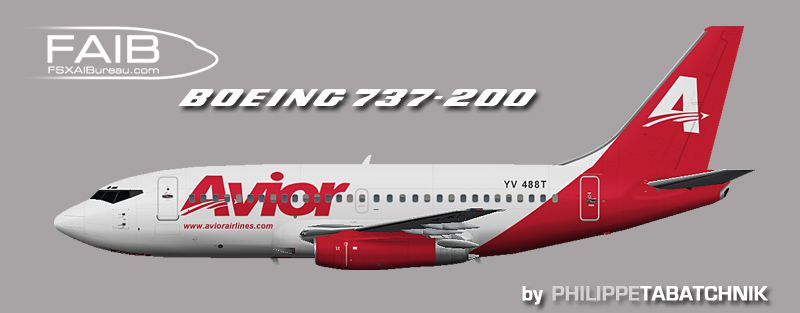
This freeware release features a detailed repaint of the Boeing 737-200 ADV in Avior livery (registration YV488T) and was created as an additional texture for the FAIB base model by developer Philippe Tabatchnik. It is designed for virtual pilots who are passionate about classic 737 variants and wish to expand their AI traffic or personal fleet in Flight Simulator.
The 737-200 ADV (short for “Advanced”) is an evolution of the original Boeing 737-200, featuring upgrades that improve engine performance and enhance operating efficiency. Although no longer at the forefront of commercial passenger service, it remains a favorite among FSX enthusiasts for its nostalgic appeal and robust handling traits. Avior, a carrier based in Venezuela, once operated this type extensively for regional routes, making this aircraft livery quite representative of historical operations in that part of the world.

Side profile showcasing the Avior Boeing 737-200 ADV in the Venezuelan airline's livery.
This texture set is customized for the FAIB_B7372 base package. Keep in mind that the original model itself is not included in this download. You will need to obtain the freeware base model separately from the Fly Away Simulation library. Once you have the core files, you can merge this add-on’s repaint seamlessly.
fltsim.txt instructions reference. For example, if you are using FSX, navigate to the corresponding base model folder under SimObjects or your AI traffic folder structure.aircraft.cfg file (included in the main FAIB Boeing 737-200 ADV package) and paste the [fltsim.x] data from this package into the appropriate location. Ensure numerical continuity by starting at [fltsim.0] for your first add-on, then increment the digit for each subsequent repaint (e.g., [fltsim.1], [fltsim.2], and so on).This repaint was produced by Philippe Tabatchnik for use with the freeware FAIB model (file name: FAIB_B7372.ZIP). All acknowledgments also go to the original creator of the Boeing 737-200 ADV base package for making these enhancements possible within your simulator environment.
Free for all simmers · 825.38 KB · Scanned clean Oct 2026
Download speed: Free tier is capped at 0.5 Mbps. PRO members download at full line speed.
This file is a repaint — the package below is the base model it paints onto. Install it first, or the textures will have nothing to load onto.
texture.{airline}) inside FSX\SimObjects\Airplanes\{base-aircraft}\.aircraft.cfg in Notepad. Add a new [fltsim.X] section per the readme.readme.txt or README file. It tells you exactly where files go, what dependencies are needed, and any quirks specific to this add-on.The archive faib_732_roi_488_fsx.zip has 8 files and directories contained within it.
This list displays the first 500 files in the package. If the package has more, you will need to download it to view them.
| Filename/Directory | File Date | File Size |
|---|---|---|
| faib_732_roi_488.jpg | 03.31.12 | 84.09 kB |
| FAIB_737_200_L.bmp | 04.03.12 | 4.00 MB |
| FAIB_737_200_T.bmp | 04.03.12 | 4.00 MB |
| ReadMe.txt | 03.31.12 | 3.38 kB |
| fltsim.txt | 03.31.12 | 356 B |
| faib_732_roi_488.gif | 03.31.12 | 4.53 kB |
| flyawaysimulation.txt | 10.29.13 | 959 B |
| Go to Fly Away Simulation.url | 01.22.16 | 52 B |
Only PRO members can place votes.
More FSX & P3D add-ons hand-picked based on this download.
FSX Civil Aircraft
This freeware repaint brings the distinctive Avior Airlines color scheme to t…
 FSX Civil Aircraft
Enhance your virtual hangar with a meticulously crafted recreation of Avior’s…
 FSX Civil Aircraft
This detailed freeware repaint offers flight simmers a precise reflection of …
 FSX Civil Aircraft
Avior Boeing 737-200, registration YV491T. Complete pack. Textures for the mo…
 FSX Civil Aircraft
Avior Airlines Boeing 737-200 (new colors). Model by Erick Cantu / Kittyhawk …
 FSX Civil Aircraft
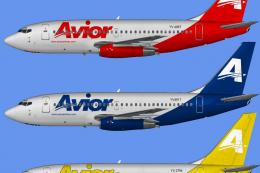
Includes all seven aircraft currently operating in Avior's fleet. They operat…
 FSX Civil Aircraft
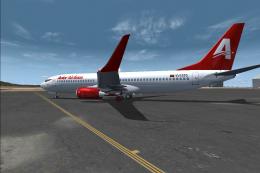
Avior Airlines Boeing 737-800. Model by Project Open Sky. Repaint by Carlos E…
 FSX Civil Aircraft
This repaint set brings a vivid Avior Airlines Boeing 737-400 livery, adorned…
Be the first to leave a comment on this download.
Be the first to share your thoughts on this download.