


 Turkey
  FSX Scenery
Turkey Eskisehir Inonu Airfield
Turkey Eskisehir Inonu Airfield Scenery. VFR scenery of Turkey Eskisehir Inon…
Eskisehir Inonu (LTIN) airfield scenery fix refines gliding conditions by removing overly strong thermals around the runway and nearby Inonu city, restoring smoother approaches and more predictable landings. It also clears interference so surrounding autogen housing displays correctly in FSX, complementing the original Turkey Eskisehir Inonu Airfield Scenery.
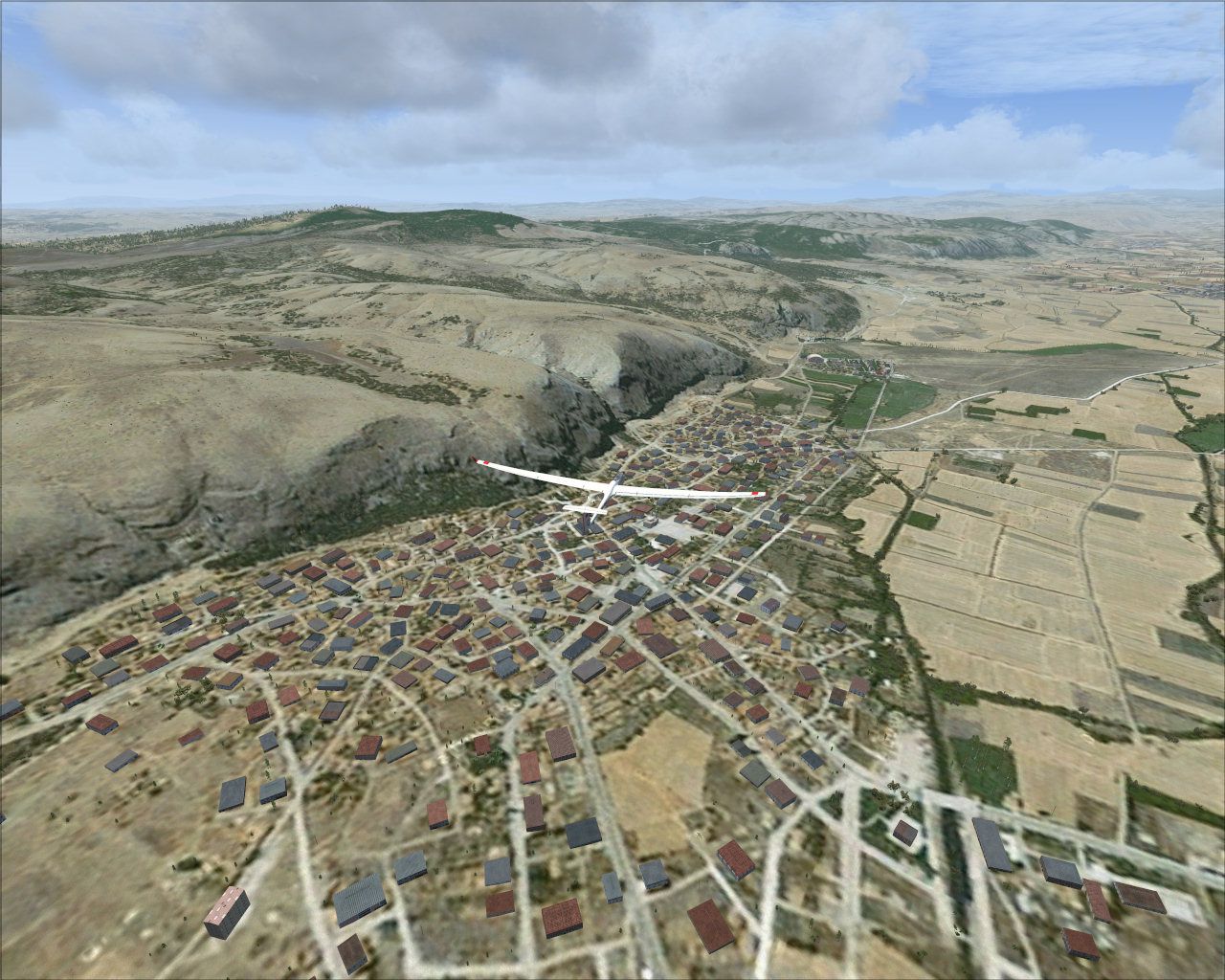
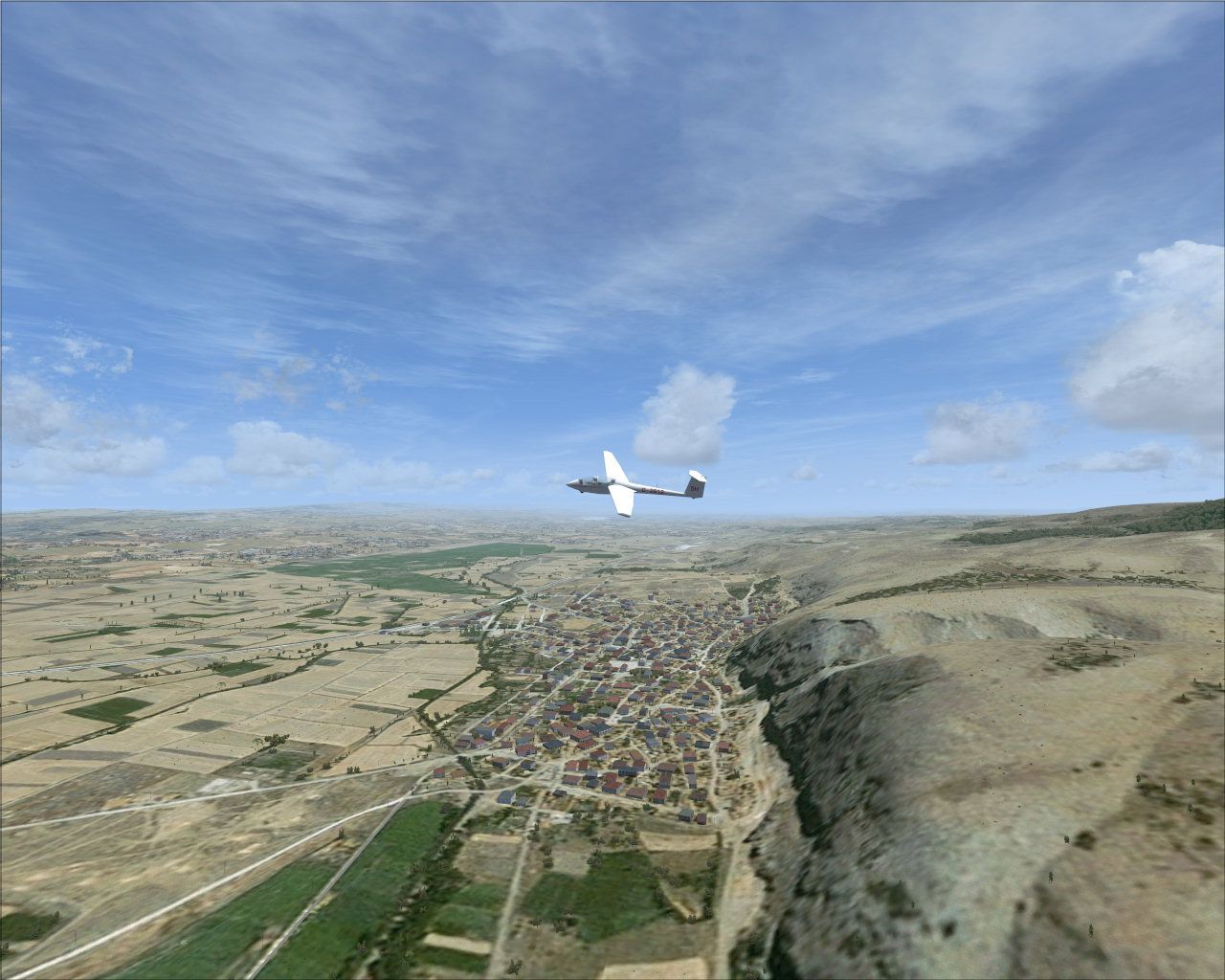
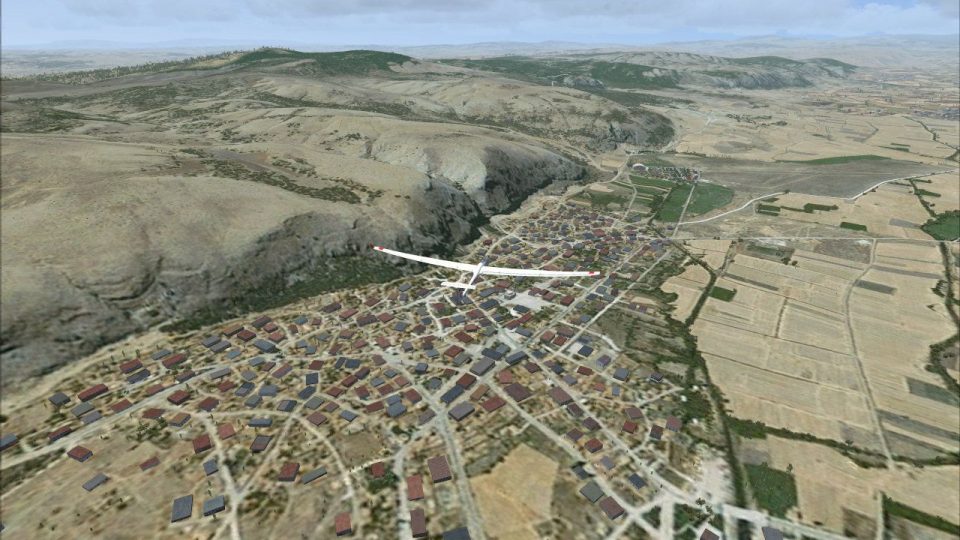
Turkey Eskisehir Inonu Scenery Fix. A small fix file to eliminate the thermals over the airfield and Inonu city that are creating difficulties during glider landings and also creating interference with Inonu autogen houses. For the FSX Turkey Eskisehir Inonu Airfield Scenery, ltin09x.zip. By Sunay Kilic.
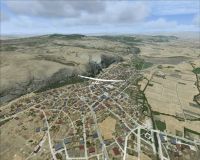
Turkey Eskisehir Inonu Scenery Fix.
Installation:
Save "is-LTIN.bgl" file in the LTIN INONU\SCENERY folder and overwrite the previous file.
So now you can see the autogen houses and land more normally without strong thermal effects.
Nice flights,
Sunay KILIC
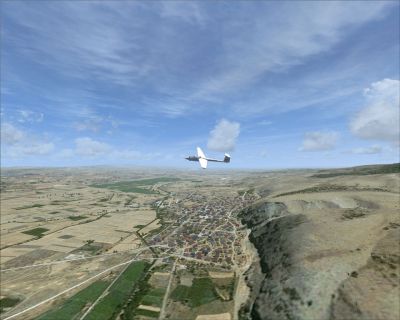
Turkey Eskisehir Inonu Scenery Fix.
Free for all simmers · 568.89 KB · Scanned clean Oct 2026
Download speed: Free tier is capped at 0.5 Mbps. PRO members download at full line speed.
This add-on may require the following files to function properly. If this is a repaint, the dependency below is likely the base aircraft package.
FSX\Addon Scenery\ containing scenery and texture sub-folders.readme.txt or README file. It tells you exactly where files go, what dependencies are needed, and any quirks specific to this add-on.Use these coordinates to fly directly to this location once the mod is installed.
39.80740000,30.10210000
Launch FSX or Prepar3D and use Flights → Load to open the downloaded .pln file. Your aircraft will be positioned at this location.
The archive ltin09xf.zip has 7 files and directories contained within it.
This list displays the first 500 files in the package. If the package has more, you will need to download it to view them.
| Filename/Directory | File Date | File Size |
|---|---|---|
| LTIN03.jpg | 09.30.09 | 235.47 kB |
| is-LTIN.bgl | 09.30.09 | 29.07 kB |
| LTIN01.jpg | 09.29.09 | 327.13 kB |
| readme.txt | 09.30.09 | 575 B |
| readme_tr.txt | 09.30.09 | 1.32 kB |
| flyawaysimulation.txt | 10.29.13 | 959 B |
| Go to Fly Away Simulation.url | 01.22.16 | 52 B |
Only PRO members can place votes.
More FSX & P3D add-ons hand-picked based on this download.
FSX Scenery
Turkey Eskisehir Inonu Airfield Scenery. VFR scenery of Turkey Eskisehir Inon…
 FSX Scenery
FSX Istanbul, Turkey. In the default scenery there is a discrepancy between t…
 FSX Scenery
Scenery Fix--Madeira LPMA, Porto Santo LPPS, Portugal. The default scenery di…
FSX Scenery
Sofia International Airport Fix. Fixed version for FSX of Sofia International…
 FSX Scenery
Rio Mesh Fix. Corrections for the default mesh for Rio de Janeiro (SBRJ), Bra…
 FSX Scenery
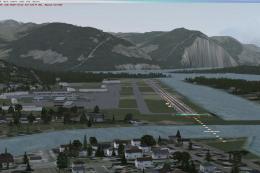
Juneau Alaska Scenery Fix (AK), for use with JUNEAU_JD.ZIP. This file fixes t…
FSX Scenery
Fix For MZBZ Goldson Airport. A quick and dirty fix to remove autogen trees f…
 FSX Scenery
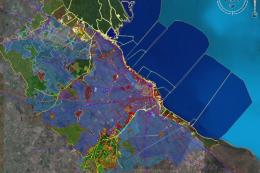
Buenos Aires 2008, Argentina, fix 08.2. This is the scenery of Buenos Aires, …
Be the first to leave a comment on this download.
Be the first to share your thoughts on this download.