


 Gibraltar
  FSX Scenery
Gibraltar X
This rendition of the stunning airport of Gibraltar gives you the road runni…
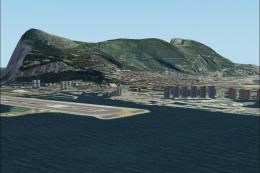
Gibraltar Airport (LXGB) gets a detailed stock upgrade for FSX, adding terminals, jetways, airport vehicles, enhanced navaids, and harbor ships to bring the Rock’s busy waterfront setting to life. The package also introduces ILS guidance for runways 09 and 27 for more confident arrivals and departures.
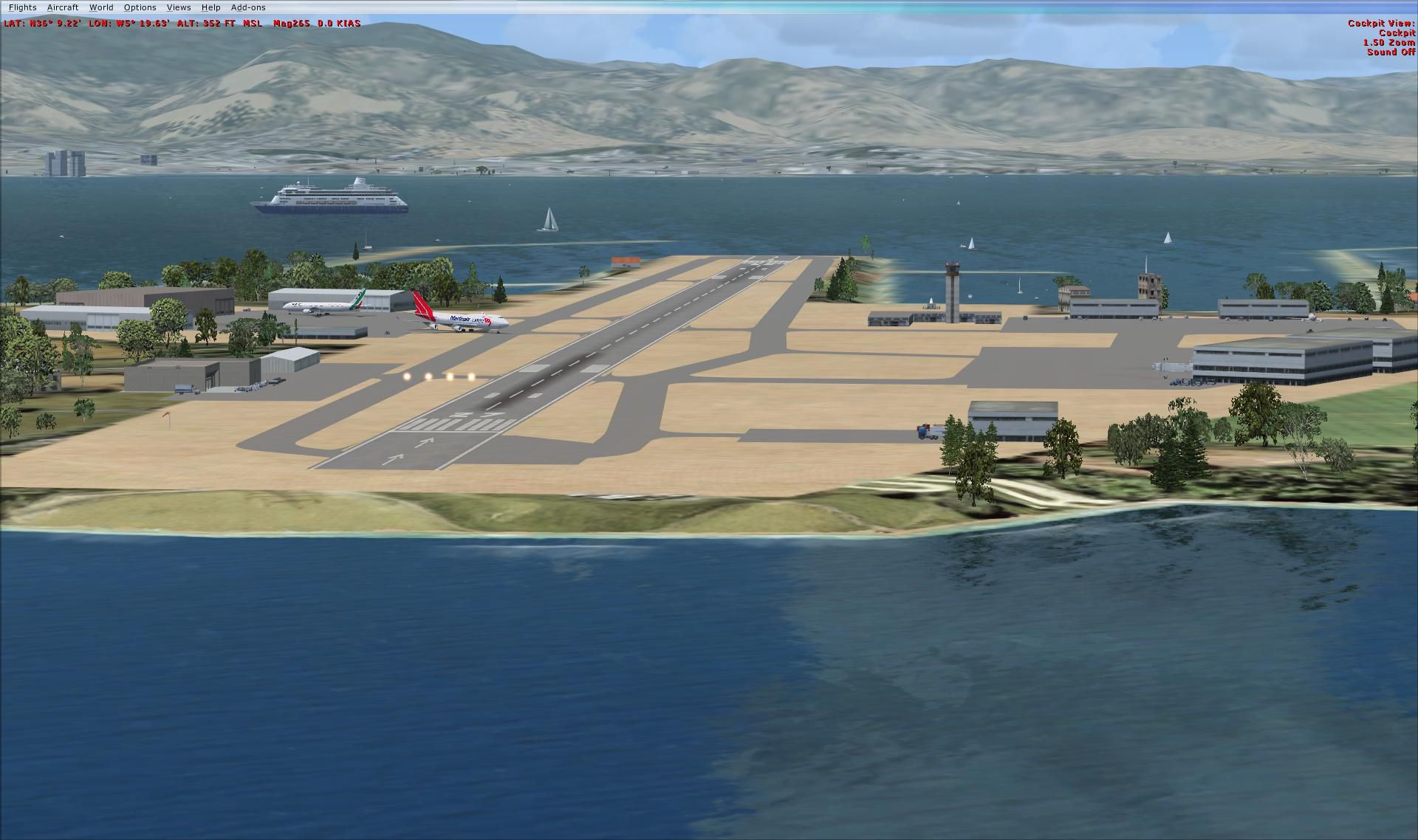
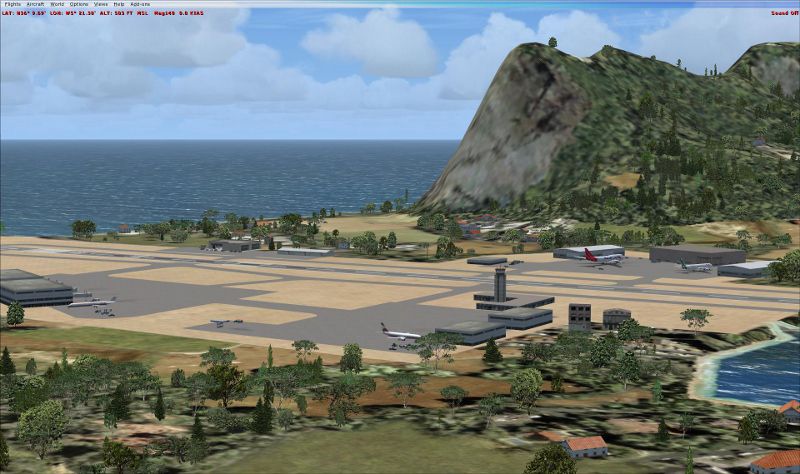
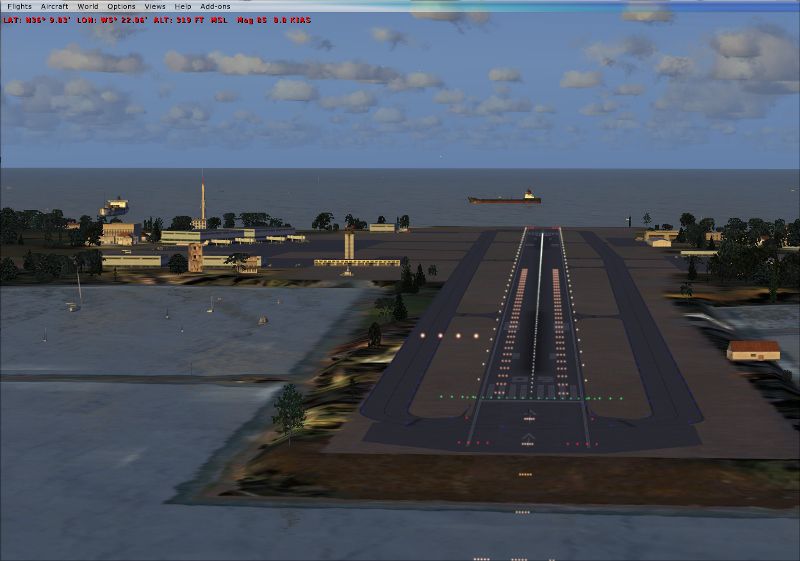
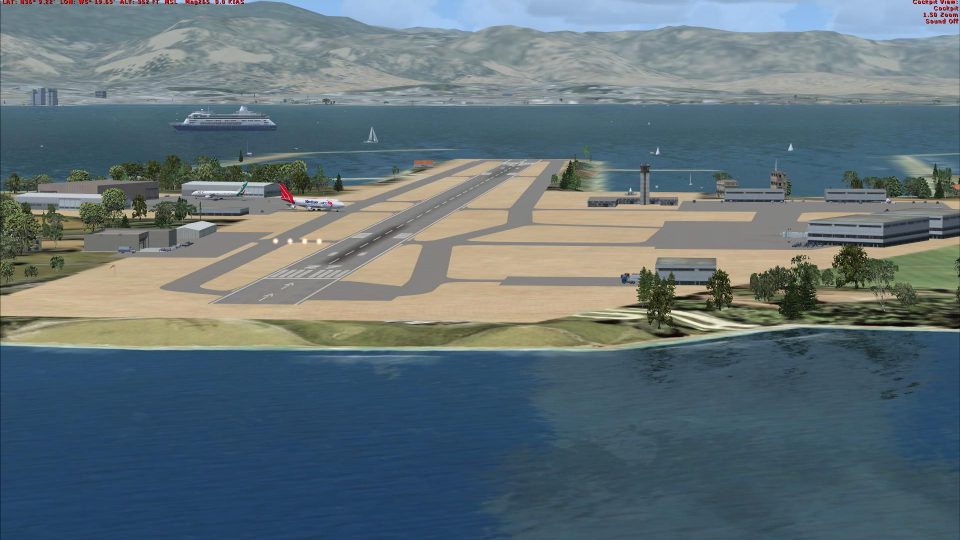
Gibraltar Scenery. This is an upgrade from the stock airport with added terminals, jetways, airport vehicles, navaids and even some ships in. the harbor. Gibraltar Airprt (LXGB) now hasan ILS for both runways 09 and 27. Does not impact frame rates. Created by JD Starseed.
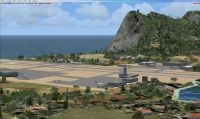
Screenshot of Gibraltar Scenery.
STARSEED PRODUCTIONS LLC.
Distributed for by permission: Red Eye Guys inc.
All files created by: JD Starseed
1. Un- zip file to your desk top.
2. Copy all indiviual BGL. files to your FSX Addon Scenery/ Scenery folder. [ NOT textures folder ] For example= C:\Program Files (x86)\Microsoft Games\Microsoft Flight Simulator X\Addon Scenery\scenery.
3.Over write any files if you have previous version. Restart Flight Sim thats it !!
Come and fly with us on Flight Simulator X multiplayer and join our sessions. Look for the {SS} on the description.
See you there!
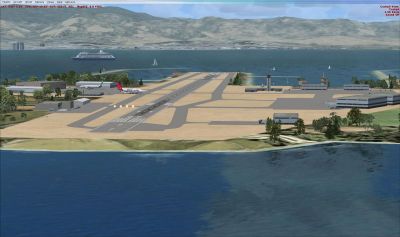
Screenshot of Gibraltar Scenery.
Free for all simmers · 655.34 KB · Scanned clean Oct 2026
Download speed: Free tier is capped at 0.5 Mbps. PRO members download at full line speed.
FSX\Addon Scenery\ containing scenery and texture sub-folders.readme.txt or README file. It tells you exactly where files go, what dependencies are needed, and any quirks specific to this add-on.Use these coordinates to fly directly to this location once the mod is installed.
36.15120000,-5.34970000
Launch FSX or Prepar3D and use Flights → Load to open the downloaded .pln file. Your aircraft will be positioned at this location.
The archive gibraltar_jd.zip has 8 files and directories contained within it.
This list displays the first 500 files in the package. If the package has more, you will need to download it to view them.
| Filename/Directory | File Date | File Size |
|---|---|---|
| Gibraltar | 05.10.11 | 0 B |
| Gibraltar (800x561).jpg | 05.10.11 | 202.76 kB |
| Gibraltar2.jpg | 05.10.11 | 229.38 kB |
| Gibraltar3 (800x474).jpg | 05.10.11 | 261.66 kB |
| LXGB_ADEX_JD.BGL | 05.10.11 | 12.13 kB |
| Read Me !.txt | 05.10.11 | 1.26 kB |
| flyawaysimulation.txt | 10.29.13 | 959 B |
| Go to Fly Away Simulation.url | 01.22.16 | 52 B |
Only PRO members can place votes.
More FSX & P3D add-ons hand-picked based on this download.
FSX Scenery
This rendition of the stunning airport of Gibraltar gives you the road runni…
 FSX Scenery
Scenery Gibraltar Airport. Requires Rwy12 object libraries. By Roger Leupold.…
 FSX Scenery
Gibraltar version 2. Upgraded with better textures and made with SBuilderX at…
 FSX Scenery
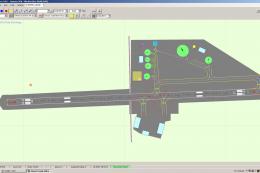
Scenery Gibraltar Buildings. This puts buildings into the previous release of…
 FSX Scenery
Gibraltar (LXGB). A basic upgrade to the default scenery. Adds some new gates…
 FSX Scenery
Gibraltar AB (LXGB). Adds fuel trucks, parking and changes to apron, taxiways…
FSX Scenery
Skara Scenery Bonaire X. Flamingo International Airport or Bonaire Internatio…
 FSX Scenery
Iwo Jima Scenery 1945 Update. This is a complete scenery with added effects a…
Read what other simmers think, or add your own.
