

 FSX Scenery
Chateau Thierry
Chateau Thierry, (LFFH) in France, with photorealistic images and autogen. By…
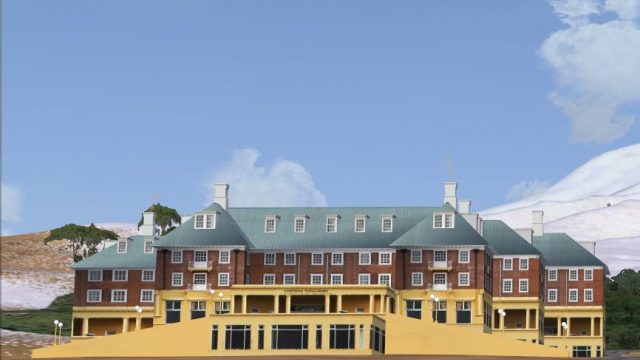
Chateau Tongariro at Mount Ruapehu gets a detailed makeover with custom photoreal 3D buildings that stand out on approach and during low-level touring in FSX. The scenery pairs especially well with VLC 20 m mesh and a vector landclass add-on, while remaining compatible with most landclass setups.
 Rate
Rate
 New Zealand
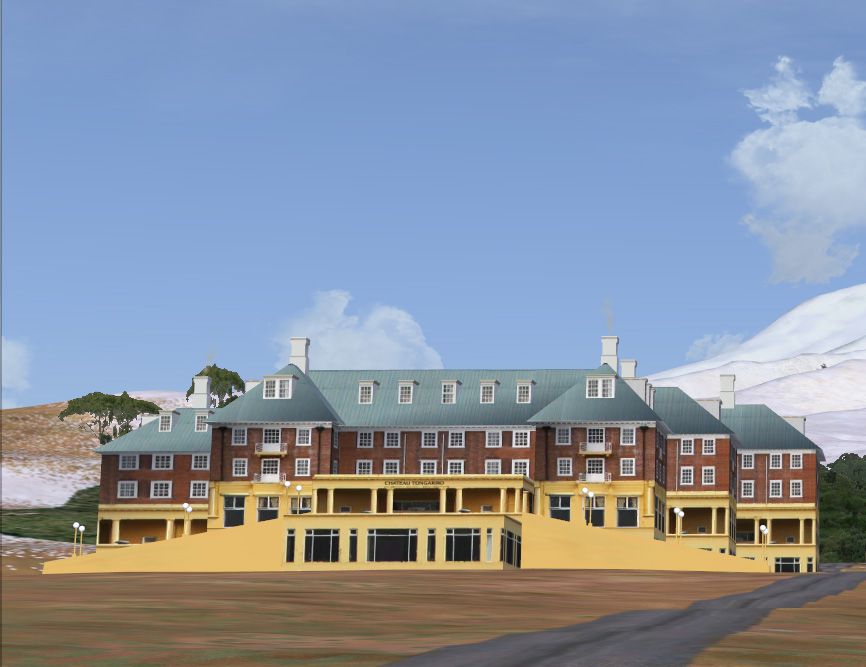
Chateau New Zealand. Package contains custom photoreal 3D buildings for New Zealand's Mount Ruapehu. The Chateau sits best with VLC 20 meter mesh and vector landclass add-on. By Michael Allen-Andrews.
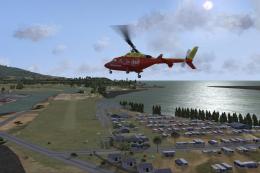
Screenshot of Chateau New Zealand Scenery.
Package contains Custom 3d building for New Zealand mount ruapehu the chateau.
FREEWARE ONLY.
This scenery "3RD party "was designed sp1 sp2 sdk and to fit best with VLC though should work with any landclass you have installed.
Installation:
Unzip and drag or extract Chateau folder to your addon scenery library located in your FSX main directory normally C:\Program Files\Microsoft Games\Microsoft Flight Simulator X\Addon Scenery or 64bit "C:\Program Files (x86)\Microsoft Games\Microsoft Flight Simulator X\Addon Scenery.
After doing so, start up FSX and go settings then click you addon scenery library manger and activate the scenery Chateau by navagating to the chateau folder in the addon scenery folder were most 3rd party addon scenery go.
Enjoy, Mike.
Free for all simmers · 638.1 KB · Scanned clean Oct 2026
Download speed: Free tier is capped at 0.5 Mbps. PRO members download at full line speed.
FSX\Addon Scenery\ containing scenery and texture sub-folders.readme.txt or README file. It tells you exactly where files go, what dependencies are needed, and any quirks specific to this add-on.Use these coordinates to fly directly to this location once the mod is installed.
-39.20360000,175.54090000
Launch FSX or Prepar3D and use Flights → Load to open the downloaded .pln file. Your aircraft will be positioned at this location.
The archive chateau-1.zip has 9 files and directories contained within it.
This list displays the first 500 files in the package. If the package has more, you will need to download it to view them.
| Filename/Directory | File Date | File Size |
|---|---|---|
| readme!!!.txt | 05.20.11 | 1.07 kB |
| scenery | 05.20.11 | 0 B |
| chateau.bgl | 05.20.11 | 330.32 kB |
| chateau_placement.BGL | 05.20.11 | 156 B |
| texture | 05.20.11 | 0 B |
| chateau-01.dds | 05.20.11 | 682.79 kB |
| picture.jpg | 05.20.11 | 155.65 kB |
| flyawaysimulation.txt | 10.29.13 | 959 B |
| Go to Fly Away Simulation.url | 01.22.16 | 52 B |
Only PRO members can place votes.
More FSX & P3D add-ons hand-picked based on this download.
FSX Scenery
Chateau Thierry, (LFFH) in France, with photorealistic images and autogen. By…
 FSX Scenery
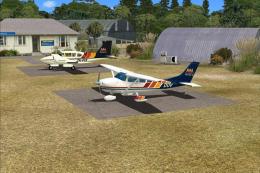
Nestled at the edge of Tongariro National Park, Chateau Airfield (NZ22) provi…
 FSX Scenery
New Zealand Terrain Mesh. These files have had extensive work done on them to…
 FSX Scenery
Scenery Queenstown, New Zealand. Improvements to base FSX version. ILS added,…
FSX Scenery
Landclass Scenery For New Zealand. Best used in spring, summer and fall. This…
 FSX Scenery
Taupo Extras New Zealand. Includes photoreal Hukafalls / Helistar helibase / …
 FSX Scenery
Chatham Islands New Zealand. This is a basic photoreal upgrade to default NZC…
 FSX Scenery
Raglan New Zealand. This is a basic photoreal upgrade to default NZRA Raglan …
Be the first to leave a comment on this download.
Be the first to share your thoughts on this download.