


 United States of America
  FSX AFCAD Files
AFCAD File For LPPT
Elevate Microsoft Flight Simulator X with a refined rendition of Lisbon Inter…
Mineta San Jose International Airport (KSJC) gets a sharper, more current AFCAD for Microsoft Flight Simulator X, featuring Terminal B expansion, updated parking assignments, refined taxiway geometry and signage, plus improved service-road routing with added ground vehicles and fuel trucks. Two BGL files also place extra objects and jetways for a busier, more realistic Silicon Valley hub.
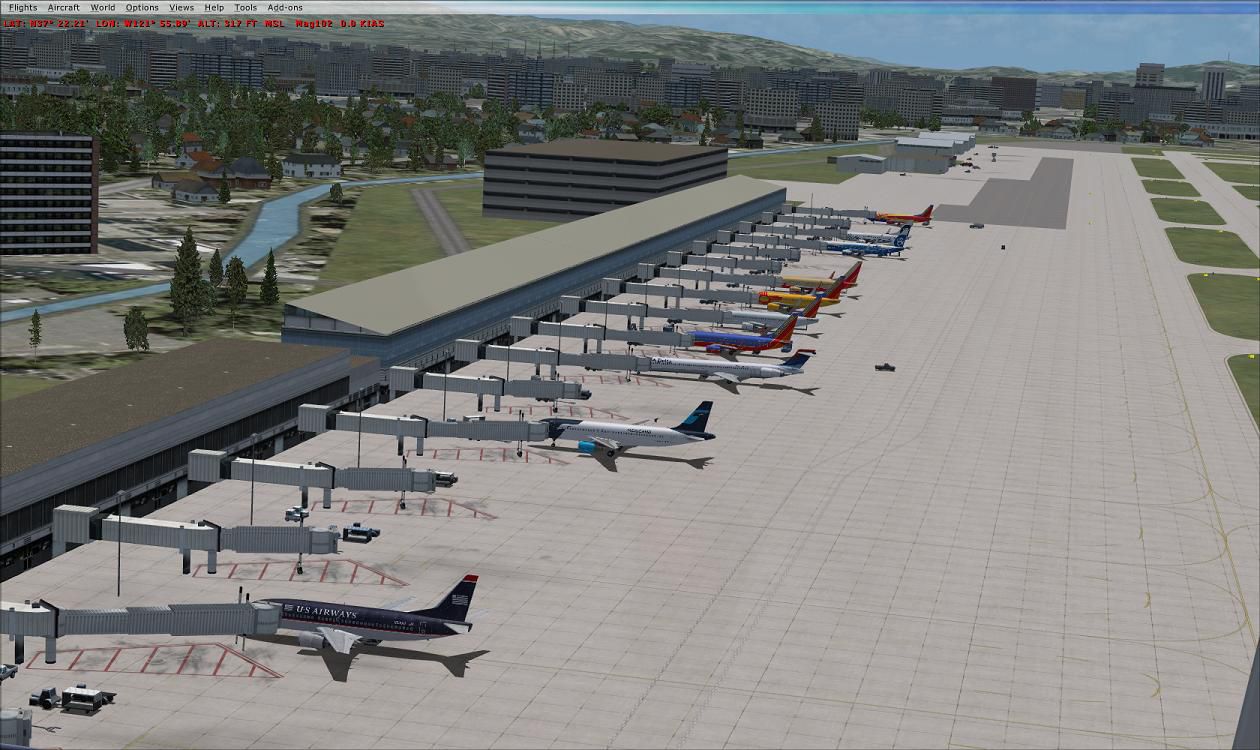
Experience an updated rendition of Mineta San Jose International Airport (KSJC) in Microsoft Flight Simulator X. This refined project, crafted by Ray Smith, applies fresh detail to the airport layout, incorporating terminal expansions, corrected taxi paths, and enhanced vehicle traffic routes. It brings a more authentic depiction of the bustling Silicon Valley gateway, ensuring pilots enjoy operations that reflect KSJC’s dynamic real-world environment.
You will notice the newly modeled Terminal B, which includes assigned and expanded parking positions that accommodate varied aircraft types. In addition, taxiway alignments and signage have been carefully refined to provide an authentic flow between the runway complex and apron areas. Service roads have been reworked to maintain realistic ground vehicle patterns, while extra fuel trucks have been integrated for added immersion.
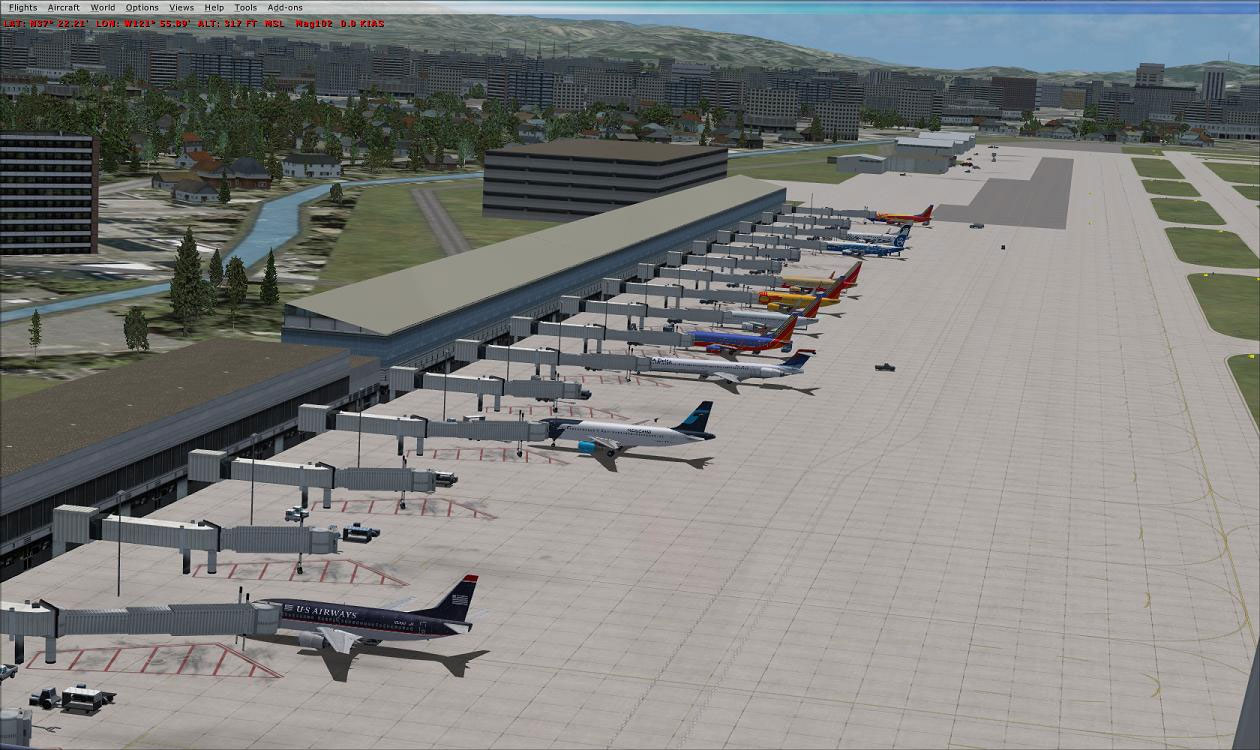
View of Mineta San Jose International Airport.
KSJC_ADE_RS.BGL into your “Addon Scenery/scenery” folder within the main simulator directory.KSJC_ADE_OBJ.BGL into the “Scenery/Global/scenery” folder to activate additional models.Some jetway textures are separate from the core files and may need copying to ensure the gateways render correctly. If you have already completed similar steps with any of Ray Smith’s other airport updates, you can skip this portion.
FSX\Scenery\NAME\Texture and locate both jfk_jetway.dds (daytime texture) and jfk_jetway_LM.dds (nighttime texture).Scenery\Global\Texture folder.When in tower view, consider assigning a key or button to the “View Track/Pan Toggle” function. This method grants you a 360-degree vantage of the field. Pressing the assigned key once unlocks the user aircraft, letting you pan around freely, and pressing it again resets the view to your current aircraft.
Enjoy your flights over Silicon Valley with these improvements, and thank you to Ray Smith for providing this meticulously crafted update.
Free for all simmers · 193.29 KB · Scanned clean Oct 2026
Download speed: Free tier is capped at 0.5 Mbps. PRO members download at full line speed.
AF2_*.bgl or AFX_*.bgl) go into FSX\Addon Scenery\Scenery\ or a dedicated AFCAD folder you create.readme.txt or README file. It tells you exactly where files go, what dependencies are needed, and any quirks specific to this add-on.Use these coordinates to fly directly to this location once the mod is installed.
37.36390000,-121.92900000
Launch FSX or Prepar3D and use Flights → Load to open the downloaded .pln file. Your aircraft will be positioned at this location.
The archive ksjc_ade_rs_fsx.zip has 7 files and directories contained within it.
This list displays the first 500 files in the package. If the package has more, you will need to download it to view them.
| Filename/Directory | File Date | File Size |
|---|---|---|
| KSJC.jpg | 07.08.11 | 147.30 kB |
| KSJC_ADE_OBJ.BGL | 07.08.11 | 86.41 kB |
| KSJC_ADE_RS.BGL | 07.08.11 | 67.41 kB |
| ReadMe.txt | 05.11.12 | 3.01 kB |
| FSX_ksjc_ade_rs | 05.12.12 | 0 B |
| flyawaysimulation.txt | 10.29.13 | 959 B |
| Go to Fly Away Simulation.url | 01.22.16 | 52 B |
Only PRO members can place votes.
More FSX & P3D add-ons hand-picked based on this download.
FSX AFCAD Files
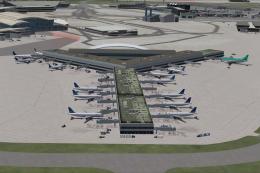
Elevate Microsoft Flight Simulator X with a refined rendition of Lisbon Inter…
 FSX AFCAD Files
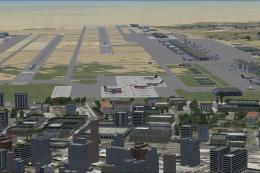
John F. Kennedy International Airport, New York, NY, USA, v2. This airport up…
 FSX AFCAD Files
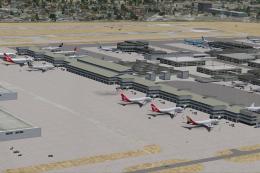
Dubai International Airport, United Arab Emirates (UAE). This airport update …
 FSX AFCAD Files
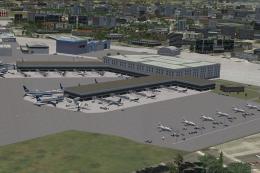
Los Angeles International Airport (LAX), California (CA), USA. This airport u…
 FSX AFCAD Files
This freeware package modernizes Zurich International Airport (LSZH) in Micro…
 FSX AFCAD Files
Lic Benito Juarez International Airport, Mexico City, Mexico. This airport up…
 FSX AFCAD Files
Enhance Kastrup Airport (EKCH) in Copenhagen, Denmark with this freeware upgr…
 FSX AFCAD Files
This enhanced update for Schiphol (EHAM) in Amsterdam focuses on reconstructi…
Be the first to leave a comment on this download.
Be the first to share your thoughts on this download.