

 FSX Civil Aircraft
Bmi Baby Boeing 737-500 G-BVKB
Bmi Baby Boeing 737-500. Textures only for the Feelthere/Wilco PIC B737-500 i…
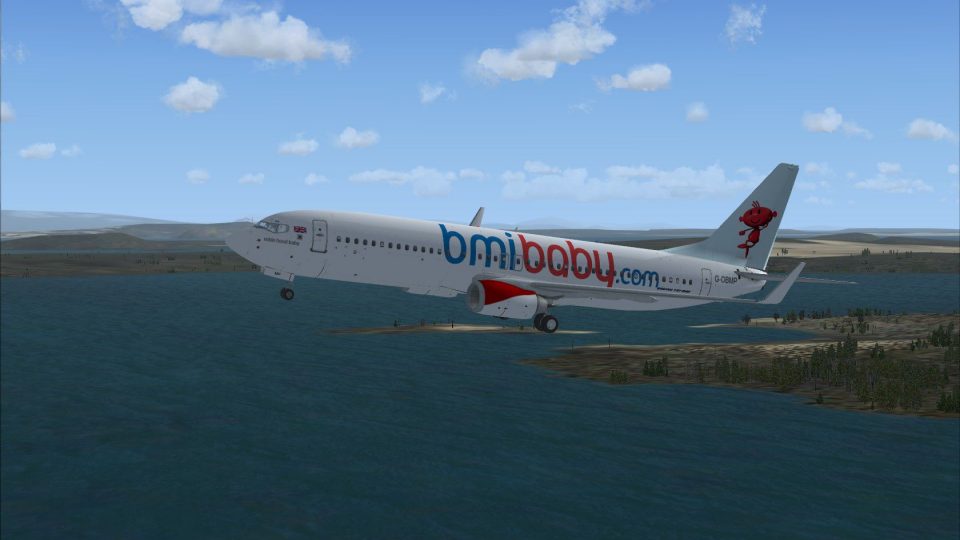
BMI Baby “Robin Hood Baby” livery brings the airline’s playful European branding to the default Boeing 737-800, with carefully aligned logos and markings tailored to the longer fuselage and wings. Designed for Microsoft Flight Simulator X, it delivers a distinctive look in the virtual cockpit and external views and requires the freeware base model.
 Rate
Rate
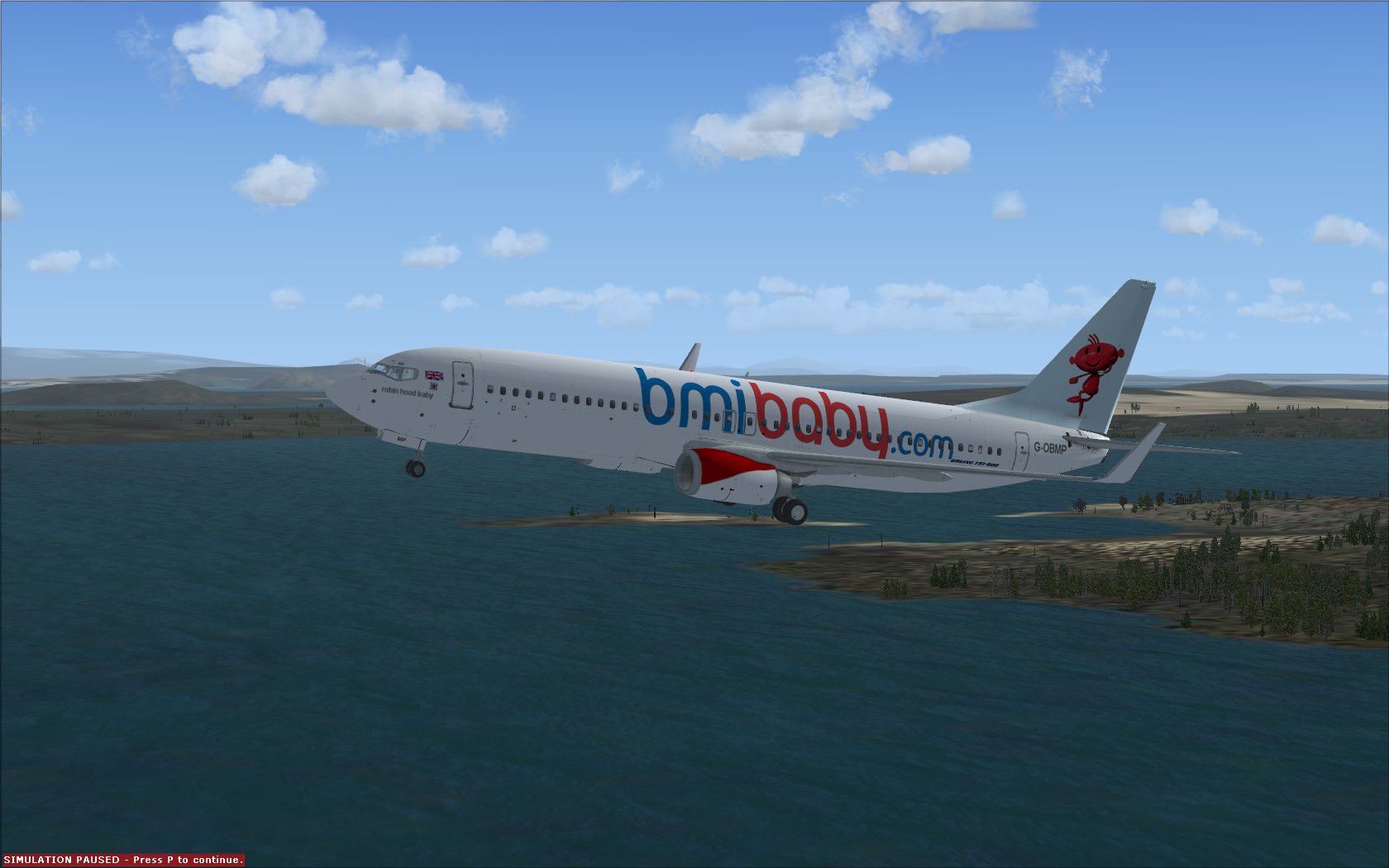
Add a refined European touch to your simulator flights with this customized Boeing 737-800 repaint by Paul Davies, crafted for Microsoft Flight Simulator X. Inspired by BMI Baby’s unique “Robin Hood Baby” livery (originally adorning 737-500 registration G-OBMP), it brings a striking identity to the default 737-800 model. This version showcases the playful logo artwork BMIBaby was known for during its years of operation across Europe.
The real-world “Robin Hood Baby” jet (registration G-OBMP) operated under BMI Baby’s short-haul network, offering cost-effective services to multiple European destinations. Although the design originally appeared on the 737-500 airframe, it has been carefully adapted here to fit the longer fuselage of the 737-800. BMI Baby, which was headquartered in the United Kingdom, was recognized for colorful branding and region-centric aircraft nicknames, all intended to emphasize an approachable travel experience.
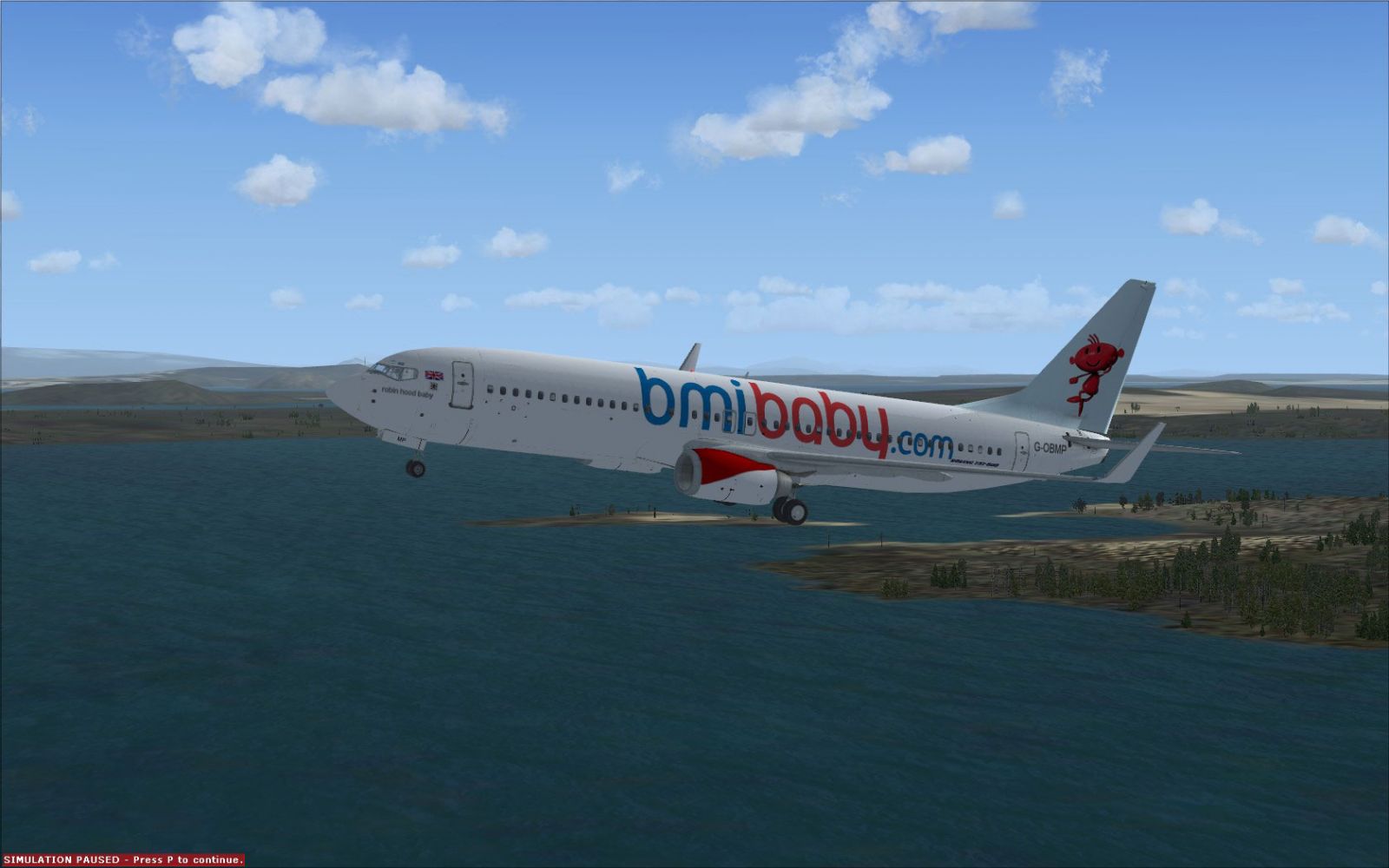
BMI Baby Boeing 737-800 in flight.
This add-on includes texture files only for the default Boeing 737-800 in Microsoft Flight Simulator X. You will need to acquire the freeware base model (also available in the Fly Away Simulation library) before installing. All markings, logos, and insignias associated with “Robin Hood Baby” have been realigned to the 737-800’s fuselage and wing dimensions. The result is a convincing repaint that highlights BMI Baby’s friendly branding from nose to tail.
To register this repaint in the simulator menu, you must edit the aircraft.cfg file inside the B737-800 folder. Use the following approach:
[fltsim.x] entries (e.g., [fltsim.0], [fltsim.1], and so forth).
[fltsim.XX]
title=Boeing 737-800 BMIBABY
sim=Boeing737-800
model=
panel=
sound=
texture=bmibaby1
kb_checklists=Boeing737-800_check
kb_reference=Boeing737-800_ref
atc_id=G-OBMP
atc_airline=bmibaby
atc_flight_number=
ui_manufacturer="Boeing"
ui_type="737-800"
ui_variation="bmi baby"
ui_typerole="Commercial Airliner"
ui_createdby="Microsoft Corporation"
description="One should hardly be surprised that the world's most prolific manufacturer of commercial aircraft is also the producer of the world's most popular jetliner. The 737 became the best-selling commercial jetliner worldwide when orders for it hit 1,831 in June 1987 (surpassing Boeing's own 727 as the previous champ). However, it wasn't always that way in the first few years of production, there were so few orders that Boeing considered canceling the program. They didn't, and the airplane has more than proven itself in over three decades of service."
[fltsim.XX] entry with a valid number and removed “XX.”This repaint by Paul Davies offers a nostalgic recreation of BMI Baby’s quirky brand image. It retains the airline’s recognizable motif and registration, now blended seamlessly with the larger frame of the 737-800. By following these steps, you can enjoy the brightness and individuality that “Robin Hood Baby” brought to the skies in your own simulator sessions.
Free for all simmers · 8.57 MB · Scanned clean Oct 2026
Download speed: Free tier is capped at 0.5 Mbps (this file takes approximately 2 mins at the cap). PRO members download at full line speed.
texture.{airline}) inside FSX\SimObjects\Airplanes\{base-aircraft}\.aircraft.cfg in Notepad. Add a new [fltsim.X] section per the readme.readme.txt or README file. It tells you exactly where files go, what dependencies are needed, and any quirks specific to this add-on.The archive bmibaby1.zip has 33 files and directories contained within it.
This list displays the first 500 files in the package. If the package has more, you will need to download it to view them.
| Filename/Directory | File Date | File Size |
|---|---|---|
| BMIBABY JPeg.jpg | 01.21.11 | 205.30 kB |
| FILE_ID.DIZ | 02.17.11 | 214 B |
| Readme.txt | 01.21.11 | 3.59 kB |
| texture.bmibaby1 | 01.21.11 | 0 B |
| 737_Refection.dds | 09.04.06 | 170.79 kB |
| B737_800_1_C.dds | 09.04.06 | 682.79 kB |
| b737_800_1_LM.dds | 09.04.06 | 170.79 kB |
| B737_800_1_night_C.dds | 12.21.10 | 1.33 MB |
| b737_800_1_T.dds | 01.21.11 | 4.00 MB |
| b737_800_1_T_Bump.dds | 09.04.06 | 1.00 MB |
| b737_800_1_T_Specular.dds | 09.04.06 | 1.33 MB |
| B737_800_2_C.dds | 09.04.06 | 682.79 kB |
| B737_800_2_night_C.dds | 12.21.10 | 1.33 MB |
| b737_800_2_T.dds | 09.04.06 | 1.33 MB |
| b737_800_2_T_Bump.dds | 09.04.06 | 1.00 MB |
| b737_800_2_T_Specular.dds | 09.04.06 | 1.33 MB |
| B737_800_3_C.dds | 09.04.06 | 682.79 kB |
| B737_800_3_night_C.dds | 12.21.10 | 1.33 MB |
| B737_800_4_C.dds | 09.04.06 | 682.79 kB |
| B737_800_4_night_C.dds | 12.21.10 | 1.33 MB |
| B737_800_5_C.dds | 09.04.06 | 170.79 kB |
| B737_800_5_night_C.dds | 12.21.10 | 341.48 kB |
| B737_800_C.bmp | 05.12.06 | 682.74 kB |
| B737_800_Interior.dds | 09.04.06 | 170.79 kB |
| BMIBABY JPeg.jpg | 01.21.11 | 205.30 kB |
| FILE_ID.DIZ | 01.21.11 | 173 B |
| Fresnel_Ramp.dds | 09.04.06 | 640 B |
| Pilots_737.dds | 09.04.06 | 42.79 kB |
| texture.cfg | 08.14.06 | 137 B |
| thumbnail.jpg | 01.21.11 | 9.36 kB |
| Thumbs.db | 01.21.11 | 5.00 kB |
| flyawaysimulation.txt | 10.29.13 | 959 B |
| Go to Fly Away Simulation.url | 01.22.16 | 52 B |
Only PRO members can place votes.
More FSX & P3D add-ons hand-picked based on this download.
FSX Civil Aircraft
Bmi Baby Boeing 737-500. Textures only for the Feelthere/Wilco PIC B737-500 i…
 FSX Civil Aircraft
FSX Bmi Baby Bombardier CRJ 700 (fictional). By Daniel Culprit.
 FSX Civil Aircraft
BMI Baby Airbus A321. Handmade fictional textures for a BMI Baby paint scheme…
 FSX Civil Aircraft
BMI Boeing 757-200 G-STRY FSX BMI Boeing 757-200 G-STRY leased from Astraeus …
 FSX Civil Aircraft
FSX bmi Airbus A321. Textures for the default Airbus A321 in the colors of bm…
 FSX Civil Aircraft
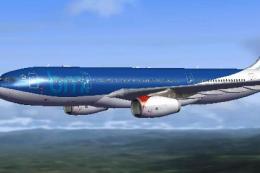
This freeware repaint faithfully represents the classic BMI British Midland A…
 FSX Civil Aircraft
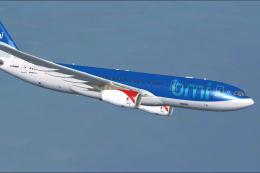
BMI Airbus A330-243. Repaint of Tom Ruth's A330-200 in BMI British Midland In…
 FSX Civil Aircraft
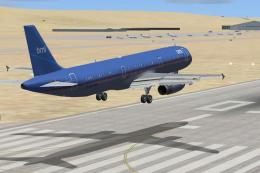
A repaint of the default A321 Airbus in the old colors of British Midland Int…
Be the first to leave a comment on this download.
Be the first to share your thoughts on this download.