


 Norway
  FSX Scenery
Hawaii Complete Photoreal & Airports
A complete and fully featured photoreal, airport, building, and autogen scene…
Norway Airports Scenery expands Flight Simulator X with detailed renditions of Ålesund/Vigra (ENAL), Molde/Årø (ENML), and Gossen (ZZBD), bringing more believable approaches and airport environments to Norway’s rugged coastline. Designed for FSX SP1 and SP2, it adds custom scenery and textures for sharper ground detail and improved immersion.
Norway Airports add-on for FSX SP1 and SP2, package 2. This file contains three Norwegian airports: ENAL, ENML, ZZBD. By Norway Airports Team.
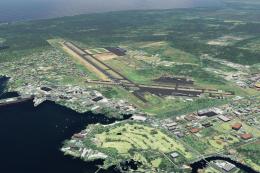
Screenshot of Norway Airports Scenery.
This package so far contains 3 airports in Norway:
Aalesund/Vigra ENAL
Molde/Aaroe ENML
Gossen ZZBD
1.Create the following folders, names and Disk Drive may be different if you so choose:
C:\flightsim\Norway_airports and subfolders:
C:\flightsim\Norway_airports\scenery
C:\flightsim\Norway_airports\texture
2. Unzip the file: Norway_airports_scenery.ZIP into the "...\scenery" folder
3. Unzip the file: Norway_airports_texture.ZIP into the "...\texture" folder.
4. Start FSX and select WORLD and SCENERY LIBRARY or just SCENERY LIBRARY in the main menu.
5. Select ADD AREA.
6. Find NORWAY_AIRPORTS and double click it. Click OK.
UNINSTALL: delete the folders containing the files.
Norway Airports Team
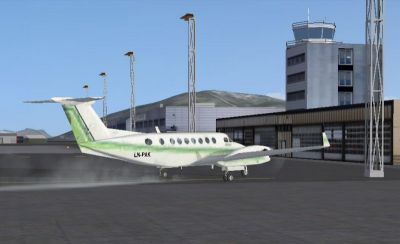
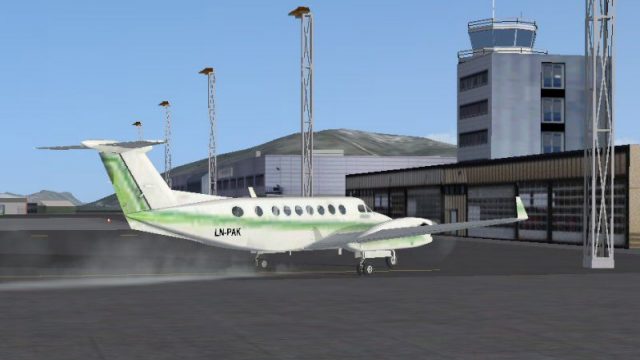
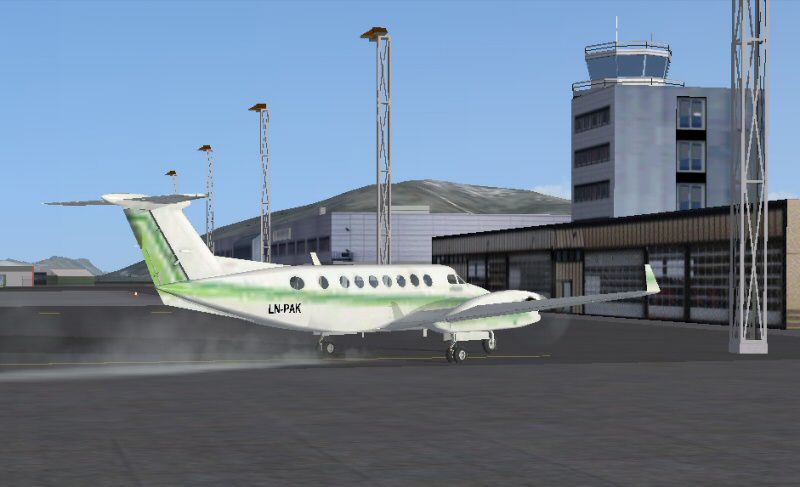
Screenshot of plane at Norway Airport.
Free for all simmers · 7.73 MB · Scanned clean Oct 2026
Download speed: Free tier is capped at 0.5 Mbps (this file takes approximately 2 mins at the cap). PRO members download at full line speed.
FSX\Addon Scenery\ containing scenery and texture sub-folders.readme.txt or README file. It tells you exactly where files go, what dependencies are needed, and any quirks specific to this add-on.Use these coordinates to fly directly to this location once the mod is installed.
62.56000000,6.11000000
Launch FSX or Prepar3D and use Flights → Load to open the downloaded .pln file. Your aircraft will be positioned at this location.
The archive norapx_2.zip has 9 files and directories contained within it.
This list displays the first 500 files in the package. If the package has more, you will need to download it to view them.
| Filename/Directory | File Date | File Size |
|---|---|---|
| scenery.zip | 01.31.12 | 134.02 kB |
| readme_NORAPX_1.txt | 02.01.12 | 1.01 kB |
| lesmeg_NORAPX_1.txt | 02.01.12 | 1.23 kB |
| texture.zip | 01.31.12 | 7.54 MB |
| NORAPX_2l.jpg | 02.03.12 | 101.26 kB |
| NORAPX_2b.jpg | 02.03.12 | 3.90 kB |
| file-id-diz.txt | 02.03.12 | 153 B |
| flyawaysimulation.txt | 10.29.13 | 959 B |
| Go to Fly Away Simulation.url | 01.22.16 | 52 B |
Only PRO members can place votes.
More FSX & P3D add-ons hand-picked based on this download.
FSX Scenery
A complete and fully featured photoreal, airport, building, and autogen scene…
 FSX Scenery
Seattle Airports, Washington (WA). A revision of the default Seattle-Tacoma (…
 FSX Scenery
73 Airports And Airfields In South Africa. Enhanced airports based on Google …
 FSX Scenery
A package for Microsoft Flight Simulator X that brings 7 Swiss airports to r…
FSX Scenery
Scenery For 31 Airports In Iran, VOR approach and parking fixed. Includes Ema…
 FSX Scenery
FSX Update For Dutch Airports (The Netherlands). Dutch airports EHAL, EHBD, E…
 FSX Scenery
Papua New Guinea Airports Part 1. PNG has more airfields and heliports than t…
FSX Scenery
Florida Airports (FL). AFCAD files made with Airport Design Editor to coordin…
Be the first to leave a comment on this download.
Be the first to share your thoughts on this download.