

 FSX Scenery
Bagram Air Force Base
Bagram Air Force Base v3. Bagram, Afghanistan (AF). Bagram AFB (OAIX) is for …
Goodyear Blimp Base Sign Scenery places the iconic Goodyear sign at the Carson, California blimp base, adding a recognizable landmark for VFR flying and local approaches. Designed for FSX, it blends smoothly into the surrounding area with lightweight placement BGLs that enhance realism without changing the wider scenery.
 Rate
Rate
 United States of America
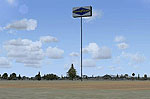
Goodyear Blimp Base Sign. This small little add-on puts the Goodyear Sign at the Goodyear Blimp Base in Carson, California (CA). By Derek Souza.
Goodyear Blimp Base Sign Scenery.
This small little addon puts the Goodyear Sign at the Goodyear Blimp Base in Carson, CA. Just A simple thing making FSX a little more realistic. Big thanks to Steve Ziegler for his scenery design.
Installation:
1. Extract or unzip all files.
2.put the Goodyear Blimp Sign BGL into your addon scenery/ scenery folder.
3. put the other BGLs into your scenery/global/scenery folder.
4. Load your FSX and have fun!
No reproduction or "fix" of this download can be uploaded to any site without my permission.
Free for all simmers · 25.66 KB · Scanned clean Oct 2026
Download speed: Free tier is capped at 0.5 Mbps. PRO members download at full line speed.
FSX\Addon Scenery\ containing scenery and texture sub-folders.readme.txt or README file. It tells you exactly where files go, what dependencies are needed, and any quirks specific to this add-on.Use these coordinates to fly directly to this location once the mod is installed.
33.86500000,-118.27900000
Launch FSX or Prepar3D and use Flights → Load to open the downloaded .pln file. Your aircraft will be positioned at this location.
The archive gyblimps.zip has 8 files and directories contained within it.
This list displays the first 500 files in the package. If the package has more, you will need to download it to view them.
| Filename/Directory | File Date | File Size |
|---|---|---|
| ABW SZ Airline&ForcesSigns.bgl | 04.04.08 | 78.10 kB |
| ABW SZ General Signs.bgl | 04.04.08 | 37.39 kB |
| Readme.txt | 05.14.08 | 693 B |
| Goodyear Blimp Sign.bgl | 05.14.08 | 332 B |
| ABW SZ GenBusinessSigns.bgl | 04.04.08 | 49.06 kB |
| ABW Airline Signs.bgl | 04.04.08 | 174.74 kB |
| flyawaysimulation.txt | 10.29.13 | 959 B |
| Go to Fly Away Simulation.url | 01.22.16 | 52 B |
Only PRO members can place votes.
More FSX & P3D add-ons hand-picked based on this download.
FSX Scenery
Bagram Air Force Base v3. Bagram, Afghanistan (AF). Bagram AFB (OAIX) is for …
 FSX Scenery
Andrews Air Force Base (KADW), Camp Springs, Maryland (MD). An improved versi…
 FSX Scenery
Israel Landclass X Base Textures, version 1.01. These are base textures for I…
 FSX Scenery
Nellis Air Force Base (KLSV), Nevada (NV). Adds ramp parking and some scenery…
 FSX Scenery
Aviano Air Base Scenery, Italy. Scenery for Aviano Air Base (LIPA), done with…
 FSX Scenery
Sheppard Air Force Base (KSPS), Wichita Falls, Texas (TX). So you want to be …
 FSX Scenery
Bagram Air Force Base V3 Update 1. Bagram, Afghanistan (AF). Portions of some…
 FSX Scenery
Pease Air Force Base, New Hampshire (NH), v2.8. This is Pease AFB as it was i…
Be the first to leave a comment on this download.
Be the first to share your thoughts on this download.