

 FSX Civil Aircraft
SAA Airbus A380-800
The A380-800 is shown as what it may look like in South African Airways Liver…
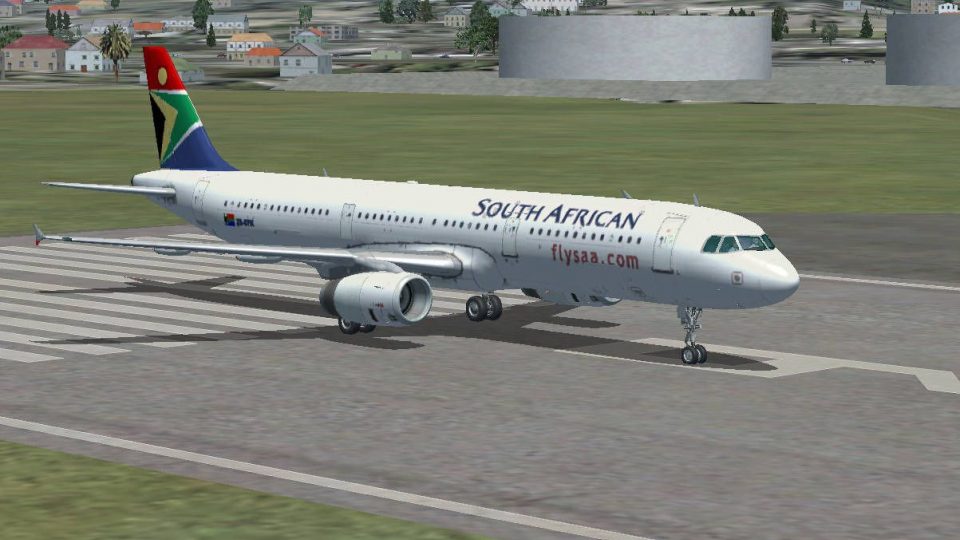
South African Airways colors for the default Airbus A321 bring ZS-SFK to life with clean airline markings and a cohesive look across the fuselage and tail, ideal for regional and short-haul routes. Designed for FSX, this repaint requires the stock Airbus A321 package to display correctly in the virtual cockpit and exterior views.
 Rate
Rate
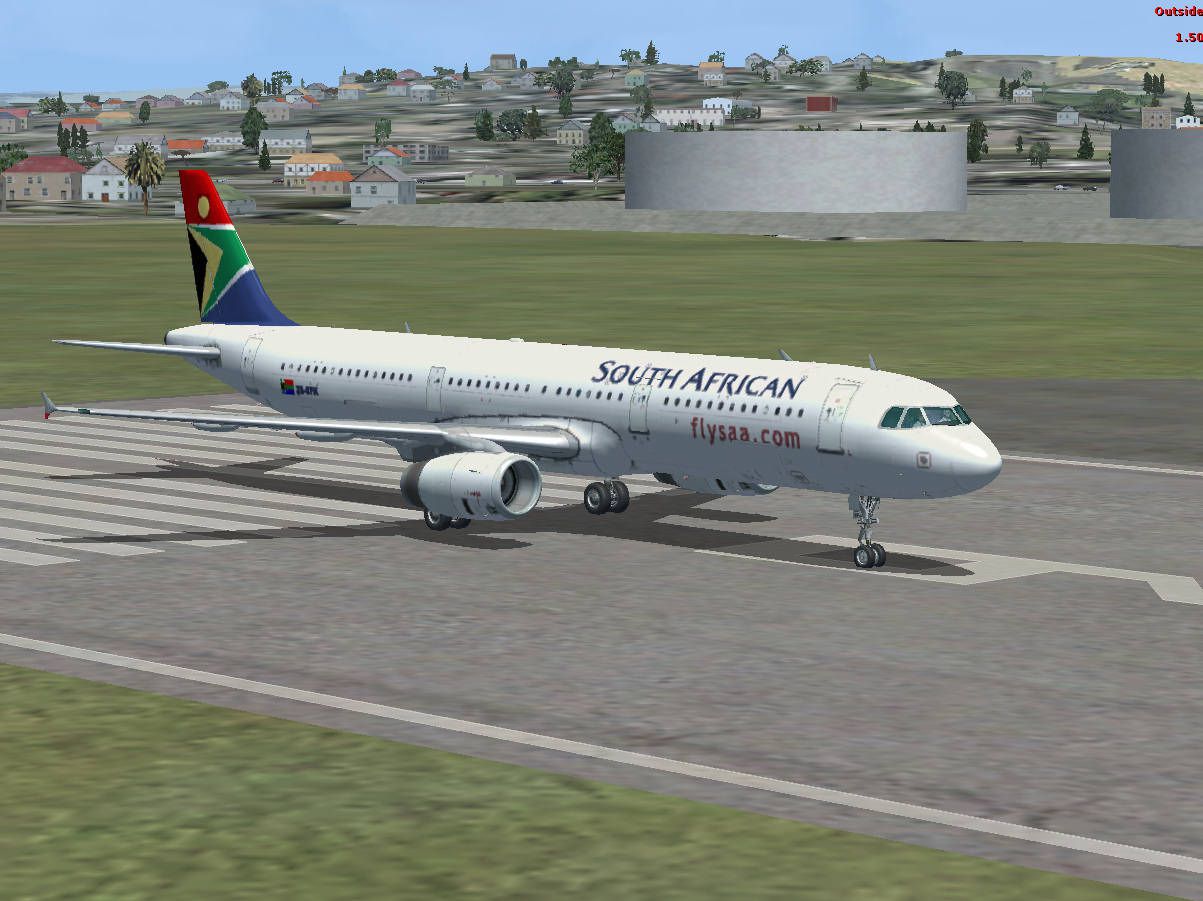
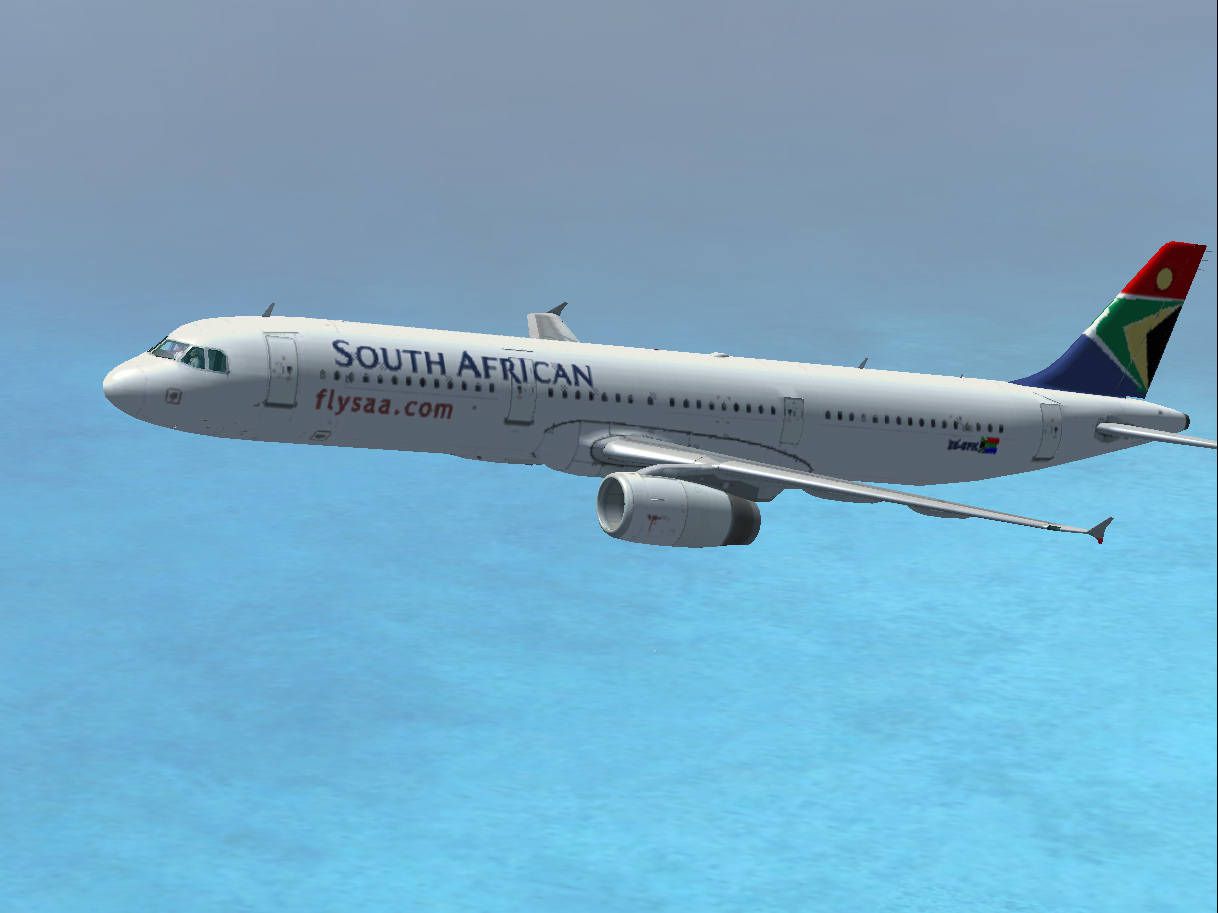
A repaint of the default Airbus A321 in South African Airways colors. The aircraft is ZS-SFK. By Peter Tredre.
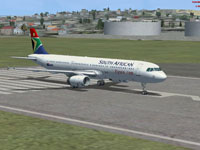
Screenshot of SAA Airbus A321 on runway.
[fltsim.XXX]

title=Airbus A321 SAA

sim=Airbus_A321

model=

panel=

sound=

texture=saa

kb_checklists=AirbusA321_check

kb_reference=AirbusA321_ref

atc_id=F-X395

atc_airline=

atc_flight_number=

ui_manufacturer="Airbus"

ui_type="A321"

ui_variation="South African Airways"

ui_typerole="Commercial Airliner"

ui_createdby="Microsoft Corporation"

description="South African Airways repaint."
Free for all simmers · 2.99 MB · Scanned clean Oct 2026
Download speed: Free tier is capped at 0.5 Mbps. PRO members download at full line speed.
texture.{airline}) inside FSX\SimObjects\Airplanes\{base-aircraft}\.aircraft.cfg in Notepad. Add a new [fltsim.X] section per the readme.readme.txt or README file. It tells you exactly where files go, what dependencies are needed, and any quirks specific to this add-on.The archive a321_saa.zip has 12 files and directories contained within it.
This list displays the first 500 files in the package. If the package has more, you will need to download it to view them.
| Filename/Directory | File Date | File Size |
|---|---|---|
| Screenshot.jpg | 02.11.07 | 147.10 kB |
| A321_1_T.dds | 02.11.07 | 1.33 MB |
| A321_1_T_spec.dds | 09.04.06 | 1.33 MB |
| A321_2_T.dds | 09.04.06 | 1.33 MB |
| A321_2_T_spec.dds | 09.04.06 | 1.33 MB |
| Fresnel_Ramp.dds | 09.04.06 | 640 B |
| texture.cfg | 08.14.06 | 137 B |
| thumbnail.jpg | 02.11.07 | 82.90 kB |
| Texture.saa | 02.11.07 | 0 B |
| Readme.txt | 02.11.07 | 1.18 kB |
| flyawaysimulation.txt | 10.29.13 | 959 B |
| Go to Fly Away Simulation.url | 01.22.16 | 52 B |
Only PRO members can place votes.
More FSX & P3D add-ons hand-picked based on this download.
FSX Civil Aircraft
The A380-800 is shown as what it may look like in South African Airways Liver…
 FSX Civil Aircraft
The Aerodesign's A340-313 is shown in South African Airways livery. SAA color…
 FSX Civil Aircraft
A repaint of the shareware Flightcraft Designs Airbus 340-600 in South Africa…
 FSX Civil Aircraft
A repaint of the shareware Flightcraft Designs Airbus A340-600 in South Afric…
 FSX Civil Aircraft
Adds the missing gauges to A3403SAA.ZIP. Gauges by Hector Molina. Extract the…
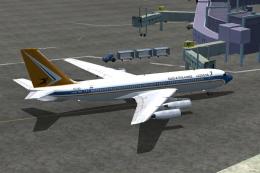 FSX Civil Aircraft
The FSX B707-420 in South African Airways colors. The real jet age for SAA be…
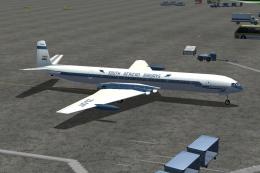 FSX Civil Aircraft
This De Havilland Comet aircraft was leased by SAA from BOAC. They were the f…
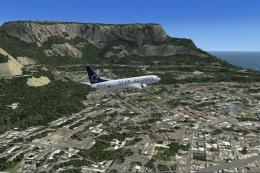 FSX Civil Aircraft
SAA (Star Alliance) Boeing 737-800. This is a repaint of the default B737-800…
Be the first to leave a comment on this download.
Be the first to share your thoughts on this download.