


 United States of America
  MSFS Scenery
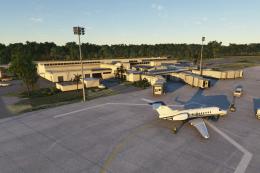
Nanwalek Airport (KEB), Alaska
Introducing a meticulously crafted scenery mod for Microsoft Flight Simulator…
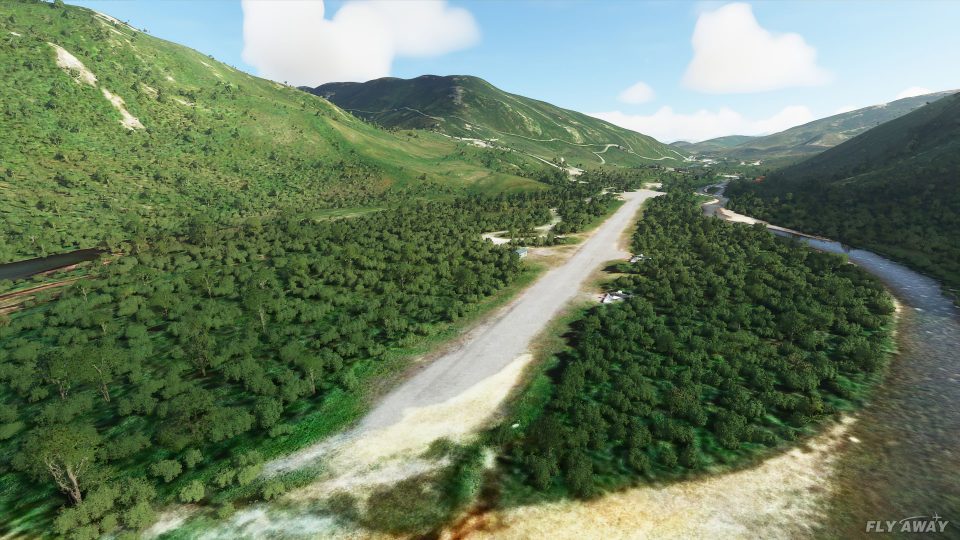
Kantishna Airport (5Z5) in Alaska gets a true-to-life refresh for Microsoft Flight Simulator, rebuilding the field from the ground up with corrected elevations and a custom gravel runway and parking texture. Nearby terrain and river placement are refined to remove unrealistic water coverage and better match the real-world backcountry setting.
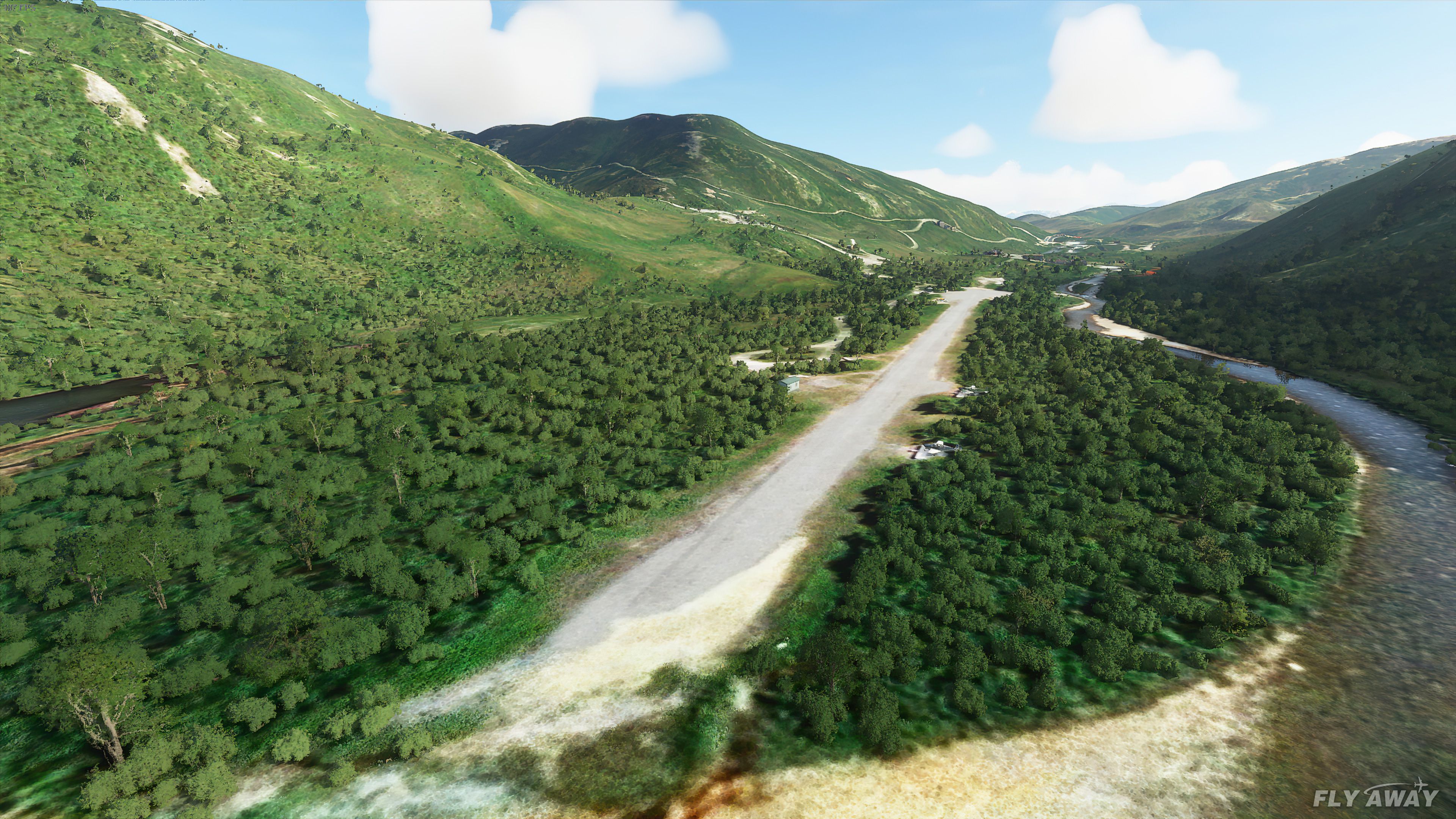
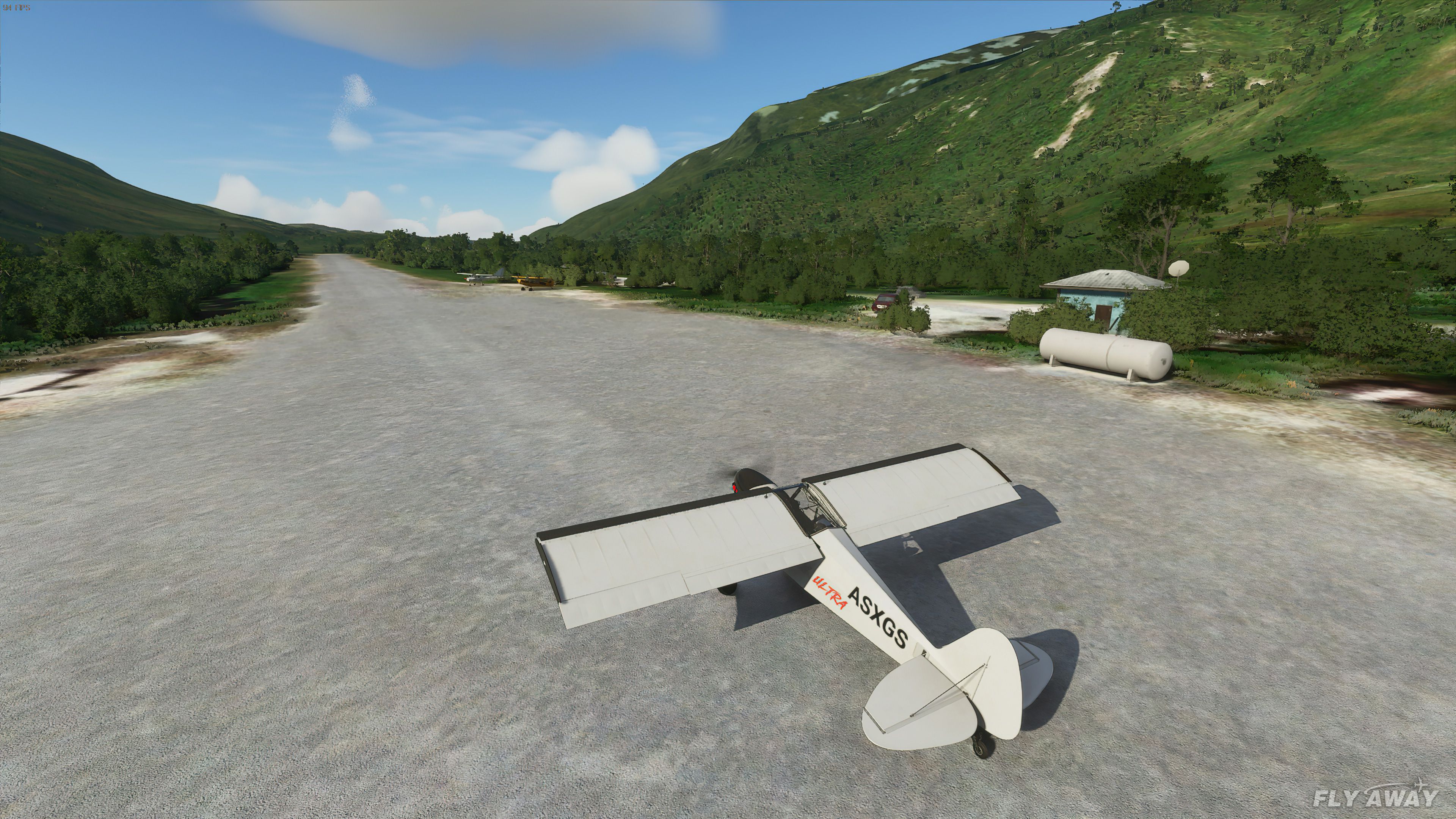
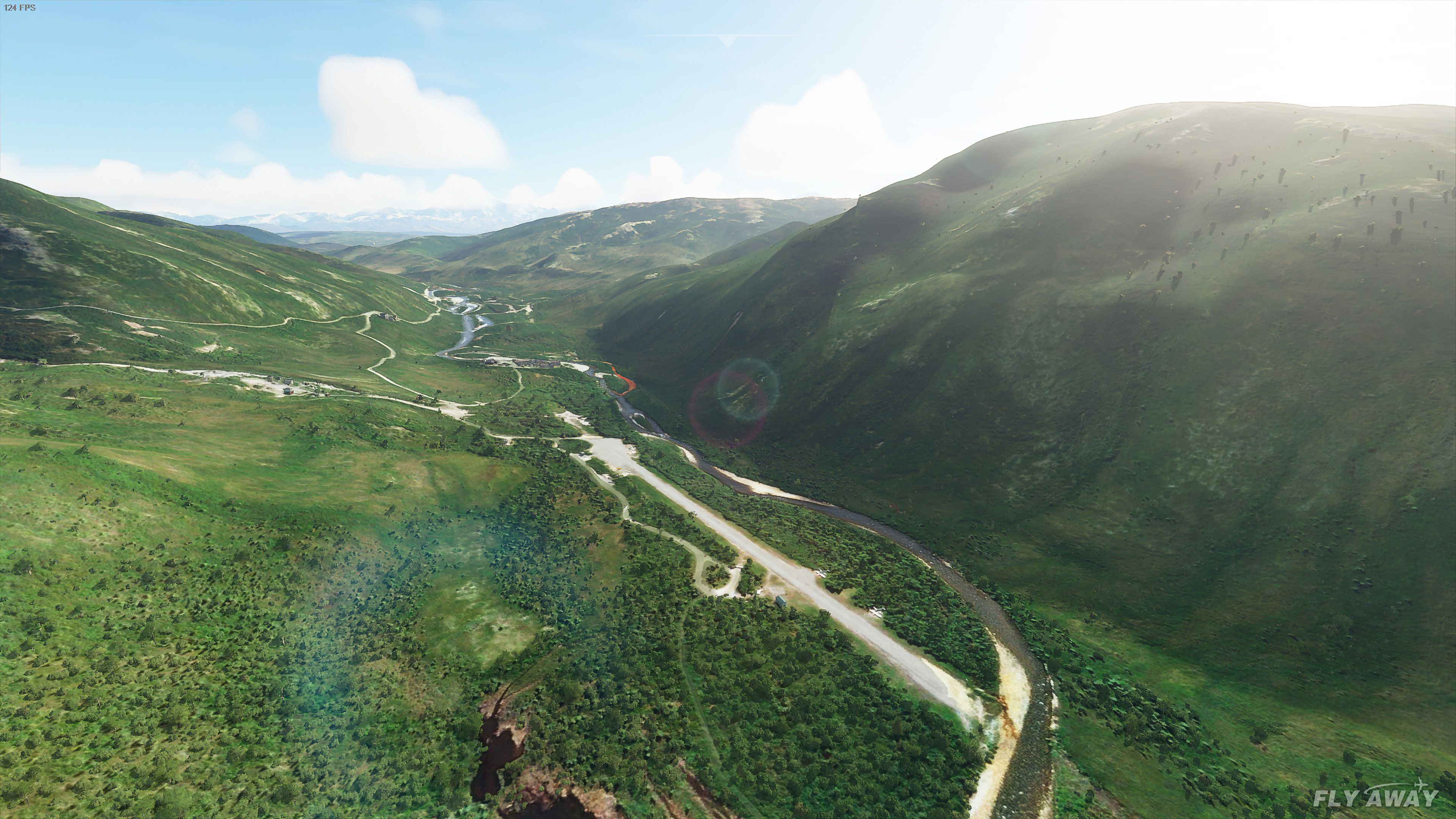


Kantishna Airport (5Z5) in Alaska has been thoroughly overhauled by Emerald Scenery Design to fix the stock version’s unrealistic terrain and runway positioning. Having personally put it through its paces, I can say the custom gravel textures and corrected airport elevations bring an authentic backcountry airstrip feel to Microsoft Flight Simulator. Subtle details, like the removal of misplaced water covering forested areas and sandbars, help ensure the environment closely matches the real-world location.
As a long-time flight simulation expert, I appreciate how this freeware enhancement offers bush flyers smoother operations and more precise visuals, especially with its newly refined runway no longer perched on an odd ridge. Developer Chris Britton (Rotornut44) and the team at Emerald Scenery Design have introduced an immersive Alaskan setting that enriches low-and-slow flights. In my view, it’s a must-have for anyone seeking a heightened sense of realism in their virtual adventures.
A light add-on bringing Kantishna Airport, Alaska, U.S.A up to date and more true-to-life than the stock MSFS version.
The stock version had many issues (like many of the other smaller airfields in the release) and this freeware fix by Emerald Scenery Design brings the flight sim rendition closer to its real-world counterpart.
 This scenery package fixes that by completely rebuilding the airport from the ground up. Airport elevations have been corrected along with a custom texture for the gravel runway and parking area.
This scenery brings a much-needed makeover to Kantishna Airport. In stock MSFS, the runway was unrealistically displayed on a ridge, an anomaly in the scenery.
Some fixes were also made to the river near the airport, excluding the water that covered areas that it shouldn't, such as areas of forest and sandbars.
Installation
The contents of the included "Community" folder should be placed into your MSFS "Packages\Community" folder. The addon scenery will load the next time you start Microsoft Flight Simulator.
Developer: Emerald Scenery Design. Scenery created by Chris Britton (Rotornut44) of Emerald Scenery Design for GotBush? Virtual Backcountry Flight Association. You can visit the official Emerald Scenery Design website here.
Free for all simmers · 17.33 MB · Scanned clean Oct 2026
Download speed: Free tier is capped at 2 Mbps (this file takes approximately 1 min at the cap). PRO members download at full line speed.
%LOCALAPPDATA%\Packages\Microsoft.FlightSimulator_8wekyb3d8bbwe\LocalCache\Packages\Community\. Steam version: %APPDATA%\Microsoft Flight Simulator\Packages\Community\. Tip: enable Developer Mode in MSFS to see your exact Community folder path.readme.txt or README file. It tells you exactly where files go, what dependencies are needed, and any quirks specific to this add-on.Only PRO members can place votes.
More MSFS add-ons hand-picked based on this download.
MSFS Scenery
Introducing a meticulously crafted scenery mod for Microsoft Flight Simulator…
 MSFS Scenery
This mod developed by JustOkayPilot brings Grand Canyon National Park Airport…
 MSFS Scenery
Sandane Airport (ENSD) is located on the beautiful west coast of Norway and i…
 MSFS Scenery
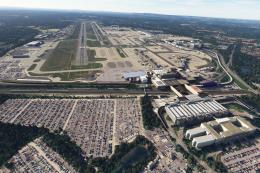
Enhance your flight simulation experience with this mod for Microsoft Flight …
 MSFS Scenery
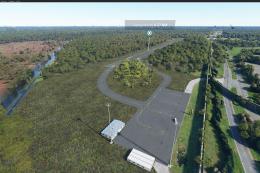
The Disney World airport/STOLport (also known as the Lake Buena Vista airport…
 MSFS Scenery
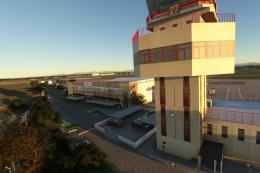
Enhance your flight simulation experience with a detailed rendition of Madrid…
 MSFS Scenery
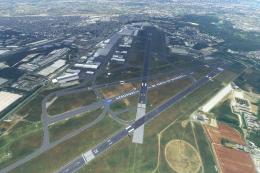
A complete and extensive replacement freeware scenery package for Paris–Le Bo…
 MSFS Scenery
A highly detailed rendition of Gainesville Regional Airport (KGNV), Florida (…
Be the first to leave a comment on this download.
Be the first to share your thoughts on this download.