

 MSFS Scenery
Grand Canyon National Park Airport (KGCN)
This mod developed by JustOkayPilot brings Grand Canyon National Park Airport…
Inverness Airport EGPE gets a complete, drop-in rebuild with bespoke terminal, tower, cargo and GA assets, plus accurately placed car parks, roads, signage, and the nearby rail station for credible VFR references. Tuned apron and landside lighting creates a coherent night environment and believable ramp activity in Microsoft Flight Simulator 2020 and 2024.
 Rate
Rate
 United Kingdom
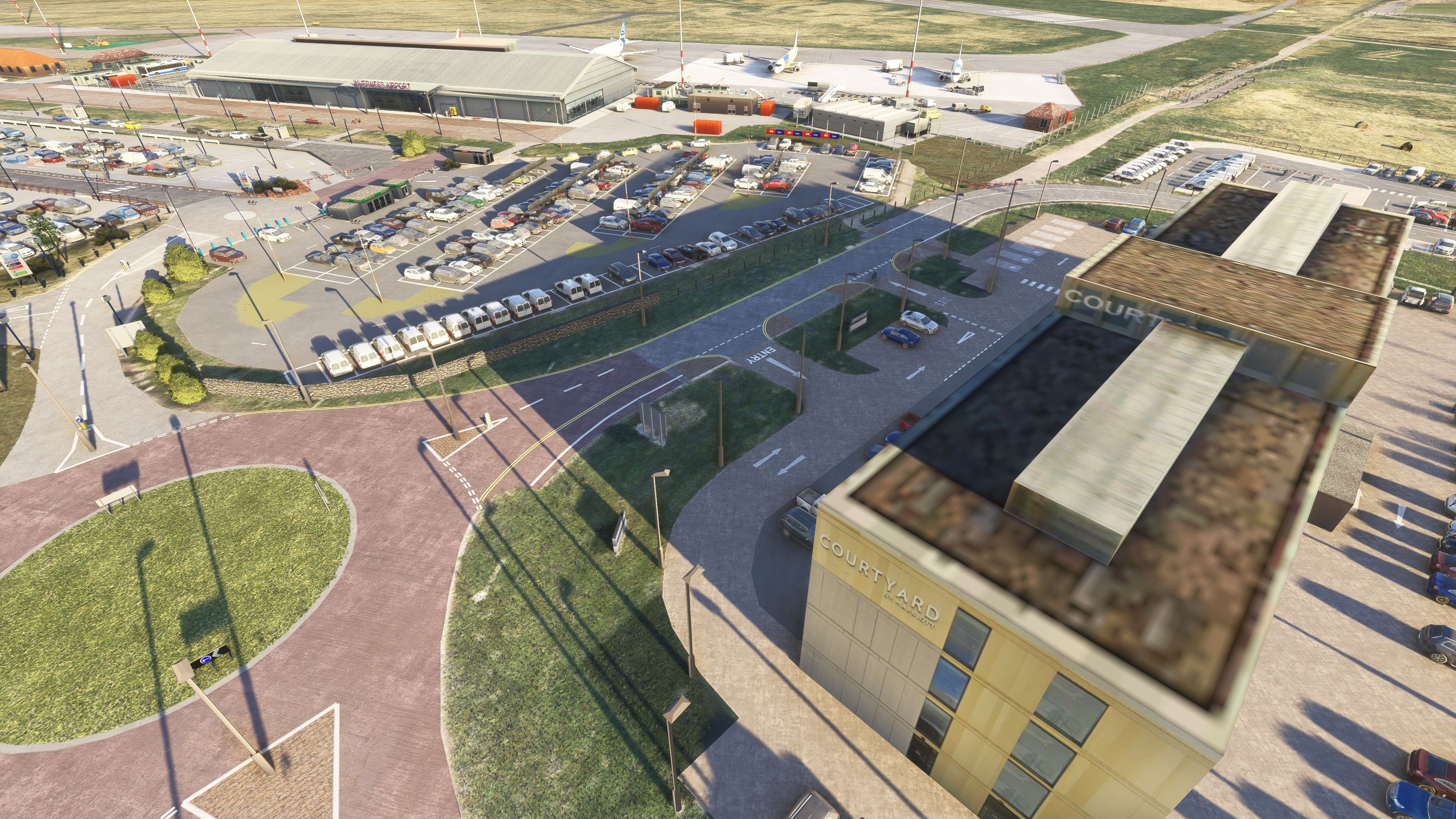
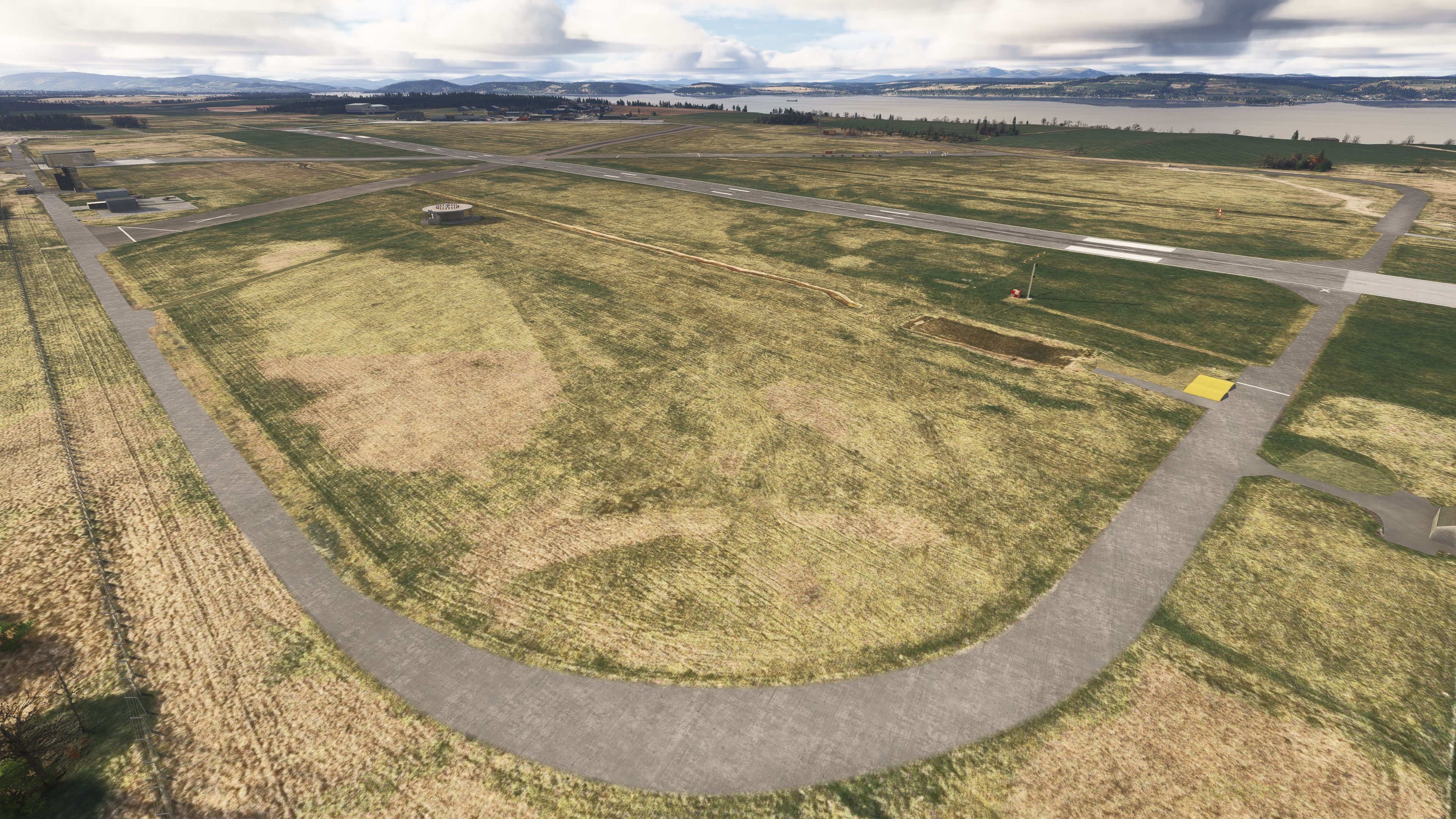
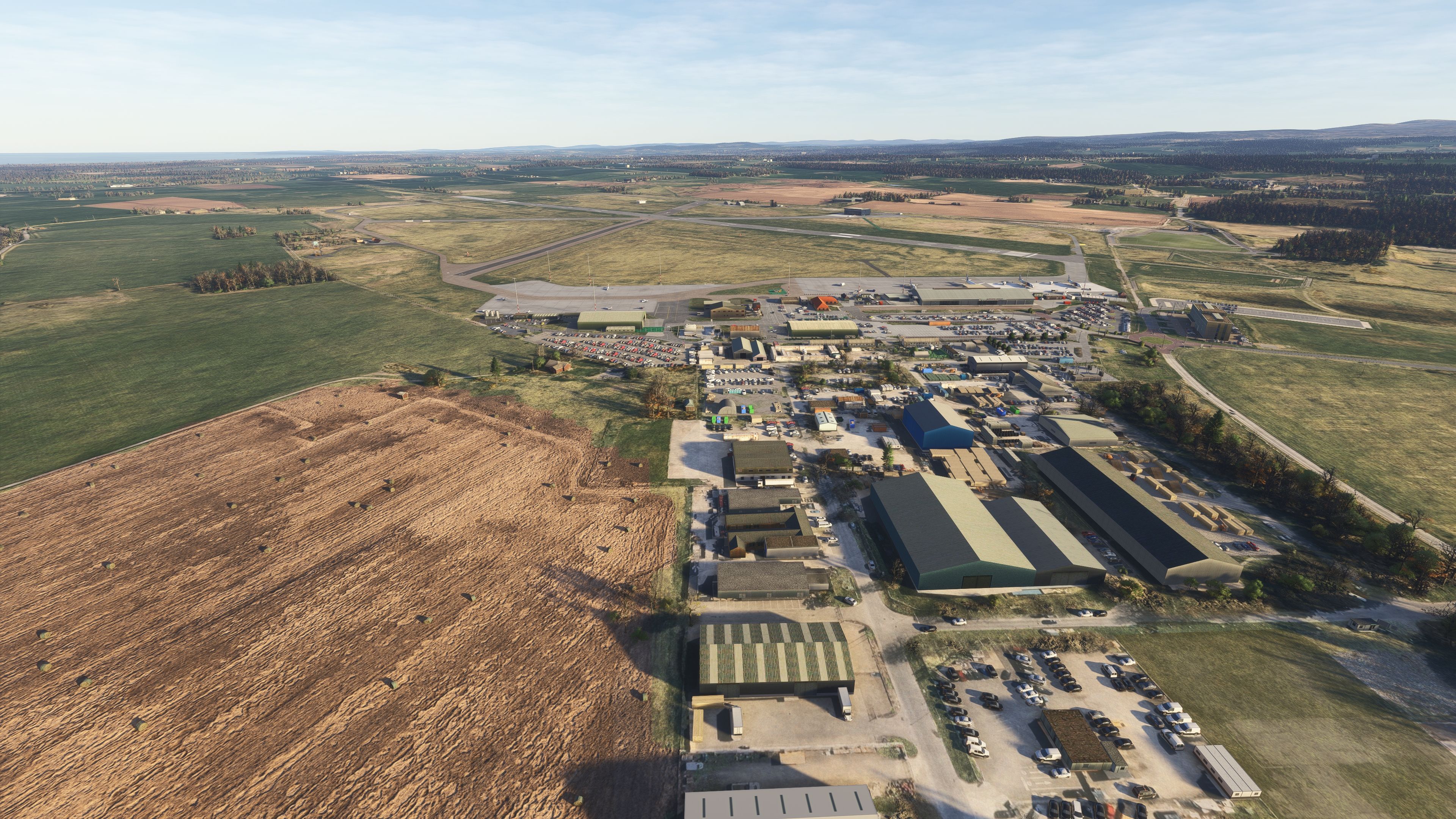
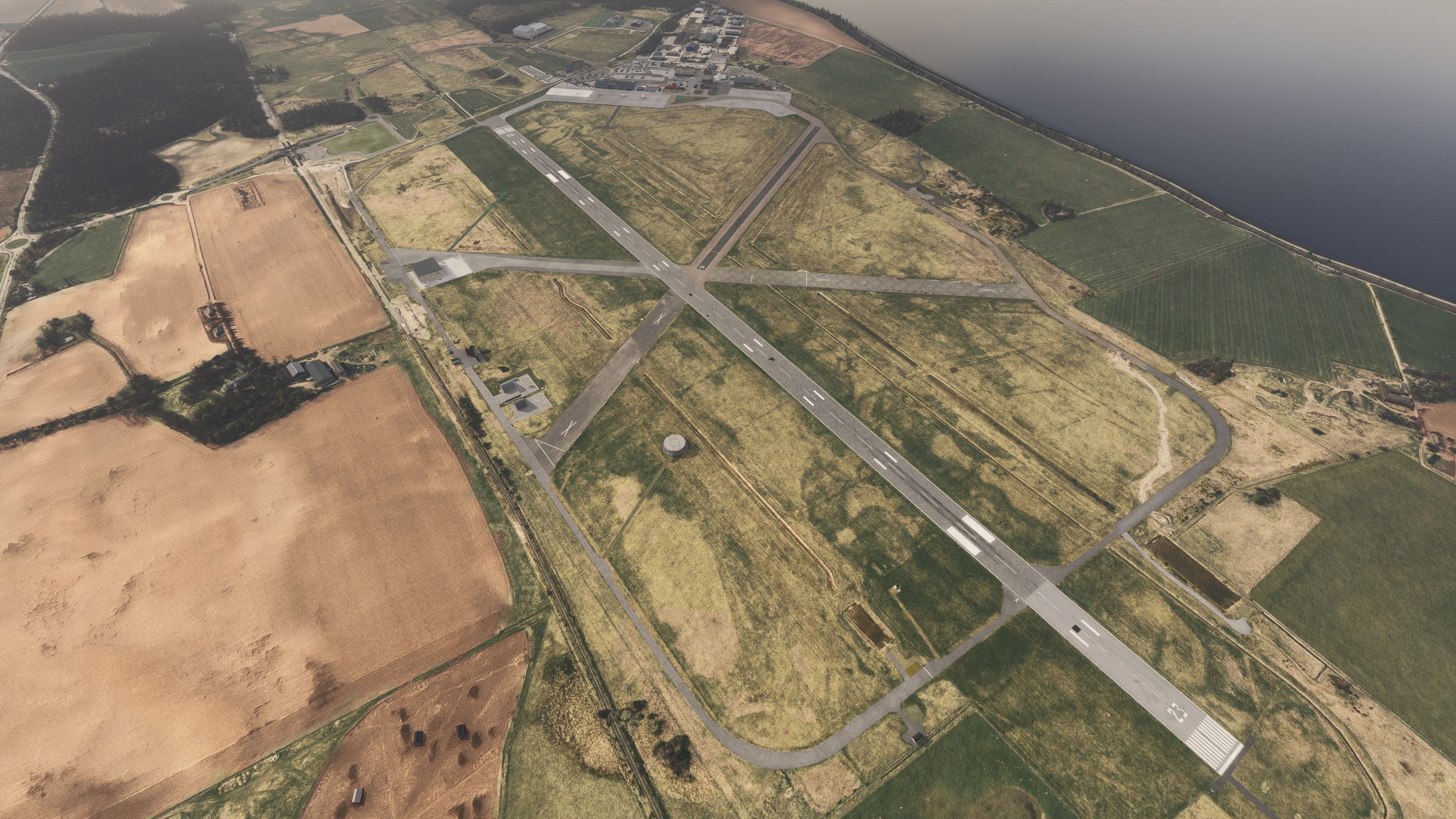
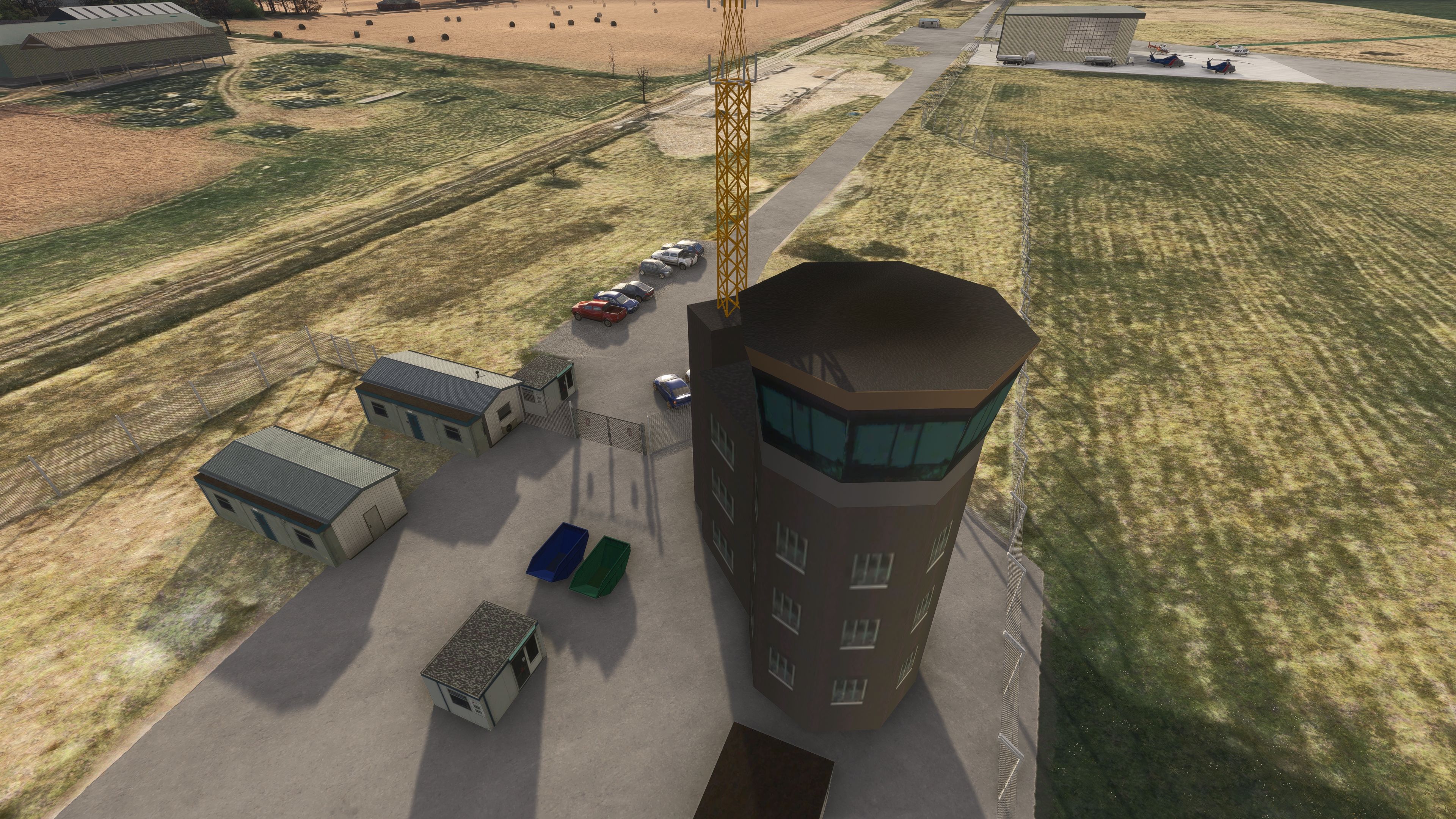
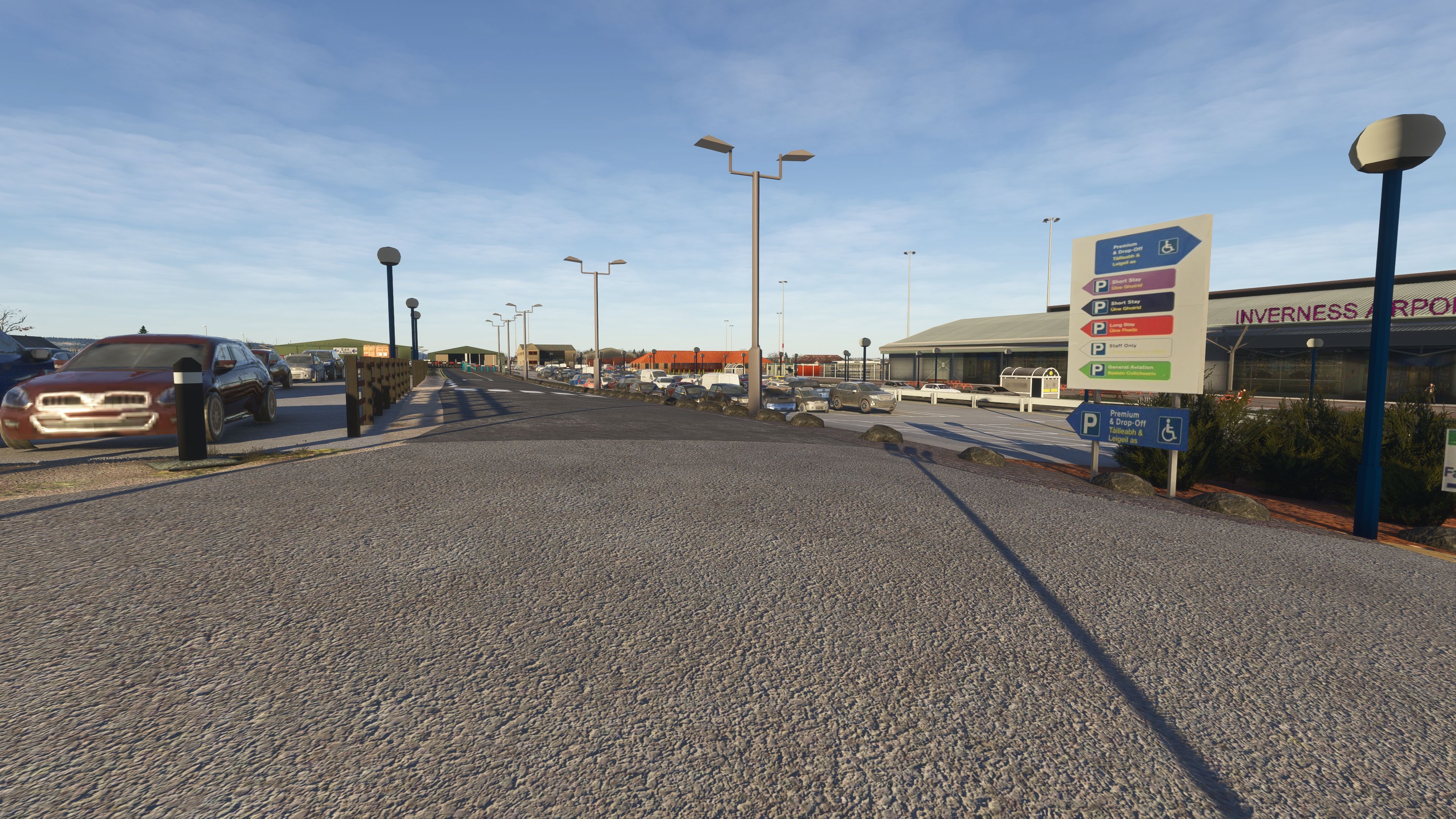
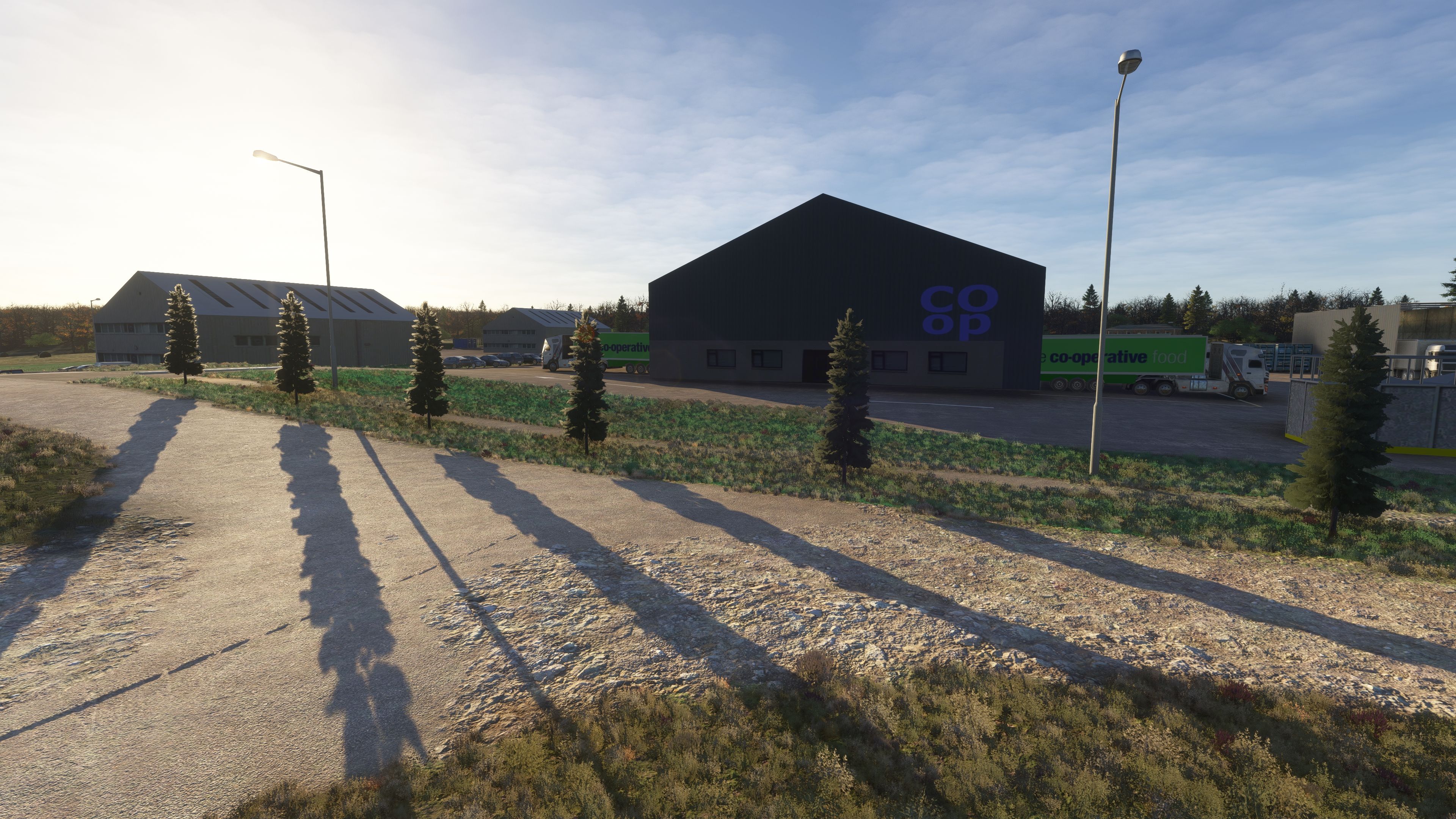
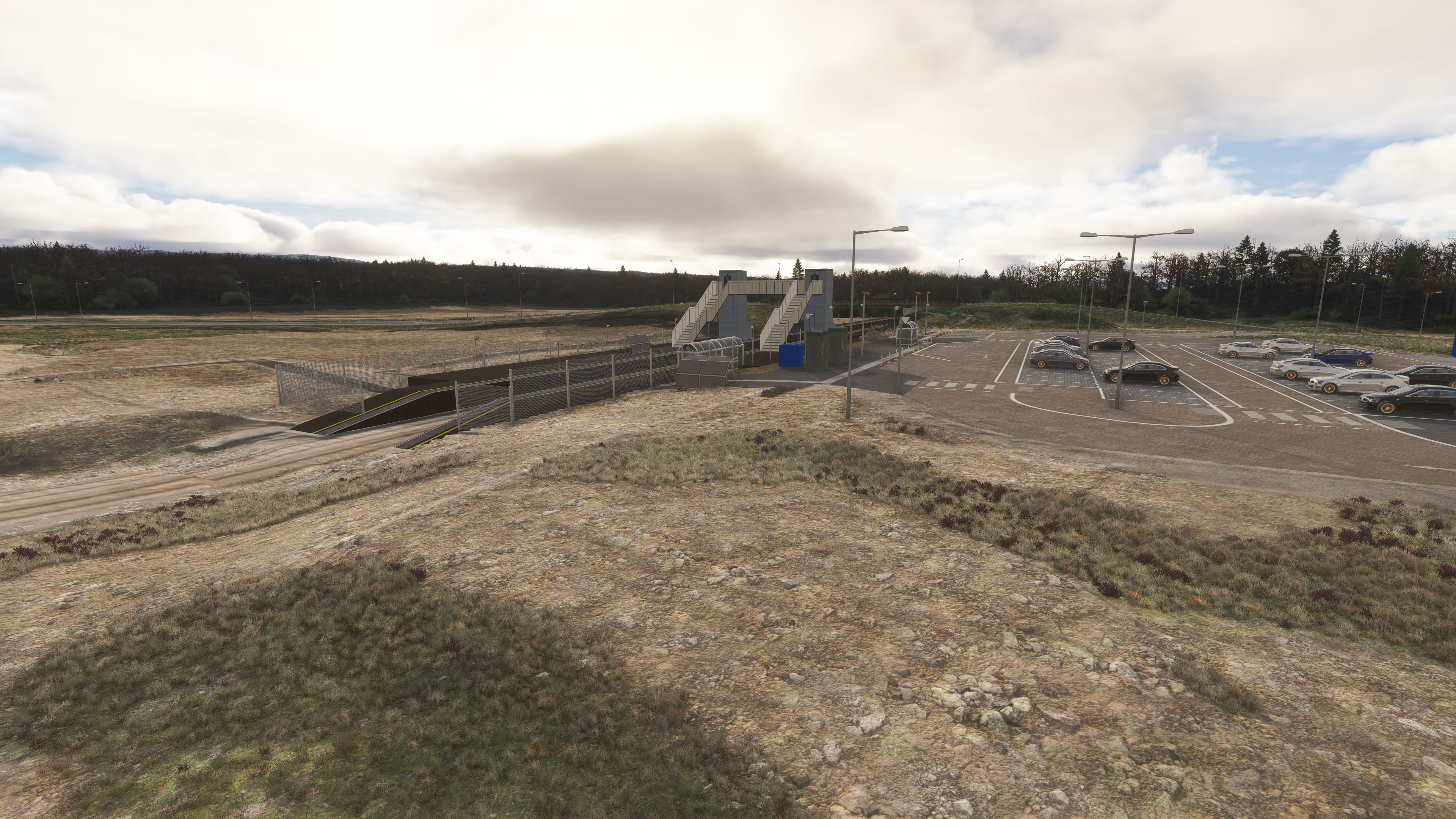
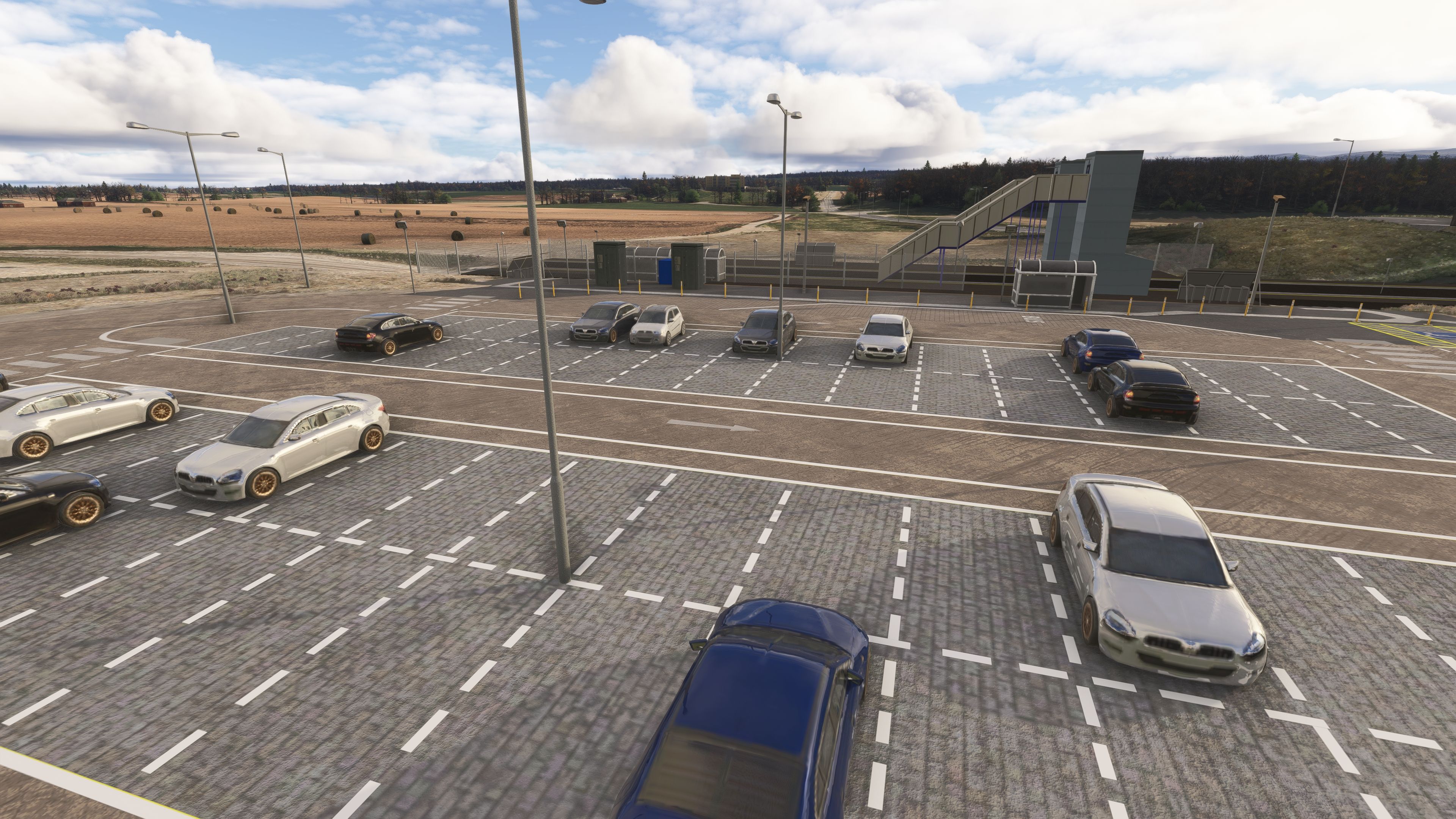
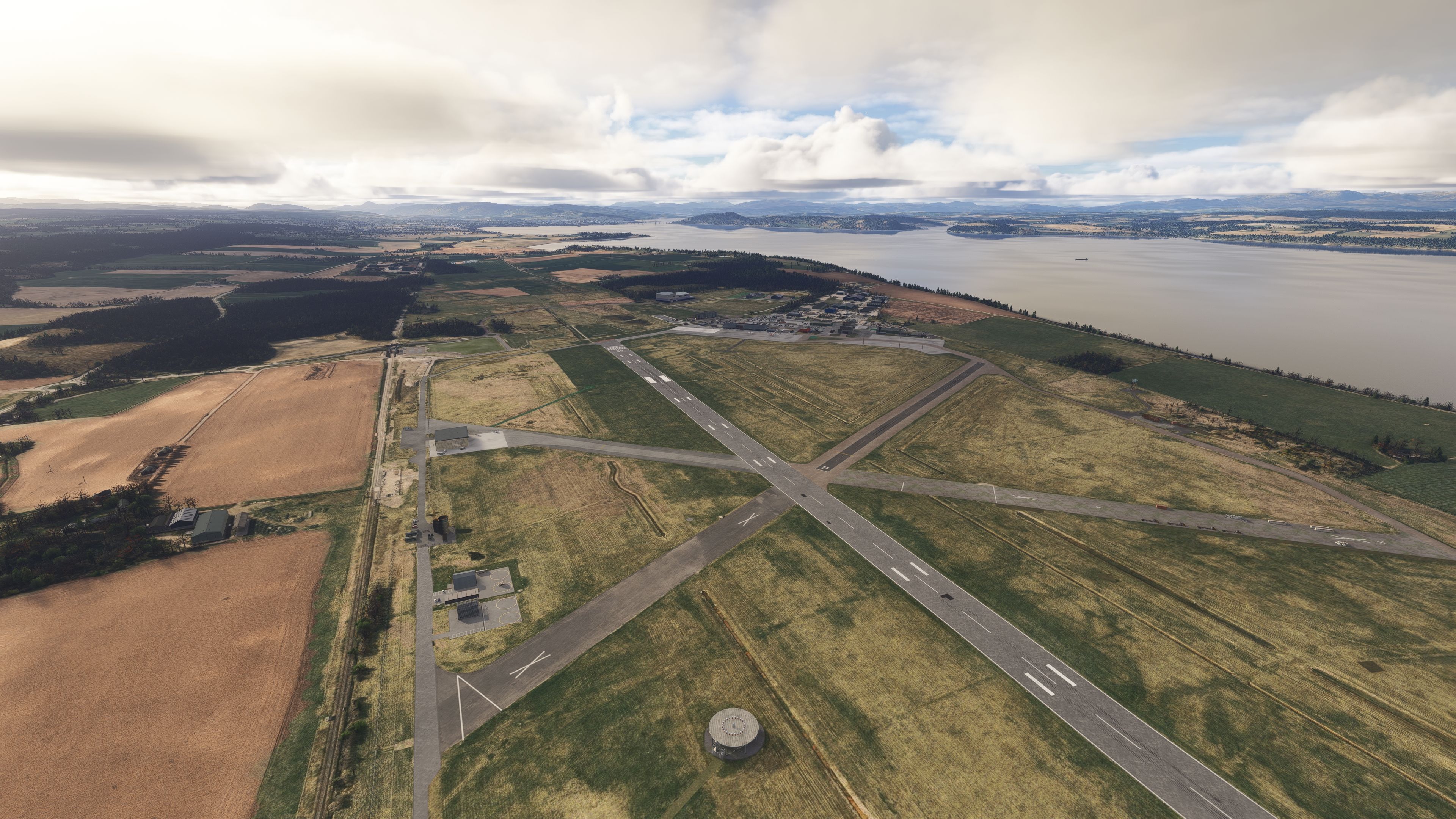
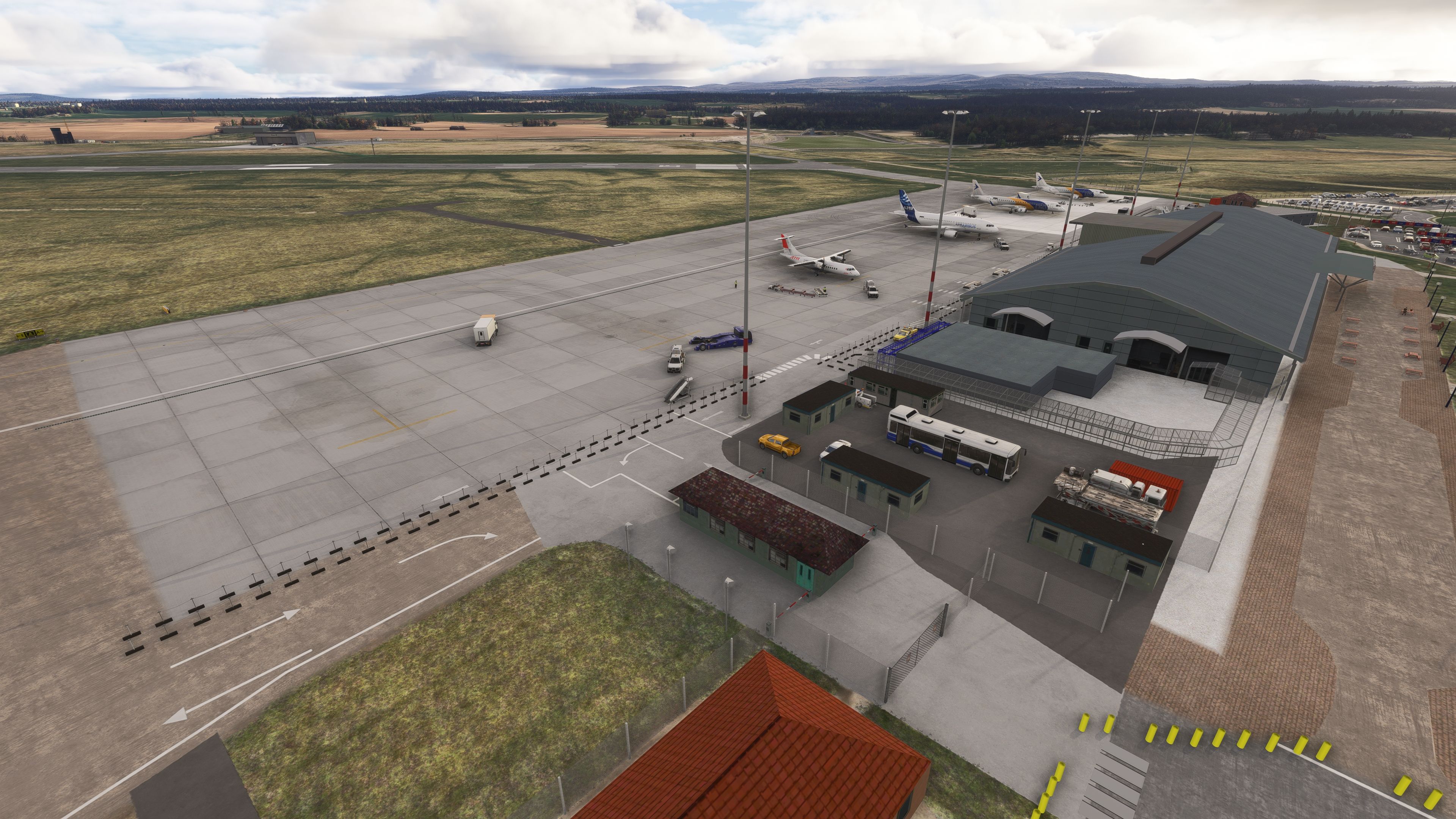
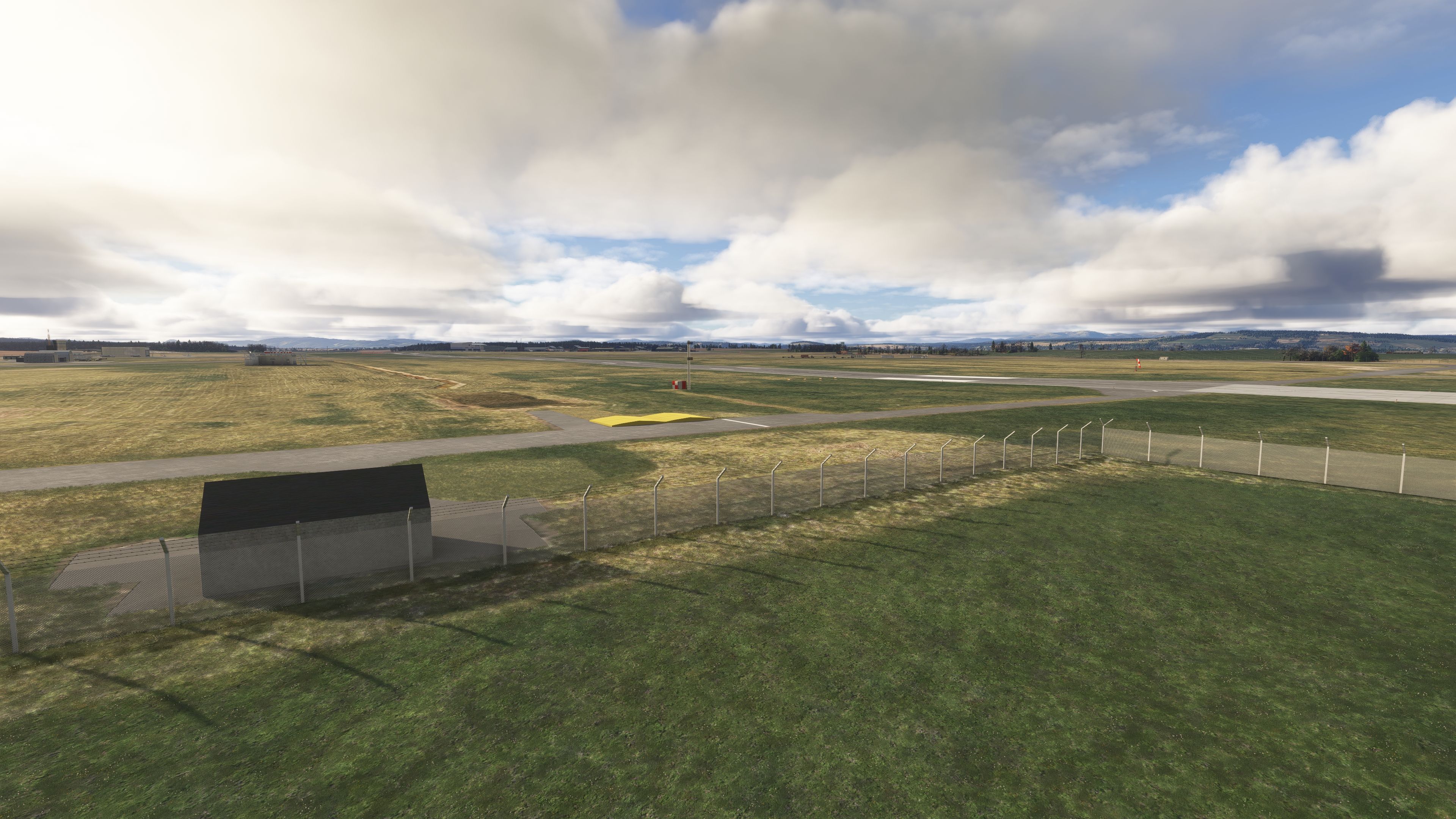
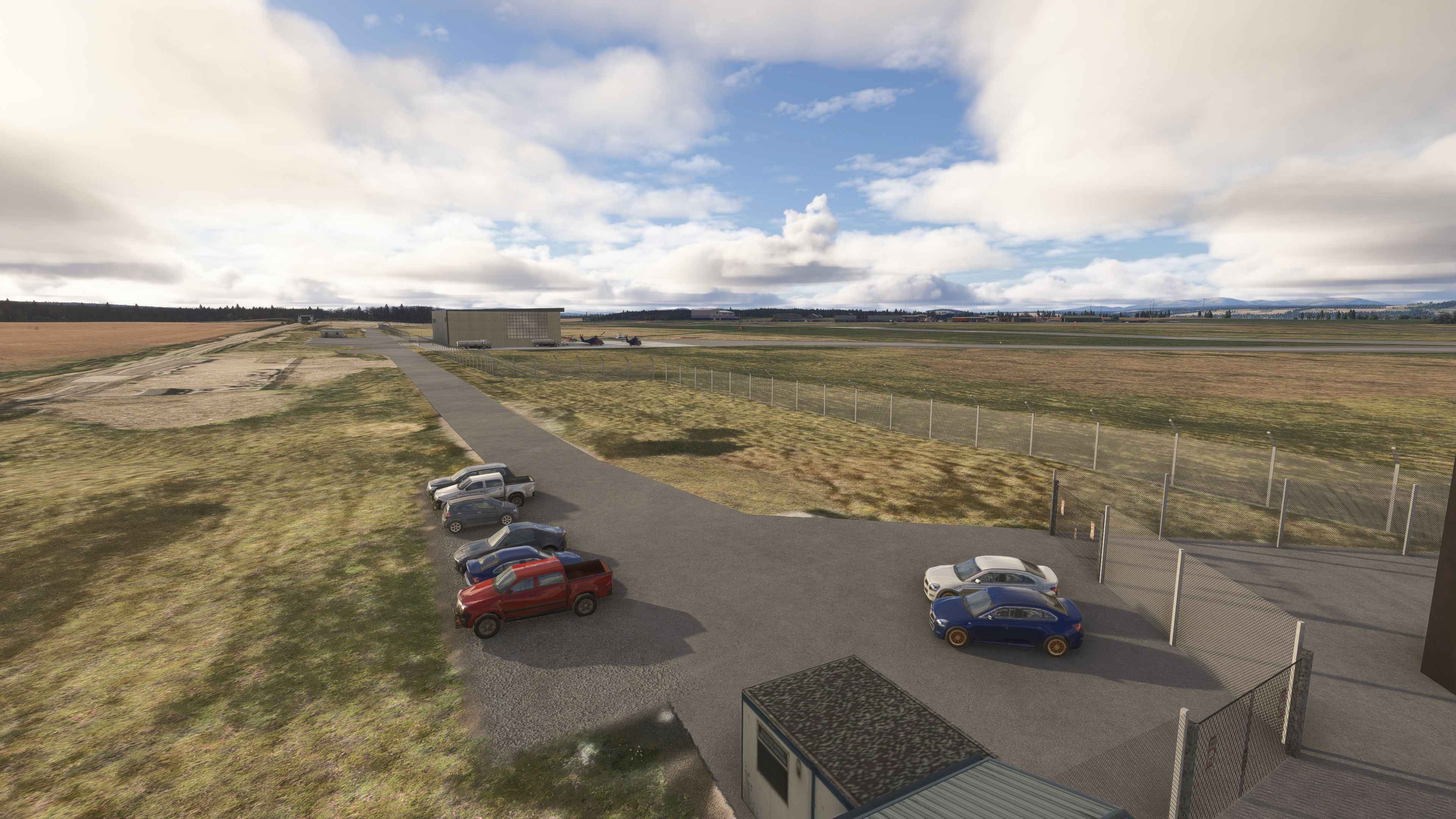
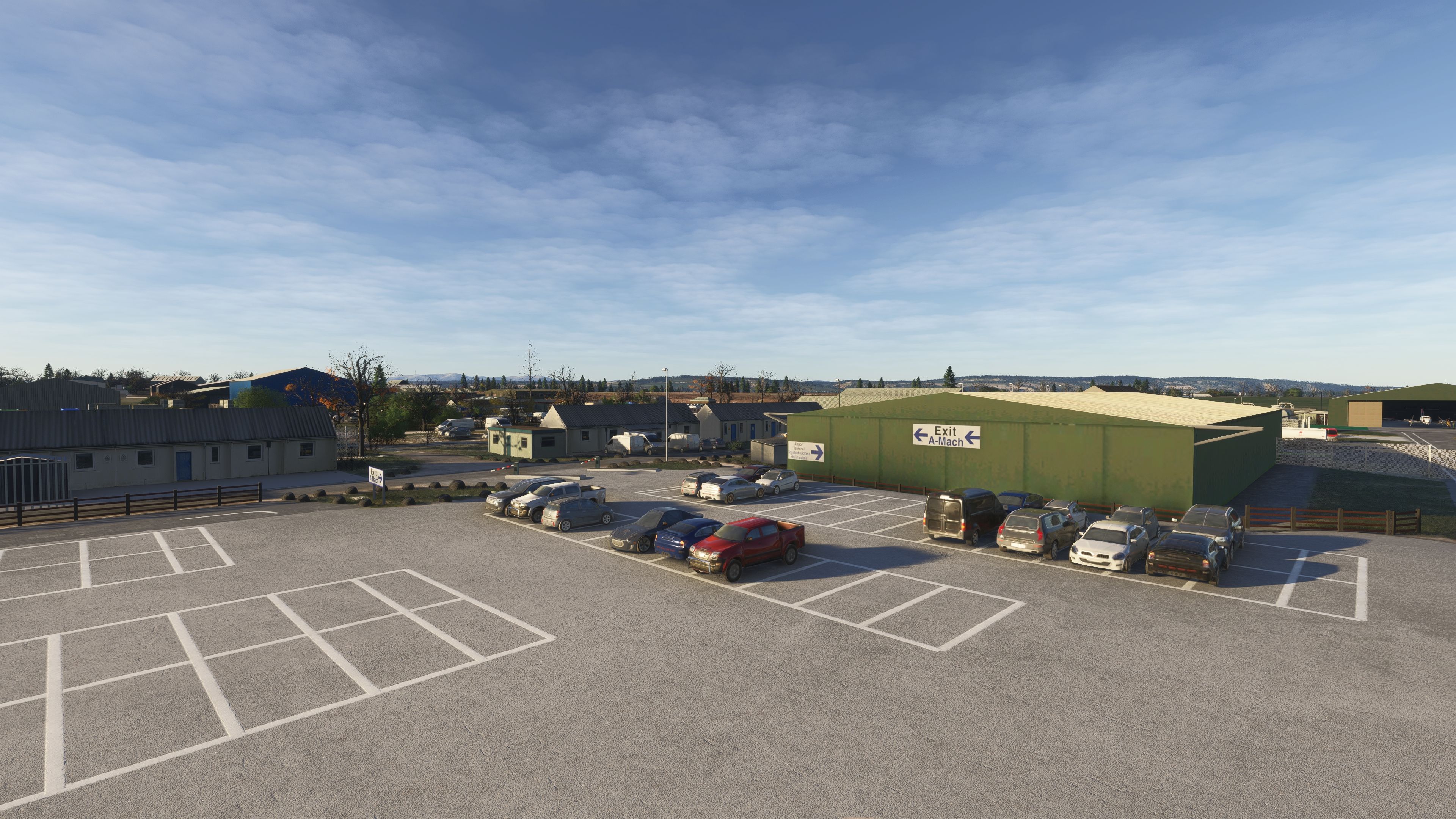
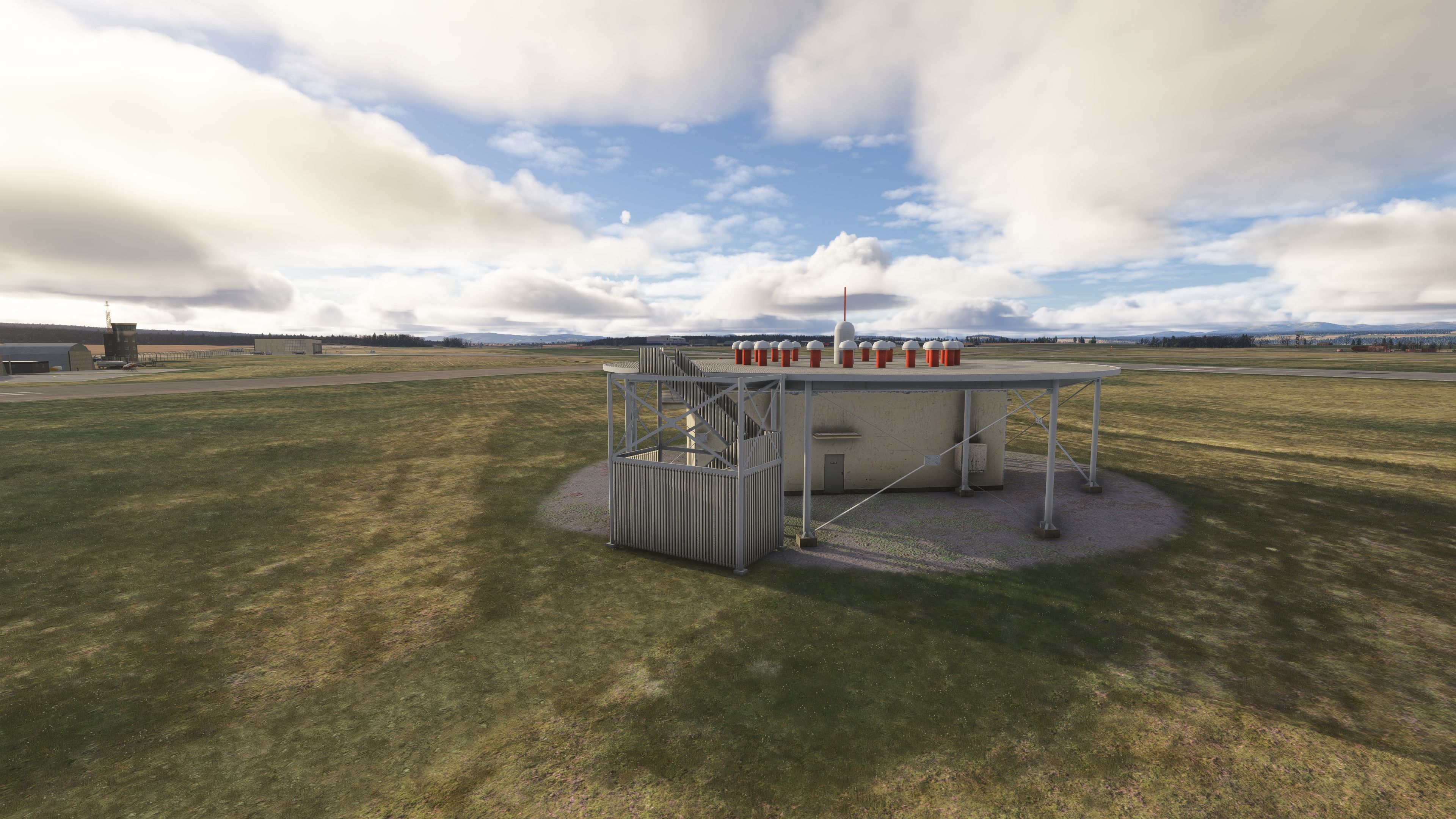
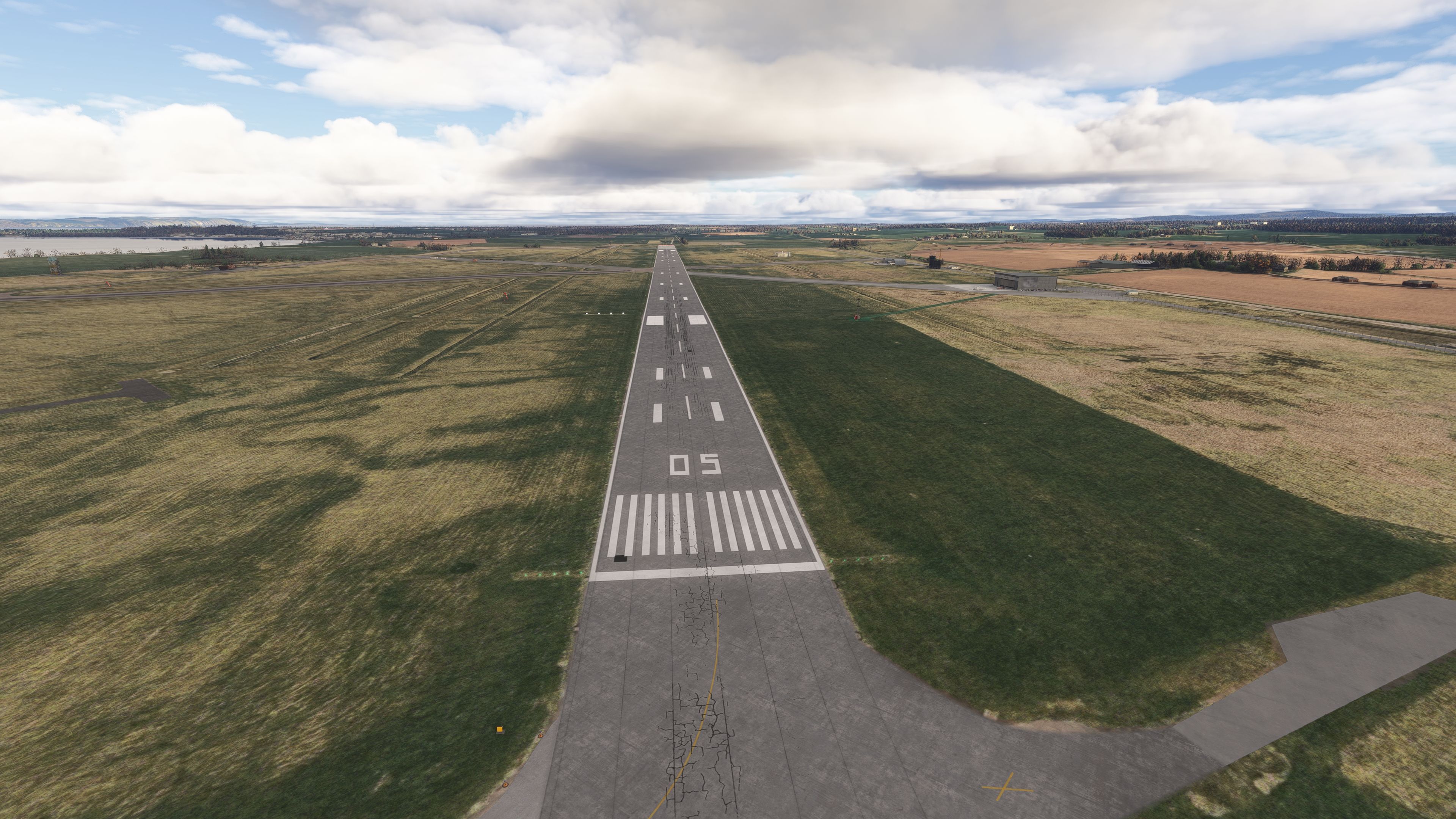
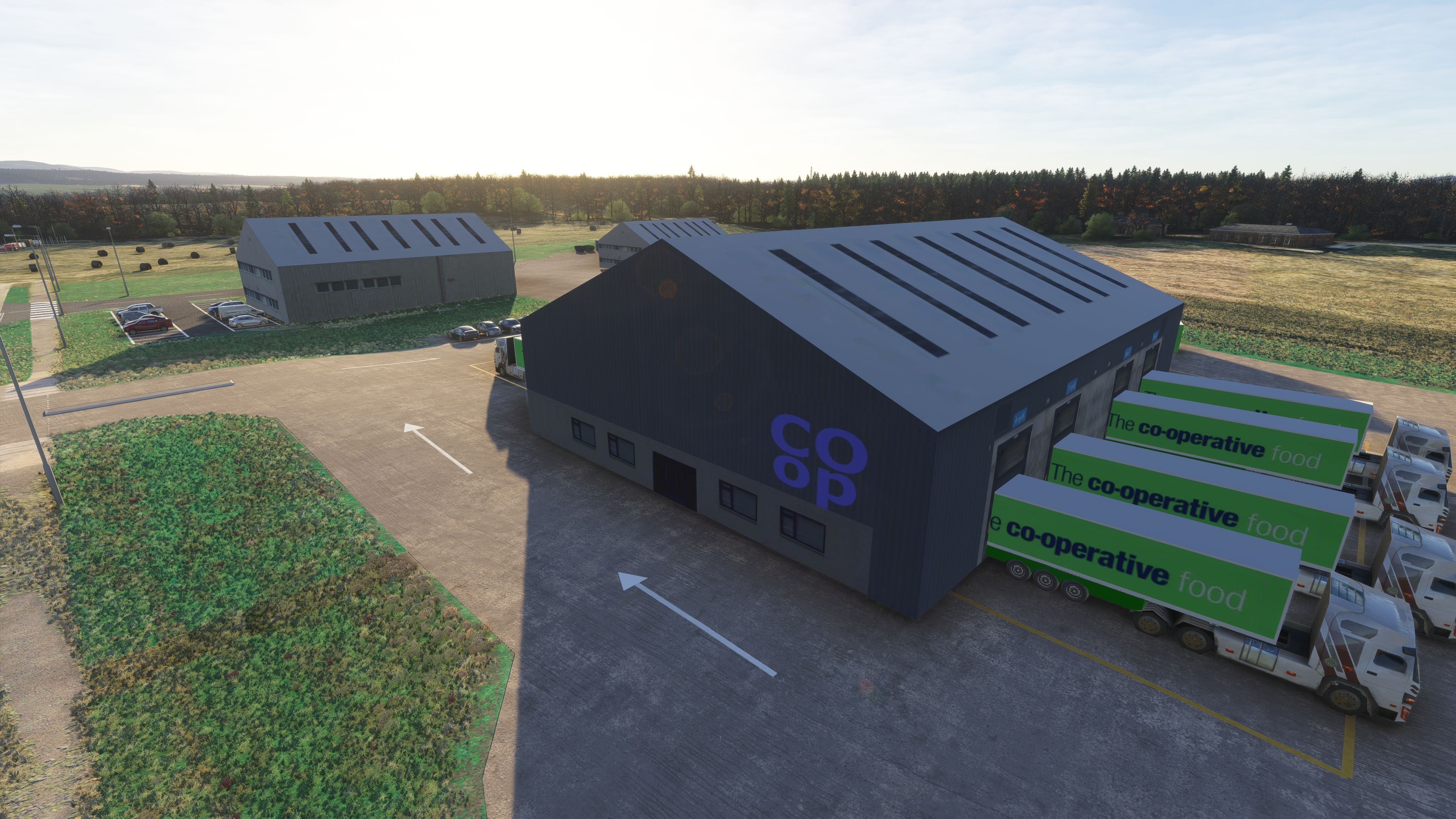
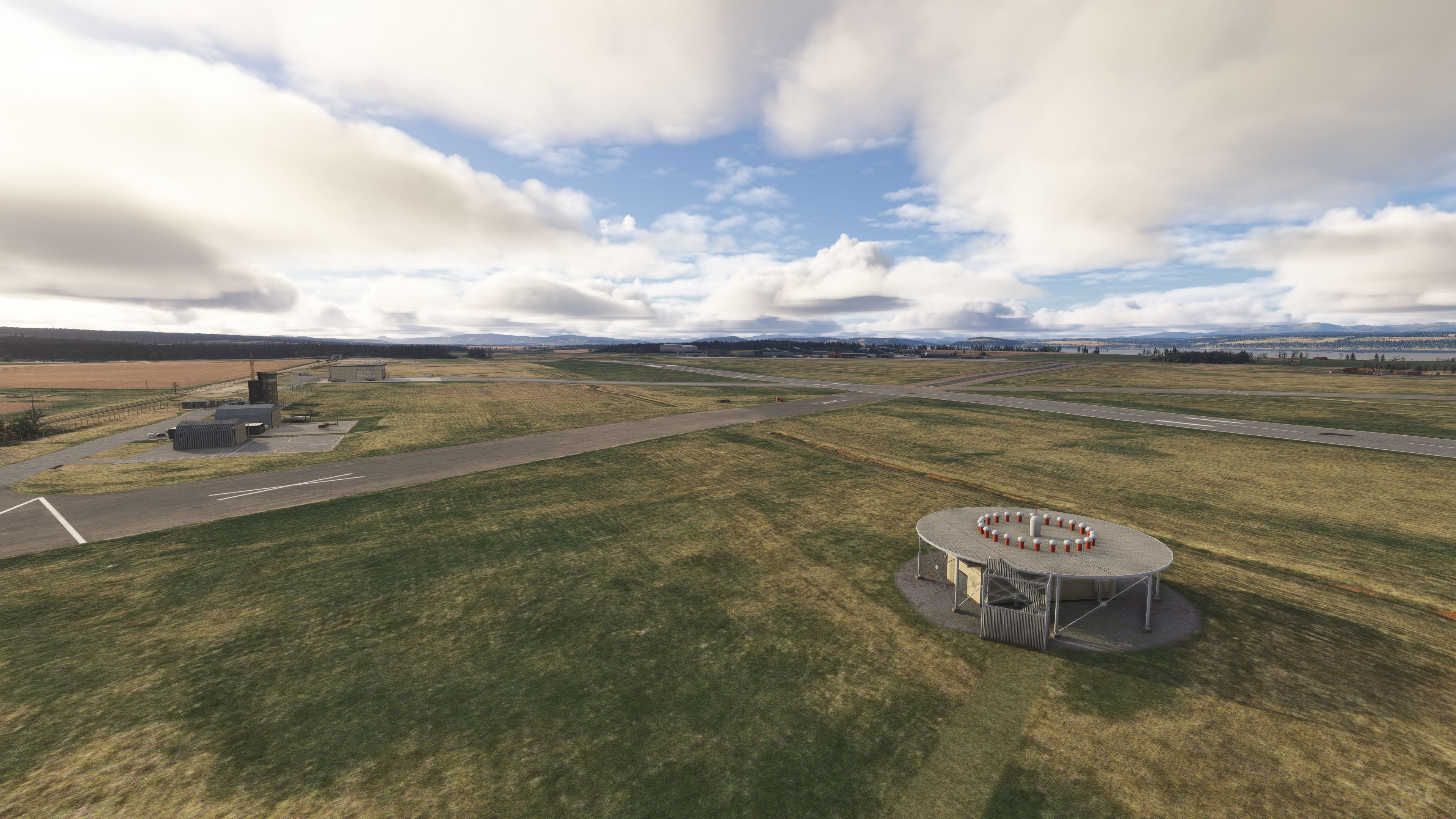
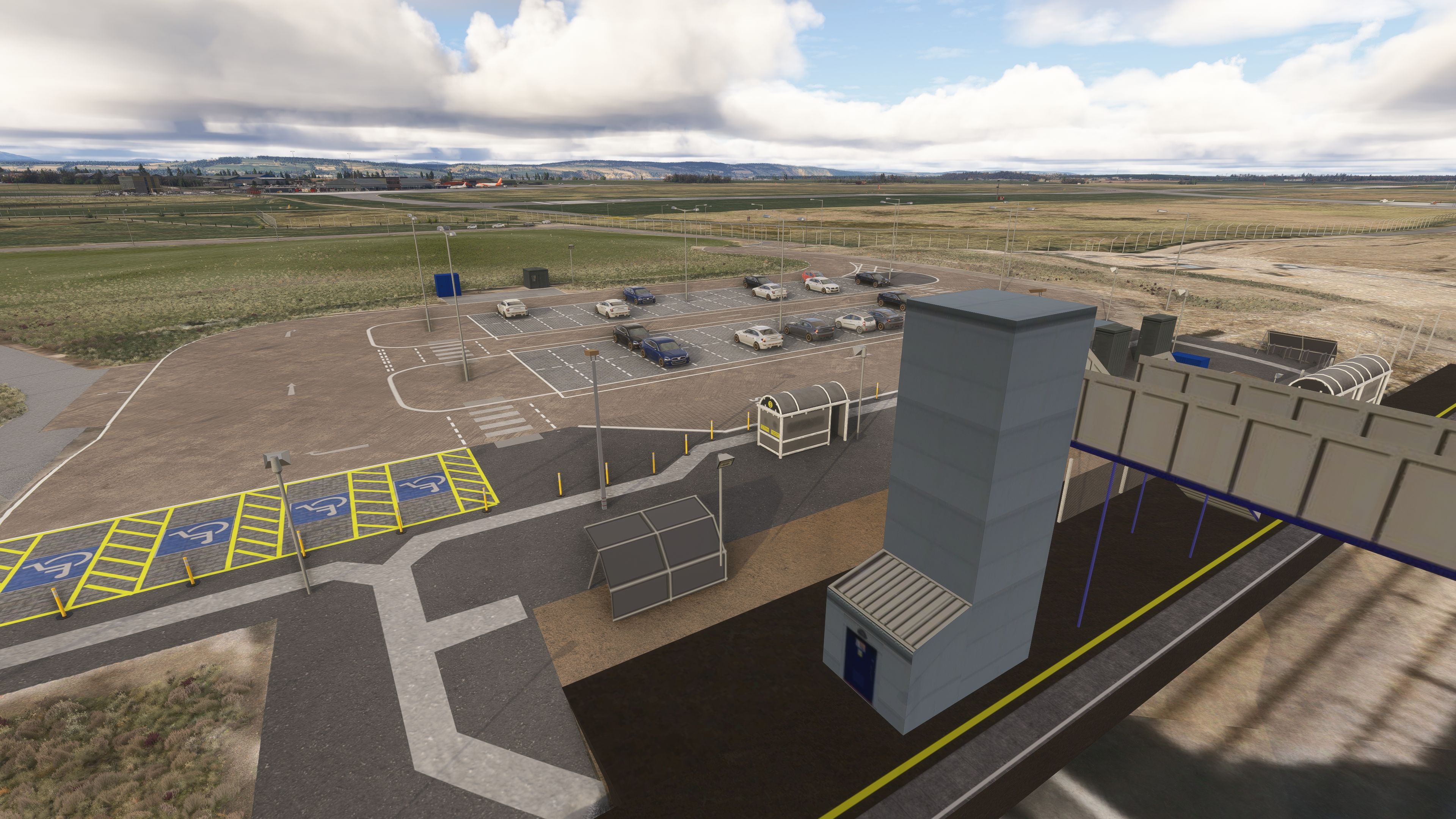
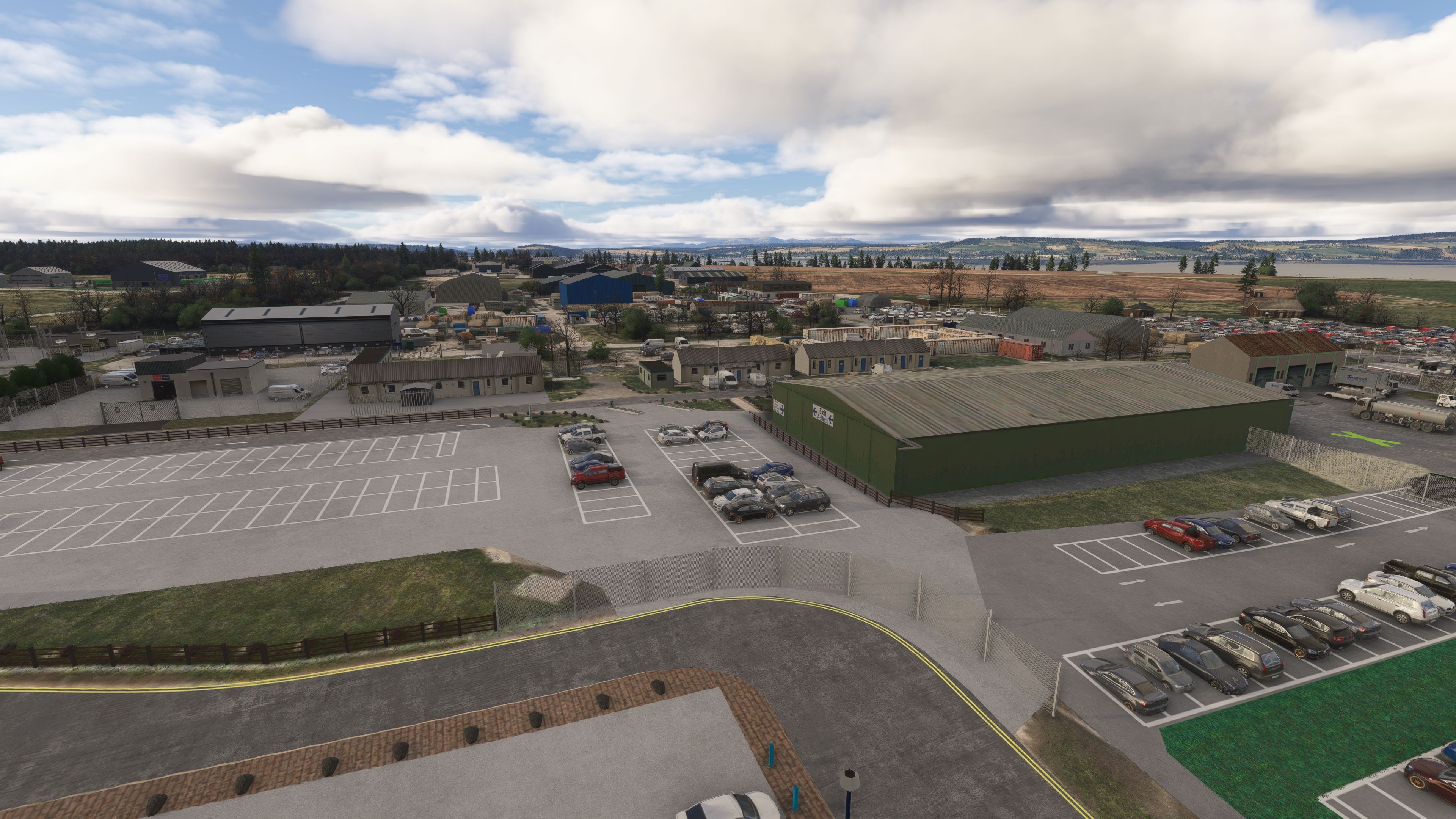
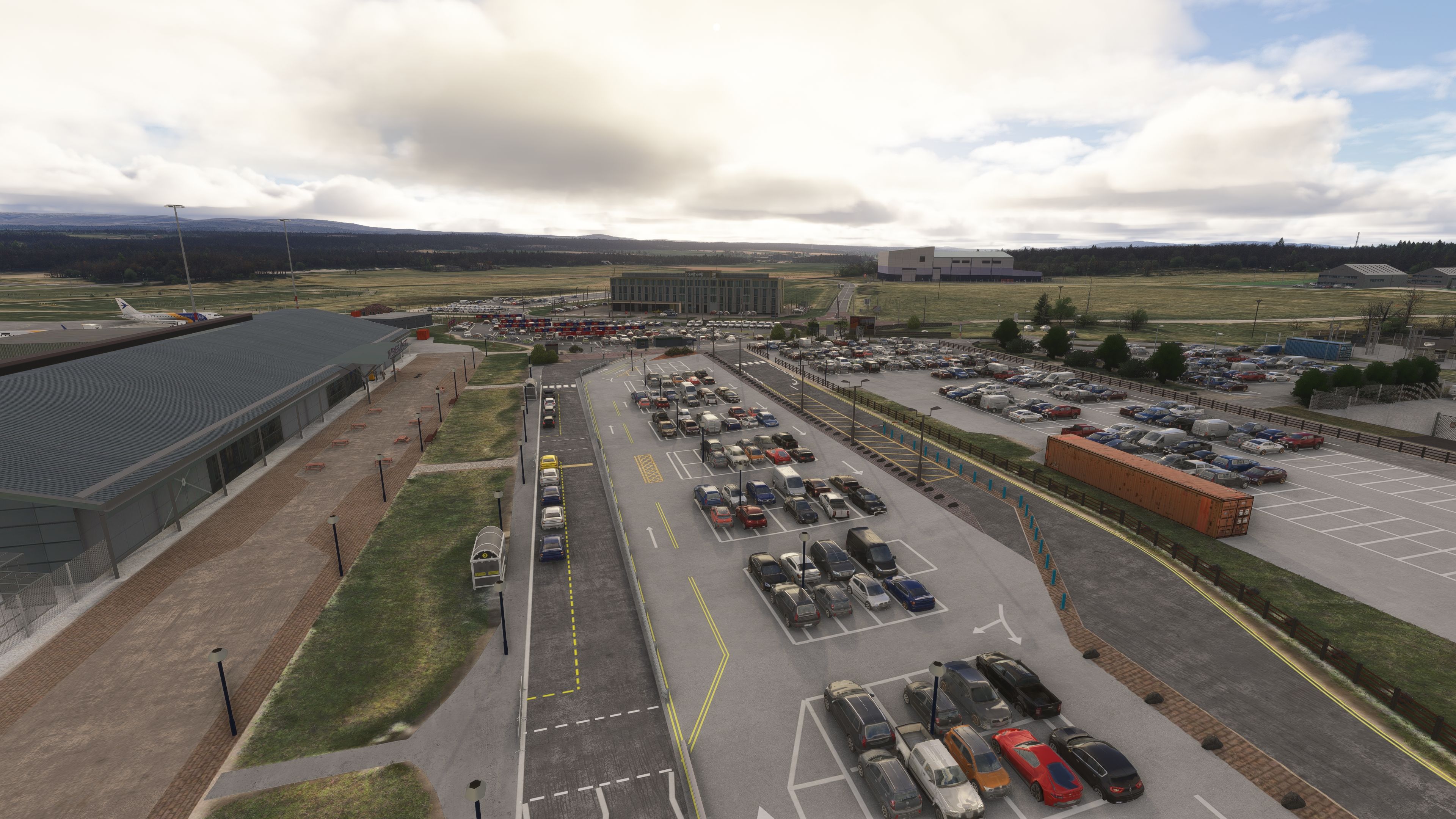
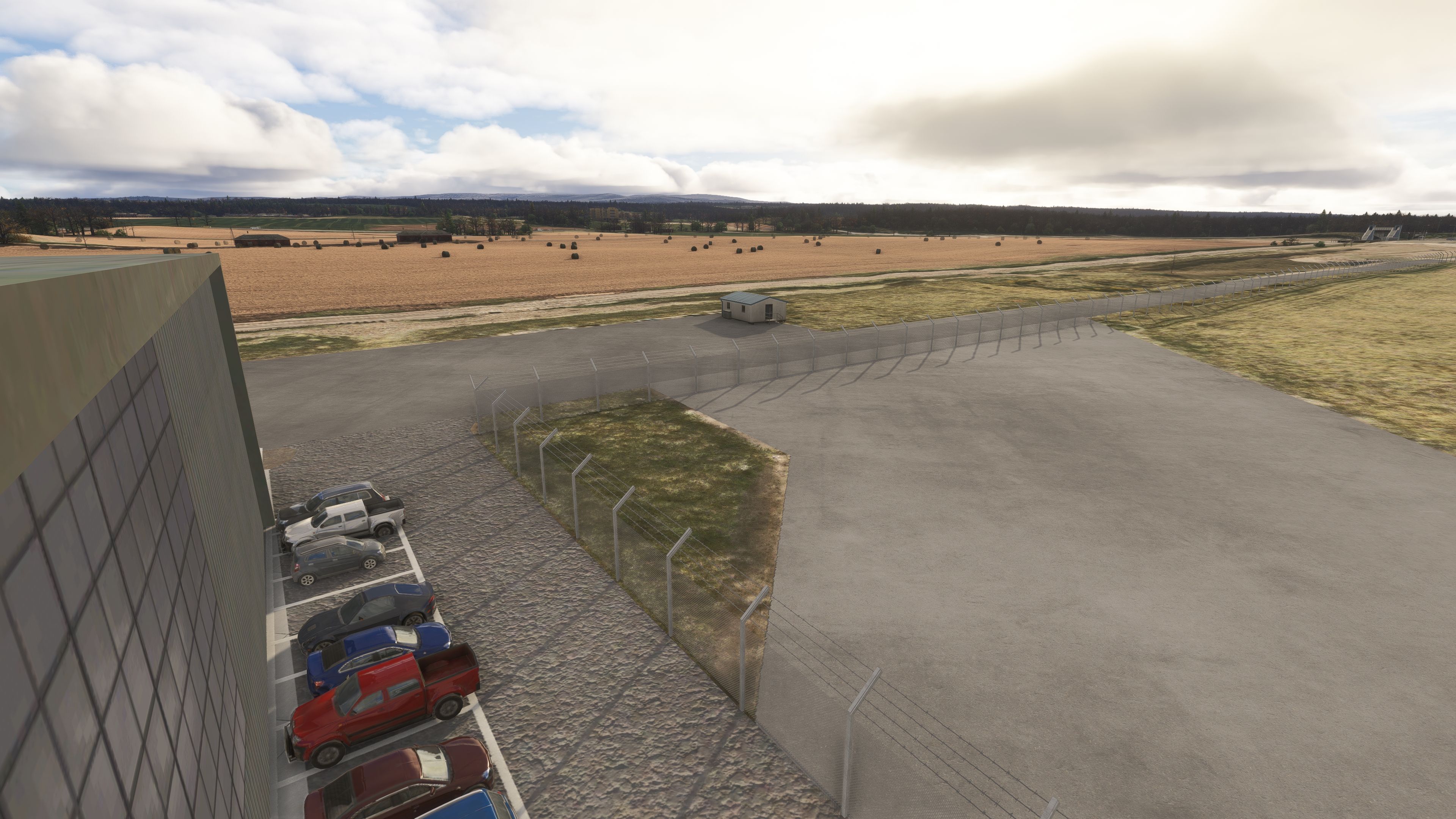
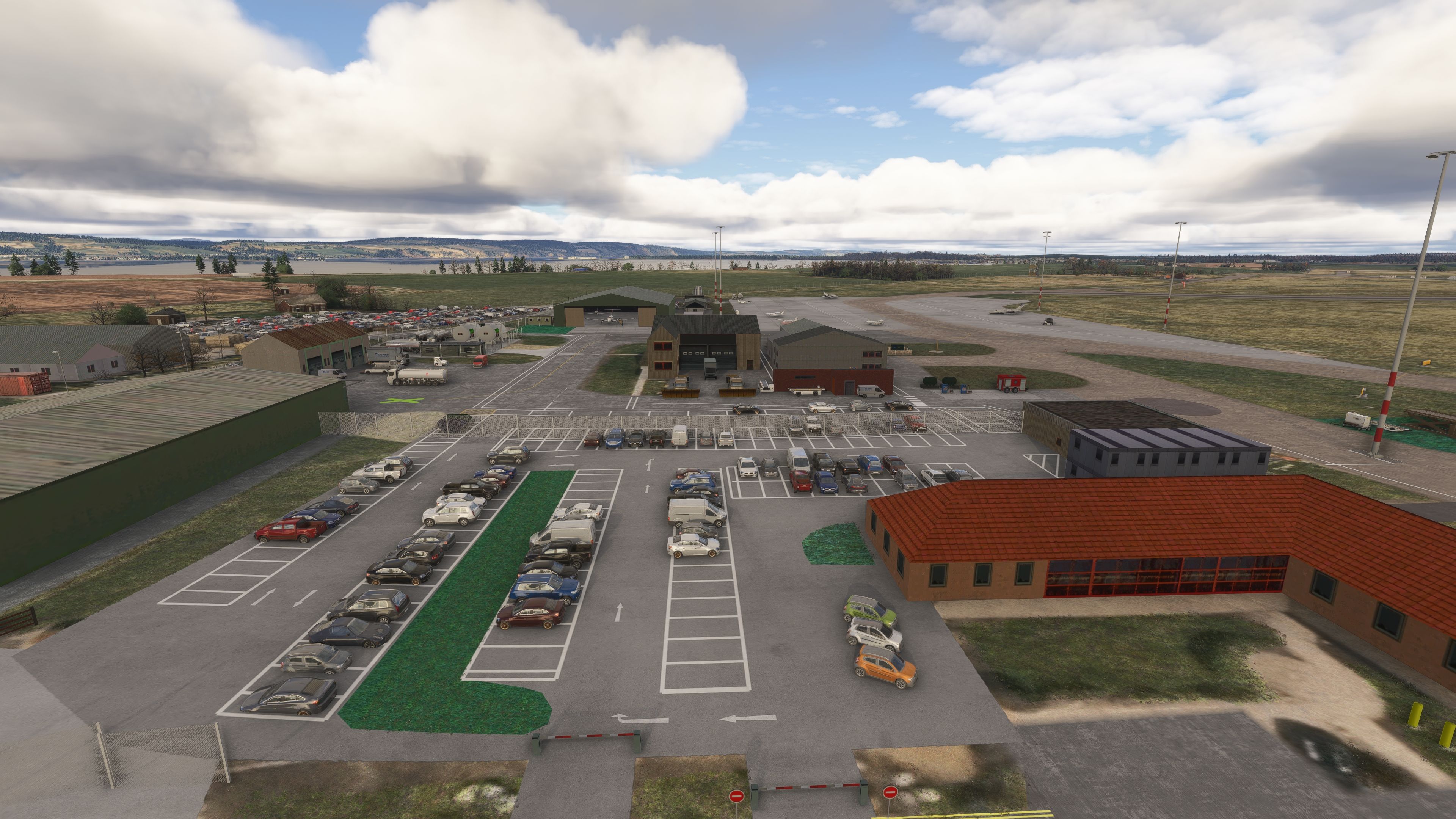
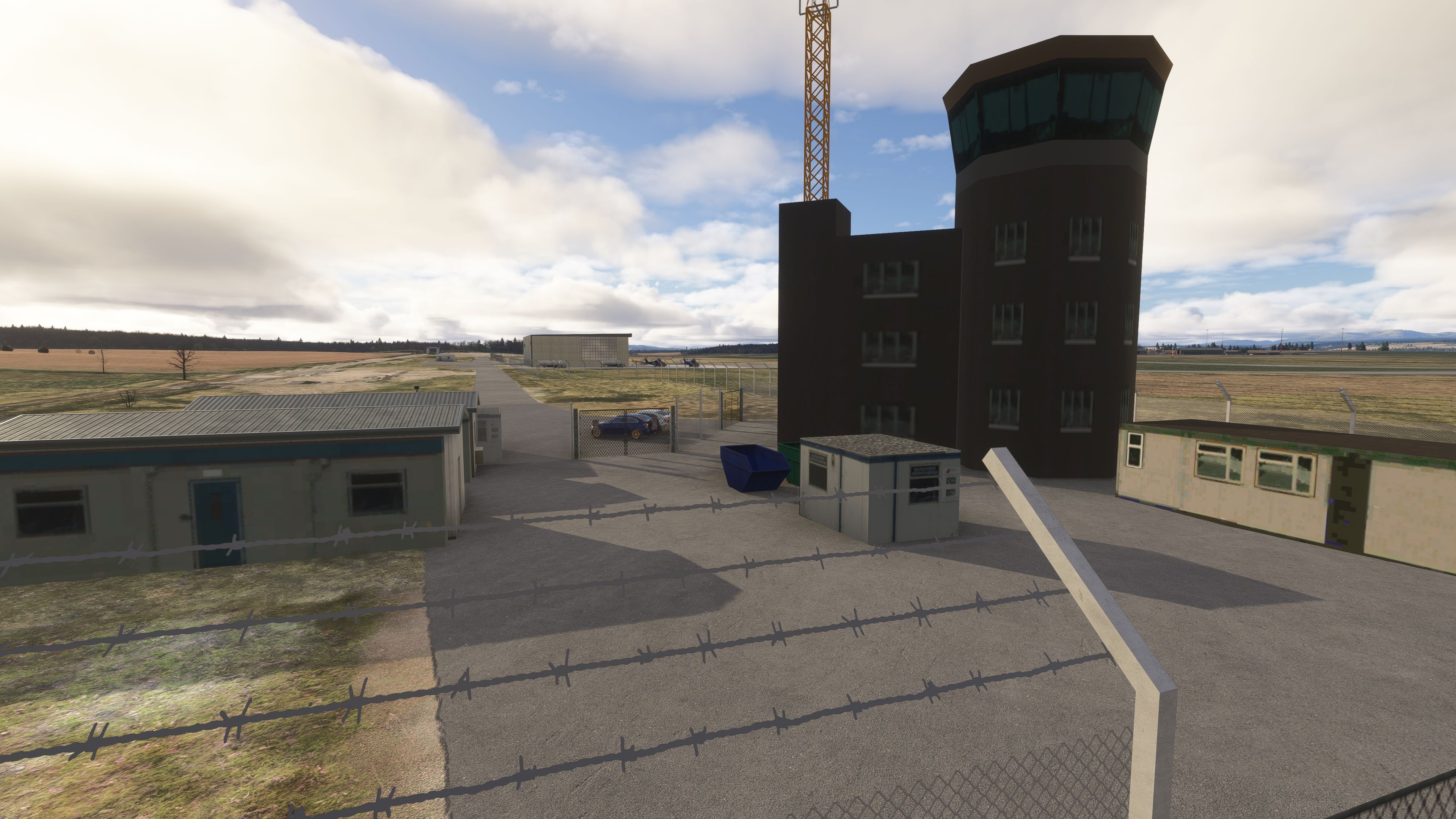
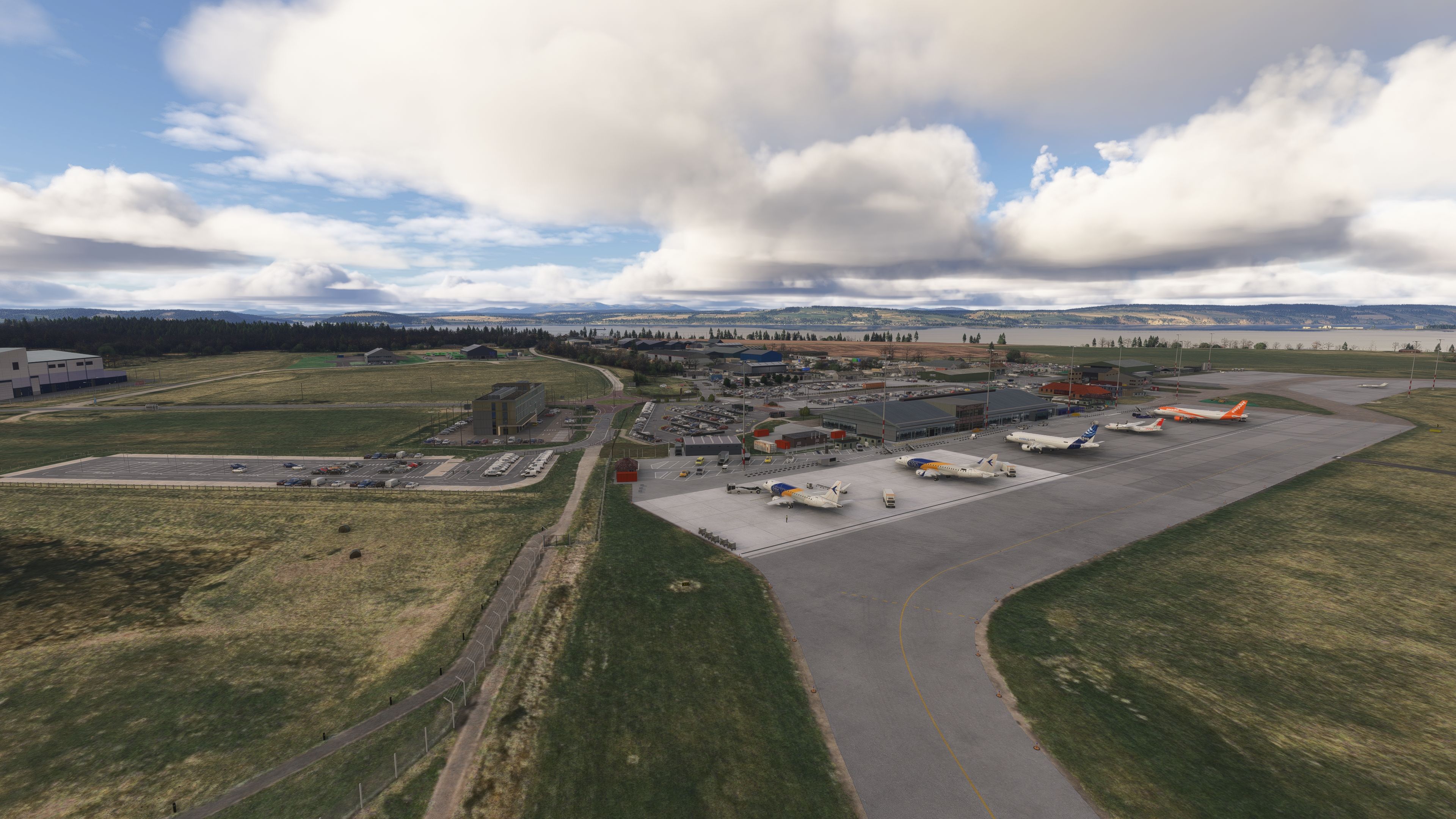
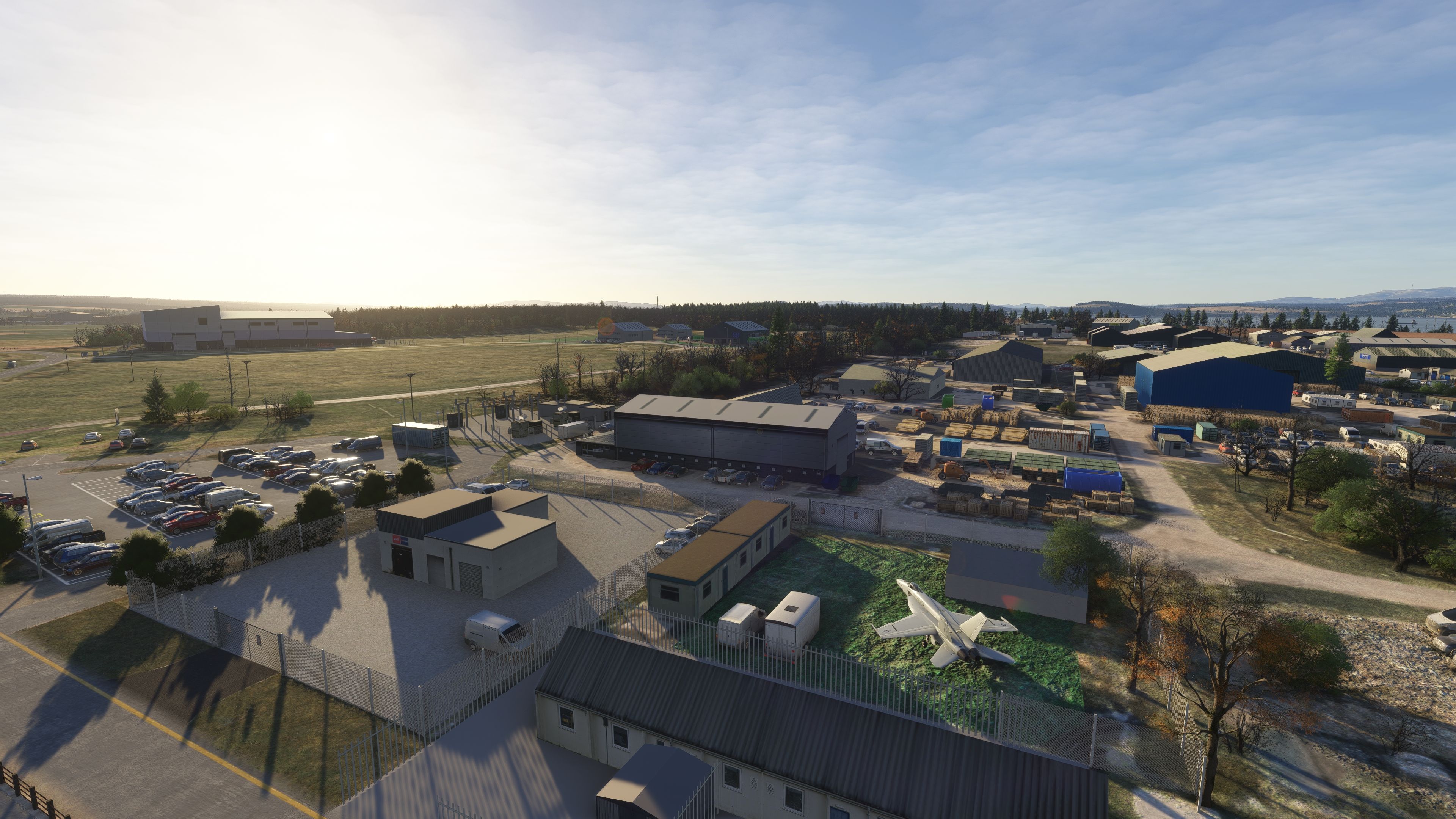
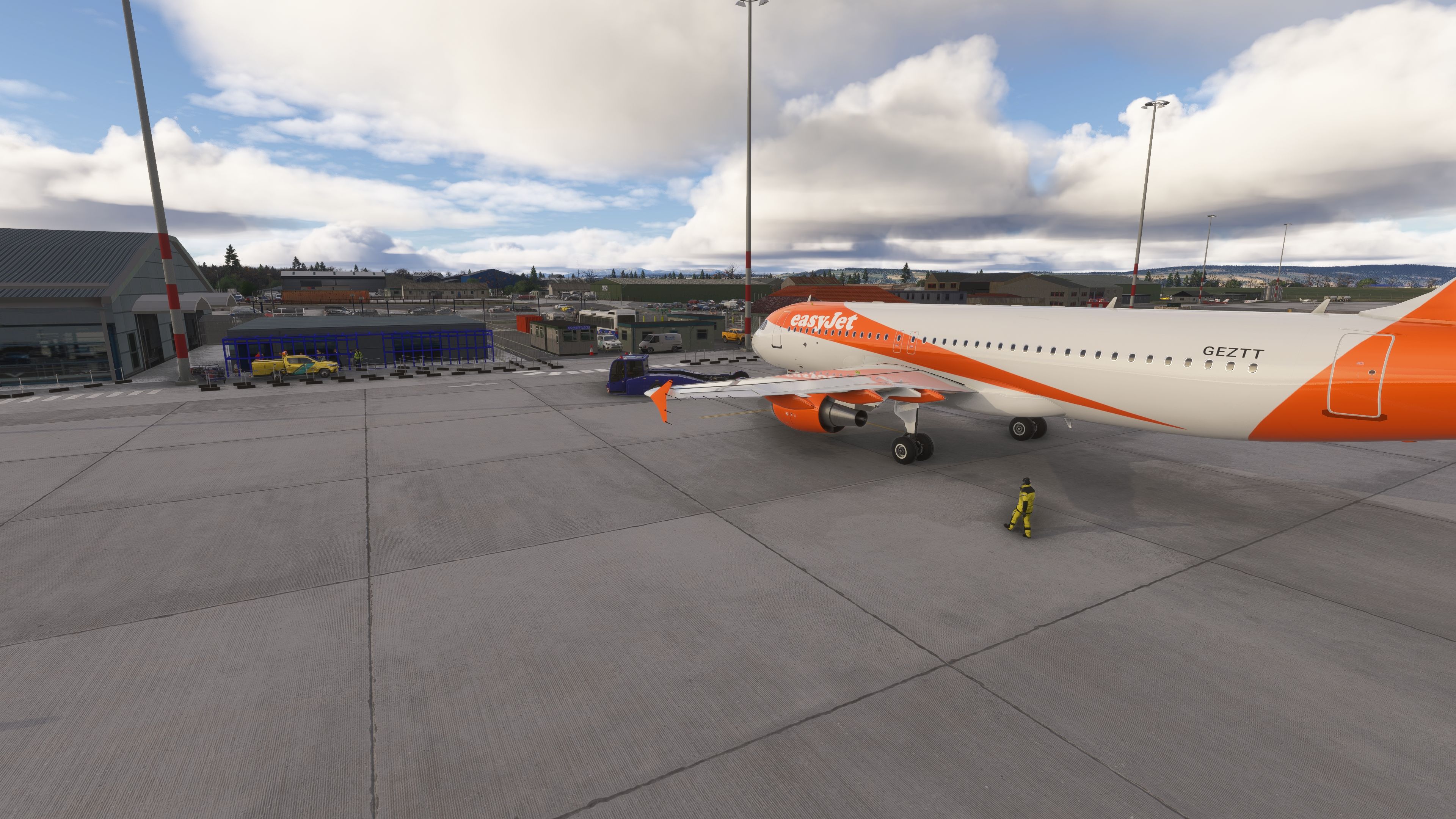
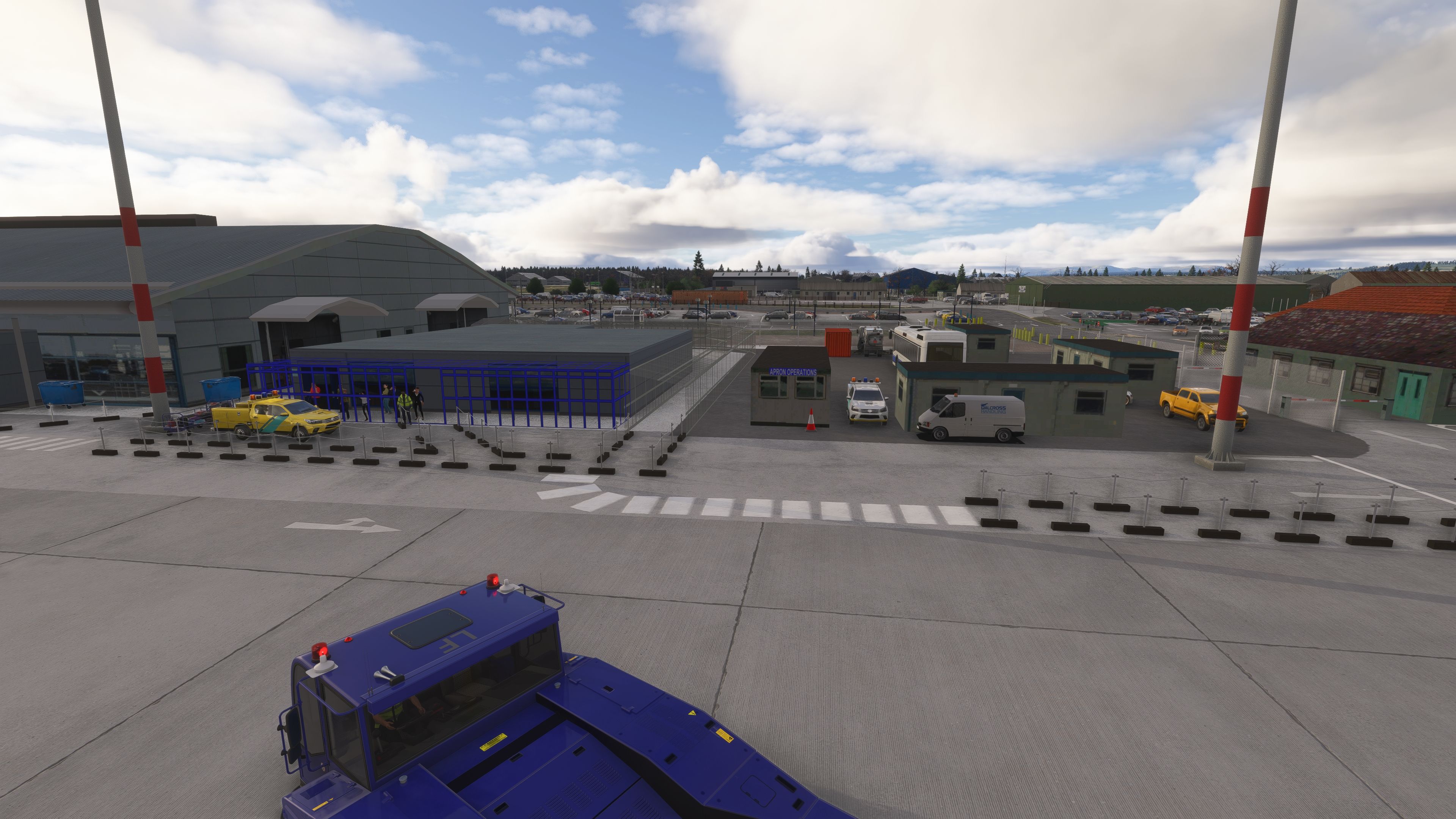
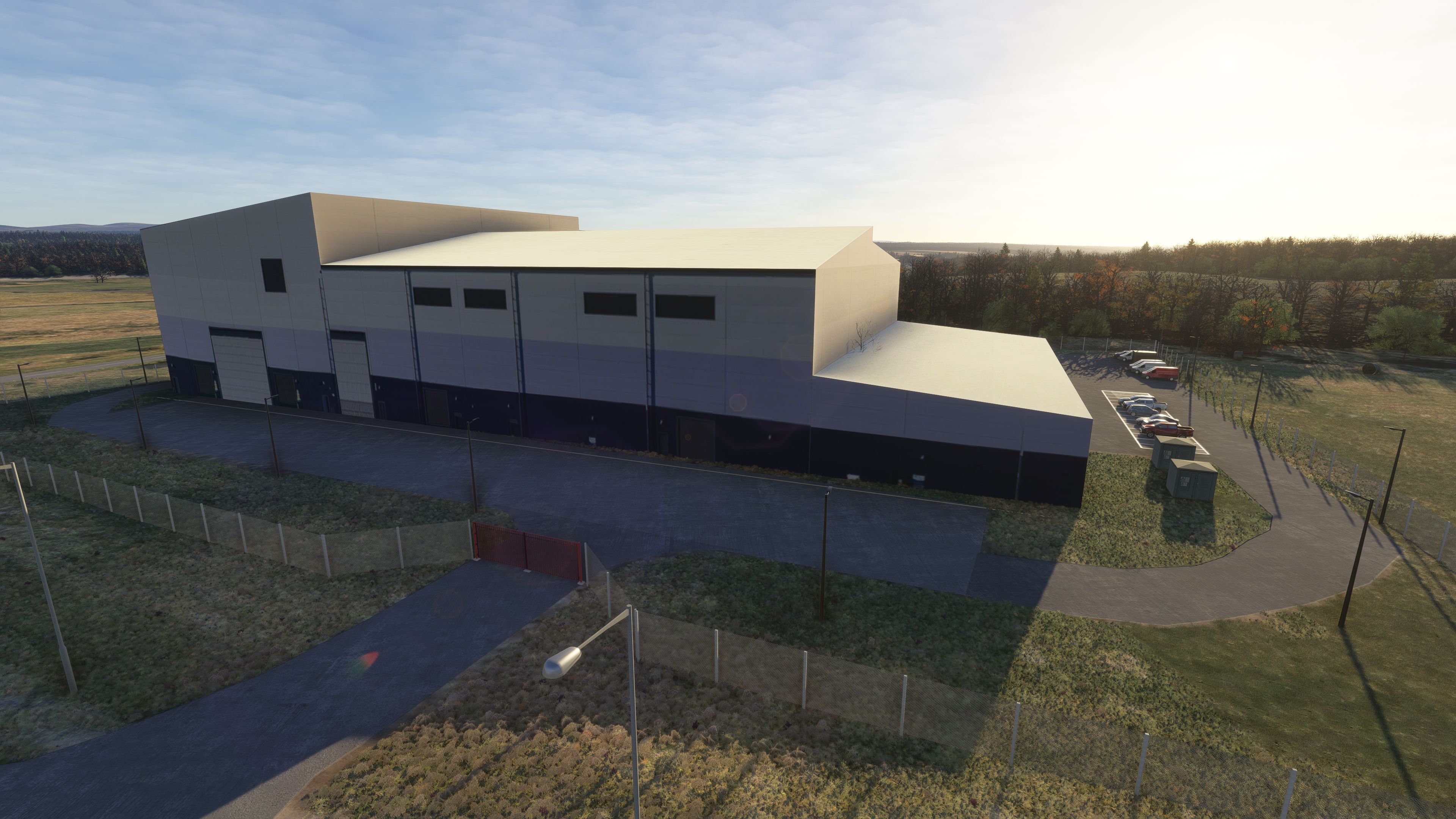
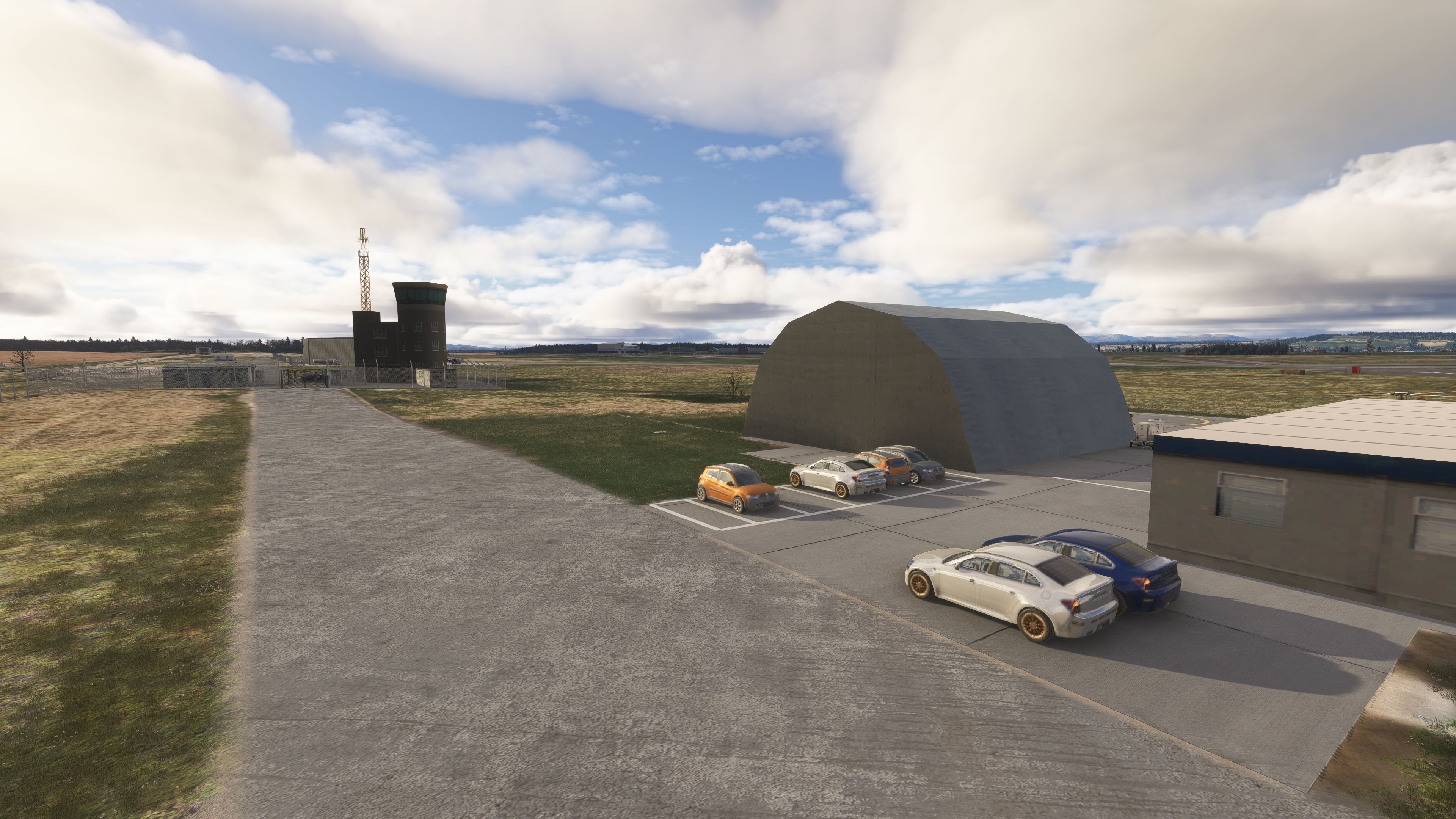
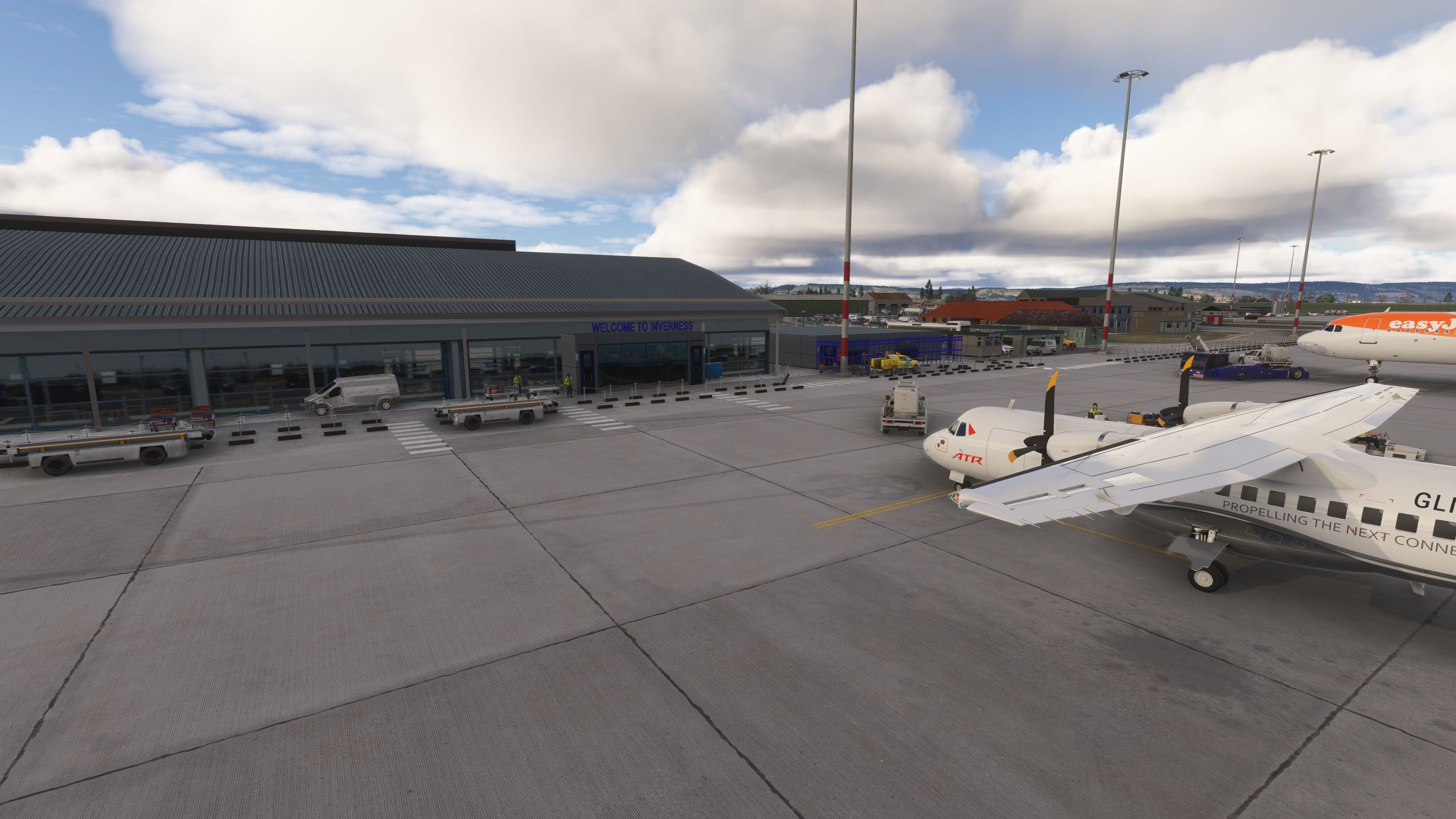
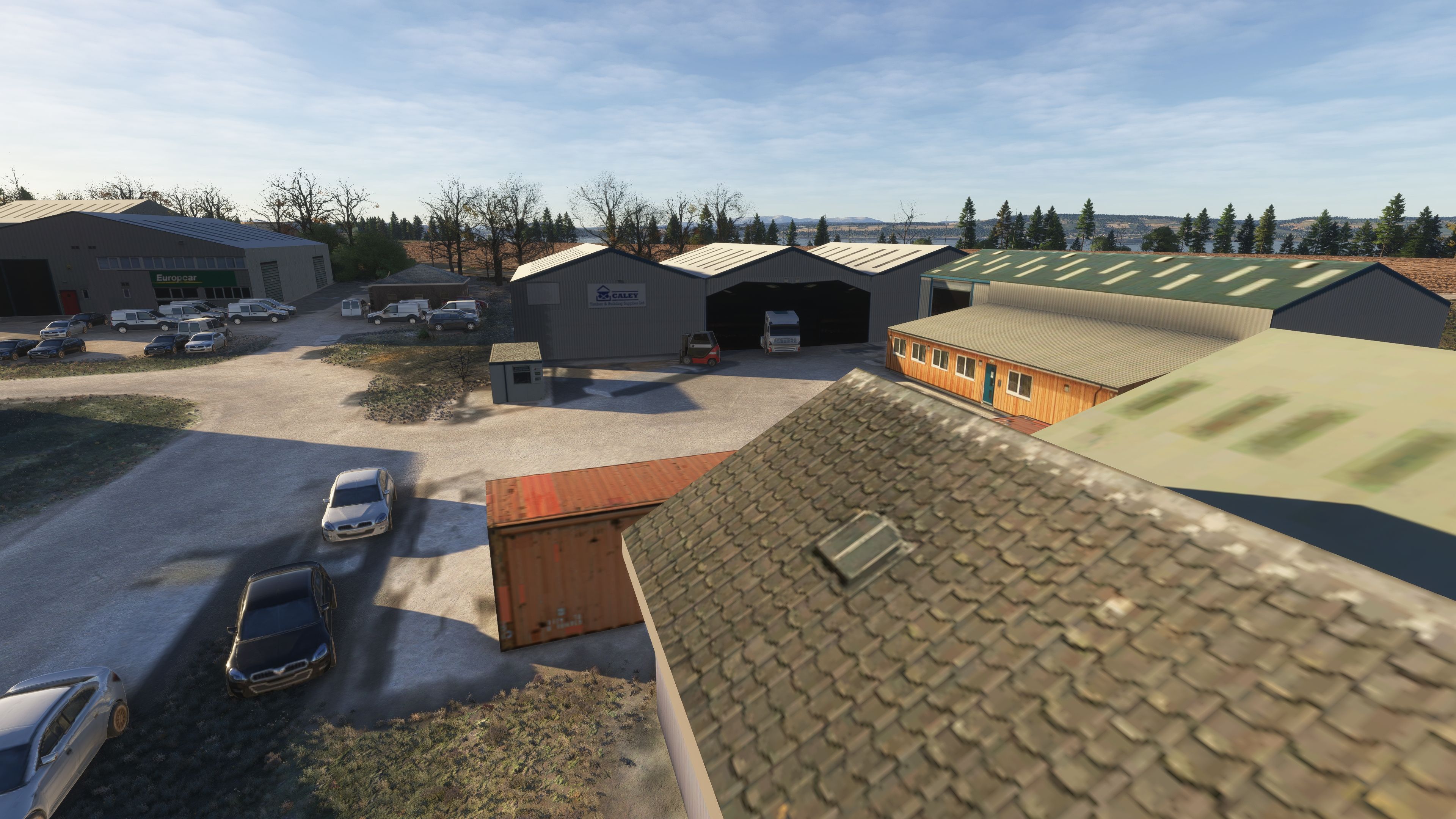
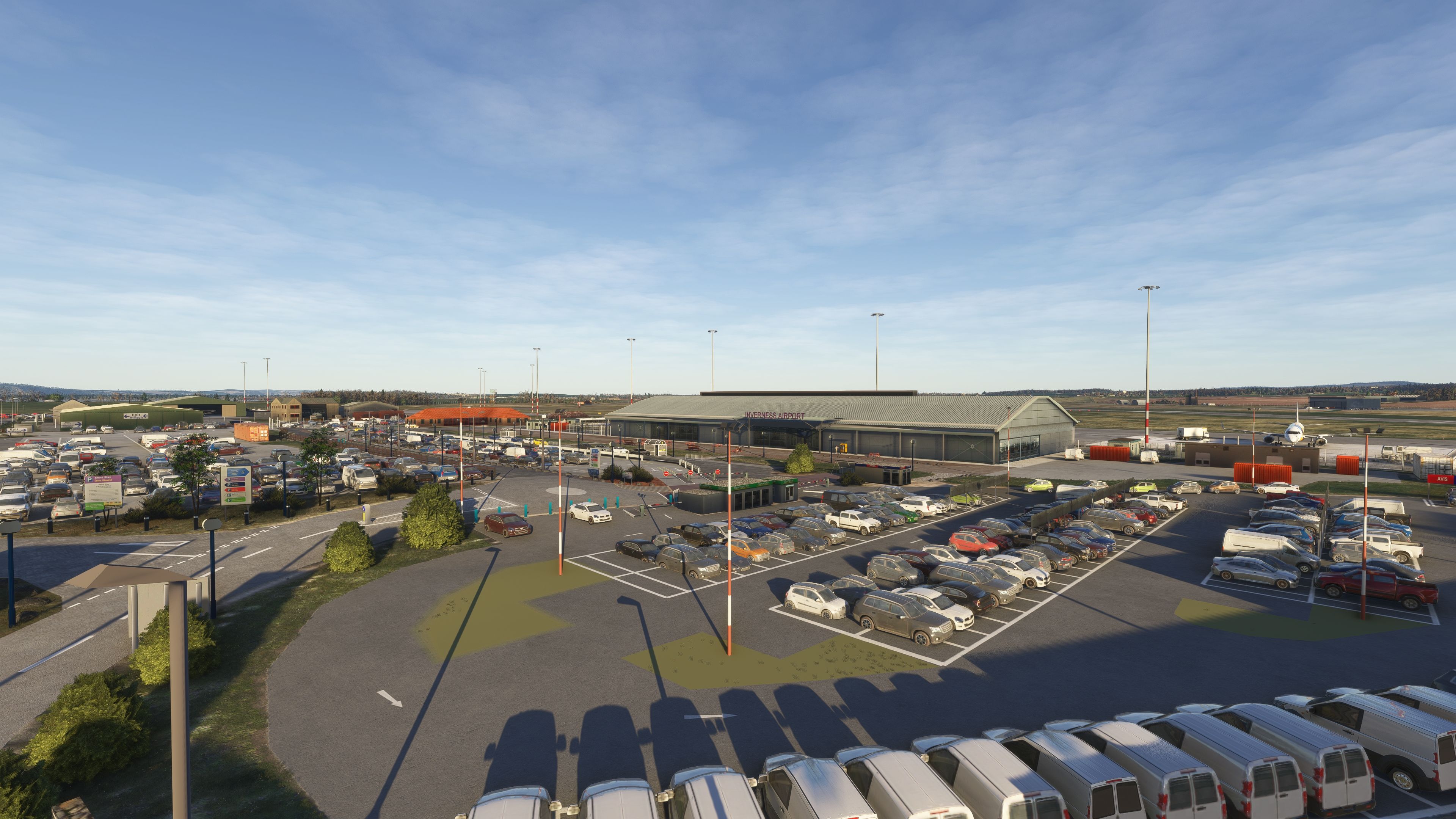
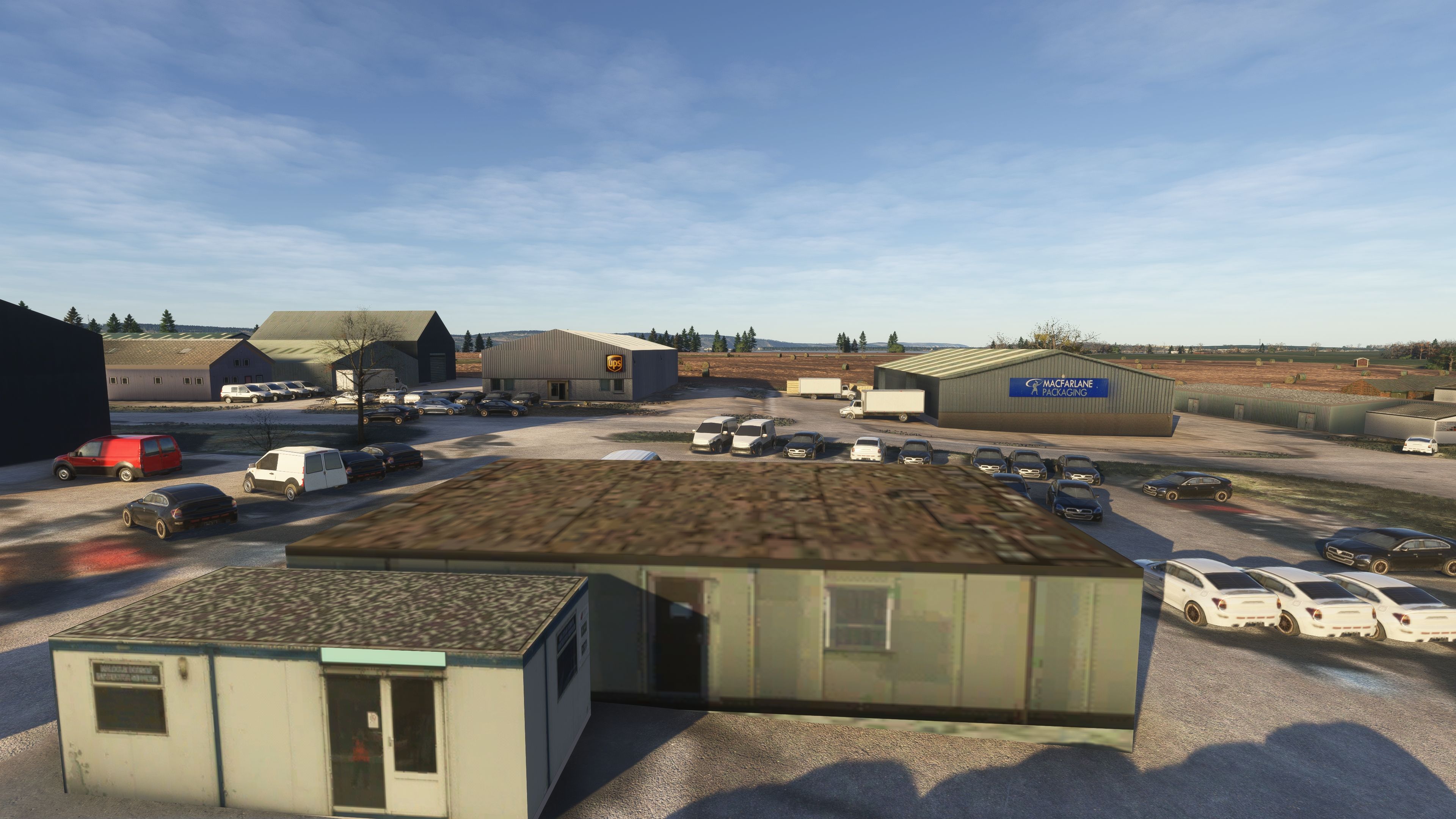
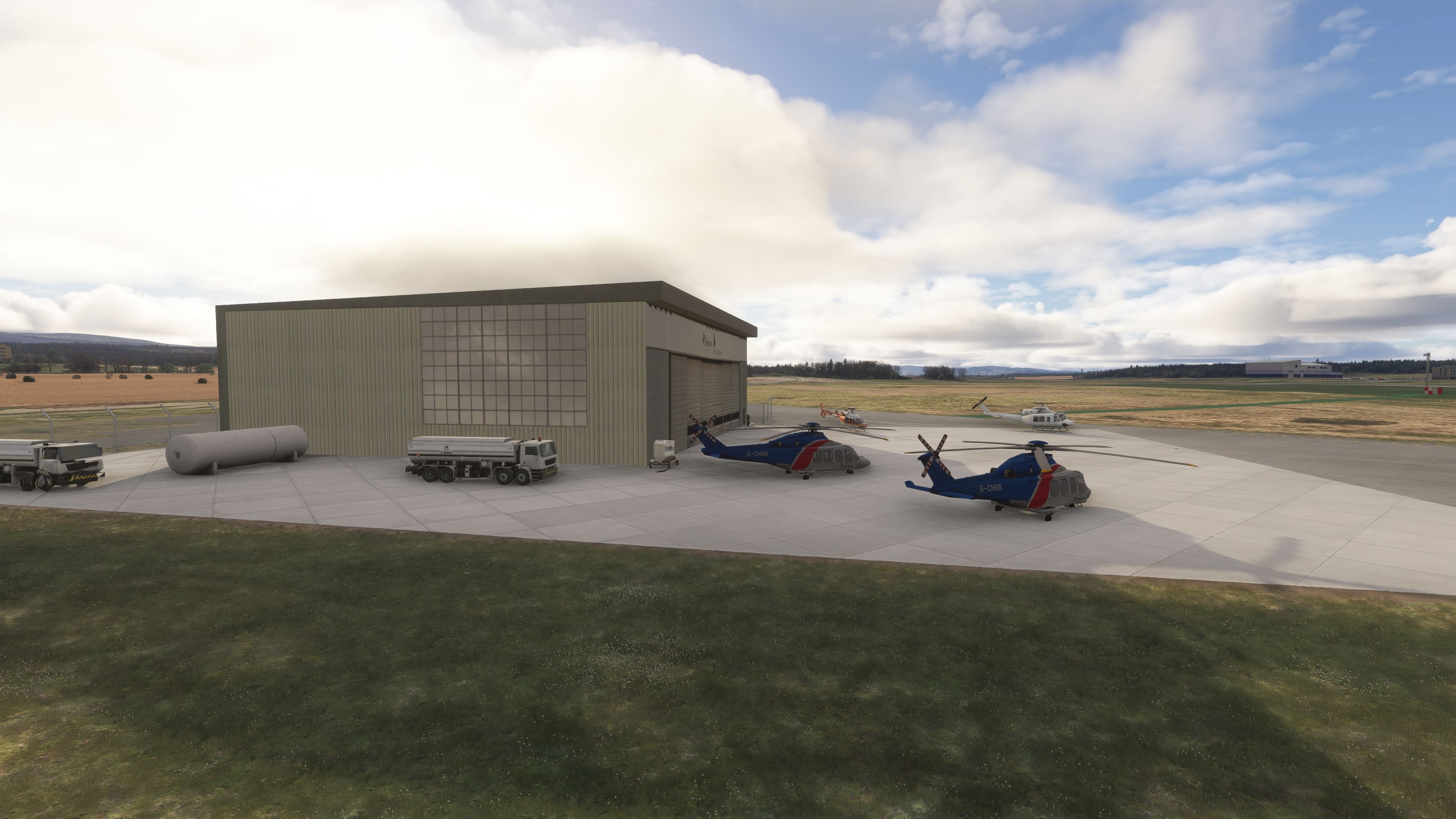
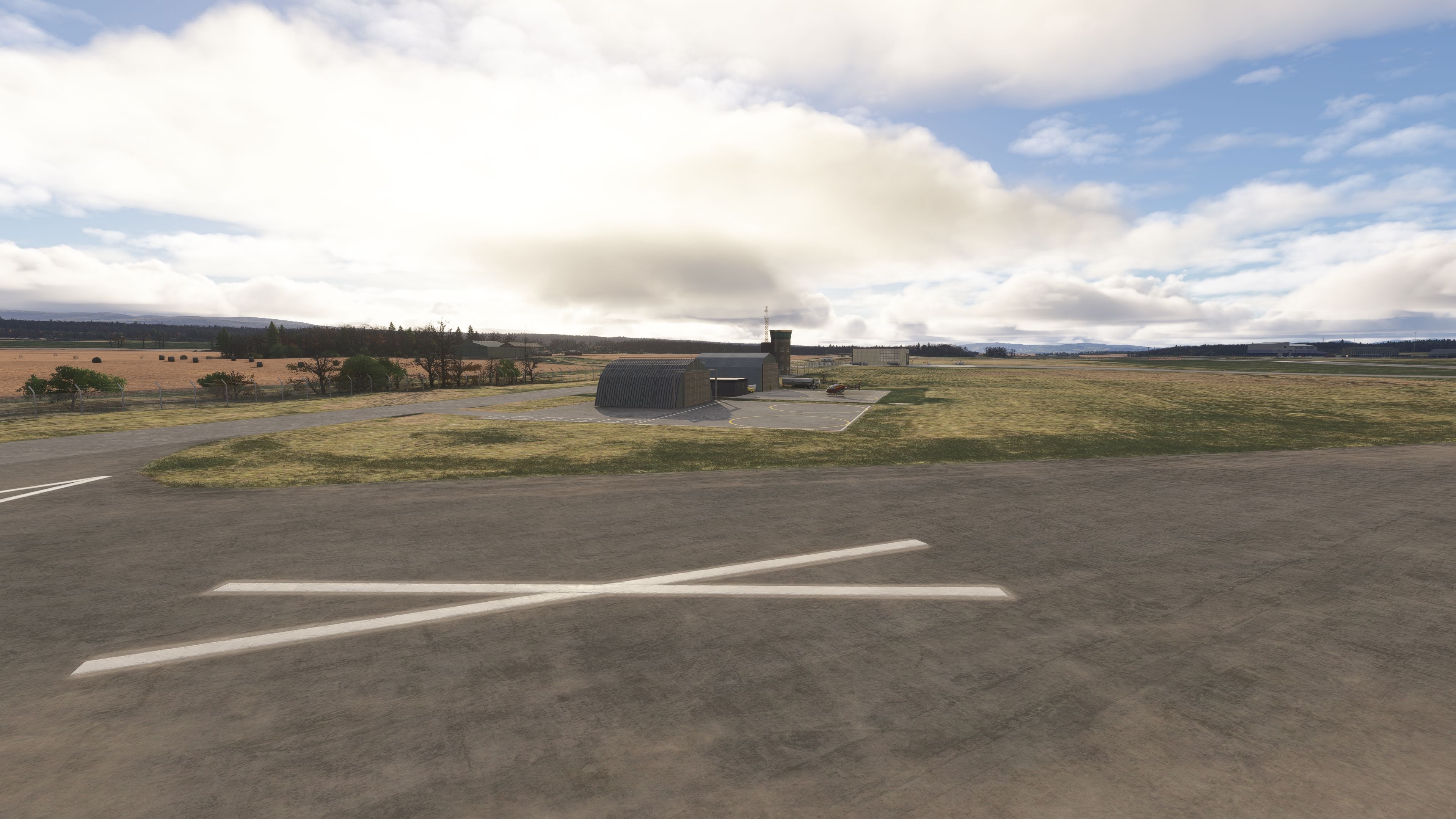
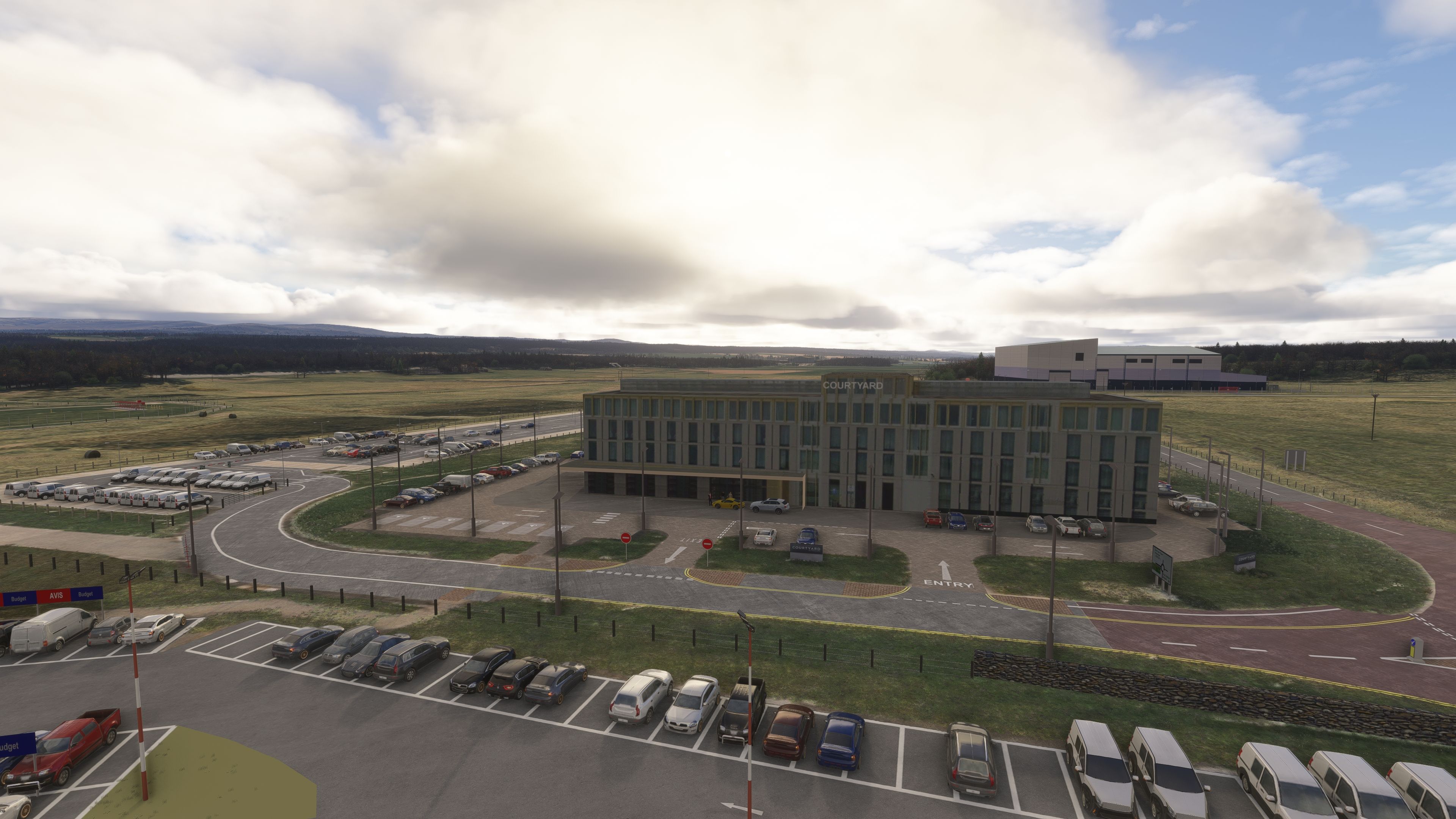
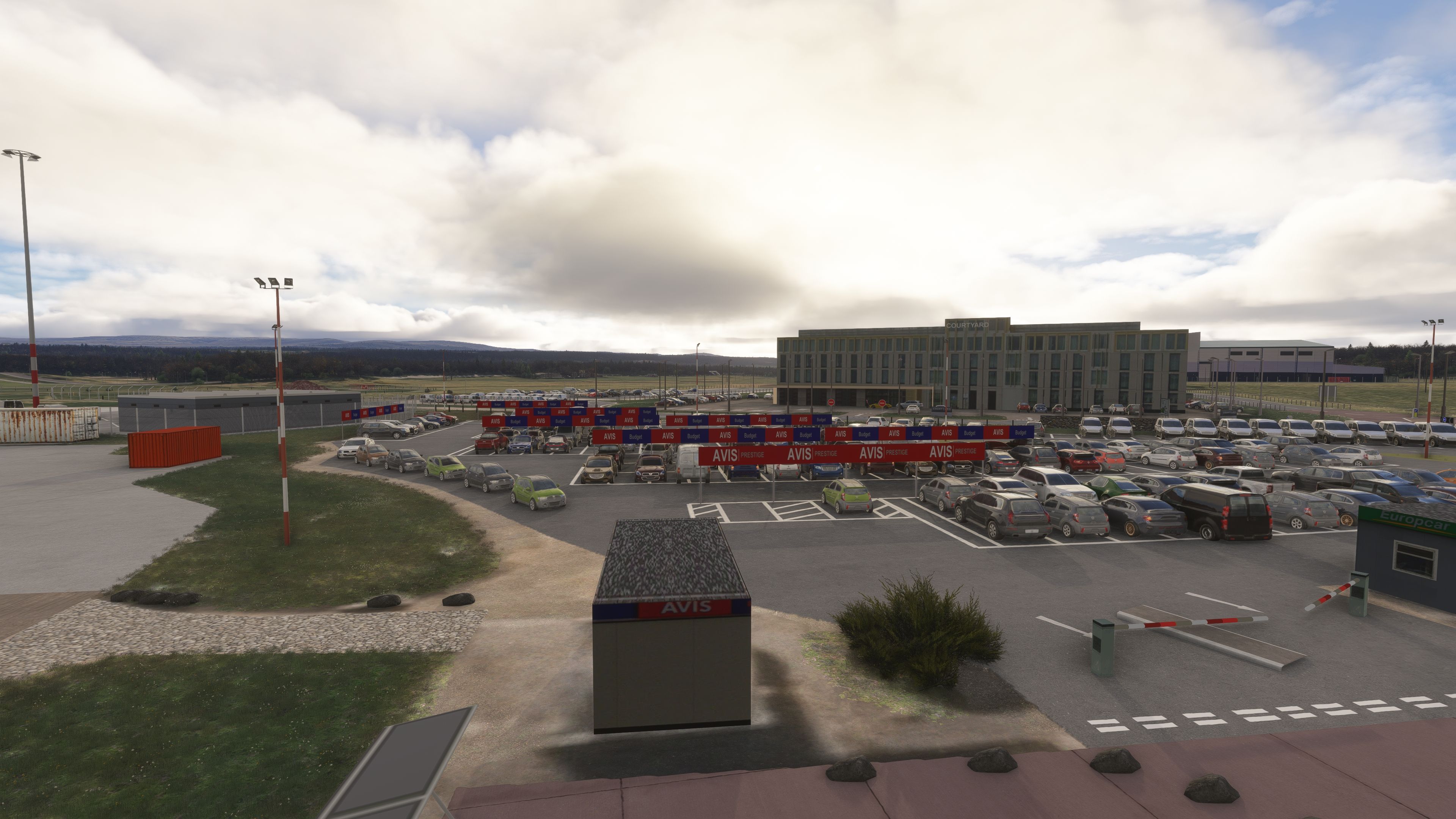
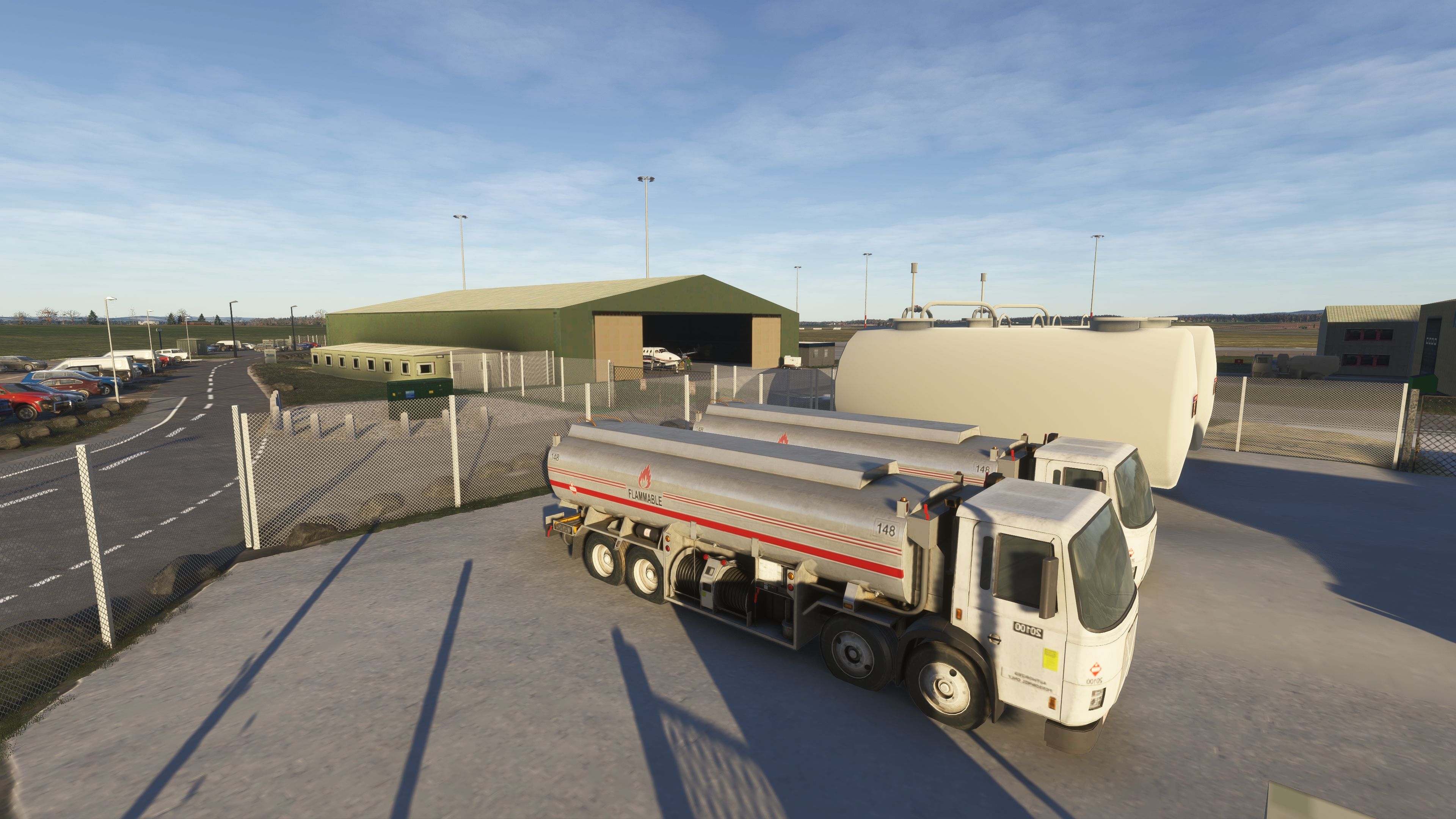
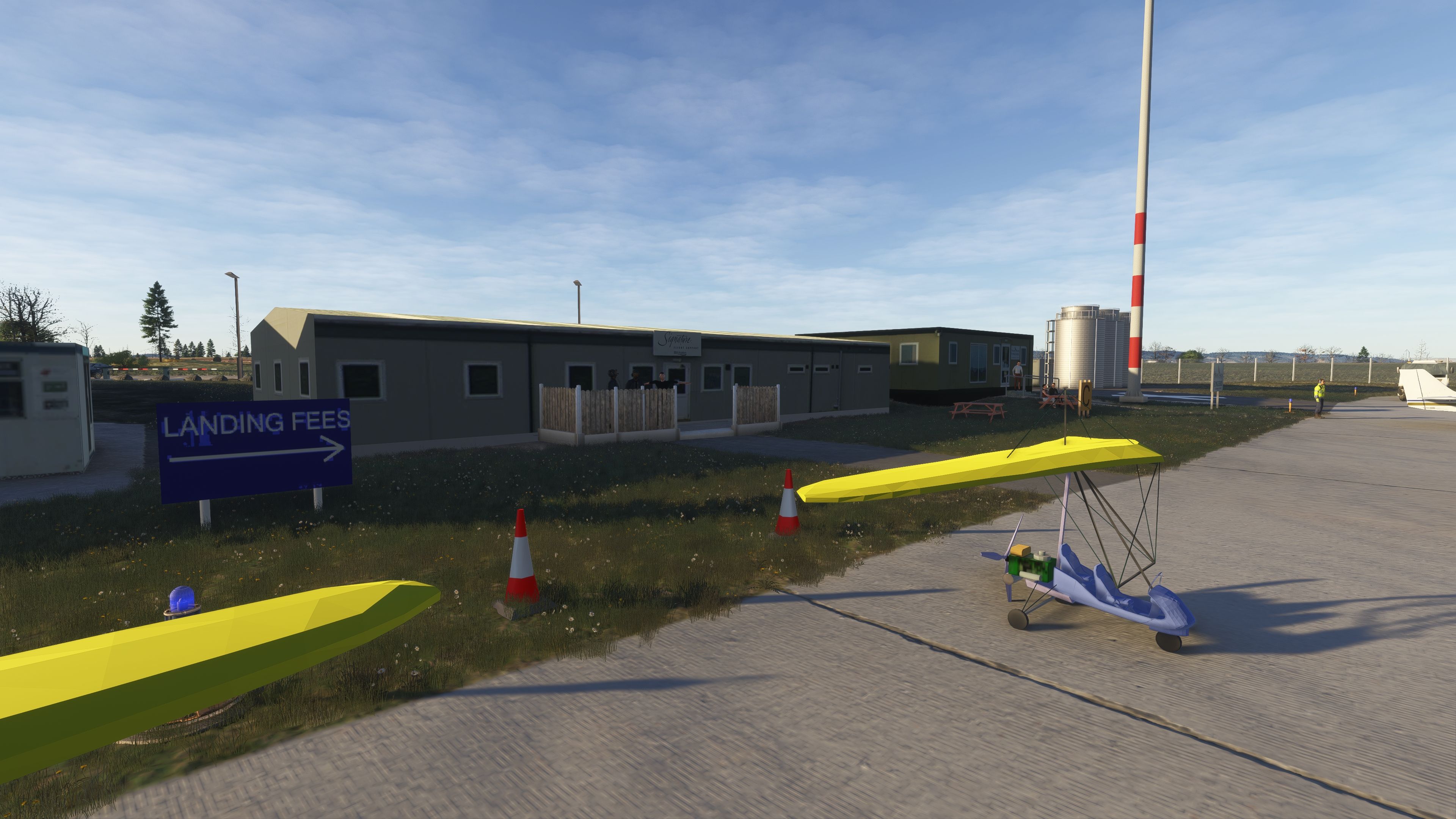
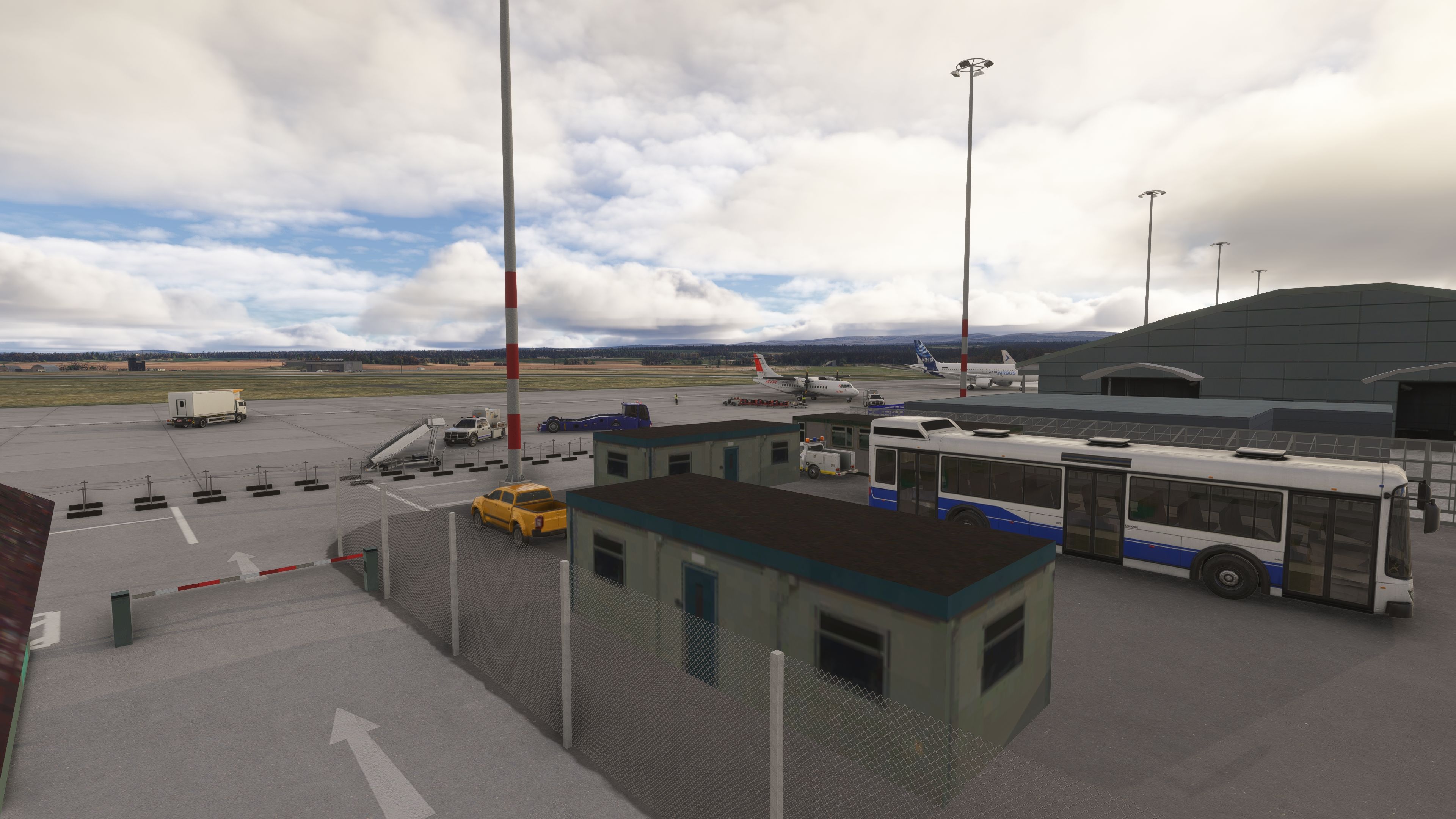
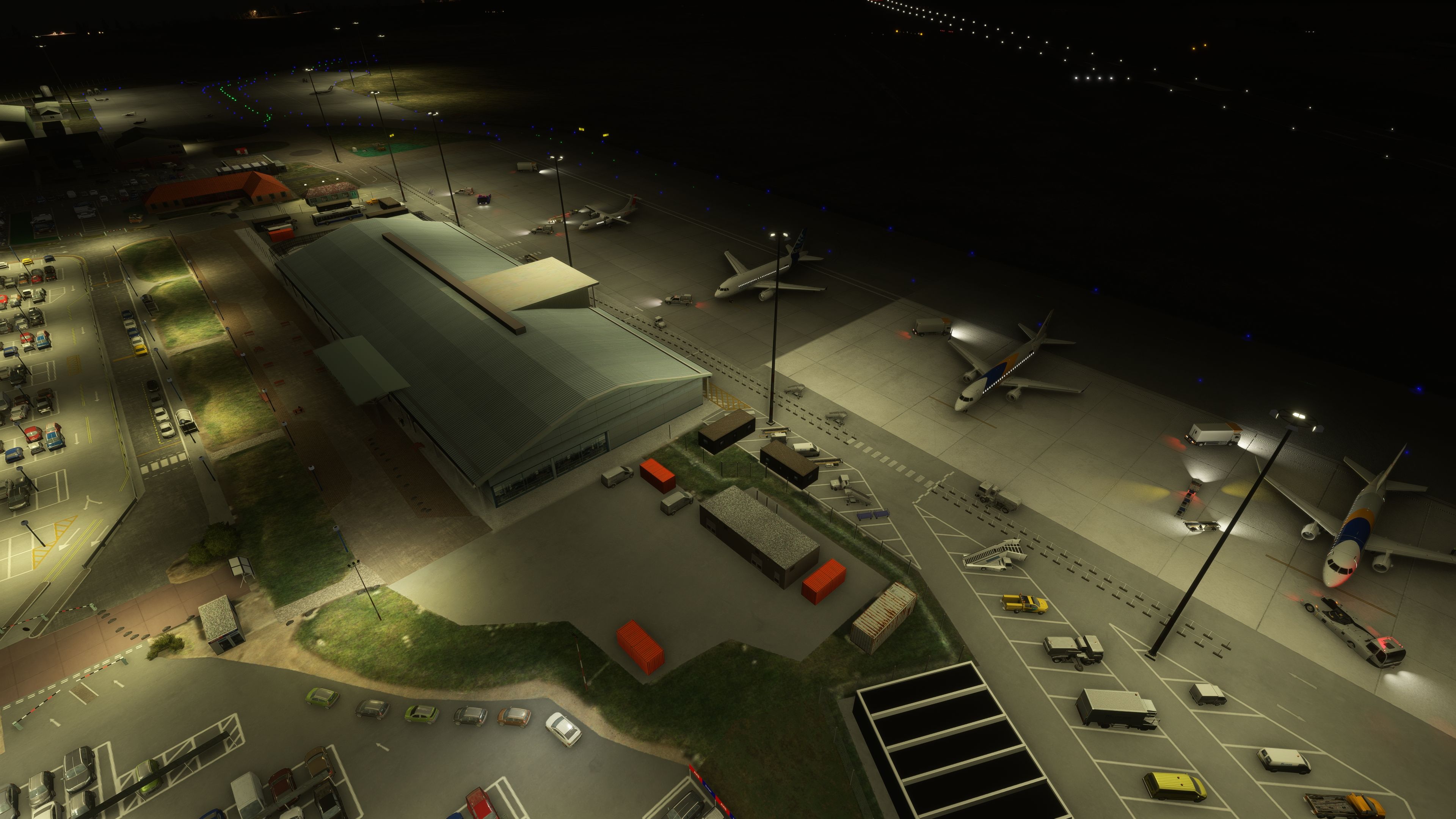
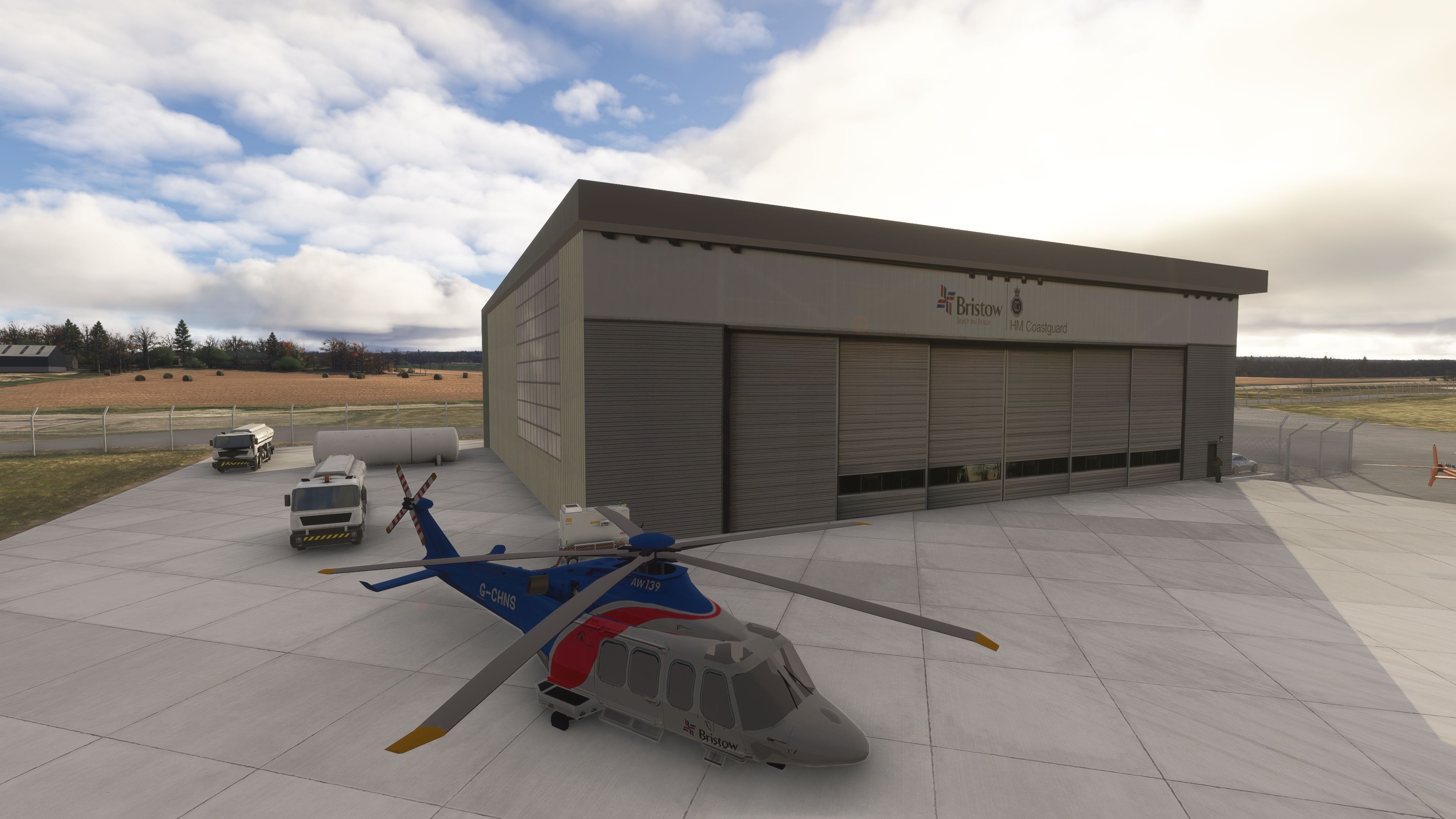
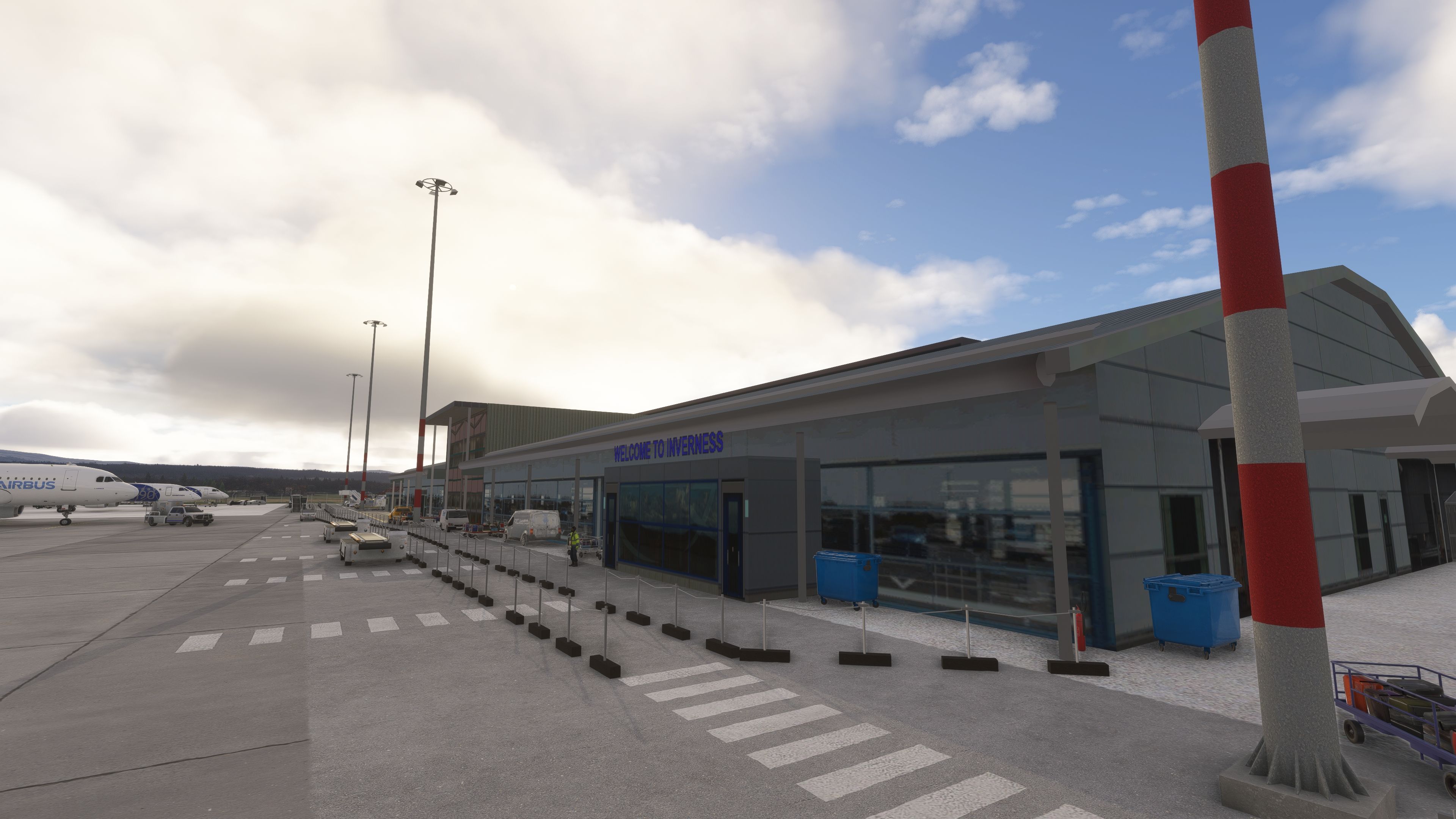
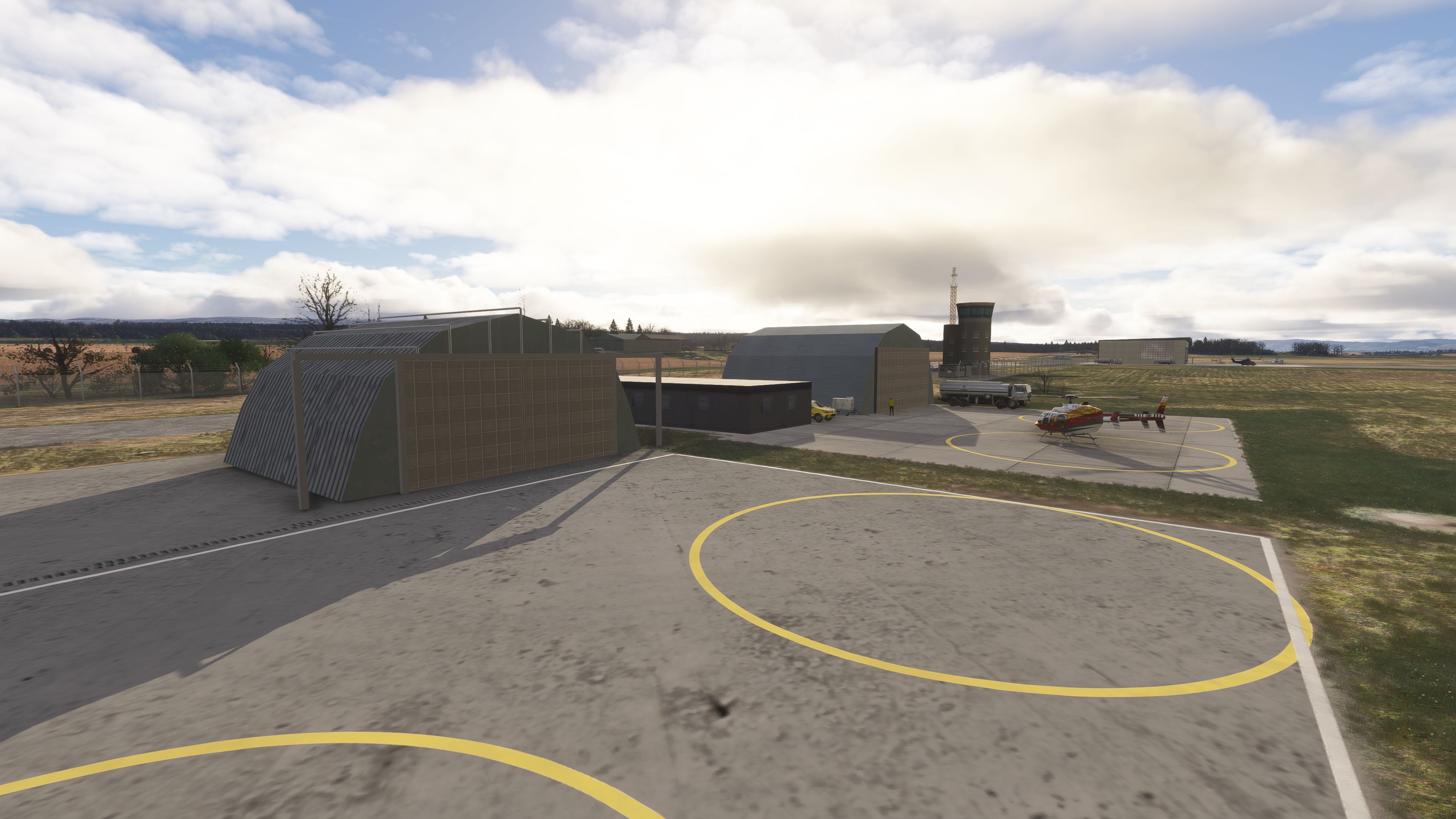

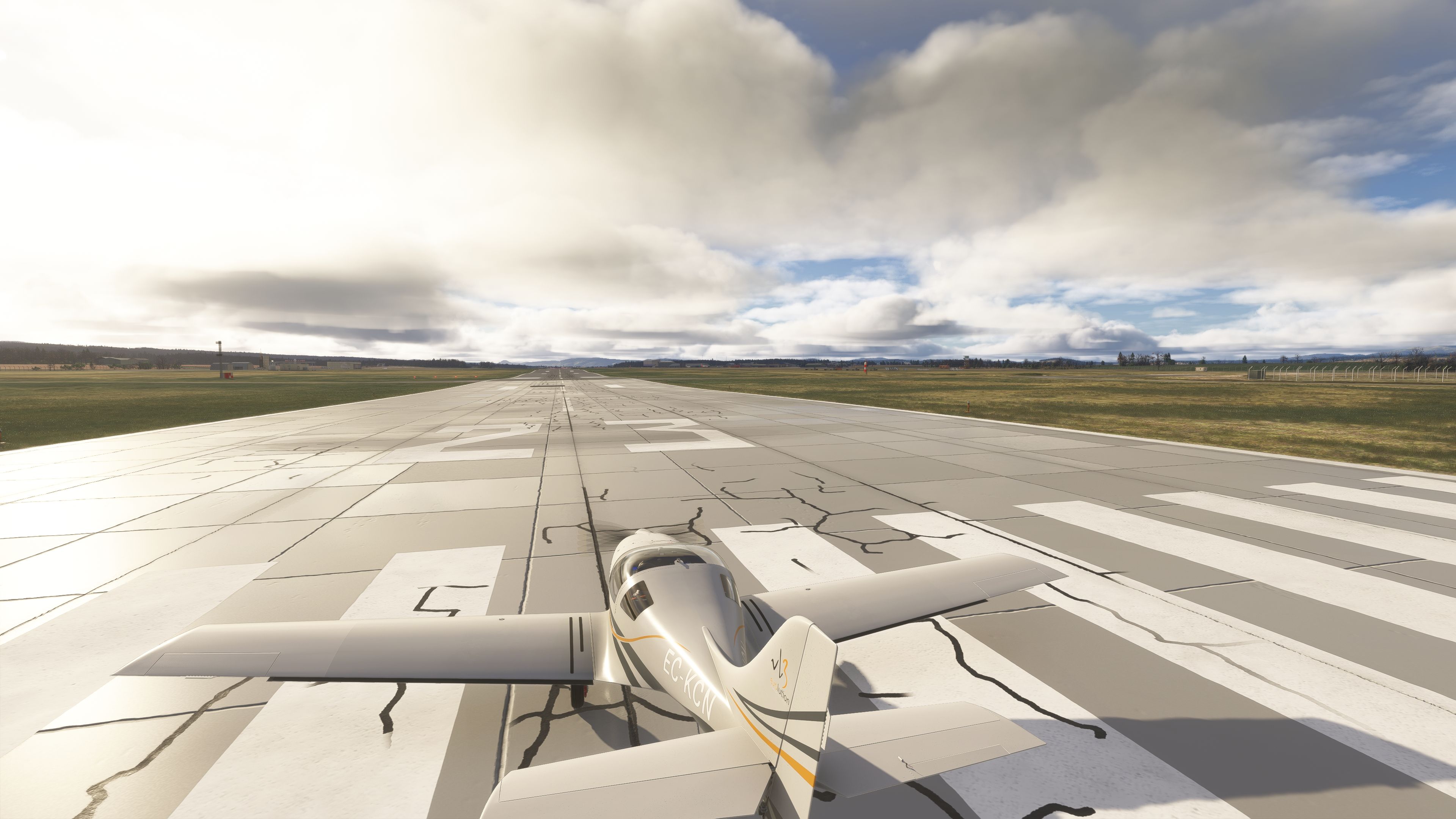
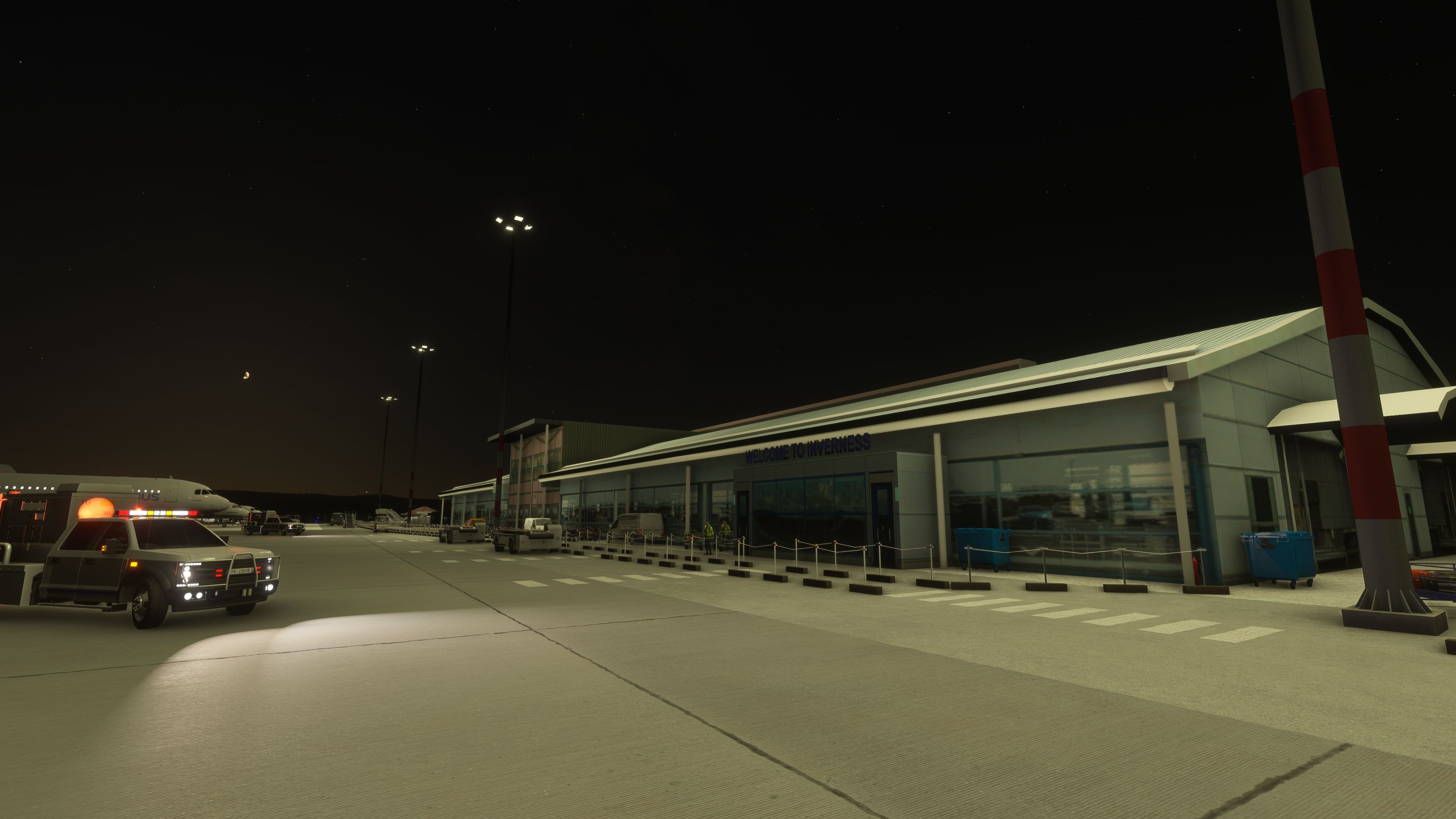
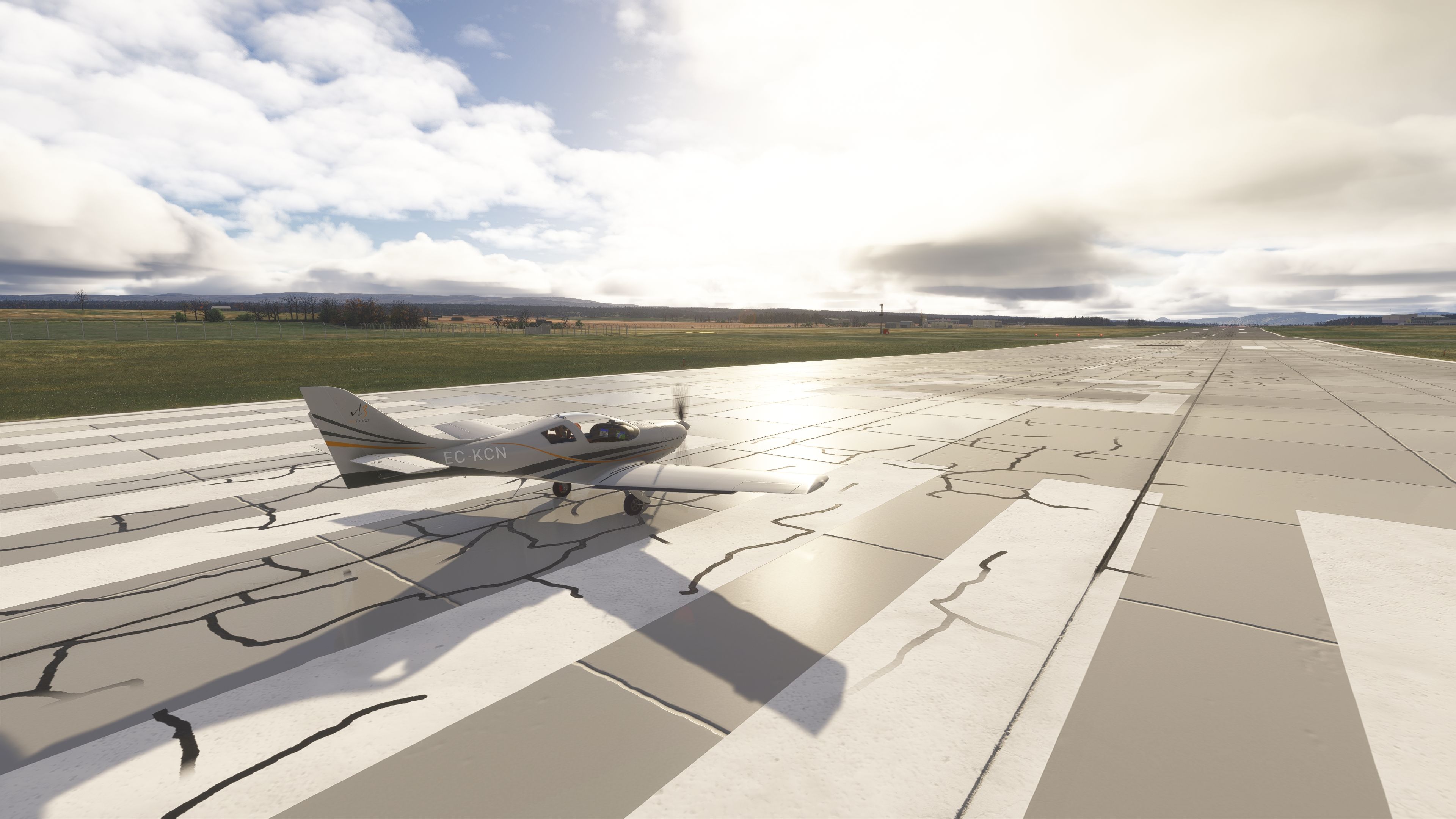
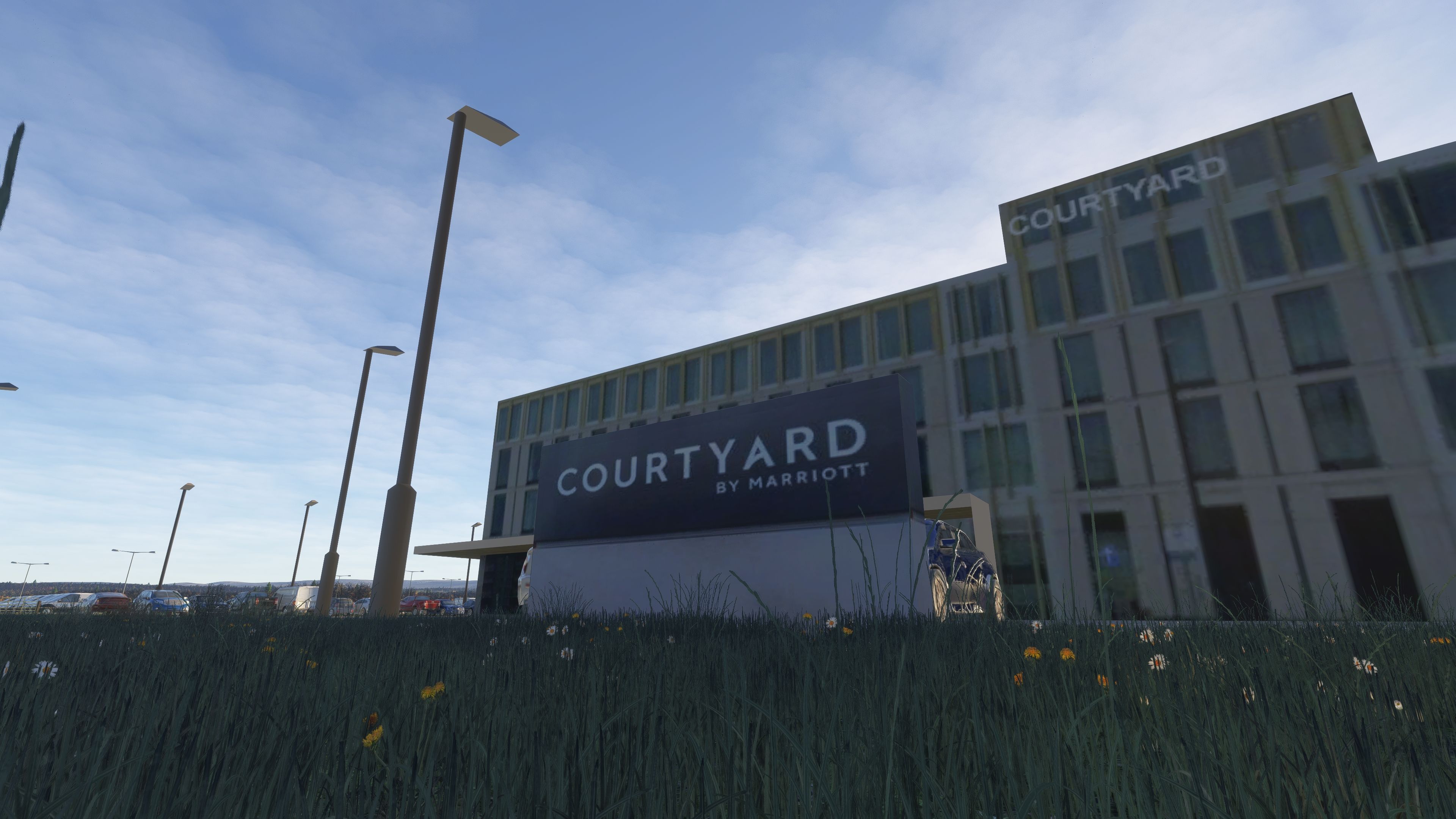
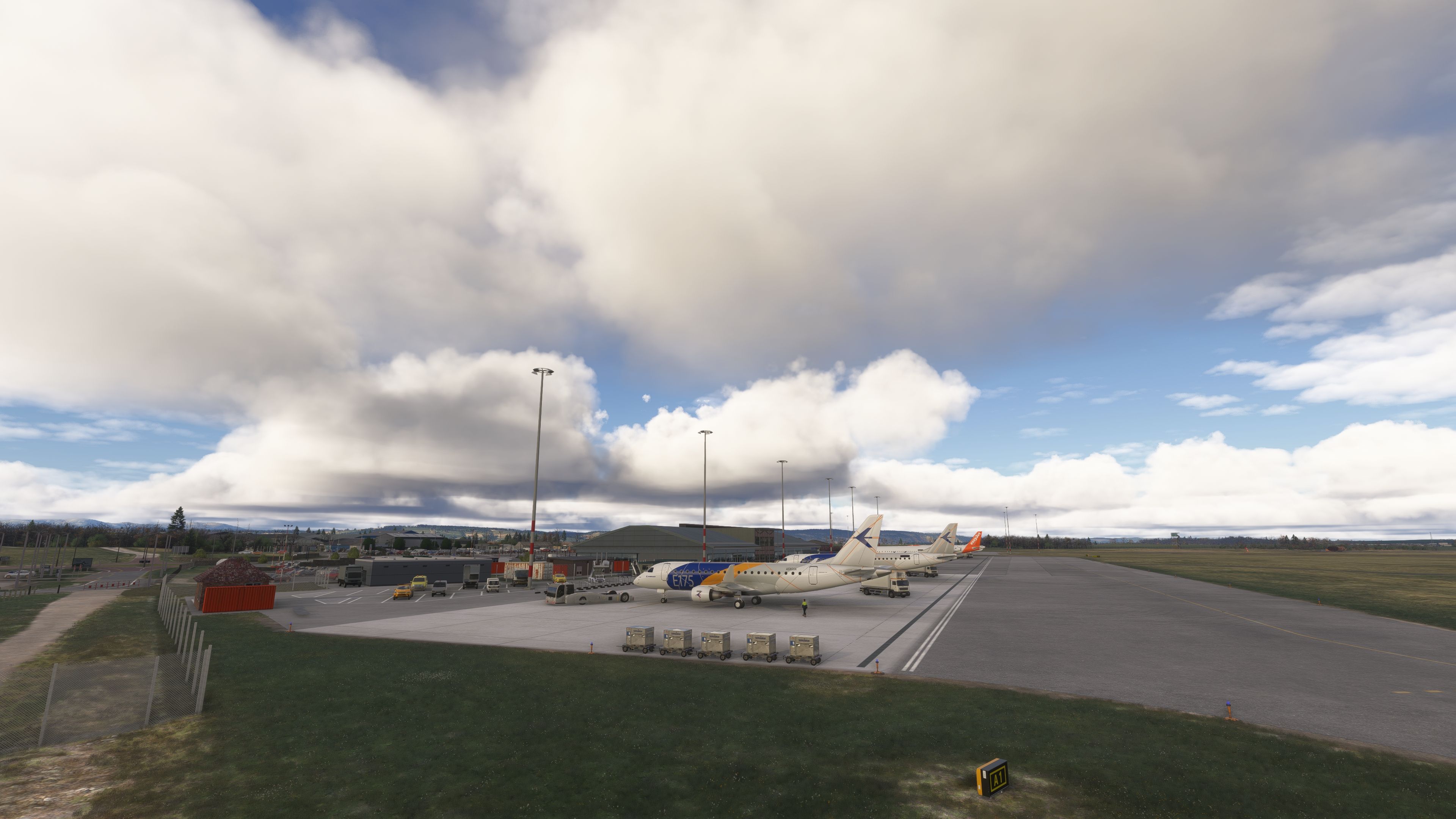
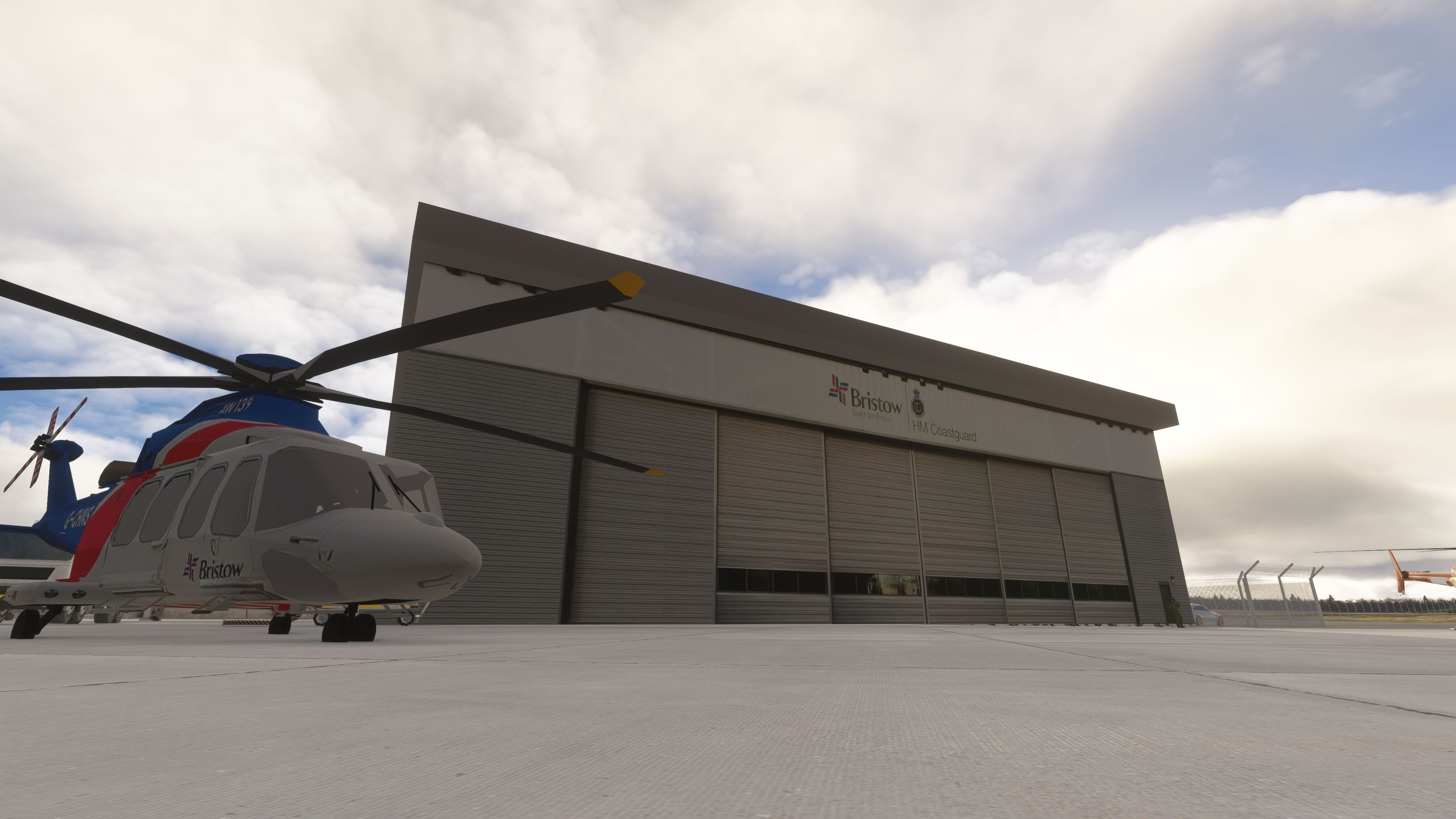
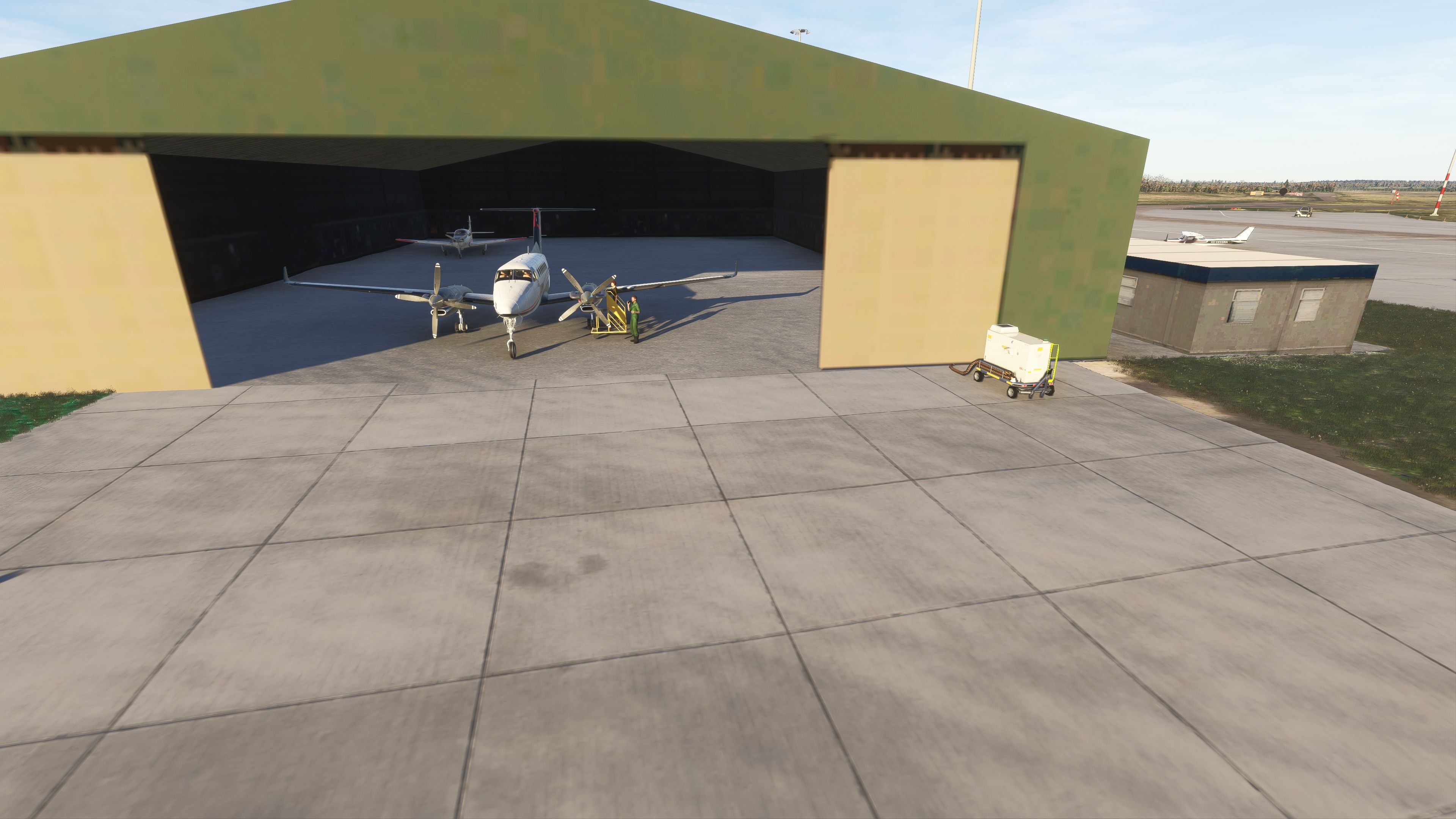
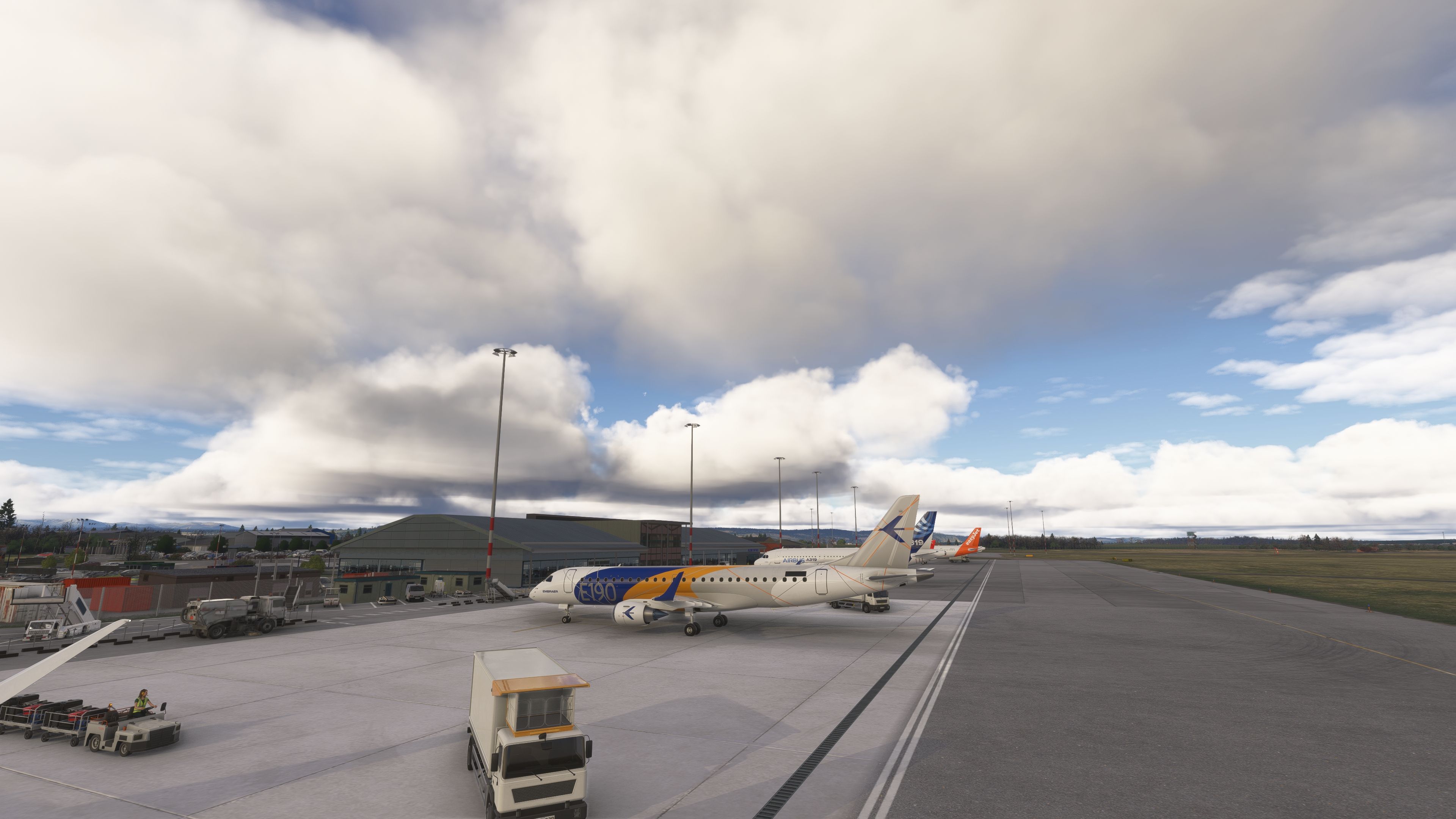
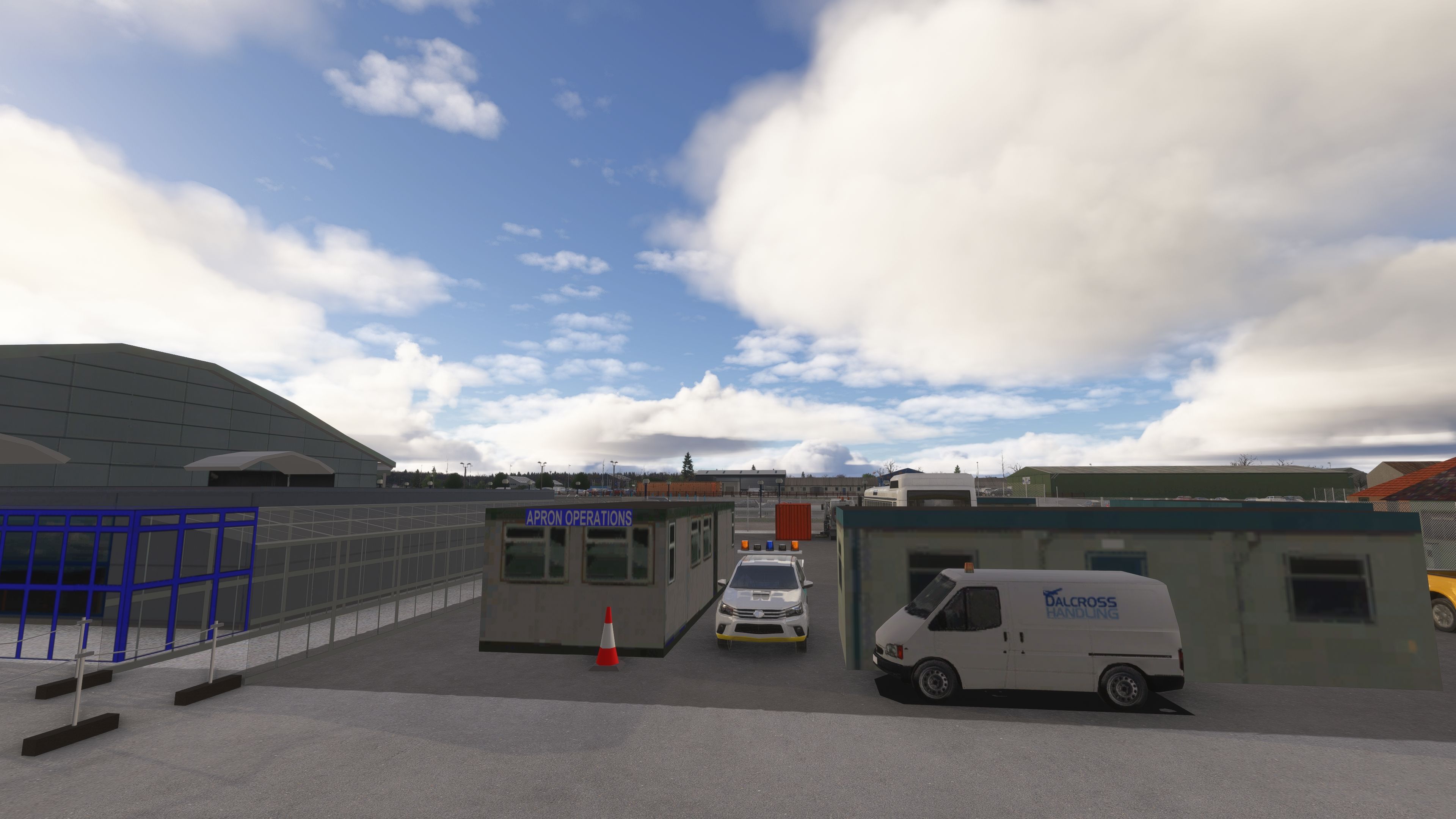
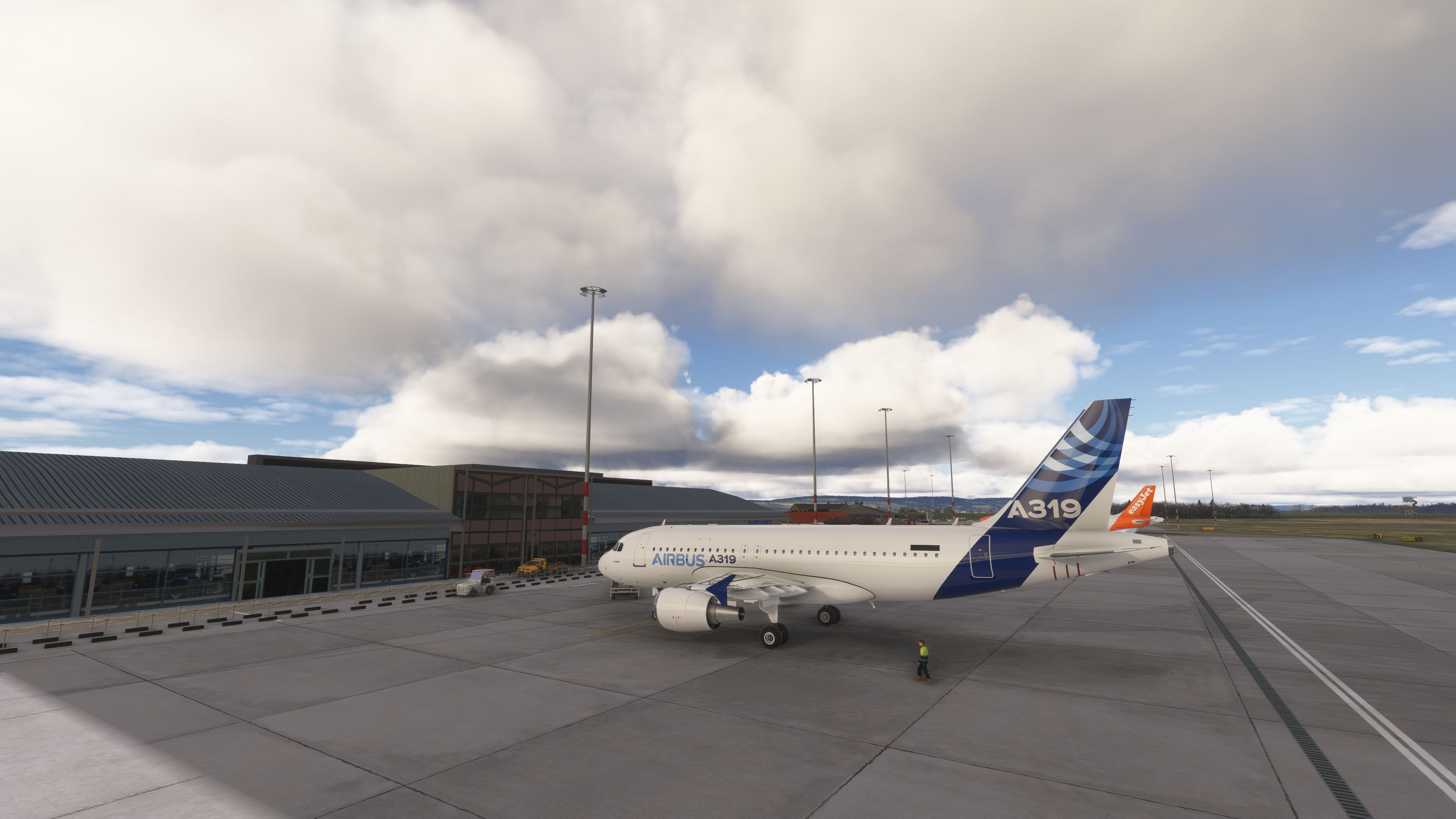
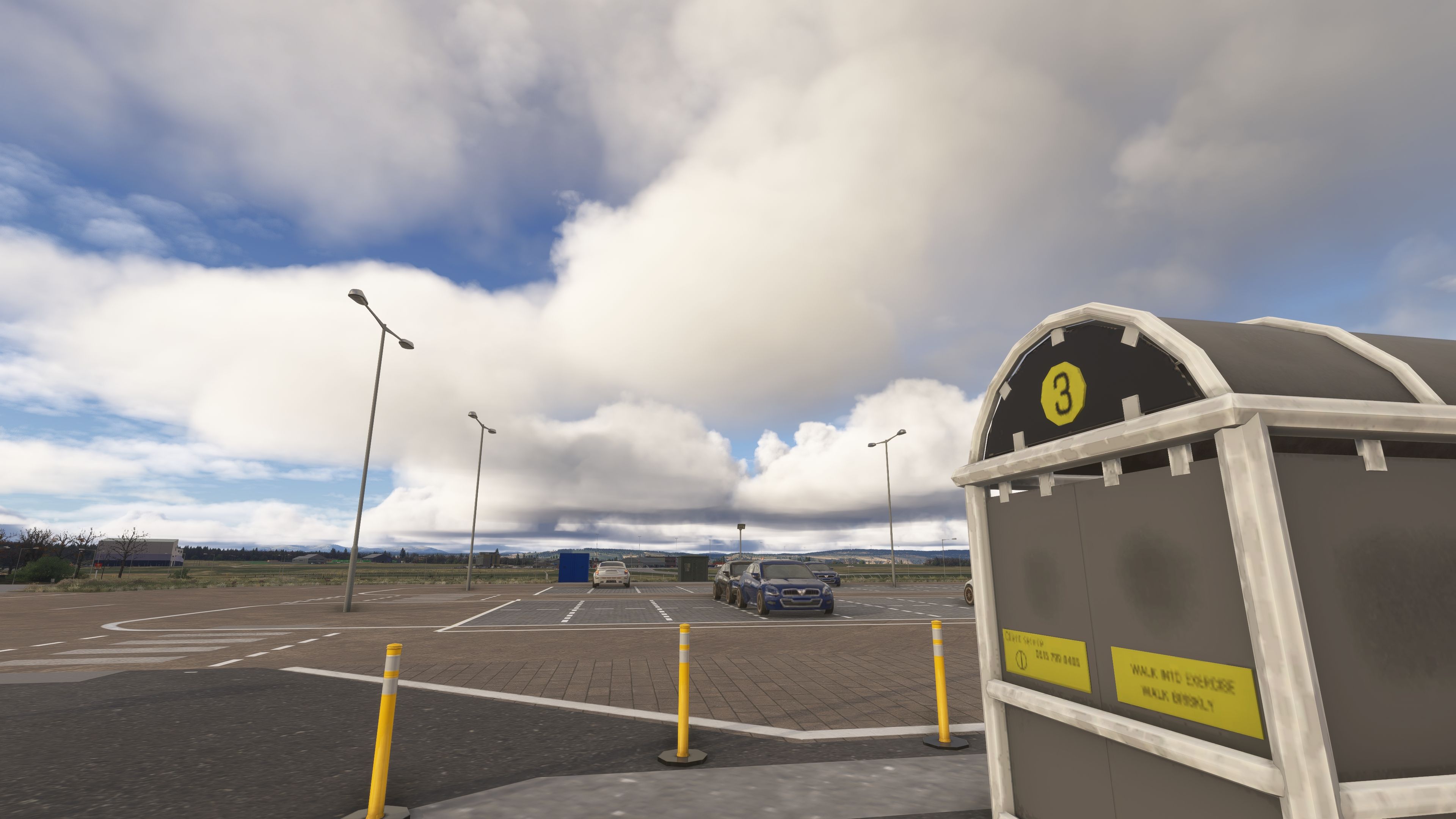
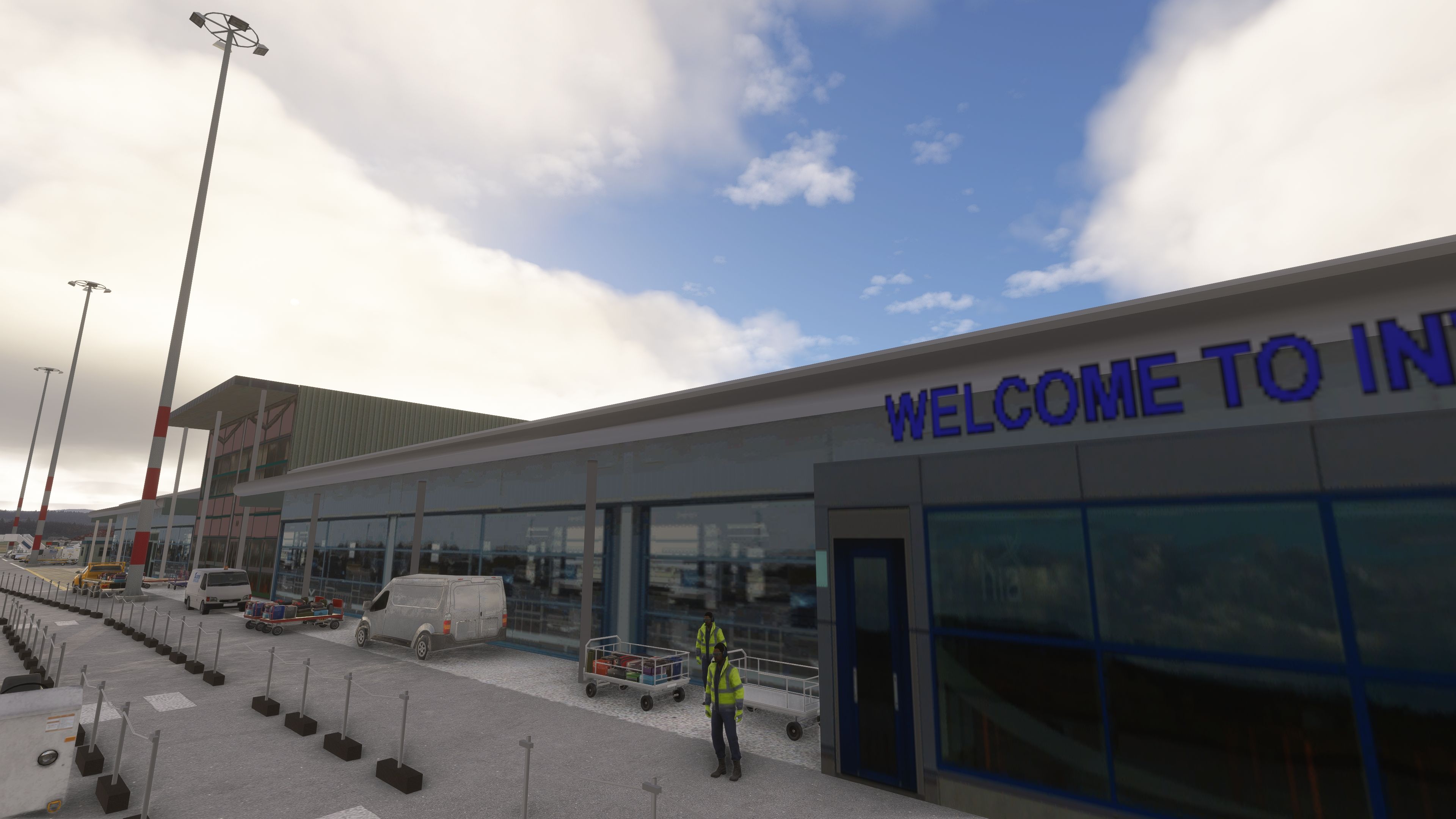
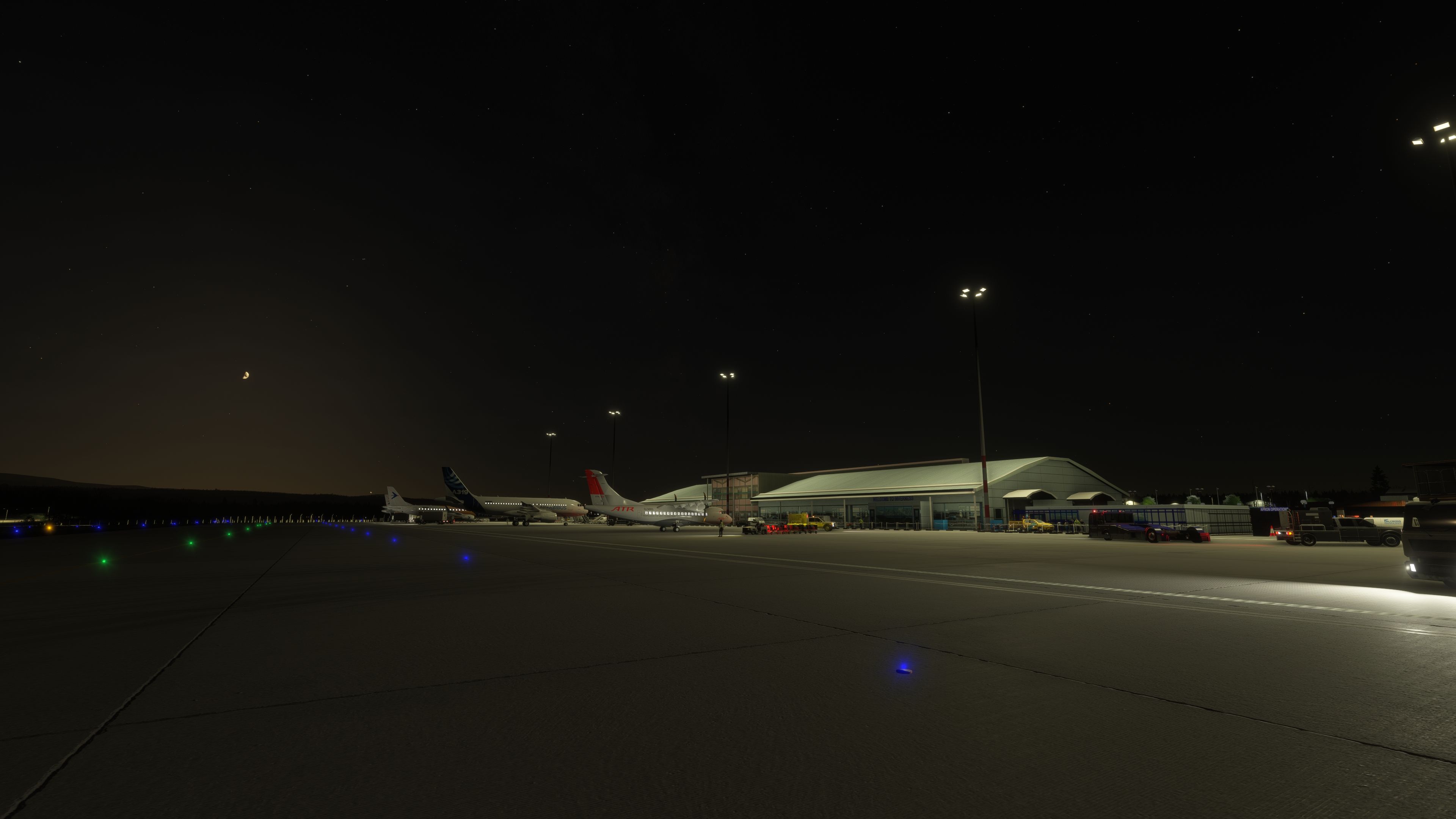
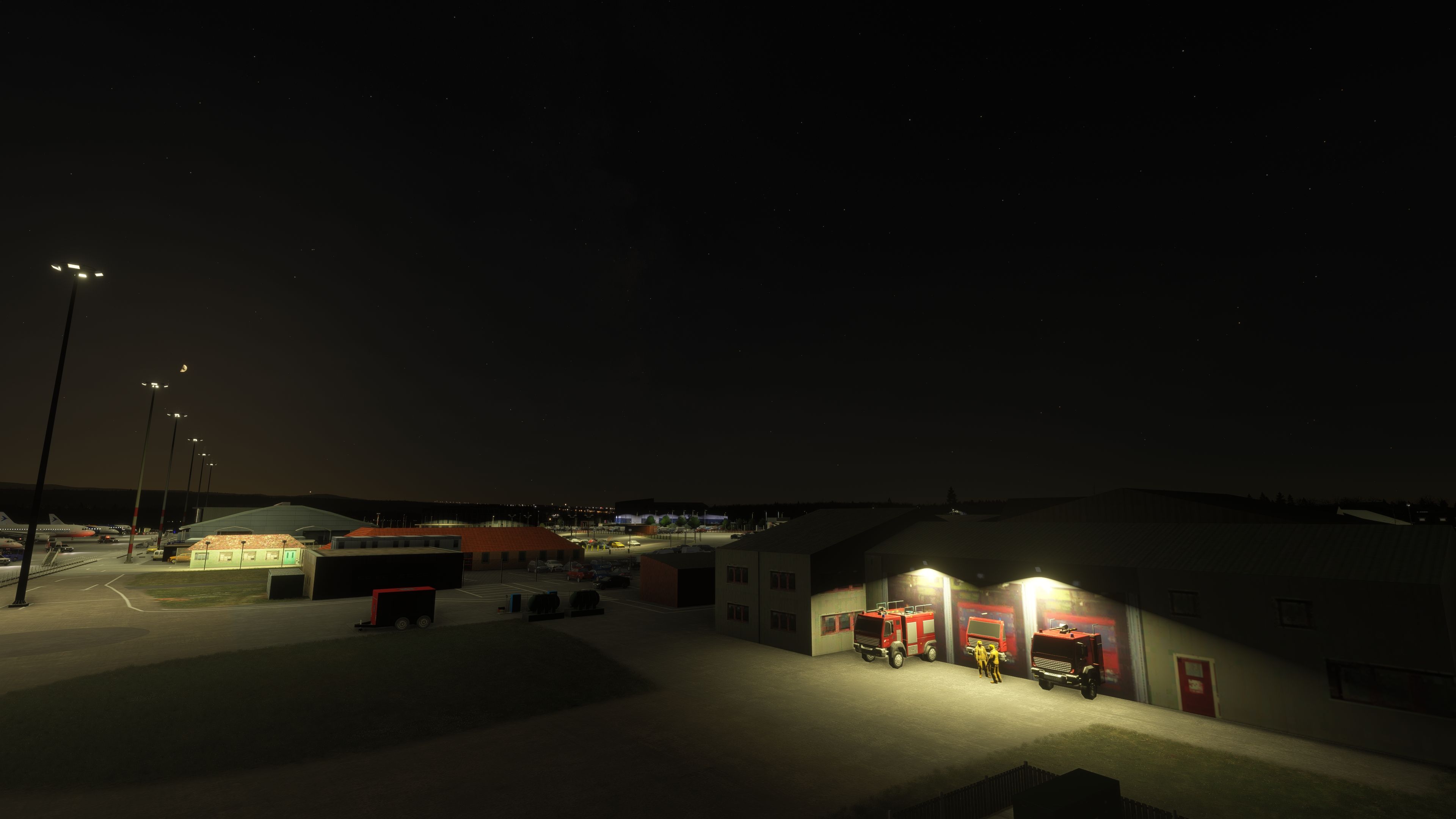
Scotflight’s freeware remake of Inverness Airport (EGPE) delivers a full, drop-in replacement for Microsoft Flight Simulator—covering both the 2020 release and the new Microsoft Flight Simulator 2024. Built with permission to appear on Fly Away Simulation, this update supersedes the earlier v2.0 and brings bespoke models, carefully mapped landside detail, and a coherent night environment across the whole airfield.
Situated at Dalcross, to the northeast of Inverness alongside the Moray Firth, EGPE is operated by Highlands and Islands Airports and supports a mix of regional, domestic, and seasonal leisure traffic. Typical scheduled services are flown by Loganair, easyJet, KLM, and British Airways, with additional holiday charters, an on-site flying club, and an active search-and-rescue presence. The scenery aligns the airfield’s operational layout and landside amenities with their real-world counterparts, providing a reliable base for IFR sectors or VFR tours into the Highlands.
This rendition focuses on authentic placement and geometry, swapping generic assets for custom-made structures across the campus. The developer has modeled and positioned core facilities as they appear on the ground, including the terminal and apron environment as well as the newer public transport links.
Full-field night lighting increases legibility after dark. The terminal and ancillary buildings carry suitable emissive effects, while apron and road lighting are tuned for practical visibility rather than excess brightness. The result is a usable nocturnal scene—ideal for winter timetables and early morning departures—without sacrificing performance.
The package includes dedicated builds for both simulator generations, ensuring compatibility with each platform’s asset pipeline and lighting model. As a complete overhaul, it is intended to replace prior iterations, including Scotflight’s previous v2.0 release. The developer has granted explicit permission for distribution here on Fly Away Simulation.
The archive contains separate versions for each simulator. Install only the version that matches your platform.
egpe-inverness_MSFS2024 into your Community folder.egpe-inverness_MSFS2020 into your Community folder.Because this scenery replaces stock EGPE assets, it is best used without other Inverness modifications active. The developer, Scotflight, has prioritized faithful building footprints, realistic traffic staging, and lighting behavior so that instrument procedures and apron operations feel consistent with the real airport environment.
Free for all simmers · 365.38 MB · Scanned clean Oct 2026
Download speed: Free tier is capped at 2 Mbps (this file takes approximately 26 mins at the cap). PRO members download at full line speed.
%LOCALAPPDATA%\Packages\Microsoft.FlightSimulator_8wekyb3d8bbwe\LocalCache\Packages\Community\. Steam version: %APPDATA%\Microsoft Flight Simulator\Packages\Community\. Tip: enable Developer Mode in MSFS to see your exact Community folder path.readme.txt or README file. It tells you exactly where files go, what dependencies are needed, and any quirks specific to this add-on.Use these coordinates to fly directly to this location once the mod is installed.
57.54200000,-4.04700000
Paste these coordinates into the Microsoft Flight Simulator search bar when planning a flight, or into the Developer Mode Teleport window, to fly directly to this location.
Only PRO members can place votes.
More MSFS add-ons hand-picked based on this download.
MSFS Scenery
This mod developed by JustOkayPilot brings Grand Canyon National Park Airport…
 MSFS Scenery
Sandane Airport (ENSD) is located on the beautiful west coast of Norway and i…
 MSFS Scenery
Enhance your flight simulation experience with this mod for Microsoft Flight …
 MSFS Scenery
The Disney World airport/STOLport (also known as the Lake Buena Vista airport…
 MSFS Scenery
Enhance your flight simulation experience with a detailed rendition of Madrid…
 MSFS Scenery
A complete and extensive replacement freeware scenery package for Paris–Le Bo…
 MSFS Scenery
A highly detailed rendition of Gainesville Regional Airport (KGNV), Florida (…
 MSFS Scenery
A rendition of George T. Lewis Airport for Microsoft Flight Simulator (MSFS) …
Be the first to leave a comment on this download.
Be the first to share your thoughts on this download.