

 FSX Scenery
Hamilton Municipal Airport
Hamilton Municipal Airport H30 (KVGC), Hamilton, New York (NY). An improved v…
Hamilton International Airport (NZHN) receives a tidy refresh for FSX, updating taxiway layouts and adding the CTC Aviation aprons for smoother ground operations. Both parallel runways 25R and 25L are included, while library-based buildings provide a clean, compatible airport footprint suited to everyday GA, training, and airline traffic.
 Rate
Rate
 New Zealand
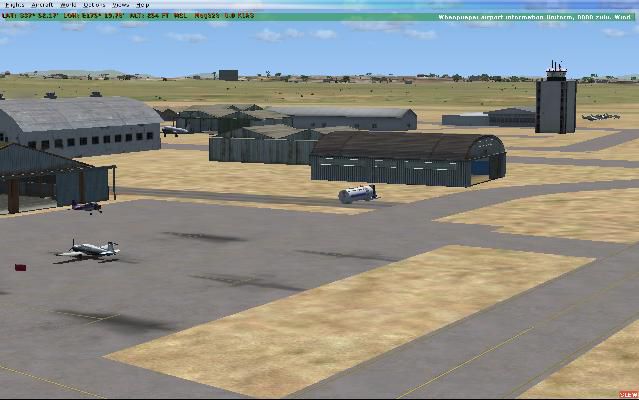
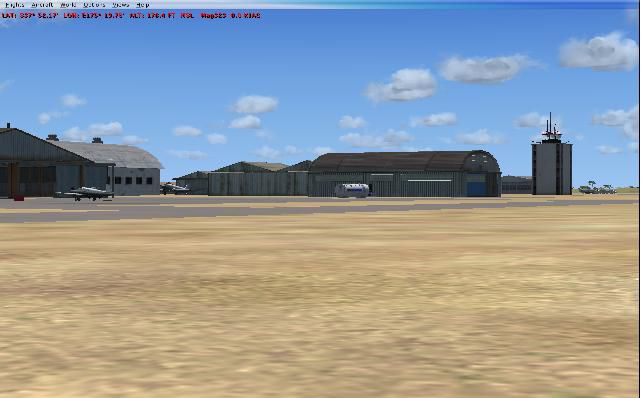
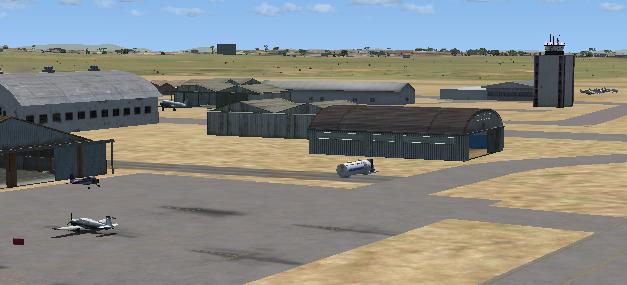
Hamilton International Airport (NZHN), New Zealand. This is just a relatively brief update to the standard airport. The taxiways have been updated (including with the CTC Aviation aprons) and both runways 25R and 25L have been included. All buildings are from within the FSX scenery library so therefore just generic in there appearance. Public Domain. By Matt Craven.
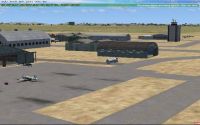
Hamilton International Airport Scenery.
Installation: Just copy the "Hamilton NZHN.bgl" file into Addon Scenery> Scenery folder within your installation directory and then load Hamilton airport as per usual.
This file is completely public domain and can be used as such for further development and distribution.
Best Regards,
Matt Craven
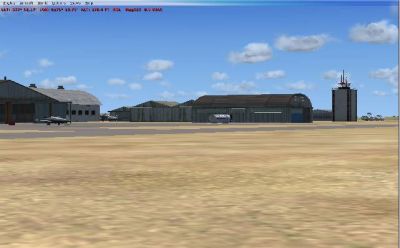
Hamilton International Airport Scenery.
Free for all simmers · 105.11 KB · Scanned clean Oct 2026
Download speed: Free tier is capped at 0.5 Mbps. PRO members download at full line speed.
FSX\Addon Scenery\ containing scenery and texture sub-folders.readme.txt or README file. It tells you exactly where files go, what dependencies are needed, and any quirks specific to this add-on.Use these coordinates to fly directly to this location once the mod is installed.
-37.86640000,175.33200000
Launch FSX or Prepar3D and use Flights → Load to open the downloaded .pln file. Your aircraft will be positioned at this location.
The archive nzhn2.zip has 8 files and directories contained within it.
This list displays the first 500 files in the package. If the package has more, you will need to download it to view them.
| Filename/Directory | File Date | File Size |
|---|---|---|
| NZHN | 12.11.08 | 0 B |
| Hamilton NZHN.bgl | 10.10.08 | 12.20 kB |
| Overview 2.jpg | 12.11.08 | 39.99 kB |
| Overview.jpg | 12.11.08 | 33.66 kB |
| Read Me.txt | 12.11.08 | 626 B |
| Thumb.jpg | 12.11.08 | 27.35 kB |
| flyawaysimulation.txt | 10.29.13 | 959 B |
| Go to Fly Away Simulation.url | 01.22.16 | 52 B |
Only PRO members can place votes.
More FSX & P3D add-ons hand-picked based on this download.
FSX Scenery
Hamilton Municipal Airport H30 (KVGC), Hamilton, New York (NY). An improved v…
 FSX Scenery
Ants Aussie Airports 13 - YHML Hamilton, Vic, Australia. Hamilton airport is …
 FSX Scenery
Princess Juliana International Airport (TNCM) in Saint Marteen, Netherlands A…
 FSX Scenery
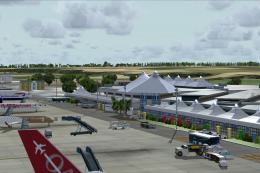
Barbados International Airport (TBPB). Grantley Adams International Airport f…
 FSX Scenery
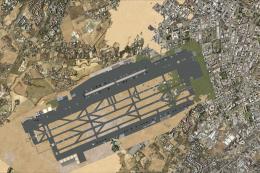
Dubai International Airport (OMDB), Dubai. Includes a new passenger terminal …
 FSX Scenery
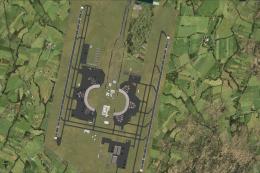
Soekarno-Hatta International Airport (WIII), Jakarta, Indonesia. An update to…
 FSX Scenery
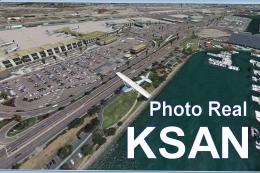
San Diego International Airport, California (CA), USA. This photoreal scenery…
 FSX Scenery
Suvarnabhumi International Airport (VTBS), Bangkok, Thailand, v1.1. Includes …
Be the first to leave a comment on this download.
Be the first to share your thoughts on this download.