

 MSFS Utilities & Tools
Fenix Airbus A320 Cold and Dark to APU Checklist
Flight Sim Academy’s free, printable checklist takes the Fenix Airbus A320 fr…
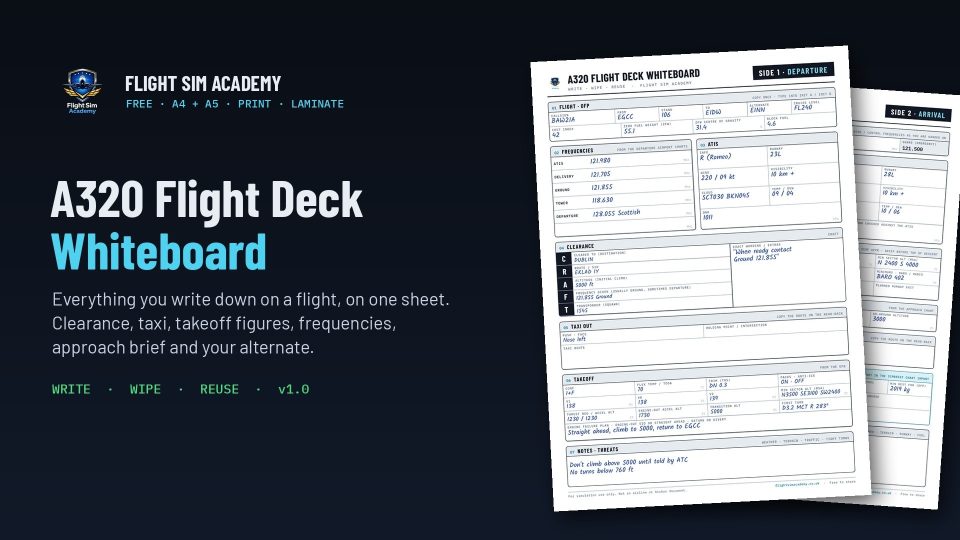
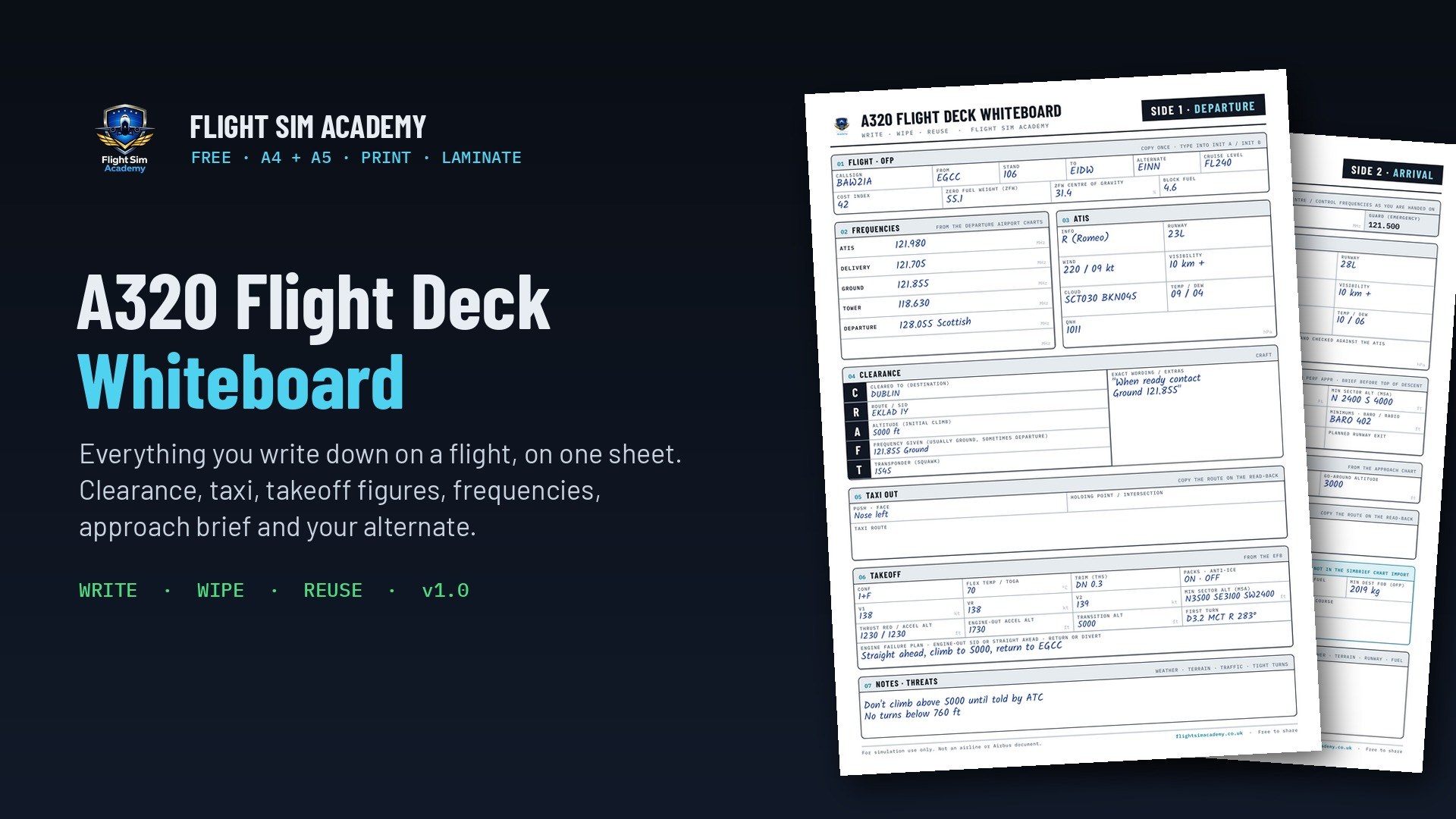
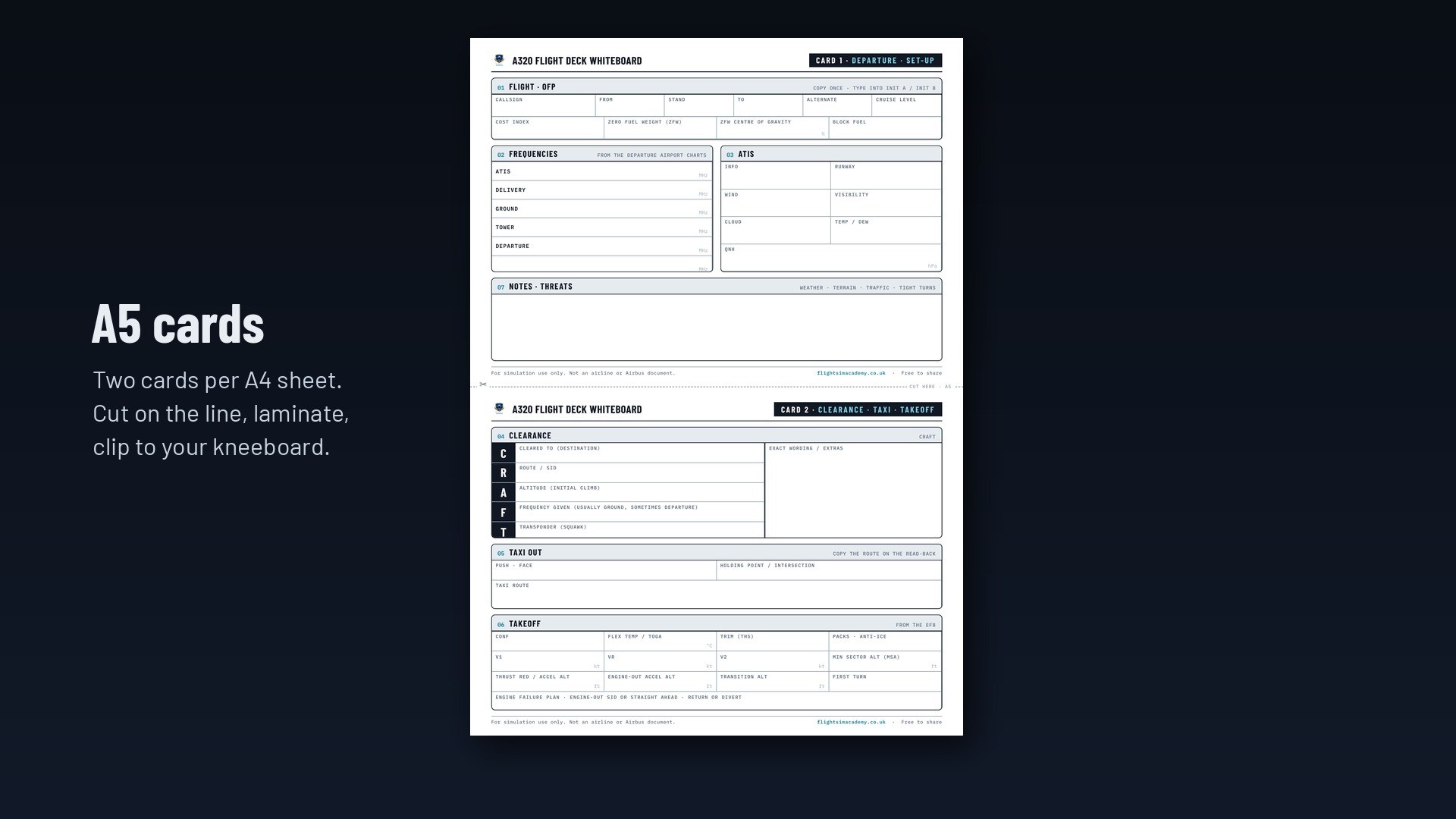
A320 flight deck planning cards organize departure, takeoff, arrival and alternate details around Fenix cockpit workflows in Microsoft Flight Simulator 2020 and 2024, with fields suited to other A320s. Printable, reusable double-sided A4 and compact A5 layouts, a tablet-friendly fillable PDF and a completed flight example bring OFP, clearance, performance and approach notes together for streamlined MCDU preparation.
 Rate
 By Flight Sim Academy
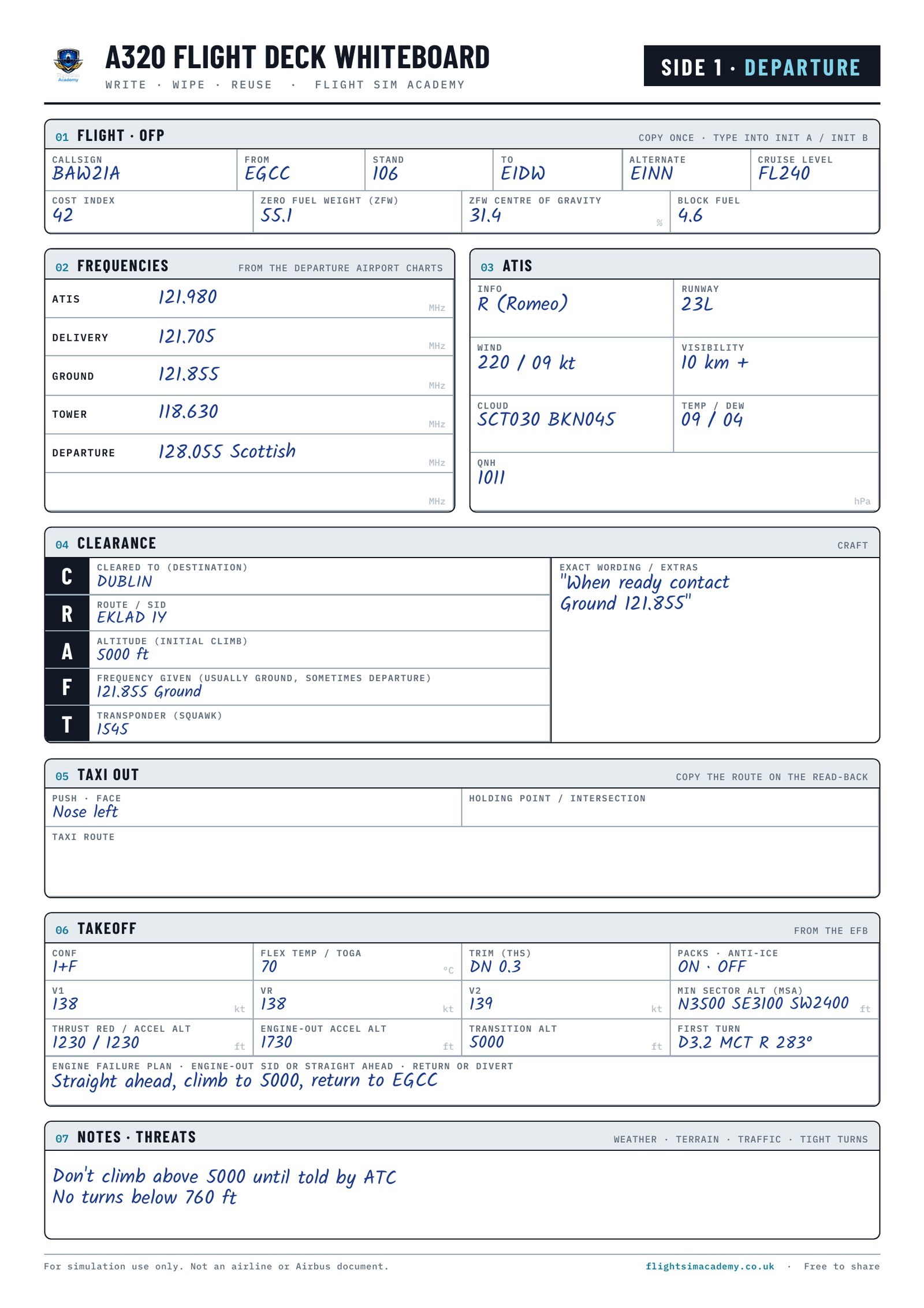

Working through INIT B in the Fenix, I reached for the EFB, then realized the weight and fuel figures were already on my card. That’s where the INIT A/B ordering earns its space. Copying the OFP figures takes effort up front, but I prefer that to interrupting MCDU entry to hunt through the flight plan.
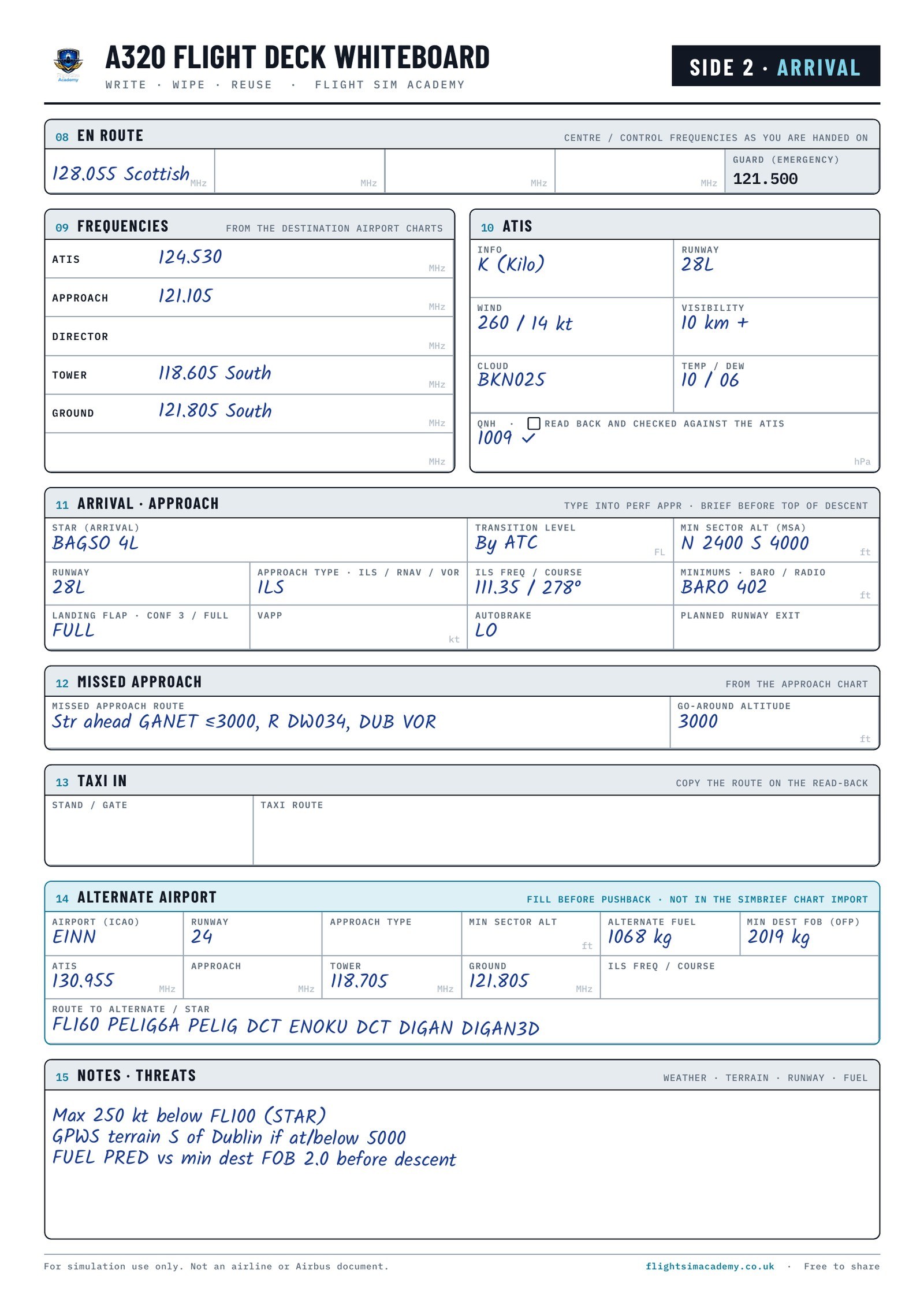
The alternate box gets my vote, too. Giving its runway, frequencies and fuel their own space makes alternate preparation harder to put off until airborne. I’d fill it before pushback, as prompted. The card still needs careful transcription; its value is keeping my notes in cockpit order, not doing the planning for me.
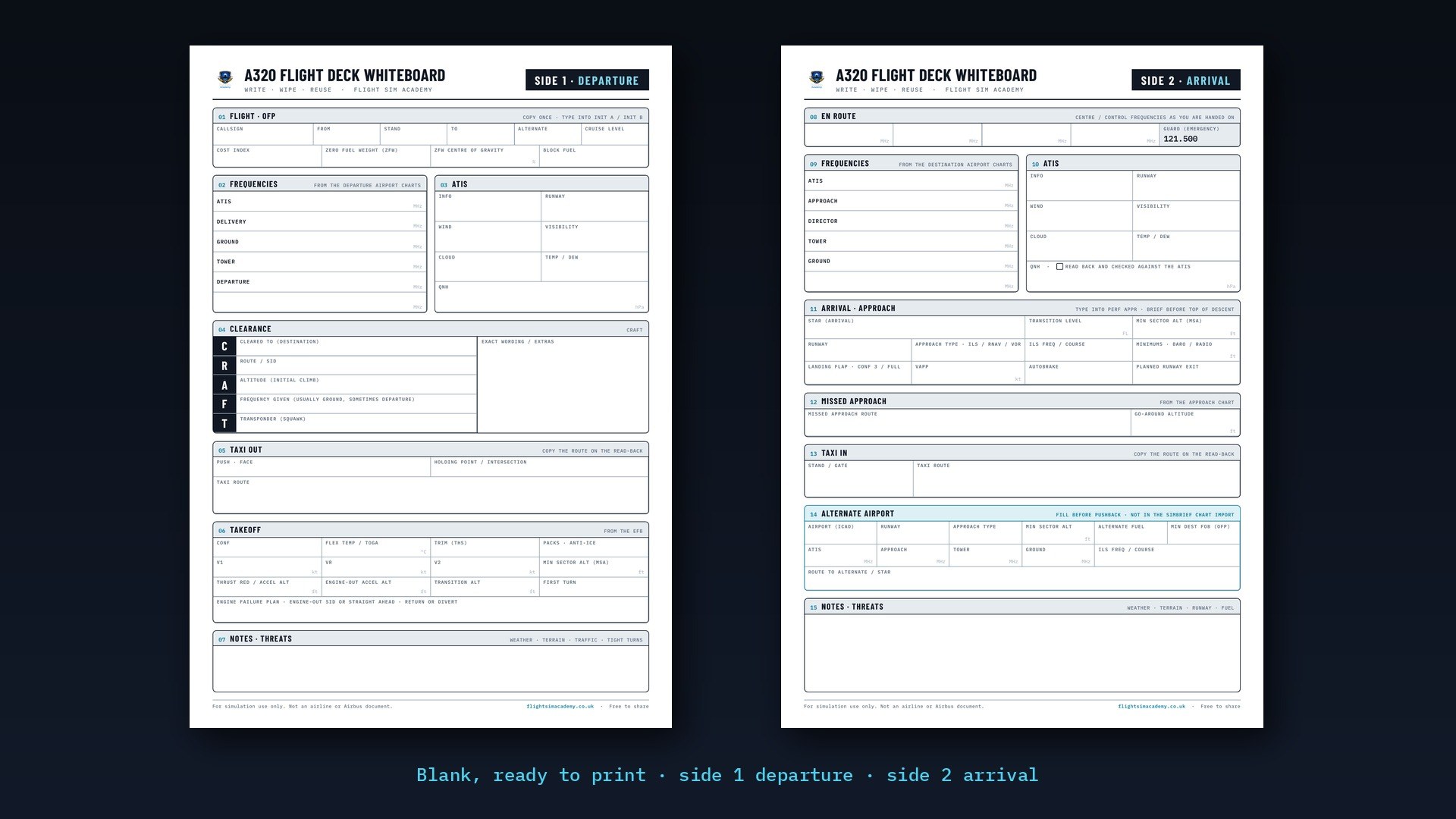
Flight Sim Academy’s A320 Flight Deck Whiteboard puts departure and arrival notes on a reusable, double-sided A4 sheet for Microsoft Flight Simulator 2020 and Microsoft Flight Simulator 2024. The free printable PDF follows the Fenix Airbus A320’s cockpit workflow, with fields also suited to FlyByWire, iniBuilds and other A320s.
Copy the operational flight plan (OFP) details onto the sheet once, then work through the MCDU setup without repeatedly returning to the EFB. These are PDF documents only; nothing installs into the simulator.
The departure side follows INIT A and INIT B entry order for flight and OFP details. It also has space for departure frequencies, ATIS, the clearance in CRAFT order (clearance limit, route, altitude, frequency and transponder code), and the taxi route.
The takeoff section takes figures straight from the EFB. Fields cover CONF, FLEX, V-speeds, trim, thrust reduction, engine-out acceleration, MSA, first turn and the engine failure plan.
The arrival side holds en route and destination frequencies, destination ATIS with a QNH cross-check, and an arrival and approach brief in PERF APPR order. There’s space for the missed approach and taxi-in notes, too. A separate alternate airport box covers runway, approach, frequencies and fuel. Fill that before pushback; Flight Sim Academy notes that SimBrief’s chart import never includes the alternate.
Print at 100% (actual size). Laminate the printed sheet and use a dry-wipe pen so you can wipe it clean for the next flight.
For simulation use only. Not an airline or Airbus document, and not affiliated with or endorsed by Airbus, Fenix Simulations, SimBrief or Navigraph.
Free for all simmers · 321.77 KB · Scanned clean Nov 2026
Download speed: Free tier is capped at 2 Mbps. PRO members download at full line speed.
v1.0 – First release. A4 double-sided card, A5 cut-out cards, fillable PDF and a filled-in EGCC–EIDW example.
%LOCALAPPDATA%\Packages\Microsoft.FlightSimulator_8wekyb3d8bbwe\LocalCache\Packages\Community\. Steam version: %APPDATA%\Microsoft Flight Simulator\Packages\Community\. Tip: enable Developer Mode in MSFS to see your exact Community folder path.readme.txt or README file. It tells you exactly where files go, what dependencies are needed, and any quirks specific to this add-on.Flight Sim Academy makes training tools for the Fenix A320 in MSFS. Our free startup checklist takes you from cold and dark to the APU running, with a short note on every item.
Are you Flight Sim Academy? Sign in to Fly Away Creators for download stats, comment replies and updates. Make add-ons? Publish them here.
Only PRO members can place votes.
More MSFS add-ons hand-picked based on this download.
MSFS Utilities & Tools
Flight Sim Academy’s free, printable checklist takes the Fenix Airbus A320 fr…
 MSFS Utilities & Tools
Max Flight Deck Lite sends Microsoft Flight Simulator 2024 cockpit screens to…
 MSFS Utilities & Tools
PERFLIGHT from Innersanctum Studios handles mod selection, flight-service lau…
 MSFS Utilities & Tools
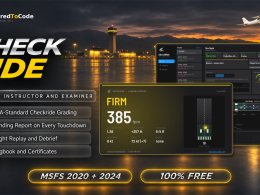
CheckRide records and grades your flights in Microsoft Flight Simulator 2020 …
 MSFS Utilities & Tools
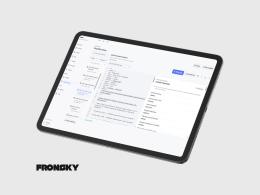
Fronsky EFB runs alongside Microsoft Flight Simulator 2020 and Microsoft Flig…
 MSFS Utilities & Tools
ClearedtoCode’s CTC HEMS Dispatch runs medical helicopter assignments for the…
 MSFS Civil Jet Aircraft
dmeh_liveries has painted Tunisair’s TS-IMS for the Fenix Airbus A320-214 CFM…
 FSX Misc
Checklists for the Lotus Simulations' Aero Vodochody L39 Albatros, formatted …
Be the first to leave a comment on this download.
Be the first to share your thoughts on this download.