


 Romania
  FSX Scenery
Princess Juliana International Airport
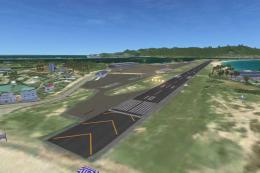
Princess Juliana International Airport (TNCM) in Saint Marteen, Netherlands A…
Oradea Airport (LROD) scenery refreshes the Romanian airfield in FSX with a closer-to-real layout built on the stock base, featuring updated buildings, connecting paths, and extra ground details. Expanded airport boundaries, subtle remnants of the former runway, and a small secondary apron for light GA parking round out the upgrade.
Oradea Airport, Romania (LROD). Based on the stock airport, modified to better match the real airport. Added / modified buildings and added paths between them. Added a few extra scenery elements resembling reality. Extended airport extents and added traces of an old, no longer existing runway. Not present in reality, a small second apron was added to hold very small GA parking spots. In FSX the airport unfortunately appears as reaching into the city of Oradea, which actually is not the case in reality, where the city ends further north. By Ana Gana.
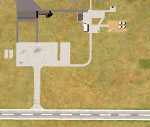
Oradea Airport Scenery.
Copy the .bgl files into your FSX Addon Scenery/scenery folder.
(usually "C:\Program Files\Microsoft Games\Microsoft Flight Simulator X\Addon Scenery\scenery").
The airport will replace the respective stock airport after the next FSX start.
These files are in the Public Domain. You may do whatever you wish with them.
Ana Gana
Free for all simmers · 22.96 KB · Scanned clean Oct 2026
Download speed: Free tier is capped at 0.5 Mbps. PRO members download at full line speed.
FSX\Addon Scenery\ containing scenery and texture sub-folders.readme.txt or README file. It tells you exactly where files go, what dependencies are needed, and any quirks specific to this add-on.Use these coordinates to fly directly to this location once the mod is installed.
47.02530000,21.90250000
Launch FSX or Prepar3D and use Flights → Load to open the downloaded .pln file. Your aircraft will be positioned at this location.
The archive noname87.zip has 7 files and directories contained within it.
This list displays the first 500 files in the package. If the package has more, you will need to download it to view them.
| Filename/Directory | File Date | File Size |
|---|---|---|
| oradeaag.gif | 06.03.08 | 18.01 kB |
| readme.txt | 06.03.08 | 592 B |
| LROD_ADE_SB__Oradea.BGL | 06.03.08 | 5.69 kB |
| LROD_ADE_SB__Oradea_CVX.bgl | 06.03.08 | 891 B |
| FILE_ID.DIZ | 06.03.08 | 582 B |
| flyawaysimulation.txt | 10.29.13 | 959 B |
| Go to Fly Away Simulation.url | 01.22.16 | 52 B |
Only PRO members can place votes.
More FSX & P3D add-ons hand-picked based on this download.
FSX Scenery
Princess Juliana International Airport (TNCM) in Saint Marteen, Netherlands A…
 FSX Scenery
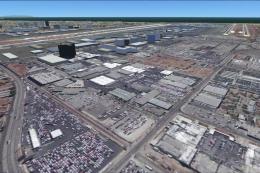
Los Angeles Airport Scenery v3, California (CA). This photoreal scenery is a …
 FSX Scenery
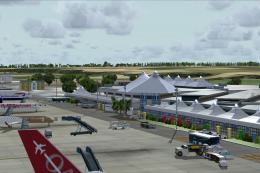
Barbados International Airport (TBPB). Grantley Adams International Airport f…
 FSX Scenery
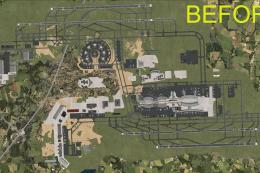
Paris Charles de Gaulle Airport (CDG, LFPG), France. The entire airport has b…
 FSX Scenery
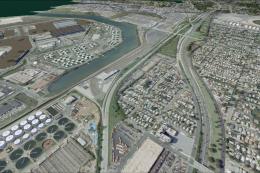
John F. Kennedy Airport (KJFK), New York, NYU. This is a photoreal scenery re…
 FSX Scenery
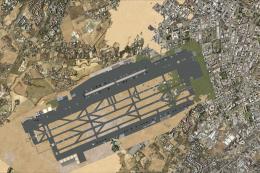
Dubai International Airport (OMDB), Dubai. Includes a new passenger terminal …
 FSX Scenery
Soekarno-Hatta International Airport (WIII), Jakarta, Indonesia. An update to…
 FSX Scenery
San Diego International Airport, California (CA), USA. This photoreal scenery…
Be the first to leave a comment on this download.
Be the first to share your thoughts on this download.